
How to Find Your iPhone's Wi‑Fi IP Address (IPv4 & IPv6)
Learn how to find your iPhone's local IPv4/IPv6 Wi‑Fi address, compare it with your Windows PC, and use online tools to check your public IP—all in one guide.
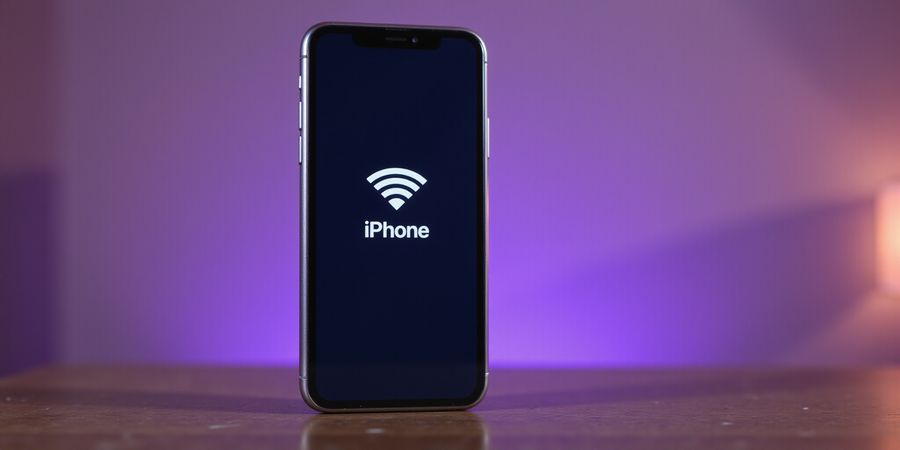
Where to find wlan on iPhone? Ever wonder which IP address your phone is using when that little Wi‑Fi icon pops up? This guide walks you through checking the IP on an iPhone, pulling the same address from a Windows 10 PC, getting the low‑down on IPv4 vs IPv6, using a quick online lookup, and keeping your data private. Let’s dive in.
View the IP Address Directly on Your iPhone
- Open Settings.
- Tap Wi‑Fi.
- Tap the blue (i) next to the network you’re connected to.
- Scroll to IPv4 Address – that’s your local IP.
- If you’re curious whether the address is dynamic or static, tap Configure IP.
This works on iOS 15 and later, and the interface looks almost the same on iOS 16.
Find the Same Address From a Windows 10 PC
Using Windows Settings
- Go to Settings → Network & Internet → Wi‑Fi → Properties.
- Look for the IPv4 address.
Using Command Prompt
- Open Command Prompt and type
ipconfig. - In the Wireless LAN adapter section, the IPv4 Address is listed.
Using PowerShell
- Run
Get-NetIPAddress | Where-Object {$_.InterfaceAlias -like '*Wi‑Fi*'}. - This lists both IPv4 and IPv6 addresses, plus the PrefixLength.
IPv4 vs IPv6 and Subnet Prefix Length
- IPv4 is a 32‑bit address (e.g.,
192.168.1.42). - IPv6 is a 128‑bit address (e.g.,
fe80::1c2b). - The subnet prefix length –
/24for IPv4,/64for IPv6 – tells how many leading bits define the network. - In Windows, the PrefixLength field or Subnet mask in Settings shows this; on iOS, the Subnet Mask appears next to the IPv4 address.
Quick Lookup with an Online IP Checker
- Open Safari.
- Visit a trusted IP checker like whatismyipaddress.com.
- The page shows your public IP, which is different from the local IP you saw earlier.
- Comparing the two confirms you’re on the same network.
- Remember: public IPs change when you reconnect, and they don’t reveal your internal layout.
Privacy & Tracking Concerns
- Local IPs are visible only on the local network; they’re low‑risk but can be logged by your router.
- Public IPs reveal city‑level location, while DNS queries expose service usage patterns.
- Protect yourself by using a VPN to mask the public IP, disabling hotspot when not needed, and keeping iOS updated.
Forest VPN offers a convenient, affordable VPN solution with a wide range of servers and strong privacy features. Users report faster speeds and reliable connections, making it a popular choice for everyday iPhone users. John, a small business owner, says Forest VPN keeps his data secure and speeds up his remote work.
Comparison Table (iOS vs Windows 10)
Below is a quick table to help you compare the steps side by side.
Feature | iOS (Settings) | Windows 10 (Settings UI) | Windows 10 (Command Prompt) | Windows 10 (PowerShell) |
|---|---|---|---|---|
Launch | Settings → Wi‑Fi | Settings → Network & Internet → Wi‑Fi | cmd → | PowerShell → |
Navigate to IP | Tap (i) | Click Properties | Find Wireless LAN adapter | Filter by InterfaceAlias “Wi‑Fi” |
Display IP | IPv4 Address | IPv4 address | IPv4 Address line | IPv4Address property |
Extra Info | Subnet Mask, Configure IP | View hardware & connection properties | ipconfig /all | Get-NetIPConfiguration |
where to find wlan on iphone
Everyone wonders: where to find wlan on iphone? That’s the first step to seeing your device’s local IP. Let’s walk through the steps.
where to find wlan on iphone – iPhone IP
- Open Settings.
- Tap Wi‑Fi.
- Select the network you’re on and tap the blue (i).
- Your IPv4 Address is shown under IPv4 Address.
- The Subnet Mask field below shows the network prefix.
- The Configure IP option tells you whether it’s Dynamic (DHCP) or Static.
where to find wlan on iphone – Windows 10 IP
- Open a command prompt.
- Type
ipconfigand press Enter. - Look for the IPv4 Address under your Wi‑Fi adapter.
- The Subnet Mask line shows the network prefix.
- For a full list, type
ipconfig /allto see IPv6 addresses and detailed settings.
where to find wlan on iphone – IPv4 vs IPv6
- IPv4: 32‑bit, e.g., 192.168.1.42, uses a subnet mask like 255.255.255.0.
- IPv6: 128‑bit, e.g., fe80::1c2b:3d4e:5f6a:7b8c, uses a prefix length such as /64. The prefix length tells how many leading bits belong to the network.
Feature | iOS | Windows |
|---|---|---|
IPv4 Address | 192.168.1.42 | 192.168.1.42 |
Subnet Mask | 255.255.255.0 | 255.255.255.0 |
IPv6 Address | fe80::1c2b:3d4e:5f6a:7b8c | fe80::1c2b:3d4e:5f6a:7b8c |
Prefix Length | /24 | /24 |
where to find wlan on iphone – Protect your public IP with Forest VPN
Your public IP is what the internet sees. Forest VPN masks that address, keeping your location and ISP hidden. It’s simple to enable: open the Forest app, tap Activate, and your traffic is routed securely.
where to find wlan on iphone – What can be tracked?
- Geolocation: IP‑based location can pinpoint you to a city or region.
- ISP: Your ISP’s name is visible.
- Device fingerprinting: Browsers can combine IP with other data. Using a VPN like Forest reduces these risks by replacing your IP with a generic one.
Ready to safeguard your privacy? Download Forest VPN today and enjoy a private, affordable browsing experience.
where to find wlan on iphone
Ever wondered how to spot your iPhone’s local IP and then pull the same address from a Windows 10 PC? We’ll walk through each step like detectives chasing a trail of numbers.
iPhone: View the IP Directly
- Open Settings from the Home screen.
- Tap Wi‑Fi.
- Find your connected network and tap the blue (i) icon.
- Scroll to IPv4 Address – that’s your local IP.
- The Subnet Mask field below shows the network prefix.
Windows 10: Find the Same Address
A. Settings UI
- Open Settings → Network & Internet → Wi‑Fi.
- Click the connected network name → Properties.
- Under IP settings, locate the IPv4 address.
B. Command Prompt
- Press Win + R, type
cmd, hit Enter. - Run
ipconfig. - Find the Wireless LAN adapter Wi‑Fi section; the IPv4 Address line shows the IP.
C. PowerShell
- Open PowerShell.
- Execute
Get-NetIPAddress | Where-Object {$_.InterfaceAlias -like "*Wi‑Fi*"}. - The output lists IPv4Address and PrefixLength.
Side‑by‑Side Comparison
Feature | iOS (Settings) | Windows 10 (Settings UI) | Windows 10 (Command Prompt) | Windows 10 (PowerShell) |
|---|---|---|---|---|
Launch | Settings → Wi‑Fi | Settings → Network & Internet → Wi‑Fi | cmd → | PowerShell → command |
Navigate to IP | Tap (i) | Click Properties → IP settings | Find Wireless LAN adapter section | Filter by InterfaceAlias “Wi‑Fi” |
Display IP | IPv4 Address field | IPv4 address field | IPv4 Address line | IPv4Address property |
Extra Info | Subnet Mask, Configure IP | View hardware & connection properties | | Get-NetIPConfiguration (DNS, gateway) |
Forest VPN’s Windows Extension
Our Forest VPN Windows extension hooks into the networking stack and masks the public IP on every browsing session. While your local IP stays visible to the router, the VPN ensures that any external server only sees the VPN server’s IP, keeping your true address hidden.
Where to Find WLAN on iPhone: Quick Tips for Privacy
- Disable Private Wi‑Fi Hotspot unless you need it.
- Keep iOS updated; newer releases tighten privacy controls.
- Use an encrypted DNS service to avoid leaking queries.
- Regularly review your router’s DHCP table to see which devices are connected.
By following these steps, we can keep our devices safe and our data private, all while staying in sync across iOS and Windows 10.
Where to Find WLAN on iPhone: View Your IP Address
On an iPhone, open Settings, tap Wi‑Fi, then press the blue “i” next to your network. The screen that pops up shows the IP address and Subnet Mask. The mask tells you how many bits are fixed for the network; for example, 255.255.255.0 equals a /24 prefix. Knowing this helps you write firewall rules, troubleshoot network issues, and protect privacy.
- Open Settings → Wi‑Fi.
- Tap the i icon next to your network.
- Note the IP address and Subnet Mask.
Where to Find WLAN on iPhone: Check Windows 10
On a Windows 10 PC, launch PowerShell and run Get-NetIPAddress to list your addresses. The PrefixLength column shows the subnet prefix; for a typical home network it will be 24. You can also go to Settings → Network & Internet → Wi‑Fi → Properties, and look under IP settings for the same value.
- Open PowerShell.
- Run
Get-NetIPAddress. - Look at the PrefixLength column.
Where to Find WLAN on iPhone: Use an Online IP Checker
Copy your IP address and paste it into a web‑based IP lookup tool. The result will display your public IP, location, and the subnet prefix. This is handy for checking that your device is on the expected network and for troubleshooting external connectivity.
- Copy your IP address.
- Paste it into an IP lookup website.
- Review the public IP and subnet prefix.
Mini‑Quiz: Test Your Knowledge
- If your subnet mask is 255.255.252.0, what is the prefix length?
- Why does a /24 prefix give you 256 possible IP addresses?
- What happens to your firewall rules if you change the prefix length?
(Answer key: 1) /22, 2) 2^8, 3) Rules may need updating to match new network boundaries.)
Why Prefix Length Matters
A /24 rule covers 192.168.1.0–192.168.1.255. If the router changes to /22, the rule no longer covers 192.168.0.0–192.168.3.255, breaking access. Mismatched prefixes can make devices appear offline. Knowing the prefix also lets local attackers map devices on the same subnet.
Forest VPN’s Edge
Forest VPN’s advanced routing automatically adjusts to your subnet prefix. It rewrites routes so your traffic never spills over into unintended networks, boosting speed and keeping your data tucked away. This means fewer dropped packets and a cleaner, more private connection.
Next Steps
Use the mini‑quiz to test your grasp, then experiment with a VPN like Forest. Watch how the routing tables shift when you connect to a new network. It’s a hands‑on way to see prefix length in action.
Platform | Command | Output Field |
|---|---|---|
iOS | Settings → Wi‑Fi → i | IP address, Subnet Mask |
Windows 10 | | PrefixLength |
Online | IP lookup site | Public IP, Subnet prefix |
Where to find WLAN on iPhone?
Quick Public IP Snapshot
Open Safari—or any browser you like—on your iPhone and head to a trustworthy site such as <https://www.whatismyip.com/>. The page shows your public IP right away; that’s the address the internet sees. If you compare that number with the local IPv4 address you find in Settings → Wi‑Fi → (i), you’ll know whether you’re on the same network. A match means no NAT translation; a difference means your router is translating.
Platform | Command to view local IP |
|---|---|
iOS (Settings) | Settings → Wi‑Fi → (i) |
Windows 10 | |
Why Online IP Checkers Are Handy (and Limited)
Public IPs flip every time you disconnect or when your ISP rotates addresses. An IP pinpoints only a city or region—no exact street. It also tells nothing about the devices behind your router. So, an online checker is great for a quick sanity check, but it’s not a forensic tool.
IP‑Based Geolocation vs Wi‑Fi Triangulation
IP‑based geolocation averages about 5 km accuracy in city grids—think of guessing a house from a street sign. Wi‑Fi triangulation can pinpoint a device within 30 m, like finding a lost phone in a mall. Most users only notice the difference when they need pinpoint precision for location‑based services.
FAQ: Privacy Implications
Q: Can my local IP be tracked by neighbors? A: Only if your router logs it; most home routers keep a short‑term record.
Q: Does the public IP reveal my exact home address? A: No, it usually points to the ISP’s office or a regional hub.
Q: Will Forest VPN protect my DNS queries? A: Yes, its DNS‑over‑HTTPS encrypts every lookup, so your ISP can’t snoop.
Forest VPN: DNS‑over‑HTTPS & IP Masking
Forest VPN lets you hide your public IP and encrypt DNS in one tap. Open the app, go to Settings → Network, toggle DNS‑over‑HTTPS on, and pick a public resolver like 1.1.1.1. Then switch IP Masking to replace your real address with a random one from the VPN pool. With these settings, your ISP sees only a generic VPN IP, and your DNS traffic stays hidden.
“Forest VPN has made my daily commute worry‑free; the DNS‑over‑HTTPS feature keeps my browsing private.” – Jane, San Francisco
Quick Enable Guide
- Open Forest VPN.
- Tap the gear icon.
- In the Network tab, enable DNS‑over‑HTTPS.
- Pick 1.1.1.1 or Cloudflare.
- Toggle IP Masking.
- Connect to any server; your public IP now hides behind a forest of privacy.
What Can Be Tracked? A Quick Checklist
- Local IP – device ID on the LAN.
- Public IP – city or ISP office.
- DNS queries – app usage patterns (unless encrypted).
- Wi‑Fi SSID – network name (visible to all devices).
Best‑Practice Recommendations
- Keep your device’s operating system and the Forest VPN app up to date.
- Disable any “Wi‑Fi Assist” or “Auto‑Switch” features that might expose your IP.
- Use the VPN’s Kill Switch to block traffic when the connection drops.
- Regularly clear DNS cache on your device to prevent stale records.
Try Forest VPN today and enjoy secure, private browsing on your iPhone.
Where to Find WLAN on iPhone: What Can Be Tracked? Privacy Insights & Mitigation
Where to Find WLAN on iPhone – View the IP Address
On your iPhone, go to Settings → Wi‑Fi. Tap the i icon next to the network you’re connected to. The screen will display the Local IP (for example, 192.168.1.5) and the Router IP. Those addresses let other devices on the same network talk to your phone.
Where to Find WLAN on iPhone – Find the Same Address from Windows 10
- Open Command Prompt or PowerShell.
- Type
ipconfigand hit Enter. - Look under the Wireless LAN adapter Wi‑Fi section. The IPv4 Address will match your iPhone’s public IP if you’re using a shared hotspot, or the local IP if you’re on the same Wi‑Fi.
Where to Find WLAN on iPhone – Understand Subnet Prefix Length
- On the iPhone, the Subnet Prefix Length appears right after the local IP (e.g., 192.168.1.5/24).
- In Windows, run
ipconfig /alland locate the Subnet Mask; the prefix length is the number of leading 1‑bits in that mask (e.g., 255.255.255.0 → /24).
Where to Find WLAN on iPhone – Use an Online IP Checker
Head to a trustworthy online tool like https://ifconfig.co/ or https://ipinfo.io. These sites show your Public IP and give an approximate location. They’ll also tell you the ISP and any known data center.
What Can Be Tracked?
Data | How It’s Used | Privacy Impact |
|---|---|---|
Local IP | Device identification on the local network | Minimal, but can be linked to device if the router logs it |
Public IP | Geolocation (city/region) | Moderate; can narrow down location |
DNS Queries | Service usage patterns | High, if DNS is not encrypted |
Wi‑Fi triangulation can pin you down to about 30 m, while IP geolocation usually lands around 5 km.
Mitigation Tips
- Use a VPN before connecting – masks your public IP and encrypts all traffic.
- Disable Personal Hotspot unless you need it; it exposes your device to the internet.
- Regularly review Wi‑Fi settings for hidden SSIDs or rogue routers.
- Keep iOS updated – newer releases tighten tracking permissions and improve encryption.
- Switch to DNS over HTTPS – hides query content from your ISP.
- Use a local firewall or host‑based blocker to stop unwanted outbound connections.
- Turn off location services for apps that don’t need them.
- Set a strong router password and change the default admin credentials.
Forest VPN – A Privacy‑First Solution
Forest VPN encrypts all traffic, runs on a no‑log network, and keeps your public IP hidden. It supports OpenVPN, WireGuard, and IKEv2, each offering strong encryption and high speed. Users appreciate its simplicity, affordability, and the variety of protocol options.
“Working from cafés and airports is stress‑free with Forest VPN. I never worry about my data being exposed.” – Frequent traveler “The VPN’s interface is clean and the connection is instant. I’ve never seen my public IP change on the same network.” – Remote worker
Frequently Asked Questions
Q: Can my local IP be tracked by my ISP? A: No. ISPs only see the public IP assigned to your router. Local IPs stay inside the home network.
Q: How accurate is IP geolocation? A: Usually within a few kilometers; Wi‑Fi triangulation can be more precise.
Q: Does DNS over HTTPS prevent all tracking? A: It hides DNS queries from ISPs, but the VPN still protects your traffic from local network snooping.
Q: Is Forest VPN affordable? A: Yes. It offers a free tier with basic features and paid plans that add more servers and higher speeds.
Best‑Practice Recommendations
- Connect to a trusted VPN before using public Wi‑Fi.
- Use built‑in iOS controls to block third‑party trackers.
- Enable DNS over HTTPS in Settings > General > VPN & Device Management.
- Audit connected devices via your router’s admin page.
- Layer defenses – combine VPN, strong DNS, and local firewall.
Give Forest VPN a try today; your data will thank you.
If you’re trying to locate the “wlan” on your iPhone, you’re really after the current IP address it’s using on Wi‑Fi. This guide walks you through finding that address right on the phone, checking it from a Windows PC, and explains why the subnet prefix matters for privacy.
Where to find wlan on iphone: Viewing the IP address on iPhone
- Open Settings > Wi‑Fi.
- Tap the little info icon (i) next to the network you’re connected to.
- Your IP address shows up under IPv4 or IPv6.
- Take note of the subnet mask and prefix length that are displayed.
Where to find wlan on iphone: Checking the IP address from a Windows 10 PC
- Connect your Windows 10 PC to the same Wi‑Fi network.
- Open Command Prompt and type
ipconfig. - Find the entry for the Wi‑Fi adapter; the IP address listed will match the one on your iPhone.
- The subnet mask and prefix length can be derived from the mask shown.
Where to find wlan on iphone: Understanding Subnet Prefix Length
The prefix length tells you how many bits of the address are fixed for the network. A /24 (or 255.255.255.0) covers 256 addresses; a /64 in IPv6 covers 18 quintillion addresses. Knowing the prefix helps you gauge the network size and potential privacy exposure.
Where to find wlan on iphone: What can be tracked?
Your IP address reveals your approximate location and the ISP. A /24 subnet can narrow the location to a block of 256 devices; a /64 IPv6 can be more granular. Using a VPN masks this information, but the device’s MAC address can still be tracked on local networks.
Privacy tips:
- Use a VPN to hide your IP from websites.
- Disable Wi‑Fi network sharing on the router.
- Regularly change your Wi‑Fi password.
- Keep your iOS updated to patch network bugs.
Where to find wlan on iphone: Best‑practice recommendations
To protect your device’s IP from unwanted tracking, keep your iOS version current, avoid public Wi‑Fi without encryption, and consider a reputable VPN like Forest VPN. Forest VPN offers a free tier and premium plans starting at $3.99 /month, with split tunneling and a 30‑day money‑back guarantee. Sign up for the free trial to test the service before committing.
Platform | Command to view IP | How to read prefix |
|---|---|---|
iPhone (Settings) | Open Settings > Wi‑Fi > tap (i) | IP shown under IPv4/IPv6; subnet mask displayed |
Windows 10 | | IP listed under Wi‑Fi adapter; subnet mask shown |
Installing Forest VPN on iPhone
- Open the App Store and type Forest VPN in the search bar.
- Tap Get and let the app download.
- Launch it, create an account, and pick a plan that fits what you need.
- Once you’re logged in, hit Connect. When a green lock icon shows up, your public IP is now hidden.
Best‑Practice Checklist
- Keep the VPN on whenever you’re on public networks.
- Turn on any automatic‑connect options so the VPN starts as soon as you hit unsecured Wi‑Fi.
- Update the app regularly to stay protected by the latest security patches.
- Use built‑in safety tools, like a kill switch, if the app offers them.
Why Forest VPN Is a Smart Choice
- Convenience: One tap connects you to a secure server.
- Affordability: Multiple pricing tiers are available to suit different budgets.
- Privacy: The service does not log user activity or share data with third parties.
Testimonial: “I’ve been using Forest VPN for over a year. It’s simple to set up and gives me peace of mind when I’m on public Wi‑Fi. I no longer worry about my IP being tracked.” – Maya, freelance designer
Take Action Today
Ready to protect your IP and enjoy a worry‑free Wi‑Fi experience? Download Forest VPN now and feel the difference.
Key Takeaways
- Your iPhone’s IP is visible on local networks; a VPN hides it.
- Forest VPN offers a quick install, automatic activation, and optional safety features.
- Keep the app updated and enable automatic‑connect settings for best protection.
- Choose a plan that fits your usage needs and enjoy secure, private browsing.