
Fix RPC Server Unavailable: Quick Wins for Backups & Logons
When the RPC server is unavailable, backups fail, logons stall, and business operations grind to a halt. Learn quick fixes to restore services fast.
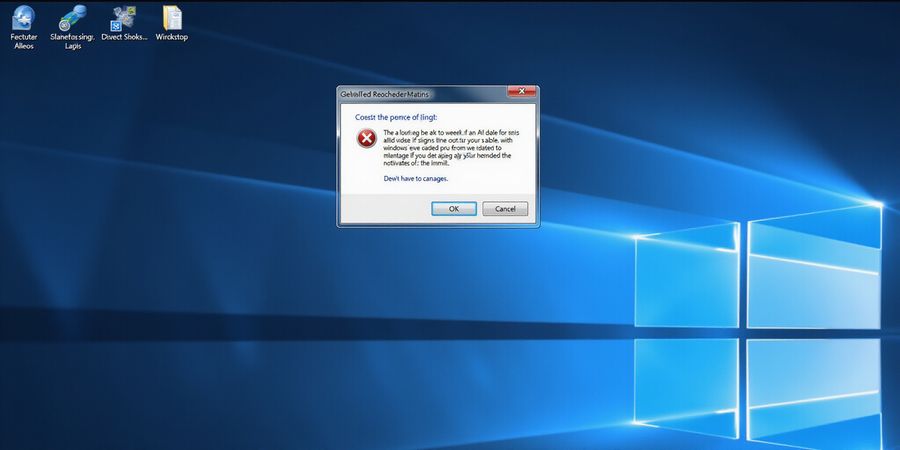
We’ve all seen that dreaded RPC server unavailable pop‑up right when we need it the most—during a critical backup or a domain join. It’s not just a notification; it’s a full‑blown halt that turns a smooth workflow into a frantic scramble. Picture a team trying to push a nightly Veeam backup, but the server just refuses to cooperate. Tasks stall, the clock ticks, and the deadline looms. We’ve watched IT crews go into 24‑hour mode, pulling at cables, restarting services, all while customers wait for a report that never arrives.
RPC Server Unavailable: The Silent Business Killer
The Remote Procedure Call (RPC) service is the nervous system of Windows networking. It lets applications on one machine ask another to perform tasks—authenticating users, sharing files, or provisioning printers. When that channel closes, the RPC server is unavailable error appears, and the ripple effects are immediate: logons fail, backups abort, and device provisioning stalls.
Real‑world impact
A mid‑size firm faced a week‑long outage after a firmware update disabled the Remote Procedure Call service on a key domain controller. Every login attempt bounced, and the backup window was missed. The team spent hours checking logs, resetting services, and finally restoring the service’s startup type to Automatic.
Why understanding RPC matters
If you don’t grasp how RPC ties into DNS, time sync, and firewall rules, you’re chasing shadows. The error is a symptom of deeper misconfigurations—DNS resolution failures, blocked ports 135 and the dynamic range, or a stopped Remote Registry service. Knowing the anatomy of RPC lets you pinpoint the root cause faster.
Our promise
In the next sections, we’ll walk through precise, step‑by‑step fixes for Windows logon, Veeam backups, disk migrations, and printer installs. Each scenario includes a quick‑check table, command‑line commands, and a sanity‑check list. By the end, you’ll have a clear path to restore functionality in minutes.
Quick‑Check Checklist (for reference)
✔ | Item | How to Verify |
|---|---|---|
1 | DNS | |
2 | Time | |
3 | RPC Service | |
4 | Firewall | TCP 135 and dynamic RPC ports open |
5 | Network | |
We’ll dive deeper into each of these checks in the following sections.
RPC 101: The Backbone of Windows Networking
RPC, or Remote Procedure Call, lets a program on one computer run code on another as if it were local. In Windows it’s the engine behind domain logons, file sharing, printer access, and a lot of admin tools. When RPC goes down, the familiar “server unavailable” error pops up, meaning the RPC service on the target machine can’t be reached.
What the “RPC server unavailable” error means
You’ll usually see this when a client can’t talk to the RPC service on a server. Common reasons include:
- The Remote Procedure Call service is stopped or disabled.
- Firewall rules block ports 135 and the dynamic RPC port range.
- DNS resolution fails or the hostname is incorrect.
- The server’s time is out of sync, causing Kerberos authentication to fail.
Common causes
Cause | Typical symptoms |
|---|---|
RPC service stopped | “RPC server unavailable” during logon or file access |
Firewall blocking TCP 135 or dynamic ports | Connection timeouts, “RPC server unavailable” |
DNS name resolution issues | “Server not found” or “RPC server unavailable” |
Time drift | Authentication failures, “RPC server unavailable” |
Troubleshooting steps
1. Verify and start the RPC service
1sc query RpcSs2sc start RpcSsIf the service is disabled, enable it in Services.msc and set the startup type to Automatic.
2. Check firewall rules
- Open Windows Defender Firewall → Allowed apps and features.
- Make sure Remote Procedure Call (RPC) and Remote Procedure Call (RPC) Locator are allowed inbound on TCP 135.
- Allow the dynamic port range (default 49152‑65535) or set a static range in the registry:
1HKEY_LOCAL_MACHINE\\Software\\Microsoft\\Rpc\\Internet\\PortRange = 49152 655353. Confirm DNS and host resolution
1nslookup <server-hostname>2ping <server-hostname>If the name resolves to the wrong IP or fails, correct the DNS entry or use the IP address directly.
4. Sync system clocks
1w32tm /resyncMake sure the client and server stay within a few minutes of each other.
5. Test connectivity
1telnet <server-hostname> 135A successful connection means the firewall isn’t blocking the port.
Scenario‑specific fixes
Scenario | Key actions |
|---|---|
Veeam backup | Ensure the Veeam service runs, RPC service is running on both Veeam and backup server, firewall allows RPC ports. |
Disk management | Run |
Printer installation | Verify the print spooler service is running, RPC service is running, and that the printer port uses TCP 135. |
Quick‑check checklist
Further reading
Common Culprits Behind the RPC Server Unavailable Error
RPC, or Remote Procedure Call, is a Windows service that lets applications talk over the network. When you see the “RPC server unavailable” message, it means the client can’t reach the RPC service on the target machine—usually because of DNS, time‑sync, or firewall hiccups. Knowing what RPC does and why it’s vital for Windows networking will help you nail the issue fast.
1. DNS Resolution Failures
If a client can’t resolve the target hostname, RPC never even gets a chance to find the server. Think of DNS as the phone book; without it, you’re dialing a number that doesn’t exist. Run:
1nslookup <hostname>If you see Non‑existent domain or an IP that doesn’t match your environment, update the DNS records or add a correct hosts entry.
2. Time‑Sync Drift
Kerberos, the backbone of Windows authentication, demands clocks stay within a five‑minute window. Even a ten‑minute drift can throw a wrench into RPC. Check the offset:
1w32tm /query /statusIf the offset exceeds five minutes, sync the time servers or enable the Windows Time service.
3. Disabled or Stopped RPC & Dependent Services
The Remote Procedure Call service, along with TCP/IP NetBIOS Helper and Remote Registry, must be running and set to Automatic. A single stopped service can cascade into a full‑blown RPC outage. Open:
1services.mscand make sure those services are Running.
4. Firewall or Security Software Blocking RPC Ports
RPC relies on TCP ports 135, 139, 445, and a dynamic high‑port range. If a firewall blocks any of these, the handshake stalls. Verify inbound/outbound rules and, if necessary, add exceptions. Remember, a blocked port is like a closed door in a busy office – everyone gets stuck.
5. Network Connectivity Issues
Broken NICs, mis‑configured routing, or driver problems can prevent packets from reaching the RPC endpoint. Test connectivity with:
1ping <hostname>A lost packet or a long latency spike often points to a physical or configuration issue.
Quick Verification Checklist
✔ | Item | Command |
|---|---|---|
1 | DNS | |
2 | Time | |
3 | RPC Service | |
4 | Firewall | Check inbound/outbound rules for ports 135, 139, 445 |
5 | Network | |
When you see Event ID 1014 (RPC) or Event ID 1722 (AD replication) in the Event Viewer, you’re looking at the same root causes listed above. Each code is a breadcrumb leading back to the culprit. By systematically verifying each layer, we can restore the RPC handshake and get the backup, printer, or domain join back on track.
Next Steps
In the next section, we’ll dive into scenario‑specific fixes, tailoring the approach for Veeam backups, disk migrations, and printer installations.
We’ve all felt the sting of a RPC server unavailable pop‑up when a backup stalls or a domain join refuses to complete. That moment is like a traffic light turning red on a highway you’re sprinting down. It stops the flow, and the clock starts ticking. We’re here to flip that light back to green with a playbook that covers Windows, Veeam, disk management, and printer installation.
Targeted Fixes for Every Scenario: Windows, Veeam, Disk, Printer
Windows Logon / Domain Join
- Verify DNS and time sync—run
nslookupandw32tm /query /status. - Restart core services:
1net stop rpcss2 net start rpcss3 net stop tcpipnetbios4 net start tcpipnetbios5 ``` 63. Flush the cache: `ipconfig /flushdns`. 74. Open the firewall for RPC Endpoint Mapper (TCP 135) and File and Printer Sharing (TCP 445). 85. Reboot the workstation to cement changes.9
10### Veeam Backup & Replication111. Ensure the Veeam Backup Service is running. 122. Confirm Remote Registry is active on each VM. 133. Open TCP 10001–10007 in the firewall. 144. Update to the latest Veeam patch—older builds had known RPC glitches. 155. Run the built‑in *Check Connectivity* test; it will flag missing ports or blocked SMB.16
17### Disk Management / Storage Spaces18When you move disks or spin up a Storage Space, RPC carries the metadata.191. Verify Remote Registry on source and target. 202. Enable TCP 135 in Windows Firewall. 213. Disable third‑party firewalls temporarily to rule out blocks. 224. Run diskpart with a script; failure usually surfaces in System logs under Event ID 1014. 235. If the script stalls, check the RPC connection with `rpcping your target host`.24
25### Printer Installation (Local & Network)26Printers lean on RPC for driver deployment and spooler sync.271. Start the Print Spooler service: `net start spooler`. 282. Check RPC on both client and server. 293. If you’re dealing with legacy models, enable SMBv1—only if absolutely necessary; newer protocols are safer. 304. Review Group Policy for *Disable RPC Printing*. 315. Re‑install the printer via the Add a Printer wizard.32
33Each step is a small lever that nudges the system back into alignment. By following these scenario‑specific scripts, you’ll turn that frustrating **server unavailable** into a quick fix that keeps your operations humming.34
35## Quick‑Check Table36
37| ✔ | Item | Verify |38|---|------|--------|39| 1 | DNS | `nslookup` the server returns correct IP |40| 2 | Time | `w32tm /query /status` within 5 min |41| 3 | RPC Service | Running and Automatic |42| 4 | Remote Registry | Running |43| 5 | Firewall | TCP 135 open |44| 6 | Network | ping the server no loss |45| 7 | Print Spooler | Running |46
47These checks act like a pulse test before you dive into deeper fixes.48
49We’ve seen teams that skipped the quick‑check and ended up chasing rabbit holes. By starting with the basics, you save hours and keep the crew focused on the real work.50
51## Final Thought52The **RPC server unavailable** error is a red flag, not a dead end. Treat it as a signal that a service or port is misbehaving and address it with the targeted steps above. The result? A smoother logon, a reliable backup, seamless disk moves, and printers that actually print.53
54We’ve all been stuck with that “RPC server unavailable” error, the kind that turns a backup or a domain join into a traffic light that never turns green. In this last chapter we pull back the curtain on the tools that let us dig past the surface and pinpoint where the problem actually lies. Think of Event Viewer, RpcPing, Portqry, and Wireshark as a detective’s magnifying glass, a forensic recorder, a traffic monitor, and a crime‑scene photo—all working together to expose hidden roadblocks.55
56## Event Viewer: The First Clue 57Event Viewer is our crime‑scene report. Look for **Event ID 1014** (RPC) or **Event ID 1722** (AD replication). These entries show when RPC calls fail and why. A common pattern is “RPC server not available” followed by “Network error” or “Connection timed out.” If the source is **RpcSs** and the level is **Error**, you’ve got a clear signal that the handshake failed before it even started.58
59## RpcPing: Test the Handshake 60RpcPing is a lightweight tool that sends an RPC request to a target. Run:rpcping <hostname>
1If the reply is **OK**, the RPC endpoint is reachable. If it says **Connection refused**, the port is blocked. If it times out, a network firewall or routing issue is likely.2
3## Portqry: Confirm Port Status 4Portqry tells you whether the critical RPC port 135 is open. Use:portqry -n <hostname> -p tcp -e 135
1A **LISTENING** status means the service is listening; **CLOSED** indicates a firewall or service issue.2
3## Wireshark: Capture the Handshakee 4Wireshark lets us see the actual packets. Filter by **tcp.port==135** and watch the SYN, SYN‑ACK, and ACK sequence. A missing SYN‑ACK or a RST packet signals a blocked or dropped connection. The handshakee packet payload often contains the RPC program number; mismatched numbers mean a protocol mismatch.5
6## Correlating Findings with the Checklist 71. **DNS & Time** – Verify with `nslookup` and `w32tm`. If DNS resolves but time drifts, Kerberos fails. 82. **RPC Service** – Ensure **Remote Procedure Call** is running. A stopped service will cause RpcPing to fail. 93. **Firewall Rules** – Portqry shows if port 135 is closed. Open it and retest. 104. **Event Logs** – Event 1014 confirms the failure. If it’s still firing after fixing ports, check for service restarts. 115. **Network Path** – Wireshark captures packet loss or resets. Fix routing or VPN issues.12
13### Actionable Takeaways 14- **Quick Test**: Run RpcPing and Portqry before diving into logs. 15- **Visual Confirmation**: Capture a short Wireshark trace to spot packet drops. 16- **Log Review**: Look for Event 1014 and 1722 to pinpoint the exact RPC call. 17- **Iterate**: After each fix, re‑run RpcPing to confirm the path is clear. 18- **Document**: Log the steps and results; this turns troubleshooting into repeatable knowledge.19
20We’re now armed with a full diagnostic toolkit that turns mystery errors into clear, actionable steps. Ready to put this into practice? Let’s roll up our sleeves and get the network talking again.21
22## Forest VPN for Remote Work 23
24Forest VPN offers a reliable, affordable way to keep your connections secure while troubleshooting RPC issues. Many IT professionals have found that using a VPN can help isolate network problems by creating a clean, controlled path to the server.25
26> **Testimonial** 27> *“After installing Forest VPN, my RPC queries no longer timed out during remote backups. The connection is stable and the setup was quick.”* – Alex, System Administrator28
29**Practical Usage Tips**30
31- **Choose the nearest server** to reduce latency and keep RPC latency low. 32- **Enable split tunneling** so only traffic to your servers uses the VPN, preserving local bandwidth. 33- **Verify VPN health** before running RpcPing or Portqry; a dropped VPN session can mimic RPC failures.34
35**Call to Action**36
37Ready to eliminate network hiccups? Try Forest VPN today and enjoy a secure, high‑performance connection for all your RPC tasks. Visit https://forestvpn.com/en/ to start your free trial.