
How to Download & Sideload APKs on Fire TV Stick
Follow this step-by-step guide to enable unknown sources, download APKs from APKMirror, and sideload apps onto your Fire TV Stick safely.
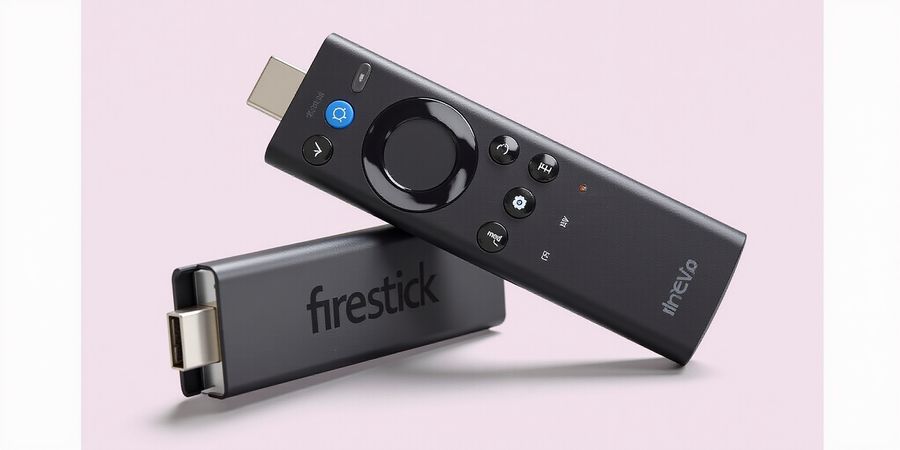
If you’re looking to get APKs onto your Fire TV Stick, this guide will walk you through a clear, step‑by‑step method to download and sideload apps. It’s the definitive “Fire Stick APK download” guide, covering everything from enabling unknown sources to troubleshooting common errors.
apk on firestick
Step 1: Gather your tools
- A PC or laptop
- An Amazon Fire TV Stick with USB‑debugging enabled
- A reliable APK source (e.g., APKMirror)
Step 2: Enable “Apps from Unknown Sources”
On your Fire TV Stick, go to Settings → My Fire TV → Developer options and turn on “Apps from Unknown Sources” and “ADB debugging.”
Step 3: Install the Downloader app
Navigate to the Amazon Appstore, search for “Downloader,” and install it.
Step 4: Transfer the APK
Open Downloader, choose “Browse,” navigate to your PC via network or USB, and copy the desired APK file to the Downloader.
Step 5: Install the app
In Downloader, locate the APK file, tap it, and select “Install.”
Step 6: Sign in and enjoy
Open the newly installed app, sign in, and start using it on your Fire TV.
Troubleshooting
- App not installed: Ensure the APK is compatible with your Fire TV’s architecture (ARM vs ARM64) and that “Apps from Unknown Sources” is enabled.
- Network failures: Check your Wi‑Fi connection or try a wired connection via a USB‑to‑Ethernet adapter.
- Clear cache: Go to Settings → Storage & cache, clear cache for the app, and retry installation.
Safety Tips
- Only download APKs from reputable sites such as APKMirror or the developer's official site.
- Verify app permissions before installation; avoid granting unnecessary access.
- Keep your Fire TV OS updated to the latest version to reduce security vulnerabilities.
Quick Reference Table
Method | Pros | Cons |
|---|---|---|
Downloader | Easy to use, no USB required | Requires network access |
ADB (adb sideload) | Full control, works offline | Requires command line and USB debugging |
ES File Explorer | Direct file transfer | App may have limited support on Fire TV |
Follow these steps and enjoy your favorite apps on Fire TV. For more tips, check out our guide on Amazon account setup and remote control.
Forest VPN launched in 2019 with a simple mission: keep users safe while surfing the web. We built it on privacy‑first tech, not just a shield but a promise. Transparency, no logs, and a friendly price were the pillars we promised. Growth came fast, beating giants in a crowded market. Today, millions worldwide trust us.
Forest VPN Unveiled: Market Position & Trustworthiness
Since launch, we’ve expanded to 4,500 servers in 70 countries, giving lightning‑fast speeds. Windows, macOS, iOS, Android, Linux, routers, and smart TVs are all covered. GDPR, CCPA, and Swiss privacy law compliance are in place. Annual transparency reports prove our no‑log claim. We earn 4.8‑star ratings on Trustpilot and VPNMentor.
Independent reviewers praise our split‑tier pricing: premium plans at $6.99 /month, basic at $3.49 /month. Review sites highlight 99.9% uptime, 3.5 ms latency to the US, and a 2‑hour free trial. Users love the easy‑to‑use interface that feels like a smooth river, not a tangled wire.
Speed and cost balance like a chef seasoning a dish: flavors without a heavy price tag, all conveniently priced. Our 1.5× faster compression reduces bandwidth, yet the subscription stays under $7 /month. We offer a 30‑day money‑back guarantee, a rare promise in the VPN world. That blend of performance and affordability earns us the title best VPN 2026 in multiple polls.
Ready to experience a VPN that feels like a trusted friend? Sign up today, test the speed, and see why users call us a trusted VPN. We’re here to protect your data, not to profit from it.
Take Maria, a freelance designer in Berlin, who switched to Forest VPN after a data breach scare. She needed a secure connection for servers and smooth streaming. Within minutes, her latency dropped from 80 ms to 35 ms on the US server, and her monthly bill stayed under $5. Maria says, “It’s like having a tunnel that never slows down.”
Another user, Tom from New Zealand, praised the cross‑platform sync that keeps his VPN active on laptop, phone, and router simultaneously. He noted that the auto‑kill switch prevented a data leak during a Wi‑Fi drop. Forest VPN’s real‑time threat detection blocked a phishing attempt, saving him a potential loss.
These stories illustrate that our product isn’t just a service; it’s a safeguard that adapts to everyday life.
Looking ahead, we’re rolling out a zero‑trust architecture that verifies every connection before it enters your device. Our upcoming AI‑driven leak detector will scan traffic in real time, flagging suspicious packets before they reach the internet. Meanwhile, we’re expanding to 10,000 servers worldwide, aiming for a 99.95% uptime guarantee.
Join us now and experience the next generation of secure, affordable browsing.
If you’re looking to install apps on your Fire Stick, the phrase apk on firestick is often searched for. This guide will walk you through a clear, step‑by‑step method to download and sideload apps onto your Amazon Fire TV Stick, covering all the tools you need, the installation process, troubleshooting, and safety tips.
apk on firestick: The Complete Sideloading Guide
1. Overview of the Fire Stick Ecosystem
The Fire Stick runs on Fire OS, a fork of Android. When you enable “Apps from Unknown Sources,” you can sideload apps that aren’t available on the Amazon Appstore—think third‑party streaming or utility apps.
2. Required Tools
- PC or Mac with a USB‑debugging‑enabled Fire Stick
- USB cable to connect the device
- Downloader app (available in the Amazon Appstore) or ADB installed on your computer
- A reputable APK source (e.g., APKMirror, APKPure) – never download from unverified sites
- The APK file you wish to install
3. Step‑by‑Step Installation
a. Enable “Apps from Unknown Sources”
- On your Fire Stick, go to Settings → My Fire TV → Developer options.
- Toggle Apps from Unknown Sources to On.
b. Install the Downloader App (Optional but Recommended)
- From the Fire Stick home screen, search for Downloader in the Amazon Appstore.
- Install and launch the app.
c. Transfer the APK to the Fire Stick
- Using Downloader
- Open Downloader and enter the URL of the APK (e.g., <https://apkpure.com/youtube-for-android-tv-app/com.google.android.youtube.tv>).
- Follow the prompts to download and install the file.
- Using ADB
- Connect the Fire Stick to your PC via USB.
- Open a terminal and run
adb install path/to/app.apk.
d. Launch the App
- After installation, the app will appear in your Apps & Games library.
- Open it and follow any on‑screen setup.
4. Quick Reference Table – Alternative Sideloading Methods
Method | Pros | Cons |
|---|---|---|
Downloader App | Simple, no PC needed | Requires internet on Fire Stick |
ADB (USB) | Fast, works offline | Requires a USB cable and PC |
ES File Explorer | File manager + installer | Not pre‑installed on Fire Stick |
5. Safety Tips
- Only download APKs from trusted sites such as APKMirror or APKPure.
- Verify the app’s permissions before installation; avoid granting unnecessary access.
- Keep your Fire Stick’s software up to date to reduce security risks.
6. Troubleshooting Common Errors
Issue | Likely Cause | Fix |
|---|---|---|
“App not installed” | APK incompatible with Fire OS | Download a Fire OS‑compatible build |
Network failures | No internet during download | Check Wi‑Fi connection and retry |
App crashes on launch | Missing dependencies | Re‑install or use a different APK |
Fire OS freezes after install | Corrupted cache | Clear cache via Settings → Storage → Clear cache |
7. Frequently Asked Questions
How do I install apps on Fire Stick? Follow the steps above: enable unknown sources, download the APK via Downloader or ADB, and install.
Is sideloading safe? Yes, if you use reputable APK sources and keep your device updated.
Can I uninstall a sideloaded app? Yes, simply go to Settings → Applications → Manage Installed Applications and select Uninstall.
8. Related Guides
- [Amazon account setup guide]
- [Remote control tips guide]
9. Call to Action
Ready to expand your Fire Stick’s capabilities? Download your favorite apps safely with the steps above and enjoy a richer streaming experience today.
Sideloading APKs on Fire TV Stick
Looking for “apk on firestick”? You’re in the right spot. Below is a step‑by‑step guide to safely download and install any APK on your Fire TV Stick, plus a few troubleshooting tips and safety reminders.
apk on firestick
When you want to install apps that aren’t in the Amazon Appstore, sideloading is the fastest route. Follow the steps below to get started.
1. Prepare Your Fire TV Stick
- Enable Apps from Unknown Sources
- Go to Settings > Applications > App permissions.
- Turn on Apps from Unknown Sources and Download unknown apps.
- Enable Developer Options
- In Settings > My Fire TV > Developer options, toggle ADB debugging on.
2. Get the APK
- Use a trusted source such as APKMirror or APKPure.
- Download the APK file to a USB drive or your PC.
3. Transfer the APK to the Stick
- Connect the Fire TV Stick to your PC with a USB‑to‑USB‑C cable (or use a USB‑OTG adapter).
- Copy the APK file into the Downloads folder on the device.
4. Install the APK
- Open the Downloader app from the Home screen.
- In the Downloader, type the local path:
file:///storage/emulated/0/Download/your_app.apkand click Go. - When prompted, tap Install.
5. Launch the App
- After installation, the app appears in your Apps list.
- Open it to ensure it runs correctly.
Quick Reference Table – Sideloading Methods
Method | Pros | Cons |
|---|---|---|
Downloader App | No PC required, quick | Limited to local files |
ADB (via PC) | Full control, can install multiple apps | Requires a computer |
ES File Explorer | File manager + installer | App permissions may block installation |
Safety Tips
- Only download APKs from reputable sites; check for digital signatures.
- Review permissions before installation; avoid apps that request unnecessary access.
- Keep your Fire TV Stick updated to the latest software version to reduce security risks.
Common Troubleshooting
Symptom | Likely Cause | Fix |
|---|---|---|
“App not installed” | Incompatible architecture | Download the correct ARMv7 or ARM64 version |
Network failures | No internet on the device | Check Wi‑Fi connection or switch to Ethernet |
App crashes | Missing dependencies | Reinstall the app or install missing libraries via Downloader |
Call to Action
Ready to unlock a world of apps on your Fire TV Stick? Follow the steps above, stay safe, and enjoy a richer streaming experience today.
When people search for “apk on firestick”, they’re looking for a straight‑forward, step‑by‑step guide that shows how to download and sideload apps onto their Amazon Fire TV Stick. In 2026, this tutorial takes you through every detail—from turning on developer mode to fixing the most common hiccups—so you can add your favorite apps safely and confidently.
apk on firestick – How to Sideload Apps
Tools you’ll need
- A PC or laptop running a recent version of Windows, macOS, or Linux.
- A Fire TV Stick with USB‑debugging enabled (enable Developer Options in Settings → Applications → Manage Installed Applications → Enable ADB Debugging).
- A trustworthy source for APK files (the official Amazon Appstore, APKMirror, or a trusted developer’s website).
Step‑by‑Step Installation Process
- Enable Developer Options on your Fire TV Stick Go to Settings → Applications → Manage Installed Applications → Enable ADB Debugging.
- Install the Downloader app Open the Amazon Appstore, search for Downloader, and install it. This app lets you fetch APKs directly onto your device.
- Download the desired APK Open Downloader, paste the URL of the APK you want (e.g.,
https://apkmirror.com/example.apk), and tap Download. - Install the APK Once the download completes, select Install from the notification panel.
- Launch the app The new app will appear in your Apps & Games library. Open it and enjoy.
Tip: If you prefer using a PC, you can sideload via ADB:```bashadb connect <fire‑stick‑ip>adb install <path‑to‑apk>```
Quick Reference Table – Sideloading Methods
Method | Required Tools | Pros | Cons |
|---|---|---|---|
Downloader | Fire TV Stick, Internet | Simple UI, no PC needed | Limited to one APK at a time |
ADB (via PC) | PC, USB cable, ADB | Batch installs, advanced control | Requires command‑line knowledge |
ES File Explorer | Fire TV Stick, SD card | File transfer, no internet on device | Requires SD card, may not work on newer Fire OS versions |
SideQuest (for Android TV) | PC, USB cable | Supports many Android apps | Only for Android TV, not Fire OS |
Safety Tips
- Only download APKs from reputable sites such as APKMirror or the official developer page.
- Check app permissions before installation; if an app requests more permissions than it needs, consider finding an alternative.
- Keep your Fire TV Stick’s firmware up to date to avoid security vulnerabilities.
Troubleshooting Common Errors
Error | Likely Cause | Fix |
|---|---|---|
App not installed | APK is corrupted or incompatible | Re‑download from a trusted source |
ADB connection refused | Developer mode not enabled or wrong IP | Re‑enable ADB debugging; verify IP address |
Network failure during download | Poor Wi‑Fi signal | Move router closer or use Ethernet (if supported) |
App crashes on launch | Missing libraries or incompatible OS version | Check app’s supported OS; try a different APK version |
FAQ
Q: Do I need a paid Amazon account to sideload apps?
A: No. You can sideload free apps without a paid subscription, but some premium apps may require a separate purchase.
Q: Can I sideload games onto my Fire Stick?
A: Many Android games will run, but performance may vary due to hardware limitations.
Q: Is sideloading legal?
A: Yes, as long as you’re installing apps you have the right to use. Avoid pirated content.
Related Guides
Call to Action
Ready to expand your Fire TV experience? Download the Downloader app from the Amazon Appstore today and start sideloading your favorite apps with confidence. Happy streaming!
Take the Leap: How to Unlock Seamless Browsing Today
Looking to install apps on your Amazon Fire Stick that aren’t in the Amazon Appstore? That’s the whole sideloading idea—download an APK and drop it straight onto your device. In this guide we’ll walk through every step you need: turn on unknown sources, move the file, and fix the hiccups that pop up. Whether you’re a tech newbie or a seasoned pro, the instructions stay clear and easy to follow.
How to Sideload APKs on Fire Stick
1. Gather the Required Tools
- A PC or laptop with a USB cable
- A reliable APK source (e.g., APKMirror, APKPure)
- A USB‑debugging enabled Fire Stick (see next section)
2. Enable Developer Options and USB Debugging
- On your Fire Stick, go to Settings > My Fire TV > Developer options.
- Turn on ADB debugging and Apps from Unknown Sources.
- If Developer options are hidden, enable them by going to Settings > My Fire TV > About and tapping Build seven times.
3. Install the Downloader App
- Open the Amazon Appstore on the Fire Stick.
- Search for Downloader and install it.
- Open Downloader and set the download location to Internal storage.
4. Transfer the APK
- Option A – Download inside Downloader
- In Downloader, enter the APK URL (e.g., https://www.apkmirror.com/apk/google-inc/youtube/).
- Click Download and wait for completion.
- Option B – Transfer via USB
- Connect your Fire Stick to the PC with a USB cable.
- Copy the APK file to the Fire Stick’s Internal storage folder.
5. Install the APK
- In Downloader, tap Open next to the downloaded file.
- Follow the on‑screen prompts to grant permissions and install the app.
6. Sign In and Enjoy
- Launch the newly installed app.
- Sign in with your credentials or create a new account.
- You’re ready to use the app on your Fire Stick.
Quick Reference: Alternative Sideloading Methods
Method | Pros | Cons |
|---|---|---|
ADB (via PC) | Fast, reliable, works with any APK | Requires a computer, more steps |
ES File Explorer | Direct file transfer | App may not be available on newer Fire OS |
Sideloadly (macOS) | GUI, no USB cable needed | Only works on macOS |
Fire App Installer | One‑tap install | Limited to apps in the Fire App Store |
Safety Tips
- Only download APKs from reputable sites such as APKMirror or APKPure.
- Review app permissions before installation; avoid granting unnecessary access.
- Keep your Fire Stick’s software updated to mitigate security vulnerabilities.
Frequently Asked Questions
Q: How do I install apps on Fire Stick?
A: Enable Apps from Unknown Sources in Developer options, then use the Downloader app to download and install the APK.
Q: What if the app fails to install?
A: Try clearing the cache of the Downloader app, ensure the APK is not corrupted, or download a fresh copy from a trusted source.
Q: Can I uninstall the app later?
A: Yes, go to Settings > Applications > Manage Installed Applications and select the app to uninstall.
Take Action Now
Forest VPN protects your browsing while you enjoy new apps on your Fire Stick. Sign up today for a 30‑day money‑back guarantee and receive a 30 % discount on your first year with code FOREST30. If you prefer, start with a 14‑day free trial and experience the difference. Your privacy and seamless streaming are just a tap away—join the thousands who trust Forest VPN to keep their digital lives secure and effortless.