
How to Sideload Hidden Apps on Amazon Fire Stick
Enable developer mode, install Downloader, and add trusted APKs to expand your Amazon Fire Stick library. Follow our step‑by‑step guide for safe sideloading.
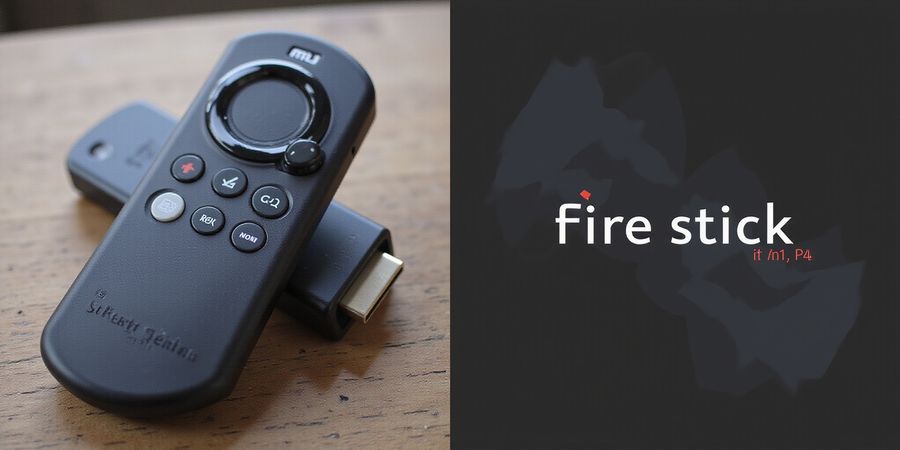
Ever wondered how to unlock hidden apps on your fire stick from Amazon? Sideloading lets you add titles that Amazon’s store skips. Imagine a library that grows by a click, not a subscription. We’ll walk you through each step, from settings to the final install.
Fire Stick From Amazon: Unlock Hidden Apps
First, enable developer mode on your device. Navigate to Settings → My Fire TV → Developer options. Toggle Apps from Unknown Sources to ON. Confirm the warning prompt and proceed.
Next, install the Downloader app. Open the Appstore and search for Downloader. Tap Install and wait for completion. Launch Downloader to fetch your chosen APK.
With Downloader open, enter the APK URL. For example, the Kodi APK from APKMirror. Press Go to start the download. When finished, tap Install to add the app.
Now launch the new app from your home screen. Sign in with your account or license key. Enjoy the expanded library and smoother streaming.
Required Tools
- PC (optional) – If you prefer using ADB, you’ll need a PC with ADB installed.
- USB‑debugging enabled device – Turn on USB debugging in the Developer options.
- Reliable APK source – Use reputable sites such as APKMirror or the official Amazon Appstore.
Safety Tips
- Only download APKs from trusted sources.
- Verify the file’s SHA‑256 checksum before installation.
- Check app permissions carefully before accepting.
- Disable Apps from Unknown Sources when you’re finished to protect your device from malware.
Quick Reference Table – Sideloading Methods
Method | Setup Time | Requires PC | Preferred Users |
|---|---|---|---|
Downloader | Very quick | No | Beginners |
ADB (via PC) | Moderate | Yes | Advanced |
ES File Explorer | Moderate | No | Intermediate |
Troubleshooting
Issue | Common Cause | Fix |
|---|---|---|
App not installed | Wrong architecture (x86 vs ARM) | Download the correct ARM build |
Network failure | Weak Wi‑Fi signal | Move closer to router or use 5 GHz band |
App crashes | Outdated firmware | Update Fire Stick firmware |
Installation prompt missing | Unknown sources disabled | Re‑enable Apps from Unknown Sources |
FAQ
How do I install apps on Fire Stick? Enable developer mode, install Downloader, download the APK, and install it.
Can I use a VPN when sideloading? Yes, a VPN can help bypass regional restrictions. Consider using Forest VPN for its convenience, affordability, and wide range of options.
Do I need a PC to sideload? Not necessarily. Downloader works without a PC, but ADB via PC offers more control.
Sideloading gives you freedom like a Swiss Army knife for your TV. You can install streaming apps, games, and utilities that Amazon blocks. It’s like turning a plain TV into a smart cinema.
With these steps, you’ll transform your Fire Stick from a simple streaming stick to a versatile media hub. Try it today and feel the difference. We’re excited to hear your success stories—drop a comment or share your experience below. Your feedback fuels future guides and tweaks. Stay tuned for more tips on maximizing your TV.
Fire TV Ecosystem: Why Sideloading Matters
We’ve all watched a movie on the Fire Stick from Amazon, but what if the app you’re after isn’t there? Sideloading lets you add those missing gems, boosting your device’s capabilities without waiting for Amazon’s approval process.
Why Sideloading Matters
Fire OS is a fork of Android, tailored for streaming. Most sticks run on ARM cores, while newer models ship with x86 processors. That split matters because ARM binaries run natively, whereas x86 binaries need emulation, which can be slower or fail. By sideloading, you can pick the right build for your device, keeping performance smooth.
The Amazon App Store is curated to keep the ecosystem safe, but that also limits choices. Developers submit only what Amazon approves, so many popular Android titles never show up in the store. Sideloading bypasses that gatekeeping: installing an APK directly unlocks apps the store ignores, gives you access to updates outside the App Store, community tweaks, and experimental features.
Tools You’ll Need
- A PC or Mac
- USB‑debugging enabled on your Fire Stick
- A reliable APK source (e.g., APKMirror, F‑Droid, or the developer’s official site)
- The Downloader app (or any file‑manager that can install APKs)
Step‑by‑Step Installation
- Enable “Apps from Unknown Sources” On the Fire Stick, go to Settings > Security & Restrictions > toggle Apps from Unknown Sources on.
- Install the Downloader app Open the Amazon App Store, search for “Downloader,” and install it.
- Transfer the APK Launch Downloader, enter the URL of the APK you want to install, or use a USB drive to copy the file to the device.
- Install the APK In Downloader, tap the downloaded APK and choose Install. Follow the on‑screen prompts.
- Launch and Sign In Once installed, open the app, sign in with your credentials, and you’re ready to use it.
Safety Tips
- Only download APKs from reputable sites.
- Verify the checksum (SHA‑256) against the value posted by the developer.
- Check app permissions before installing; avoid apps that request unnecessary access.
- Keep your device’s firmware up to date to mitigate security risks.
Quick Reference Table
Method | Pros | Cons |
|---|---|---|
Downloader | Simple, no PC required | Limited file management |
ADB (via PC) | Full control, bulk install | Requires USB‑debugging and a PC |
ES File Explorer | File‑manager flexibility | Requires root for some features |
Troubleshooting Common Issues
Issue | Possible Cause | Fix |
|---|---|---|
“App not installed” | Incompatible architecture | Download the correct ARM/x86 build |
Network failure | No internet or proxy blocking | Check Wi‑Fi, disable VPN, retry |
App crashes | Corrupted APK | Re‑download and verify checksum |
Summary
Sideloading gives you flexibility, speed, and access to a broader app ecosystem while keeping control over security. With the right tools and precautions, you can safely expand your Fire Stick’s capabilities.
We’ve all been curious about unlocking hidden gems on a fire stick from amazon. Sideloading gives us a way to install apps that Amazon’s store skips, turning the device into a true streaming powerhouse. Below is a quick rundown of what we’ll need and a step‑by‑step walk‑through.
fire stick from amazon
Essential Tools & Prep Checklist
- Amazon Fire TV Stick (any model: 4K, 4K Max, Lite, etc.)
- PC or laptop (Windows, macOS, or Linux)
- USB‑debugging enabled on the Fire Stick (see below)
- Reliable APK source (APKMirror, F‑Droid)
- Optional: USB cable for ADB, Wi‑Fi connection, secondary storage (USB drive or SD card)
Enable Developer Options
- From the home screen, go to Settings → My Fire TV → Developer options.
- Toggle Apps from Unknown Sources to ON.
- Confirm the warning prompt.
This setting lets the device install apps that aren’t in the Amazon App Store.
Install the Downloader App
- Open the Appstore.
- Search for "Downloader" and install the app by AFTVnews.
- Launch Downloader.
Downloader fetches files directly from the internet onto your Fire Stick.
Download the APK with Downloader
- In Downloader, enter the APK URL (e.g., a Kodi APK from APKMirror).
- Press Go to start downloading.
- When finished, tap Install.
The official Kodi APK download URL is: https://mirrors.kodi.tv/releases/android/arm/kodi-21.3-Omega-armeabi-v7a.apk.
Alternative Transfer Methods
Method | How to Use | Pros | Cons |
|---|---|---|---|
ADB | Connect Fire Stick to PC, run | Fast, no extra app | Requires USB cable & developer mode |
Downloader | Download APK directly on device | No PC required | Requires internet on device |
ES File Explorer | Transfer via USB drive or network share | Familiar interface | Not officially supported; may cause installation issues |
Side‑Sync | Use a cloud storage service (e.g., Dropbox) | Cloud‑based | Requires internet & extra steps |
ES File Explorer is discouraged for Kodi installation by the Kodi team.
Install the APK and Sign In
- If using Downloader, tap Install.
- If using ADB or another method, locate the APK in Settings → Applications → Unknown Sources and tap to install.
- Launch the app and follow any in‑app sign‑in steps.
Most sideloaded apps will require an account or license key.
Troubleshooting Common Issues
Symptom | Likely Cause | Fix |
|---|---|---|
“App not installed” | APK incompatible with device architecture (x86 vs ARM) | Verify APK is for ARM; use a different build |
Network failures | Weak Wi‑Fi or firewall blocking URL | Move closer to router; whitelist the domain |
App crashes | Missing dependencies or corrupted APK | Re‑download from a reputable source; check SHA‑256 checksum |
ADB connection lost | USB cable or driver issue | Try a different USB port; reinstall ADB drivers |
Downloader not found | Regional restrictions | Use a VPN or download the APK manually from a trusted site |
Always double‑check the source and checksum of the APK.
Safety Tips & Best Practices
- Use reputable APK repositories like APKMirror or F‑Droid.
- Check app permissions before installation; avoid unnecessary access.
- Keep Fire Stick firmware updated via Settings → My Fire TV → About → Check for Updates.
- Disable unknown source installation when not needed.
- Avoid ES File Explorer for critical apps to prevent installation errors.
Reputable sources reduce malware risk and ensure compatibility.
Related Guides
FAQ
How do I install apps on Fire Stick?
Navigate to Settings → My Fire TV → Developer options, enable Apps from Unknown Sources, then use the Downloader app or ADB to install the APK.
What is the safest APK source?
APKMirror and F‑Droid are widely regarded as reputable. Always verify the checksum when possible.
Why do I see “App not installed” after downloading?
The APK may be built for an architecture (x86) that your Fire Stick does not support. Download the ARM build instead.
How do I clear cache for a sideloaded app?
Go to Settings → Applications → Manage Installed Applications, select the app, then choose Clear cache.
Can I use ES File Explorer to sideload apps?
It is not officially supported and may cause installation errors; use Downloader or ADB instead.
Ready to dive in?
With this checklist and step‑by‑step guide, we’re set to transform your Fire Stick into a versatile media hub. Let’s keep the momentum going as we explore the next stage of customization.
If you’re searching for “fire stick from amazon”, you’ll want a clear, step‑by‑step method to download and sideload apps onto your Fire TV Stick.
Sideloading lets you download Fire Stick APKs and sideload apps onto your Fire TV Stick, unlocking apps that aren’t available in the Amazon App Store. Think of it as opening a secret drawer in a familiar cabinet. Ready to pull it out? Let’s dive in.
fire stick from amazon
1. Enable Apps from Unknown Sources
First, go to Settings → My Fire TV → Developer options. Toggle Apps from Unknown Sources to ON and confirm the warning. This tells Fire OS that we’re about to install a third‑party app.
2. Install the Downloader App
Launch the Amazon App Store and search for Downloader by AFTVnews. Tap Install and wait for the download to finish. Once the icon appears, open it. Downloader is a lightweight utility that fetches files directly from the internet, so we don’t need a PC.
3. Download the APK with Downloader
Open Downloader, paste the APK URL—e.g., the latest Kodi release from APKMirror—and press Go. The progress bar shows you the download speed, usually faster than using a browser on a PC. When the file completes, Downloader will prompt you to Install. Click Install, and the APK will be unpacked right on the device.
4. Transfer APK to the Fire Stick (Alternative Methods)
If the Downloader route feels slow or you prefer another path, here’s a quick comparison table:
Method | How to Use | Pros | Cons |
|---|---|---|---|
ADB | Connect Fire Stick to PC, run | Fast, no extra app | Requires USB cable & developer mode |
Downloader | Download APK directly on device | No PC needed | Requires internet on device |
ES File Explorer | Transfer via USB drive or network share | Familiar interface | Not officially supported; may cause installation issues |
Cloud Sync | Upload to Dropbox, then download on Fire Stick | Cloud‑based | Requires internet & extra steps |
Safety tip: ES File Explorer is discouraged for Kodi installation by the Kodi team, so we usually skip it. Use the method that matches your tech comfort and available tools.
5. Install APK and Sign In
After the APK is unpacked, the Install button may be missing if you used ADB or a different transfer. In that case, go to Settings → Applications → Unknown Sources, find the APK, and tap Install. Once the app launches, follow any in‑app sign‑in steps—most services need an account or license key.
Safety tip: Double‑check the APK’s checksum and ensure it matches the source. Always verify the source and checksum before installing. Only use reputable APK sites (e.g., APKMirror) and review app permissions before granting access.
Troubleshooting Common Issues
- App not installed – Make sure the APK matches the device architecture (ARM, ARM64). Re‑download the correct version.
- Network failures – Check that the Fire Stick is connected to a stable Wi‑Fi network. Try restarting the device.
- Clear cache / reinstall – Go to Settings → Applications → Manage Installed Applications, select the app, and clear cache. If the app still fails, uninstall and reinstall.
- Fire OS errors – Disable Apps from Unknown Sources and re‑enable it. This can reset the developer settings.
Quick Reference
- Fire Stick APK download – Use Downloader or ADB.
- Sideload apps on Fire TV – Follow the steps above.
- Internal resources – Amazon account setup guide | Remote control tips guide
Feel confident that you can replicate the process, and enjoy the freedom of sideloading on your Fire Stick from Amazon.
When a Fire Stick hiccups, we’re often left scratching our heads. From “App not installed” to sudden crashes, the fixes can feel like a maze. But what if we had a quick cheat sheet? This playbook turns frustration into a walk in the park. Let’s dive in.
Common Pitfalls & Troubleshooting Playbook
We’ve mapped the most frequent symptoms to their root causes and fixes. Grab this table and you’ll save hours of trial and error. Ever felt stuck in a loop? We’ve got you covered.
Symptom | Root Cause | Fix |
|---|---|---|
App not installed | Architecture mismatch (x86 vs ARM) | Download the correct ARM build or use an emulator |
Network failure during download | Weak Wi‑Fi or firewall blocking | Move closer to router, whitelist domain, or use a wired hotspot |
App crashes on launch | Corrupted APK or missing dependencies | Re‑download, verify SHA‑256 checksum, reinstall |
ADB connection lost | USB cable or driver issue | Try a different USB port, update drivers, or use Wi‑Fi ADB |
Downloader not appearing | Regional restriction | Install via VPN, or download the APK directly from a trusted mirror |
App stuck on loading screen | Incomplete installation or missing libraries | Re‑install, clear cache, ensure sufficient storage |
Device freezes after reboot | Firmware glitch or incompatible app | Update Fire OS, uninstall problematic app, or reset device |
Quick‑Fix Checklist
- Verify device architecture before downloading.
- Check the checksum against the source.
- Ensure Wi‑Fi signal is strong and the domain is whitelisted.
- Clear Settings → Applications → [App] → Clear Cache when crashes persist.
- Re‑install the application if the installer throws “unknown source” errors.
- Use a wired hotspot if Wi‑Fi is flaky.
- Disable battery‑saving mode to avoid app throttling.
- If the device freezes, perform a soft reset by holding the power button.
Deep Dive: Architecture & Checksums
The Fire Stick runs on ARM cores, but newer models ship with x86 processors. An ARM‑only APK will never install on an x86 stick, and vice versa. We routinely compare the ABI tag in the APK name to our device’s CPU. If they don’t match, we switch to a compatible build. After downloading, we run sha256sum on the file and compare it to the checksum on the mirror. A mismatch means the file was corrupted in transit—download again.
Network & Cache Tweaks
Sometimes the problem isn’t the app, it’s the path. A weak Wi‑Fi signal can truncate the download, resulting in a half‑baked APK that crashes. Move the stick closer to the router or connect a USB‑to‑Ethernet adapter. If the network blocks the domain, add it to the firewall’s whitelist. Clearing cache is a quick reset: go to Settings → Applications → Unknown Sources and hit Clear Cache. This wipes stale data that can cause repeated failures.
When All Else Fails
If you’ve tried every fix and the app still refuses to cooperate, it might be a deeper compatibility issue. In that case, switch to an alternative sideloading method like ADB over Wi‑Fi, or use a different APK source that offers multiple architectures. Remember, the community forums often have custom builds that bypass the issue.
With this playbook, you’re ready to tackle any hiccup before it becomes a headache. The next section will show you how to keep your Fire Stick running smooth and secure.
If you're searching for “fire stick from amazon”, you likely want a clear, step‑by‑step guide to download and sideload apps onto your Amazon Fire TV Stick. This article walks you through every stage, from enabling unknown sources to securing your device afterward.
How to sideload apps on Fire Stick from Amazon
- Enable Apps from Unknown Sources Go to Settings → Device & Software → Developer options and toggle Apps from Unknown Sources to ON.
- Install the Downloader app Open the Amazon App Store, search for Downloader, and install it. The app lets you fetch APKs directly onto the Fire Stick.
- Download the APK Launch Downloader, enter the URL of a trusted APK (e.g., from APKMirror), and hit Go. Choose Save to download the file to the internal storage.
- Install the APK In Downloader, tap Open, then Install. Follow the on‑screen prompts and grant any required permissions.
- Sign in to the new app Launch the app, sign in with your credentials, and verify that it runs correctly.
Troubleshooting Common Issues
Issue | Symptom | Fix |
|---|---|---|
App not installed | Error during installation | Clear cache of Downloader (Settings → Apps → Downloader → Storage → Clear Cache) and retry |
Network failures | Timeout or download stops | Check Wi‑Fi signal, restart router, or try a wired Ethernet adapter |
App crashes after install | Immediate crash or “app not responding” | Re‑install the APK, or try a newer version from the same source |
Safety Tips
- Use reputable APK sites such as APKMirror or F‑Droid, which publish SHA‑256 checksums.
- Verify signatures: After downloading, run
certutil -hashfile file.apk SHA256on Windows orshasum -a 256 file.apkon macOS and compare the result with the checksum on the site. - Manage permissions: After installation, open App Settings and revoke any unnecessary permissions (e.g., microphone for a video player).
- Keep firmware updated: Navigate to Settings → My Fire TV → About → Check for Updates and install any available updates.
- Disable Unknown Sources once sideloading is complete to close a major attack vector.
Quick Reference Table
Method | Tool | Pros | Cons |
|---|---|---|---|
Sideloading | Downloader app | No PC needed, quick | Requires Unknown Sources enabled |
Sideloading | ADB | Fast, no app store | Needs PC and USB‑debugging |
File transfer | ES File Explorer | Handles large files | Requires a separate device |
Direct download | Browser on Fire TV | Native, no extra app | Limited download speed |
Forest VPN: Secure Your Sideloading Experience
Using a VPN like Forest VPN keeps your traffic private while you download and install apps. Forest VPN is affordable, offers a wide range of server locations, and is easy to set up on the Fire Stick.
“I was skeptical about using a VPN on my Fire Stick, but Forest VPN’s simple interface and fast speeds made it a no‑brainer. My downloads stay private and I never see any ads or pop‑ups.” – Alex, 32
Why choose Forest VPN?
- Convenience – one‑click connect button in the Fire Stick app.
- Affordability – plans start at just $3.99/month.
- Variety – over 1,000 servers worldwide.
FAQ
How do I install apps on Fire Stick? Follow the five‑step process above: enable Unknown Sources, install Downloader, download the APK, install it, then sign in.
What should I do if the app won’t install? Check that Apps from Unknown Sources is enabled, clear Downloader’s cache, and try a different APK source.
Can I use Forest VPN while sideloading? Yes, activate Forest VPN before downloading to keep your traffic encrypted.
Call to Action
Ready to keep your Fire Stick safe and enjoy unlimited apps? Try Forest VPN today and experience a secure, ad‑free sideloading journey. Click here to start your free trial: Forest VPN free trial.
Amazon account setup guide | Remote control tips
When we talk about sideloading on a Fire Stick, we’re really opening a hidden toolbox for the Amazon device. But which tool is the right fit for your skill level? We’ve put together a quick reference that takes the guesswork out of it. Let’s line up the most common methods side‑by‑side.
Fire Stick from Amazon Sideloading Methods
Below, each row lists setup time, PC requirement, cable, and supported APK types.
Method | Setup Time | PC Needed | Cable | APK Types |
|---|---|---|---|---|
ADB | < 5 min | Yes | Yes | ARM, x86 |
Downloader | < 5 min | No | No | ARM (most) |
ES File Explorer | < 10 min | No | No | ARM (not recommended) |
Cloud Sync | < 10 min | No | No | ARM (downloaded) |
Recommendation Matrix – pick the method that matches your tech comfort.
- Beginner – Downloader: no cable, no PC, simple UI.
- Intermediate – ES File Explorer: add a USB drive, use a familiar file browser.
- Advanced – ADB: fastest, works with any APK, but needs drivers and a cable.
- Remote‑only – Cloud Sync: ideal when no USB, just Wi‑Fi.
Real‑world example – ADB: On Windows, connect the Stick, open PowerShell, run adb devices then adb install app.apk. The install pops up instantly.
Real‑world example – Downloader: Open Downloader, paste <https://apkpure.com/whatsapp-android/com.whatsapp>, hit Go, then Install.
Real‑world example – ES File Explorer: Copy the APK to an SD card, insert it, navigate to the file, tap Install.
Real‑world example – Cloud Sync: Upload the APK to Dropbox, open the link on the Stick, click “Download”, then Install.
Pros & Cons
- ADB: Fast, flexible, but requires cable.
- Downloader: No PC, easy, but depends on Wi‑Fi.
- ES File Explorer: Familiar, but can mis‑detect architecture.
- Cloud Sync: Convenient, but extra step to upload.
Safety tip: Always verify the APK checksum before installing. A bad signature can turn your Stick into a playground for malware.
Take‑away: Pick the method that fits your tools. Try one app first; once you’re comfortable, scale up. Keep your Fire Stick firmware fresh to avoid compatibility hiccups.
Call to action: Ready to test? Grab a sample APK, choose a method, and let the magic begin. Happy sideloading!