
Download Pluto TV App: Free Live TV & VPN Guide
Download Pluto TV on Android, iOS, Windows, macOS, Smart TVs, or browsers and stream 250+ free live channels. Use our quick VPN guide for legal streaming.
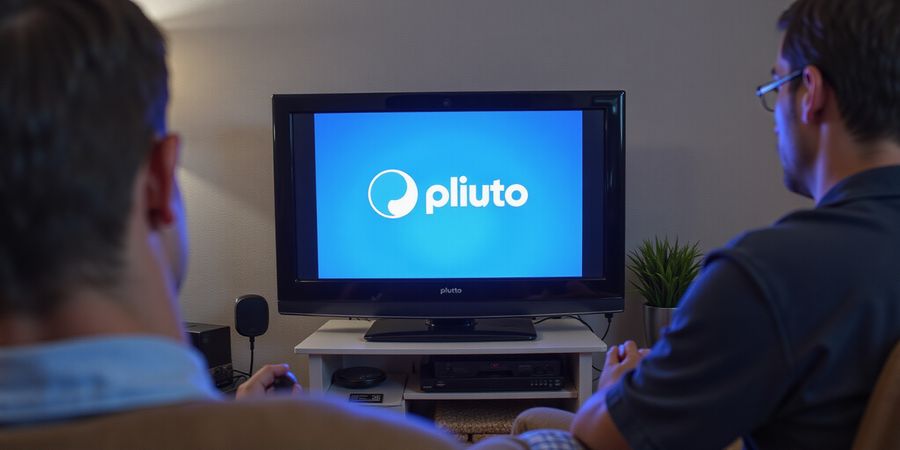
Pluto App Download: Get Free TV in Seconds
We’re living in a world where cable bills feel like a frozen relic, and yet the promise of over 250 free channels still feels like a hidden treasure. Curious how to tap into that treasure? With a quick pluto app download, you can stream live shows, movies, and sports on any device, anywhere. The trick? One click, a handful of steps, and a VPN that keeps your connection smooth and legal. Ready to dive in? Let’s do it together.
Quick Platform Snapshot
- Android & iOS: Play Store / App Store, tap install, open.
- Windows & macOS: Microsoft Store or official website, download, run.
- Smart TVs & Streaming Devices: Roku, Fire TV, Apple TV – add from their respective app stores.
- Browsers: Chrome/Edge extension, add, sign in.
All you need is a reliable VPN—Forest VPN—to bypass geo‑blocks and keep your data protected.
Step‑by‑Step: How to Download on Every Device
- Android: Open Play Store, search Pluto TV, tap install (yes, that’s the word we use here), then Open.
- iOS: Open App Store, find Pluto TV, tap Get.
- Windows: Microsoft Store → Pluto TV → Get.
- macOS: Visit the Pluto website, click Download for macOS, drag to Applications.
- Smart TVs: Search the channel store, hit Add Channel.
- Browsers: Go to Chrome Web Store, search Pluto TV, click Add to Chrome.
Once installed, launch the app, sign in, and you’re ready to stream.
Unblocking Anywhere with Forest VPN
If your country blocks Pluto, we’ve got a solution that’s as simple as a click: connect to a U.S. server in Forest VPN, and the app thinks you’re right there. The VPN encrypts traffic, hides your IP, and keeps streaming smooth—no buffering, no lag. And because Forest VPN is budget‑friendly, you won’t break the bank.
Personalize Your Channel List
- Open the app’s Library.
- Tap Add to Library on any channel.
- Pin favorites by swiping right; they’ll appear on the home screen.
This tiny tweak turns a generic feed into your personal TV hub, just like a custom playlist on a music app.
Why Forest VPN?
- Affordable: Plans start at just a few dollars a month.
- Trusted: No logs, strong encryption, and a growing server network.
- Easy: One‑click connect, no technical jargon.
So, whether you’re a family looking for budget entertainment or a tech‑savvy user wanting seamless access, Forest VPN is the gateway to the Pluto TV universe.
Take the First Step
Download the pluto app on your device, fire up Forest VPN, and enjoy free TV without borders. Let’s make streaming hassle‑free together.
Pluto App Download & Setup: Step‑by‑Step Guide
We’ve all felt the sting of a rising cable bill, so the idea that one tap can replace that monthly pain feels refreshing. With a quick pluto app download, you unlock more than 250 live channels without the price tag. Ready to swap the cable box for a phone‑friendly stream? Let’s dive in.
Open the Google Play Store
- Find the Play Store icon on your home screen.
- Tap it to launch the app store.
- In the search bar, type Pluto TV: Stream TV & Movies.
- The official listing appears—tap Install.
- Once installed, hit Open.
Configure the App
- Launch Pluto TV and sign in with an email or social account.
- Tap the profile icon, then Settings.
- Enable Background Play for uninterrupted viewing.
- Turn on Auto‑Update to keep your channel lineup fresh.
Keep the App Updated
Staying on the latest version ensures smoother streaming and new features. Open Play Store, tap your avatar, choose My apps & games, and hit Update next to Pluto TV. It’s a quick habit that saves you from buffering headaches.
Troubleshooting Common Errors
Error | Likely Cause | Quick Fix |
|---|---|---|
App crashes on launch | Outdated OS | Update Android to the latest version |
“Unable to connect” | Geo‑block | Switch to a Forest VPN server in the U.S. |
“Installation failed” | Insufficient storage | Clear space or use an SD card |
Forest VPN Advantage
Forest VPN offers a budget‑friendly, no‑log policy, and a simple tap‑to‑connect interface. Its U.S. servers unblock Pluto TV instantly, making the app feel native even outside the U.S. Plus, the free tier covers essential streaming without compromising speed.
Testimonial
“I cut my cable bill by 70% after switching to Pluto TV. The app is so easy to set up on my Android, and the free Forest VPN keeps me connected everywhere.” – Maya, 32
Quick QR Code Tip
If you prefer scanning, download the QR code from the Pluto TV website and scan it with your phone’s camera. The Play Store opens automatically, saving you a few taps.
Offline Download Feature
Pluto TV allows limited offline downloads for select shows. To download, open the app, tap the download icon on a show, and it will be available offline for a short period.
DNS Trick for Unblocking
If you’re in an unsupported region, you can also use a DNS trick: change your DNS settings to a public DNS such as 1.1.1.1 or 8.8.8.8, which can help bypass geo‑blocks.
Final Thought
With the app installed, updated, and a reliable VPN in place, you’re ready to enjoy free live TV on your Android device. Ready to ditch cable? Download Forest VPN now and experience Pluto TV anywhere.
We’ve all watched our favorite shows on a laptop, but what if your iPhone is the only device you trust? Think of it as a pocket‑sized theater that never closes. With a quick pluto app download from the App Store, you can tap into a universe of free live channels, movies, and sports—no cable bills, no hidden fees.
Download the Pluto TV app
You can get it directly from the App Store: https://apps.apple.com/us/app/pluto-tv-stream-movies-shows/id751712884
First, we need an Apple ID. If you’re new, tap Create Apple ID on the sign‑in screen, enter your email, set a password, and verify. If you already have one, simply sign in. This account powers the app, keeps your preferences, and lets you manage downloads.
Next, head to the App Store. Search for Pluto TV. The official icon appears—blue waves over a TV screen. Tap Get and then Install. Once the download completes, open the app, sign in, and you’re ready to browse. The interface feels like a digital living room, with channels grouped by genre.
Unblocking Pluto TV in Unsupported Regions
If you live outside the U.S. or in a country where Pluto TV is blocked, you can use a reliable VPN to access the service. Forest VPN is a trusted, affordable option that offers a wide range of server locations and fast speeds. Simply install the Forest VPN app, connect to a U.S. server, and launch Pluto TV. The VPN encrypts your traffic and masks your location, allowing you to stream freely.
Ad‑Removal Tips
- Upgrade to Pluto TV Premium – The paid tier removes all ads and adds extra features such as ad‑free viewing and higher‑quality streams.
- Use a browser extension – If you prefer watching on a desktop, approved ad‑blocking extensions like uBlock Origin can block ads on the Pluto TV website.
- Enable “Do Not Disturb” – While not a direct ad removal, it prevents pop‑ups from other apps during playback.
A Family Story
Dad, Mom, and two kids love live soccer. While traveling to a friend’s house, they launch Pluto TV on the iPad, tap Sports and watch the match live. The app auto‑pauses if the Wi‑Fi drops, then resumes once the connection returns—like a loyal dog waiting for the ball.
Offline Downloads
If you want to watch on the go, Pluto TV offers offline downloads on iOS. Open any show, tap the download icon, and it saves to the Downloads tab. Remember, downloads last 30 days and are limited to 30 minutes per episode to keep storage manageable.
Managing Storage on iPhones and iPads
Storage can become a bottleneck, especially on older iPhones. Navigate to Settings > General > iPhone Storage. Here, you’ll see a bar chart of app sizes. Tap an app, choose Offload App to free space while preserving documents. For Pluto TV, offloading removes the app but keeps your downloaded content intact.
Tips for a Seamless Experience
- Clear Cache: In Settings, swipe Pluto TV to delete cached data.
- Enable Background App Refresh: Keeps the app ready for instant playback.
- Use Wi‑Fi when possible: Saves data and improves streaming quality.
Customizing Channel Lists
Quick tip: Tap the Channels icon, then select Customize. Drag and drop channels to reorder, or tap Add Channels to discover new ones. This lets you tailor the lineup to your family’s interests.
Actionable Takeaways
- Create or sign in to your Apple ID.
- Install Pluto TV from the App Store.
- Enable offline downloads for on‑the‑go viewing.
- Use iPhone Storage settings to offload or delete apps.
- Keep the app updated for the best performance.
- Connect to Forest VPN when in an unsupported region.
- Upgrade to Pluto TV Premium or use ad‑blocking extensions to enjoy ad‑free viewing.
Give it a try and watch your favorite shows without a cable bill—your pocket‑sized theater awaits!