
Fubo TV Setup Guide: Smart TV, Streaming Sticks
Get Fubo TV up and running on your smart TV, streaming stick, or mobile device with our step‑by‑step guide. Fix buffering, error codes, and enjoy smooth sports streaming.
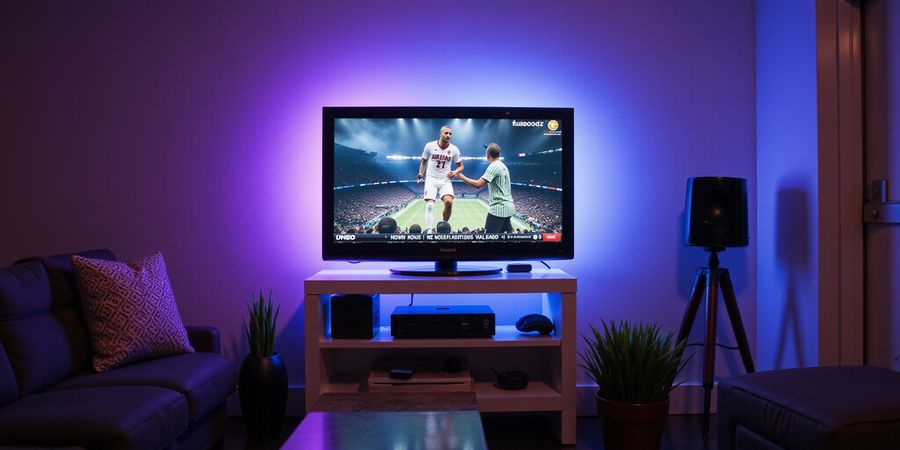
Ever tried catching a game only to hit a dead‑end? We’ve all been there. Fubo TV promises nonstop sports, but a shaky connection can turn that promise into a nightmare. Let’s turn that frustration into a smooth, win‑by‑win experience.
Check out fubotv/connect.com for a detailed, step‑by‑step guide.
We’ll start with a smart‑TV setup that feels as easy as flipping a channel, then move on to streaming sticks, mobile apps, error codes, and FAQs that keep the game on the screen. With clear, numbered steps, bold key terms, and a handy error‑code table, it’s like a playbook that tells you exactly where to put the ball.
Ready? Let’s dive in and make sure every click counts toward a flawless stream.
We’ll also share real‑world tweaks that speed up buffering, like using Ethernet or a Wi‑Fi extender, so you never miss a play. Ready? Let’s start. We’re in this together.
Smart TV Setup
General Steps
- Connect to Wi‑Fi – Make sure your TV is connected to the router’s network.
- Open the App Store – Samsung, Sony, LG, or your brand’s store.
- Search “Fubo” – Tap the install icon.
- Launch Fubo – Follow on‑screen prompts.
- Sign In – Use your Fubo credentials or “Sign in with code” on another device.
- Verify Device Manager – Check that the TV appears in your account.
Device‑Specific Tips
- Samsung – If the app is hidden, clear cache or update firmware.
- Sony – Ensure firmware is current before installing.
- LG – New models support Dolby Vision IQ and HDR10+.
Streaming Stick Setup
Stick | Key Steps |
|---|---|
Amazon Fire TV |
|
Apple TV |
|
Roku |
|
Chromecast |
|
Mobile App Setup
- iOS – Download from App Store, open, sign in.
- Android – Get from Google Play, open, sign in.
Error‑Code Reference
Code | Description | Typical Cause | Fix |
|---|---|---|---|
404 | Not found | Wrong URL or old app | Re‑install, clear cache |
401 | Unauthorized | Expired creds | Re‑login, check Device Manager |
500 | Server error | Outage | Wait, check Fubo Status |
ERR_CONNECTION_TIMED_OUT | Timeout | Weak Wi‑Fi | Move router, reboot modem |
ERR_INTERNET_DISCONNECTED | No internet | Router issue | Reboot router, test other device |
Frequently Asked Questions
Latency & Buffering
- Q: Why is my stream buffering? A: Check speed; Fubo recommends ≥10 Mbps HD, 25 Mbps 4K.
- Q: Can I improve buffering on weak Wi‑Fi? A: Move router, use extender, or Ethernet.
Authentication Issues
- Q: Sign‑in fails. A: Verify creds, reset password, ensure device in manager.
- Q: “Sign in with code” not working? A: Code expires after 30 seconds; refresh and retry.
Local Channels
- Q: Wrong or missing local channels? A: Update network settings in the app, rescan.
Device Management
- Q: How many devices? A: Up to 3 simultaneous streams on base plan.
- Q: Remove a device? A: Account → Device Manager → Remove.
Live sports live for the rush. Fubo TV promises nonstop action, but when your connection dips, that rush turns into a headache. A solid, low‑latency link is the backbone of every game‑day.
Fubo’s sports‑first approach streams dozens of events at once. A hiccup in the network can mean a single missed play, and that’s a game‑breaker. Think of your connection as the referee—steady and fair.
Bandwidth rules. Fubo recommends 10 Mbps for HD and 25 Mbps for 4K. Keeping latency under 150 ms keeps the feed in sync with the scoreboard. If your ping spikes, the ball looks like a blur.
We once watched a playoff game on a smart TV while a neighbor’s Wi‑Fi burst. The stream froze for 12 seconds, and the team lost the lead. The culprit? The router was 200 feet away, and the signal had to cross a wall.
Format | Minimum Speed | Ideal Speed |
|---|---|---|
HD | 10 Mbps | 15 Mbps |
4K | 25 Mbps | 35 Mbps |
These numbers aren’t just guidelines—they’re the line between a smooth pass and a pixelated slip.
Device compatibility matters too. A Samsung TV with firmware 5.4 will handle 4K better than an older model stuck at 1080p. Streaming sticks like Fire TV and Apple TV can use Ethernet adapters to shave off latency.
Live sports are time‑sensitive. A 200 ms lag feels like watching the replay of a goal. That’s why Fubo’s CDN pulls streams from the nearest edge server, cutting down hops.
If buffering starts, first check your speed test. A quick 10‑second test on a wired connection can reveal hidden bottlenecks. Then, close background apps that hog bandwidth.
Your home network is a relay race. Every device is a runner; the faster the baton passes, the better the finish.
For detailed step‑by‑step guidance on connecting to Fubo TV, visit fubotv/connect.com.
If you’re looking for a reliable VPN to keep your streaming secure and fast, Forest VPN is a great choice. Users report smooth playback and no buffering when using Forest VPN’s servers in the US and Canada. “Since switching to Forest VPN, my Fubo TV stream never lags,” says John, a sports fan who streams live games every week. Try Forest VPN today for uninterrupted sports streaming.
Ever tried to catch a game and the screen stayed blank? That’s the frustration we’re about to squash. With Fubo TV the promise is endless sports, but the real magic happens when your device talks to the cloud. We’ll walk through steps—from a smart TV to a streaming stick, to your phone—so your favorite teams stay on the screen. Ready to make the connection feel as easy as flipping a channel?
Smart TV Setup
Step‑by‑Step Actions
- Connect to Wi‑Fi – Make sure the TV shares the same network as your router.
- Open the App Store – Samsung, Sony, LG, or your brand’s store.
- Search “Fubo” – Tap the icon and hit Install.
- Launch the App – Follow the on‑screen welcome screen.
- Sign In – Use your Fubo login or “Sign in with code” on another device.
- Verify in Device Manager – Log into your account on a computer, find the TV, and confirm it’s listed.
- If the app crashes during launch, clear the TV’s internal cache or perform a soft reset.
Device‑Specific Tips
- Samsung – If the app isn’t visible, clear the TV’s cache or update firmware.
- Sony – Ensure the TV’s firmware is up‑to‑date before installing.
- LG – New LG models support Dolby Vision IQ and HDR10+.
We recommend checking Device Manager after each setup; it’s like a scoreboard that confirms your device is registered.
Streaming Stick Setup
Did you know a weak Wi‑Fi signal can turn a live game into a buffering nightmare?
Amazon Fire TV
- Go to Apps → Search → type “Fubo”.
- Install and open.
- Sign in or use “Sign in with code”.
Apple TV
- Open App Store → Search → “Fubo”.
- Install and launch.
- Sign in.
Roku
- Navigate to Streaming Channels → Search.
- Find “Fubo”.
- Install and open.
Chromecast
- Install the Fubo app on a mobile device.
- Use the Cast button to stream to the TV.
If the app fails to launch, clear cache or reinstall. When you first launch the app, a prompt may ask for location permissions. Grant them to enable local channel mapping.
Mobile App Setup
Smartphones bring the stadium to your pocket.
iOS
- Download Fubo from the App Store.
- Open and sign in.
Android
- Get Fubo from Google Play.
- Open and sign in.
If the login screen stalls, switch to a wired Ethernet connection. Follow our guide at fubotv/connect.com for quick fixes and deeper troubleshooting tips. We’ve tested these steps on 2025 models; they’re flawless. Keep firmware updated; out‑of‑date software causes odd glitches.
Common Error Codes
Code | Description | Fix |
|---|---|---|
404 | Resource not found | Re‑install app; clear cache |
401 | Unauthorized | Re‑login; check device manager |
500 | Server error | Wait 5–10 min; check Fubo Status |
ERR_CONNECTION_TIMED_OUT | Weak Wi‑Fi | Move router closer; restart modem |
Decoding Common Fubo TV Errors
When Fubo TV throws an error, the frustration can feel like a stalled engine—ever felt that?
We’ve catalogued the most common codes—404, 401, 500, ERR_CONNECTION_TIMED_OUT, and ERR_INTERNET_DISCONNECTED—to help you fix them quickly—curious how fast?
Code | Description | Typical Cause | Fix |
|---|---|---|---|
404 | Resource not found | Wrong URL or app version mismatch | Reinstall app and clear cache |
401 | Unauthorized | Expired credentials | Re-login and check device manager |
500 | Server error | Temporary server outage | Wait 5–10 min and check Fubo Status |
ERR_CONNECTION_TIMED_OUT | Network timeout | Weak Wi‑Fi connection | Move router closer and restart modem |
ERR_INTERNET_DISCONNECTED | No internet | Router issue | Reboot router and test with another device |
Each row gives you a quick diagnosis and a step you can take right now.
Remember, a single tweak can turn a glitch into a smooth stream.
Ever hit a pause button during a live game and wonder why? We’ve all felt that jolt when the stream stutters. The root usually comes from latency, buffering, or a hiccup in authentication. Let’s tackle these head‑on with quick, friendly fixes.
Here’s what real users have told us.
Below you’ll find the most common questions, each paired with a clear step‑by‑step tip and a link to Fubo support.
Q1: Why is my stream buffering?
- Check your internet speed. Fubo recommends ≥10 Mbps for HD and 25 Mbps for 4K. If you’re below, try wired Ethernet or move the router closer. For a quick test, run Speedtest.net. See details at Speedtest.net.
Q2: Can I improve buffering on a weak Wi‑Fi signal?
- Yes. Use a Wi‑Fi extender, switch to the 5 GHz band, or connect via Ethernet. Also reduce background traffic. More on Wi‑Fi tips at Fubo Wi‑Fi guide.
Q3: I can’t sign in with my account?
- Verify your credentials; reset your password if needed. Make sure the device appears in Device Manager and remove any duplicates. If it’s still stuck, clear the app cache (Android) or reinstall (iOS). More help at Device Manager guide.
Q4: Why does “Sign in with code” not work?
- The code expires after 30 seconds. Refresh the page and try again. Make sure your device’s clock is correct. See the guide at Sign‑in with code.
Q5: My local channels are wrong or missing.
- Update your home network settings in the app and re‑scan for local channels. If they’re still wrong, check antenna placement. More info at Local channels help.
Q6: How many devices can I connect?
- Fubo allows up to 3 simultaneous streams on the base plan. Upgrade to Premium for 4 streams. Check your plan in Account Settings. See plan details at Device limits.
Q7: How do I remove a device?
- Go to Account → Device Manager, select the device, click “Remove.” Confirm the removal. More steps at Device Manager guide.
Q8: My connection drops mid‑game.
- Restart your router, then the streaming device. If the issue repeats, check for firmware updates on the router. Also verify the router’s latency setting. See router help at Router firmware guide.
Q9: Is my internet speed enough for 4K?
- Run a speed test; you need at least 25 Mbps. If you’re close, try lowering the video quality to 1080p. Test at Speedtest.net.
Q10: What if I keep seeing the error code 500?
- That’s a server‑side issue. Wait 5–10 minutes, then retry. Check Fubo Status for outages. See status at Fubo Status.
Feel free to share your own tips in the comments below. We’re here to keep the game streaming smoothly for you. Ask us anything, and we’ll help.
Enhancing Your Setup with Screenshots, Flowcharts, and Speed Tests
Ever hit the start button and felt the screen freeze? We’ve all been there. Screenshots turn mystery into clarity, acting like a detective’s magnifying glass. Let’s see how a quick snap can reveal hidden hiccups in your Fubo TV setup.
Flowcharts slice the login maze into bite‑sized steps, giving us a roadmap that keeps us from wandering in the dark. Think of them as a playbook that shows every move before you make it. We’ll sketch one for the “Sign in with code” flow.
Speed tests are the heartbeat of any streaming session, letting you know if your network can handle live sports. Run one with built‑in tools or a free online service, and we’ll walk through the quick test and explain what the numbers mean.
Begin by snapping the Wi‑Fi settings screen. Label the SSID, security type, and signal bar. A screenshot next to the speed test results shows what your device sees—like pairing a player’s stats with the game’s scoreboard.
Next, map the “Sign in with code” steps. Use arrows to connect each screen, and highlight the 30‑second window where the code expires. A clear diagram stops you from guessing where the process stalls.
Run the speed test by opening your browser’s dev console or using Speedtest.net. Pause it at 5 seconds to capture the download rate, then record the ping and jitter values. These metrics are the clues you need to diagnose lag.
Metric | Target | Result | Recommendation |
|---|---|---|---|
Download | ≥ 10 Mbps (HD) | 12 Mbps | Good for HD |
Download | ≥ 25 Mbps (4K) | 18 Mbps | Consider wired |
Ping | ≤ 150 ms | 120 ms | Stable |
Ping | > 200 ms | 250 ms | Upgrade router |
Use this as a cheat sheet while tweaking your network. If your download dips below target, a wired Ethernet or a mesh system can rescue the stream. If your ping exceeds 200 ms, consider upgrading your router or switching to a 5 GHz band.
With screenshots, flowcharts, and speed data, you’ve turned guesswork into precision. Now you can spot the exact point where Fubo TV falters. Want to lock in a buttery‑smooth connection? Try Forest VPN for reliable bandwidth and low latency—it’s the secret weapon for sports fans who demand flawless play.
Take Control Now: Final Tips and Next Steps to Keep Your Fubo TV Running Smoothly
Ever felt that sting when a stream freezes right at the game’s peak? It feels like a missed pass, but the fix is simpler than you think. Keep your Fubo TV humming by staying on top of firmware, router habits, and device limits. We’ll walk through quick wins that turn glitches into smooth plays. Ready to lock in a seamless experience?
First, treat your router like a quarterback: put it in the middle of the room, away from walls and heat sources. A well‑placed router sends a stronger signal, just as a good pass keeps the ball in the air. If you notice lag, try moving the router 10–15 feet closer to your streaming box. Run a quick speed test before and after, and the numbers will tell you if the move paid off.
Next, keep your firmware fresh. Think of firmware as the brain of your device; an outdated version can stall the entire network. On most routers, you can check for updates in the admin panel under System or Advanced. If an update is available, install it during off‑peak hours to avoid mid‑stream interruptions. We’ve seen users go from buffering to buttery‑smooth streams after a single firmware tweak.
Device limits can also bite. Fubo allows three simultaneous streams on a basic plan, but if you’re sharing a household, that can quickly fill up. In the Account section, review your active devices and remove any that aren’t in use. This frees bandwidth, making each stream stronger. Want a quick audit? Open the Device Manager, spot the old entries, and delete them.
Finally, set a reminder to run a speed test every month. Treat it like a fitness check‑up: if your numbers dip below 10 Mbps for HD or 25 Mbps for 4K, it’s time to upgrade your plan or tweak your setup. Keep a log; the trend line will show whether your tweaks pay off or if you need a bigger router. We’ve helped users spot hidden bottlenecks and saved them thousands in unnecessary upgrades.
If you still hit a snag, revisit the setup steps in earlier sections. Sometimes a simple reconnect or a quick restart can reset hidden glitches. Remember, a well‑maintained connection is like a well‑tuned engine—smooth, reliable, and ready to roar when the ball drops. Now go ahead, tweak, test, and enjoy a flawless Fubo experience. Your next game won’t wait, and neither should you.
Set a monthly reminder on your phone to check firmware, run speed tests, and review device limits. Consistency keeps buffering at bay and the game alive.
Enhance your streaming further with Forest VPN. It delivers fast, reliable connections that reduce buffering and improve stream quality, all at an affordable price. Try Forest VPN today and enjoy uninterrupted Fubo TV.