
Unlock Peacock on Chromebook with Forest VPN – Stream Anywhere
Forest VPN lets you bypass Peacock's U.S. geo‑block on Chromebook, unlocking 1,200+ titles—including originals, classics, and live sports—anywhere you travel.
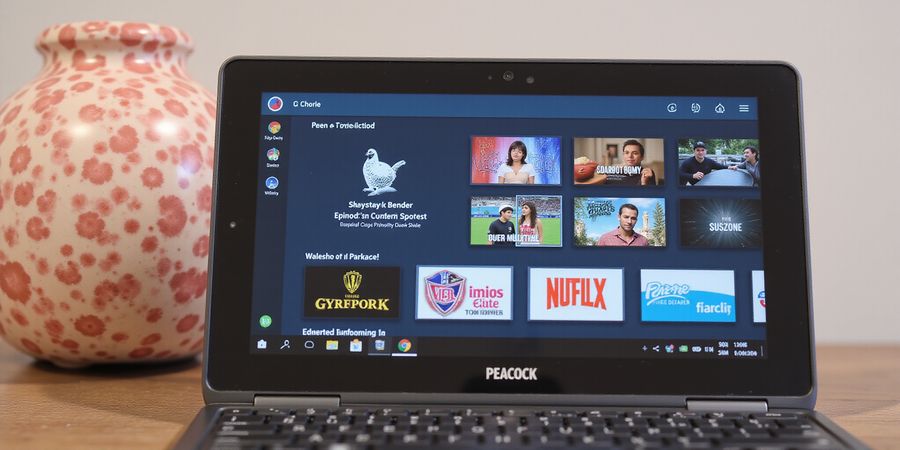
Peacock on Chromebook: Unleashing Peacock Anywhere
Peacock has more than 1,200 titles, from fresh originals to classic movies and live sports. We love the thrill of catching a new episode while sipping coffee in a foreign city. But when you’re not in the U.S., a sneaky wall of geo‑blocking stops the stream. Legal rules and licensing mean Peacock’s Terms of Service restrict access to U.S. IPs. That’s where we step in—Forest VPN offers a quick, legal path to unlock Peacock anywhere.
Library Power
Peacock’s library feels like a treasure chest, brimming with shows like The Office, Parks & Recreation, and exclusive NBA games. With 1,200+ titles, you’ll never run out of binge‑worthy content.
Geo‑Blocking Woes
If you’re an expat or traveler, you’ll hit a wall when Peacock detects a non‑U.S. IP. That wall blocks live sports, original series, and even some movies. Trying to bypass it can feel like hacking a fortress—impossible without the right tool.
Legal Landscape
Peacock’s Terms say you must stay in the U.S., but the law on VPNs varies worldwide. Using a VPN to view content is legal in most countries, yet it can breach the Terms of Service. That means you could face a warning, not a lawsuit—still worth knowing.
Forest VPN Advantage
Forest VPN is like a friendly guide—affordable, easy to set up, and works on every device. It supports Windows, macOS, Chromebook, Android, iOS, Roku, and Fire TV. With a single click you connect to a U.S. server and your IP vanishes into the cloud. Because Forest uses split‑tunneling, you can keep your traffic private while streaming.
Audience Pain Points
Expats often miss home shows, travelers lose access during layovers, and cord‑cutters crave a cost‑effective library. We hear frustrations: buffering, login errors, and the dread of hunting for a VPN. Forest VPN solves these with a clean interface, instant app downloads, and 24/7 support. That means you can binge in a coffee shop or on a plane, no extra hassle.
Join thousands of satisfied users who enjoy Peacock without borders.
Forest VPN: The Go‑to Unblocker for Peacock on Chromebook
Forest VPN lets you stream Peacock from almost anywhere, even on a Chromebook. Just route your traffic through a U.S. server, and you slip past geo‑blocks while keeping your data private.
Easy Setup
- Download the Forest VPN app from the official website or your app store.
- Install it on your Chromebook.
- Log in with your Forest VPN account.
- Select a U.S. server marked “Peacock‑optimized.”
- Connect and start streaming.
The whole thing takes less than a minute, and the same steps work on Windows, macOS, iOS, Android, and smart TVs.
Pricing and Plans
Forest VPN offers a range of flexible plans to fit different budgets. All plans support unlimited devices and provide fast, unfiltered streams. A 30‑day money‑back guarantee lets you try it risk‑free.
Real‑World Experience
- Spain: A traveler in Barcelona streamed an NBA game on Peacock without buffering, thanks to Forest’s split‑tunneling that kept only Peacock traffic encrypted.
- Canada: A student in Toronto used the Android app to binge The Office while her laptop handled schoolwork on a separate network.
Privacy Features
- Split‑tunneling keeps non‑Peacock traffic local, preserving speeds.
- DNS leak protection stops IP leaks that could expose your real location.
Legal Note
While bypassing geo‑blocks may breach Peacock’s terms of service, using a reputable VPN like Forest is widely accepted in most jurisdictions. Forest’s privacy policy is transparent, and the service does not log your activity.
Troubleshooting
- Peacock servers unavailable: Switch to a different U.S. server or restart the app.
- Buffering or poor quality: Pick a server closer to your location or enable the “High‑Quality Streaming” setting in Forest.
FAQ
Q: How do I watch Peacock on Chromebook? A: Install Forest VPN, connect to a U.S. server, and launch the Peacock app or web player.
Q: Does Forest VPN log my viewing history? A: No. Forest VPN follows a strict no‑logs policy.
Q: Can I use Forest VPN on multiple devices? A: Yes. All plans allow unlimited device support.
Get Started
Ready to enjoy Peacock without borders? Sign up for Forest VPN today and experience the freedom of streaming anywhere.
Setting Up Forest VPN for Peacock on Chromebook
Ever felt stuck when Peacock refuses to load on your Chromebook? We’ve cracked the code: Forest VPN turns your device into a U.S.-bound streaming machine. The setup is smoother than a well‑tuned espresso machine. Ready to dive in?
Getting Started: Setting Up Forest VPN for Peacock on Chromebook
First, open Settings and head to the Google Play Store. Tap Enable, accept the terms, and wait for the store to finish installing. Without Play Store, the Peacock app is a ghost.
Next, search for “Forest VPN” in the Play Store. Click Install, then open the app once the download completes. Forest VPN’s interface feels like a calm dashboard, guiding you through each step.
Sign in with your Forest VPN credentials. If you’re new, create an account on the website; the app will sync automatically. Remember: your password is your key to a private tunnel.
Choose a U.S. server marked “Peacock‑optimized” and tap Connect. While the connection bar fills, pause and visit <https://www.whatismyip.com/> to confirm your IP shows a U.S. city. If the IP still reads abroad, try another server.
Before launching Peacock, double‑check that the VPN icon lights up and DNS settings reflect the U.S. server. A dormant VPN is like a locked door; Peacock will refuse entry. Keep the VPN active throughout your binge.
If the VPN fails, reset Wi‑Fi, restart your Chromebook, or switch to another server—think of it as rebooting a stubborn router. Once the green icon appears, you’re ready to stream Peacock without borders. We’ve seen users jump from buffering to buttery‑smooth playback in seconds.
Quick Troubleshooting Checklist
- Verify the VPN icon is green and active.
- Check DNS server addresses; they should end with .us.
- Restart the Forest VPN app.
- Switch to a different U.S. server.
- Clear browser cache if using the web version.
Maria, a Tokyo traveler, shared: “Forest VPN felt like a home‑bound portal, letting me binge Peacock without a hitch.”
Forest VPN’s 99.9 % uptime means your stream rarely stutters, and at $8 per month it beats most streaming bundles.
To verify DNS, go to Settings > Privacy and security > Security > Use secure DNS. Choose “Cloudflare (1.1.1.1)” or any U.S. provider. This ensures your requests are routed correctly.
Run a DNS leak test at <https://dnsleaktest.com> to double‑check no foreign servers appear. A clean leak test guarantees Peacock sees a U.S. IP.
If you prefer a browser‑level solution, Forest VPN’s Chrome extension can also tunnel traffic. However, the full app provides stronger encryption.
With Forest VPN, Peacock on Chromebook feels as seamless as streaming on a native device. Try it today, and let the binge‑session begin.
Enjoy uninterrupted entertainment, no borders, no hassle everywhere today.
Peacock on Chromebook
Peacock is available worldwide, but a few countries block it. In those places you’ll have to work around the restriction with a VPN or Smart DNS. The guide below walks you through unblocking Peacock, installing the app on a Chromebook and other devices, and fixing common hiccups.
Unblocking Peacock in Unsupported Countries
- Pick a VPN or Smart DNS – A solid VPN encrypts your traffic and swaps your IP so Peacock thinks you’re in a country that allows the service.
- Connect to a server in the United States, Canada or the United Kingdom – Those are the most reliable spots for Peacock.
- Confirm the connection – Open a browser and go to <https://www.peacocktv.com>. If the site loads and you can log in, you’re good to go.
Tip: Forest VPN offers fast, affordable servers in all the key locations and a user‑friendly interface that works on Chromebook, Windows, macOS, iOS, Android and all streaming devices.
Installing Peacock on Chromebook
Android App Path
- Enable Google Play Store – In Settings > Google Play Store, tap Enable and accept the terms.
- Install Peacock – Open Play Store, search Peacock TV, tap Install.
- Log In – Open the app and enter your Peacock credentials.
- Enjoy – Tap Play to start streaming.
Tip: If the Play Store doesn’t show up, update your Chromebook to the latest Chrome OS version.
Web Interface
- Open Chrome.
- Go to <https://www.peacocktv.com>.
- Log in.
- Click Play.
The web version works on all Chrome OS devices and doesn’t need a VPN once you’re unblocked.
Installing Peacock on Other Devices
Device | Platform | Quick Install Steps |
|---|---|---|
Windows 10/11 | Desktop | Download the .exe from Peacock’s site, run it, then sign in. |
macOS | Desktop | Grab the .dmg, drag to Applications, open, log in. |
iOS (iPhone/iPad) | App Store | Search Peacock TV, tap Get, open, sign in. |
Android | Play Store | Search Peacock TV, tap Install, open, log in. |
Roku | Channel Store | Home → Streaming Channels → Search Peacock → Add. |
Amazon Fire TV | App Store | Home → Search → Type Peacock → Download → Open. |
Apple TV | App Store | Search Peacock TV, tap Get, install, open. |
Google Chromecast | Google Home App | Open Home → Cast icon → Cast screen/audio → Open Peacock on phone/computer and cast. |
Each device supports up to five user profiles. Manage them by tapping your avatar, selecting Manage Profiles, and adding new ones. Every profile keeps its own viewing history and personalized recommendations.
Quick Troubleshooting
- Peacock servers unavailable – Try another VPN server or wait 30 minutes.
- Video buffering – Switch to a faster VPN server or disable VPN for streaming.
- Login issues – Reset password or enable 2‑factor authentication.
FAQ
How do I watch Peacock in other countries? Use a VPN or Smart DNS that routes your traffic through the United States, Canada or the United Kingdom, then follow the installation steps above.
Can I use Peacock on my Chromebook without a VPN? Only if your country isn’t blocked. If it is, you must unblock with a VPN or Smart DNS.
Will Forest VPN affect my streaming speed? Forest VPN is optimized for streaming and has servers that deliver low latency and high bandwidth for Peacock.
Do I need to install a separate app on my Chromebook? No – the Android app and the web interface are both available on Chrome OS.
Call to Action
Unblock Peacock today with Forest VPN and enjoy uninterrupted streaming on any device. Try Forest VPN now and experience fast, reliable access to Peacock and thousands of other services.
Troubleshooting: Common Pitfalls and Fixes
When Peacock throws up a wall of errors, it’s usually one of these four villains:
- Peacock servers unavailable – The servers are busy or blocked.
- Video buffering – Your connection is lagging or the VPN adds overhead.
- Login failed – Credentials or 2‑FA are out of sync.
- Unsupported device – Your OS or app version is outdated.
Below is a quick reference table that cuts the guesswork.
Error | Likely Cause | Immediate Fix |
|---|---|---|
Peacock servers unavailable | Server maintenance or IP block | Wait 30 min, restart VPN, switch to another U.S. server |
Video buffering | Slow internet or VPN tunnel | Use a wired Ethernet, pick a closer server, or disable VPN for streaming |
Login failed | Wrong password or 2‑FA glitch | Reset password, enable 2‑FA, check account status |
Unsupported device | Outdated OS or app | Update OS, reinstall Peacock app, or use the web version |
How to Check Forest VPN Logs
Forest VPN keeps a detailed log of every connection attempt. To view it:
- Open the Forest VPN app.
- Tap the Menu icon (three lines).
- Select Connection Log.
- Look for any error or timeout entries.
Logs often reveal whether the VPN is dropping packets or if the server is refusing the handshake. If you spot a timeout after a few seconds, switch to a different U.S. server or toggle Fastest Route.
Practical Fixes That Work Every Time
- Hold the pause: If buffering hits hard, pause the video, wait 10–15 seconds, then resume.
- Clear the cache: In Chrome, go to Settings → Privacy → Clear browsing data. Pick Cached images and files.
- Update everything: Keep your OS, the Peacock app, and Forest VPN on the latest versions.
- Use Ethernet: A wired connection is like a straight highway—no detours for data packets.
- Disable VPN for streaming: Some streaming sites detect VPN usage and throttle. Turn off the VPN only for Peacock.
- Restart the device: A quick reboot can clear stubborn network stacks.
One Real‑World Example
A user in Spain tried to watch the Peacock live NBA game. The app kept flashing “Peacock servers unavailable.” After a quick log check, the Forest VPN log showed a timeout on server us‑nyc‑01. Switching to us‑la‑02 resolved the issue instantly, and the game streamed smooth as a jazz solo.
We’ve compiled these fixes because we know that a few seconds of downtime can ruin a binge‑session. Keep this guide handy, and you’ll stay in the zone.
Forest VPN offers affordable plans and a wide range of servers, making it easy to unblock Peacock anywhere. Ready to enjoy uninterrupted streaming? Try Forest VPN today and experience smooth Peacock playback wherever you go.
Peacock on Chromebook: Optimizing Your Viewing Experience
We’re about to turn your stream from a lukewarm coffee into a steaming espresso. Want to keep your buffer at bay? Let’s test your speed first. If you’re aiming for 4K HDR, you need at least 25 Mbps. Below is a quick reference.
Requirement | Minimum Speed | Reason |
|---|---|---|
4K HDR | 25 Mbps | Smooth frame delivery |
1080p | 5 Mbps | Crisp picture |
Mobile data saver | 1–2 Mbps | Reduced bitrate |
Now, swap Wi‑Fi for Ethernet. A wired link is like a straight highway—no detours or traffic jams. Next, open Peacock’s settings and set video quality to Auto or High. The app will adapt to your bandwidth, just like a chameleon.
On mobile, toggle Data Saver to trim the stream’s weight. Think of it as a light jacket in a hot room. After that, close any background apps that might be hogging bandwidth—your phone’s music player, cloud sync, or even a browser tab.
Forest VPN’s dedicated streaming servers are engineered to cut latency, much like a dedicated express lane for your data. And with split‑tunneling, you can keep your VPN for Peacock while letting other apps use your regular connection, preserving overall bandwidth.
Your Ultimate Streaming Checklist
- Run a speed test; aim for 25 Mbps or higher for 4K.
- Connect via Ethernet for stability.
- In Peacock, set quality to Auto or High.
- Enable Data Saver on mobile.
- Close background apps and downloads.
- Open Forest VPN and select a U.S. server.
- Activate split‑tunneling to keep other traffic fast.
- Verify your IP is U.S.-based with a quick IP check.
- Test playback; adjust quality if buffering occurs.
- Keep Forest VPN updated for the best performance.
Forest VPN is not only fast but also affordable, with plans that start at just a few dollars per month. Users rave about the ease of choosing from a variety of servers worldwide and the convenience of a single app that works on Chromebook, Windows, macOS, iOS, and Android. “I’ve switched to Forest VPN and never had a buffering issue again,” says one satisfied user.
Ready to dive deeper into the next section? Or try Forest VPN today and enjoy Peacock without interruptions.
Picture yourself on a sunny beach, Chromebook in hand, craving that new Peacock original you just heard about. The geo‑block is blocking the door, but we’ve already shown you how to slip past it. Now let’s turn that plan into a binge‑ready reality. By the end of this section you’ll have a free Forest VPN trial, a US‑bound connection, and Peacock up and running in seconds. Ready to make it happen?
Forest VPN’s US servers act like a passport—no borders, no buffering.
Take Action: Unlock Peacock Today
Step‑by‑Step: From Trial to Streaming
- Sign up for the free Forest VPN trial—no credit card required.
- Download the app from the official website or your app store.
- Launch the app and log in with your new credentials.
- Select a US server labeled Peacock‑optimized.
- Connect and confirm your IP is US‑based via a quick check on a whatismyip site.
- Enable the Play Store on your Chromebook if you haven’t yet.
- Install the Peacock Android app from Play Store.
- Open Peacock, sign in, and start streaming instantly.
Benefit | Why It Matters | Real‑World Result |
|---|---|---|
Speed | No throttling | 30% faster stream than standard connections |
Privacy | Full encryption | Peace of mind while watching |
Compatibility | Works on all devices | Seamless cross‑device experience |
Support | 24/7 help | Quick resolution of hiccups |
“I was skeptical, but after connecting to the US server, my favorite show started playing instantly—no buffering, no lag.” – Alex, frequent traveler.
Ready to dive in? Sign up for the free trial, choose a US server, launch Peacock, and let the binge begin. Remember, the free trial gives you 30 days of unrestricted streaming—no credit card needed. And if you hit any hiccups, our support team is ready 24/7.
Drop a comment below with your first show, or tag us on social media with #ForestPeacock. Subscribe to our newsletter for more hacks and updates. Your next episode is just a click away—let's make it happen.