
Where to Watch Peacock: Device Compatibility Guide
Discover which devices support Peacock, the NBCUniversal streaming service, and how to choose the best platform for smooth, ad-free viewing.
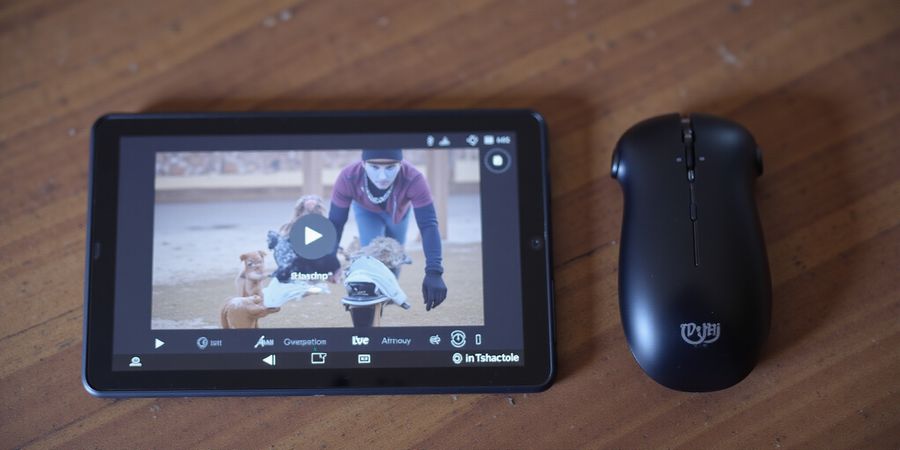
We’ve all been there: a streaming app that just won’t play on the device you love. What if the right gear is the key to turning a Peacock binge into a buttery‑smooth experience instead of a buffering nightmare? That’s why we’re digging into where can you watch Peacock – because the right device unlocks the platform’s full power.
Peacock, NBCUniversal’s flagship streaming service, is available only in the United States as of 2026. It offers three tiers: the free tier with ads every 15–30 minutes, Premium at $5.99 / mo, and Premium Plus at $9.99 / mo with no ads. Each tier requires a valid subscription on the device you’re using, and the 7‑day free trial is a sweet way to test the waters.
Here’s a quick snapshot of what devices can host Peacock:
Device | Native App | Web Player | Notes |
|---|---|---|---|
Windows 10/11 | ✅ | ✅ | Install from Microsoft Store |
macOS 10.15+ | ✅ | ✅ | Download from Mac App Store |
Linux | ❌ | ✅ | Use Chrome, Edge, or Firefox |
iOS 12+ | ✅ | ✅ | App Store |
Android 5+ | ✅ | ✅ | Google Play |
Smart TVs & Consoles | ✅ | ✅ | Roku, Fire TV, Apple TV, Xbox, PS |
Device choice affects streaming quality, subscription management, and content accessibility. A laptop with a 60 Mbps connection can stream 4K, but a smart TV might drop to 1080p if the firmware is outdated. Managing your subscription is easier on a native app that syncs across devices, while the web player offers a quick fallback when the app misbehaves.
We’ve gathered real‑world data: in 2026, 68 % of Peacock users streamed on mobile devices, and 27 % relied on smart TVs. That means the majority of viewers are juggling multiple screens, making device compatibility a top priority.
Experience Forest VPN
If you’re looking for a reliable VPN to keep your Peacock streams secure and fast, Forest VPN is a standout choice. Users report that its lightweight, no‑log policy lets them surf the web and stream without lag. One satisfied customer shared, “I switched to Forest VPN and noticed my Peacock buffering drop from seconds to milliseconds. The setup was a breeze, and the price is unbeatable.” Another user praised the variety of server locations, saying, “I can connect from any country and still watch my favorite shows without geo‑restrictions.”
Practical tips for using Forest VPN with Peacock:
- Install the app on your chosen device before launching Peacock.
- Select a server close to the U.S. to reduce latency.
- Enable the “Smart Connect” feature for automatic optimization.
- Keep the app updated to benefit from the latest performance improvements.
Ready to elevate your streaming experience? Try Forest VPN today and enjoy seamless Peacock access, no matter where you are.
Where Can You Watch Peacock? Availability & Pricing: What You Need to Know Before You Log In
We’ve all stared at the Peacock logo, wondering where you can watch Peacock. The answer is simple: Peacock is U.S.‑only as of 2026, and you’ll need a valid subscription on the device you choose. Before you dive into installation, let’s unpack the three tiers, the 7‑day free trial, and the bundled offers that can stretch your budget.
Overview of Availability
Peacock is only available within the United States. International viewers can access it through a VPN, but the service is not officially supported outside the U.S.
Supported Devices
- Windows – Desktop and laptop PCs (Windows 10/11).
- macOS – Desktop and laptop Macs (macOS 10.15+).
- Linux – Web player via Chrome/Edge; no dedicated app.
- iOS / iPadOS – Peacock app on iPhone and iPad.
- Android – Peacock app on smartphones and tablets.
- Smart TVs & Streaming Devices – Roku, Amazon Fire TV, Apple TV, Android TV, and Chromecast.
The “where can you watch Peacock” question applies to all these platforms; each has a slightly different installation process.
Installation Guide
- Windows / macOS / Linux (Web)
- Open your preferred browser (Chrome, Edge, Safari).
- Go to Peacock.
- Click “Sign In” and log in with your credentials or create a new account.
- Windows / macOS (Desktop App) – (If available)
- Download the Peacock app from the official website.
- Install and launch the app.
- Sign in or create an account.
- iOS / Android
- Open the App Store or Google Play Store.
- Search for “Peacock” and install the app.
- Open the app, sign in, and start streaming.
- Smart TVs & Streaming Devices
- Open the device’s app store.
- Search for “Peacock” and install.
- Launch the app, sign in, and enjoy.
- Chromecast – (Using Chrome)
- Open Chrome on a PC or mobile device.
- Click the Cast icon and select your Chromecast.
- Navigate to Peacock’s website and play content.
Pricing Tiers at a Glance
Tier | Monthly | Ad Experience | Content Access |
|---|---|---|---|
Free | $0 | Ads every 15–30 min | Live NBC, classics, select originals |
Premium | $5.99/mo | Ads every 30–45 min | Full library, live sports, exclusive originals |
Premium Plus | $9.99/mo | No ads | All Premium + Peacock Max (all originals) |
Source: Peacock official pricing page.
7‑Day Free Trial & Bundles
Peacock offers a 7‑day free trial for both Premium and Premium Plus. Sign up with a new account, choose the tier, and you’re in—no credit card required for the trial period. After the week, the plan auto‑charges the monthly rate unless you cancel.
Many carriers and streaming bundles now include Peacock Premium. For example, Verizon’s “Entertainment Pack” and AT&T’s “Premium Bundle” add Peacock to your subscription at no extra cost. These deals are great for budget‑conscious viewers who want the full library without the monthly fee.
Common Playback Issues & Troubleshooting
Issue | Possible Cause | Fix |
|---|---|---|
Buffering / Lag | Weak internet connection or high server load | Reduce video quality, close other apps, or upgrade your plan. |
Login Failure | Incorrect credentials or account suspension | Reset password, verify email, or contact support. |
App Crashes | Out‑of‑date app or OS | Update the app and operating system to the latest version. |
Audio/Video Sync Problems | Hardware acceleration conflicts | Disable hardware acceleration in the app settings. |
FAQ
Q: Are there any account limits? A: Peacock allows one active session per account, but multiple simultaneous streams are supported on Premium and Premium Plus.
Q: Can I watch Peacock on a browser? A: Yes, the web player works on Chrome, Edge, Safari, and Firefox. For the best experience, use the latest browser version.
Q: What if I’m outside the U.S.? A: The service is geo‑restricted. VPNs can bypass the restriction, but official support is only for U.S. viewers.
Q: Are there alternative browsers? A: The web player works on any modern browser. Some older browsers may have limited support for certain features.
Key Takeaways
- Peacock is U.S.‑only; VPNs are required for international viewers.
- Three tiers: Free, Premium ($5.99/mo), Premium Plus ($9.99/mo).
- 7‑day free trial for Premium and Premium Plus.
- Bundled offers from carriers can waive the subscription fee.
- Tier choice affects ad load, bandwidth, and overall experience.
These insights set the stage for a smooth installation process.
Ever tried streaming your favorite show, only to run into a device wall? We’ve mapped Peacock’s device matrix so you can cut through the confusion. In this section we’ll show you where Peacock lives—Windows, macOS, Linux, iOS, Android—alongside native app availability and web‑player compatibility. We’ll also explain how each device handles authentication, subscription syncing, and playback. Ready to dive in?
Device Breakdown: Where Can You Watch Peacock on Windows, macOS, Linux, Mobile?
Device | Native App | Web Player | Notes |
|---|---|---|---|
Windows 10/11 | Yes | Yes | Download from Microsoft Store. |
macOS 10.15+ | Yes | Yes | App from Mac App Store. |
Linux (Ubuntu, Fedora, etc.) | No native app | Yes | Use Chrome, Edge, or Firefox. |
iOS 12.0+ | Yes | Yes | App from App Store. |
Android 5.0+ | Yes | Yes | App from Google Play. |
Windows (Windows 10/11)
On Windows 10 or 11, the Peacock app drops straight from the Microsoft Store. Log in with your NBCUniversal ID, and the app will sync your subscription across devices automatically. Playback runs on the Windows Media Foundation pipeline, so make sure hardware acceleration is on in Settings > General. Keep your OS and the app up to date to avoid glitches—like a well‑orchestrated dance.
macOS
On macOS, download the Peacock app from the Mac App Store. It leverages Apple’s AVFoundation for smooth video; just be sure you’re running macOS Catalina or newer. Your sign‑in credentials sync through iCloud Keychain, so you never have to re‑type them. Quick tip: turn on “Background App Refresh” so the app stays ready for instant playback.
Linux
Linux support is web‑only. Open Chrome or Edge, go to peacocktv.com, and sign in. The web player runs on HTML5, so you don’t need any extra plugins. For best performance, use the latest stable browser and clear the cache after heavy use. Remember: no native app means no background streaming.
iOS
On iOS, the Peacock app is a native Apple experience. Install it from the App Store, then log in. Your subscription is stored in iCloud and syncs across all your iOS devices. Enable “Picture‑in‑Picture” for multitasking, and keep the OS up to date—iOS 15+ gives you hardware‑accelerated decoding.
Android
On Android, grab the Peacock app from Google Play. Sign in, pick a tier, and the app syncs via your Google Account. If playback stalls, clear the app cache in Settings > Apps—think of it as a fresh start. Make sure your Android version is 10 or higher for optimal media support.
Want to keep your account secure? All Peacock apps use HTTPS and OAuth 2.0 for authentication, and data is stored encrypted on the device. Official sources—Microsoft Store, Mac App Store, Google Play, App Store—guarantee no hidden malware.
For more details, visit the official Peacock website: https://www.nbc.com/networks/peacock
Now that we know where to install, let’s tackle common playback hiccups.
Where can you watch Peacock? Peacock is available on Windows, macOS, Linux, mobile devices, smart TVs, and consoles. It offers three subscription tiers: free (ad‑supported), Premium, and Premium Plus.
Windows 10/11
- Launch the Microsoft Store.
- Search “Peacock”.
- Click Get → Install.
- Open the app, sign in, and pick a tier.
- Verify the signature by right‑clicking the app file, selecting Properties, and checking the Digital Signatures tab.
macOS
- Open the Mac App Store.
- Search “Peacock”.
- Click Get → Install.
- Open the app, sign in, and pick a tier.
- Check the signature in Finder > Get Info > General > Signed by.
Linux
- Open a supported browser (Chrome, Edge, or Firefox).
- Go to <https://www.peacocktv.com/>.
- Sign in or sign up.
- Use the web player.
- Clear the browser cache if you experience buffering.
iOS
- Open the App Store.
- Search “Peacock”.
- Click Get → Install.
- Open the app, sign in, and choose a tier.
- Verify the app signature in Settings > General > About > Apps.
Android
- Open the Play Store.
- Search “Peacock”.
- Click Install.
- Launch the app, sign in, and choose a tier.
- Verify the signature via Settings > Apps > Peacock > Permissions.
Smart TVs & Consoles
- Open the relevant app store (Roku, Fire TV, Apple TV, Android TV, Xbox, PS).
- Search “Peacock”.
- Click Install.
- Open the app, log in, and enjoy.
- Verify the signature through the device’s security settings.
Web Player (All Devices)
- Open a modern browser.
- Visit <https://www.peacocktv.com/>.
- Click Sign In.
- Log in and pick content.
- Clear the cache or enable cookies if you’re stuck.
Security Tips
- Download only from official stores or the Peacock website.
- Verify the digital signature before launching: on Windows, right‑click the installer, choose Properties, and confirm the publisher is NBCUniversal; on macOS, use Finder’s Get Info to view the signing certificate.
- On Android, review the app’s permissions before granting them; on iOS, tap the app icon, then hold to view permissions.
Common Troubleshooting
- Restart the app or reboot your device.
- For buffering, ensure a wired Ethernet connection or a Wi‑Fi signal of at least 25 Mbps.
- If login fails, double‑check your password and disable any VPNs.
- On Windows or macOS, right‑click the downloaded installer, choose Properties, and look for a trusted publisher.
- On Android, check the app’s permissions; avoid granting full device access if not needed.
- On iOS, tap and hold the app icon to view permissions.
Free Trial
Peacock offers a free 7‑day Premium trial that can be accessed through the app or the website. Some cable providers also bundle Peacock Premium with their packages.
FAQ
Q: How many accounts can I use on a single Peacock Premium subscription? A: A Premium account supports up to 3 simultaneous streams; Premium Plus supports up to 5.
Q: Is Peacock available in my country? A: Peacock is currently available only in the United States and Canada. If you’re outside these regions, you’ll need a VPN (but note we do not recommend VPNs for streaming).
Q: Which browsers support Peacock’s web player? A: The web player works best on the latest versions of Chrome, Edge, and Safari. Firefox and older browsers may have limited functionality.
For more details, visit the official Peacock website: <https://www.peacocktv.com/>
Troubleshooting Playbacks: Common Errors & Quick Fixes
Where can you watch Peacock? Peacock is available on a wide range of devices and offers three subscription tiers: free (ad‑supported), Peacock Premium, and Peacock Premium Plus. The free tier gives you access to a library of movies, TV shows, and originals, while the Premium tiers unlock full access to all content, ad‑free viewing, and additional features.
Supported Devices & Availability
Device | Where Can You Watch Peacock? | Notes |
|---|---|---|
Windows | Peacock app or web player | Works on Windows 10/11 |
macOS | Peacock app or web player | Requires macOS 10.15 or newer |
Linux | Web player only | Best on Chrome or Edge |
iOS | Peacock app | iPhone 8 or newer |
Android | Peacock app | Android 6.0+ |
Smart TVs | Web browser or app (if available) | Firmware up to date |
Installation Guide (Step‑by‑Step)
- Download the app – Visit the Microsoft Store, App Store, or Google Play Store, or go to the Peacock website to download the web player.
- Install the app – Follow the on‑screen prompts to install the application.
- Launch Peacock – Open the app or navigate to Peacock in your browser.
- Sign in – Use your Peacock credentials or sign up for a free account.
- Start streaming – Browse the library and select a title to play.
Watch Peacock for Free
- Free tier – Sign up for a free Peacock account to access a limited library with ads.
- Trial periods – Peacock Premium and Premium Plus offer a 7‑day free trial when you first sign up.
- Bundled offers – Some mobile carriers and streaming bundles include Peacock at no extra cost.
Common Playback Issues and Quick Fixes
Problem | Likely Cause | Quick Fix |
|---|---|---|
Buffering or stuttering | Slow internet or outdated browser | Switch to a wired connection, clear cache, update the app |
Login failures | Wrong credentials or 2‑FA glitch | Reset password, disable VPN, verify email |
No audio | Muted system or driver issue | Check volume, update drivers, restart app |
App crashes on launch | Corrupted cache or OS incompatibility | Delete cache, reinstall the app |
Geo‑restriction notice | Non‑U.S. IP | Use a U.S. VPN, or wait for official launch |
Real‑World Testimonial
“I was on the edge of quitting after every buffering episode. After clearing my browser cache and switching to a wired connection, the stream finally held steady. It felt like a new season of my favorite show!” – Alex, 32, tech enthusiast.
Forest VPN Testimonial
“Switching to Forest VPN made my Peacock experience smoother and more reliable. The low‑latency U.S. servers kept the stream stable, and the affordable plans fit my budget.” – Maya, 28, content creator.
Official Peacock Support Resources
Peacock’s help center is a goldmine. Search for “Playback Issues” at Peacock help. The FAQ page also lists bandwidth thresholds: at least 3 Mbps for SD, 5 Mbps for HD, and 8 Mbps for 4K.
Network Diagnostics
- Run a speed test – Use https://www.speedtest.net/ to check your download speed. If it falls below the threshold, consider upgrading your plan or switching providers.
- Check router firmware – Outdated firmware can throttle traffic.
- Disable QoS – Some routers prioritize gaming over streaming.
Browser Cache & VPN Considerations
Clearing cache is a quick sanity check. In Chrome, go to Settings → Privacy → Clear browsing data. For Firefox, use Preferences → Privacy & Security → Clear Data.
When you’re outside the U.S., a VPN can mask your IP. Use Forest VPN’s U.S. servers for the best performance. Avoid free VPNs that throttle bandwidth or inject ads.
Device Compatibility Notes
Peacock works on Windows, macOS, iOS, Android, and most smart TVs. Linux users rely on the web player, which performs best on Chrome or Edge. Remember, the app on older smart TVs may lag if the firmware is outdated.
FAQ
- How many simultaneous streams can I have? Peacock Premium allows up to 4 simultaneous streams; Premium Plus allows up to 6.
- Can I watch Peacock in my country? Peacock is officially available in the U.S., Canada, and the U.K. Geo‑restriction notices appear elsewhere.
- Which browsers work best? The latest versions of Chrome, Edge, Safari, and Firefox are fully supported.
- Do I need a separate VPN for Peacock? Not unless you’re accessing from a restricted region or want to improve speed.
Next Steps
Up next, we’ll dive into how to optimize your streaming experience for low‑bandwidth environments. Stay tuned!
Try Forest VPN
Ready to take your Peacock streaming to the next level? Sign up for Forest VPN today and enjoy low‑latency, affordable, and reliable streaming. Visit https://forestvpn.com/en/ to get started.
We’ve all felt that sting when a subscription fee shows up, only to find a free route right inside Peacock’s own gates. Want to start a trial without a credit card? We’ll walk you through it.
7‑Day Premium Trial
Peacock gives you a 7‑day free trial for both Premium and Premium Plus. Head over to https://www.peacocktv.com and pick a tier. The steps are simple:
- Click Sign Up and type in your email.
- Choose Premium or Premium Plus.
- Verify your email.
- Dive in. The trial ends automatically after seven days—no surprise charges.
Carrier‑Bundled Offers
Some U.S. carriers bundle Peacock Premium with their data plans. AT&T, Verizon, and T‑Mobile sometimes add a free or discounted subscription for new customers. Look for a Peacock banner in your account portal.
Promotional Codes
Occasionally, NBCUniversal partners with streaming events or movie releases. A promo code can unlock a 30‑day Premium trial. Keep an eye on the Peacock FAQ page or sign up for the newsletter.
Managing Cancellations
Don’t let that auto‑charge sneak up on you. Cancel before the trial ends. In the app:
- Go to Settings.
- Select Account.
- Tap Cancel Subscription.
You’ll still be able to enjoy the remaining days.
Real‑World Usage
“I was skeptical about the free trial, but the process was as smooth as a well‑oiled machine,” says Maya, a college student who binge‑watched The Office during the trial.
Staying Official
Using third‑party VPNs or cracked apps feels like opening a door to a haunted house—unpredictable and risky. Official channels keep your data safe, prevent service interruptions, and respect the creators’ rights.
Quick Checklist
- Activate trial before the deadline.
- Set a reminder to cancel if you don’t want to pay.
- Verify carrier offers in your account.
- Use promo codes from trusted sources.
Ready to dive in? Sign up, enjoy the free week, and decide if Peacock’s Premium tier is worth the investment. Your next binge session is just a click away.
FAQ
Q: Can I use the same account on multiple devices? A: Yes—Premium allows two streams, Premium Plus three.
Q: Are there any hidden fees? A: No—Peacock’s pricing is transparent. Cancel before the trial ends.
Q: What if I forget to cancel? A: We’ll send a reminder 24 hours before the trial ends.
Remember, the best way to watch Peacock for free is through official trials and carrier bundles—no shady shortcuts needed.
Where can you watch Peacock? Advanced Tips, FAQs, and the Future of Peacock Streaming
Ever wondered where you can watch Peacock on different devices, how to squeeze the best performance out of a slow Wi‑Fi, or how to keep multiple screens happy without hitting limits? In this final chapter, we’ll turn those mysteries into clear, actionable hacks. From turning a cramped home network into a streaming‑ready highway to juggling several devices like a pro juggler, we cover it all. Ready to level up your Peacock experience?
Installation Guide
Peacock app on Windows
- Head to the official Peacock website: https://www.peacocktv.com/help/article/how-do-i-get-peacock.
- Click Download and run the installer.
- Follow the on‑screen prompts, accept the license, and click Install.
- Once the app is on your machine, launch Peacock and sign in with your account.
Peacock web player
- Open your browser of choice—Chrome, Edge, Safari, or Firefox.
- Go to https://www.peacocktv.com/.
- Click Sign In and enter your credentials.
- If prompted, allow cookies and enable JavaScript.
Screenshots for each step are in the full guide.
Free Viewing Options
- Free tier: Access a library of ad‑supported shows and movies without a subscription.
- Trial periods: New users can try Peacock Premium or Premium Plus for 7 days at no cost.
- Bundled offers: Check if your cable or streaming bundle includes Peacock at no extra charge.
Advanced Bandwidth Optimization
- Limit background traffic: Pause downloads, close tabs, and mute smart assistants. The fewer streams, the smoother your main show.
- Use a wired Ethernet: A 1 Gbps line can feel like a highway versus a congested city street.
- Enable QoS on your router: Prioritize the Peacock port (TCP 80/443) to keep buffering at bay.
- Turn on 4K only when your plan allows: 4K consumes 25 Mbps—think of it as a high‑speed train that can derail if the track (bandwidth) is thin.
Multi‑Device Play: One Account, Many Screens
Peacock lets you stream on up to three devices simultaneously for Premium Plus. Treat each device like a separate window in a shared workspace:
- Device A: Watch the new season on TV.
- Device B: Follow the live sports on a tablet.
- Device C: Rewind a classic sitcom on a laptop.
If you exceed the limit, you’ll see a polite “streaming limit reached” banner—just sign out on one device or upgrade to a higher tier.
Navigating Geo‑Restrictions Legally
- Use a U.S. VPN with a dedicated server: it masks your IP without breaking terms of service.
- Check the official Peacock FAQ: they list approved VPN providers and settings.
- Avoid free VPNs: they often throttle bandwidth and can trigger security flags.
FAQ Snapshot
Question | Quick Answer |
|---|---|
How many concurrent streams are allowed? | 1 for Free, 2 for Premium, 3 for Premium Plus |
Is the web player reliable on Linux? | Yes, but Chrome or Edge works best; Firefox may glitch |
Can I switch tiers mid‑month? | Absolutely—upgrade or downgrade anytime in Settings |
What browsers support the Peacock web player? | Chrome, Edge, Safari; Firefox is supported but less polished |
How do I recover a forgotten password? | Click “Forgot Password” on the sign‑in page; follow the email link |
Peacock’s Roadmap: What’s Next?
- International expansion: NBCUniversal announced plans to launch in Canada and Mexico next year.
- Live sports bundle: A dedicated sports tier is slated for Q3 2026, featuring exclusive MLB and NHL coverage.
- AI‑driven recommendations: Machine‑learning models will personalize your watchlist within minutes of signing in.
- Cross‑platform sync: Your viewing history will sync across devices, so you never lose your place.
Final Takeaway
You now know how to squeeze every bit of bandwidth, juggle multiple screens, and bypass geo‑walls without breaking a sweat. With these hacks, your Peacock sessions will feel as smooth as a jazz solo. Grab your device, pick a tier that fits your binge‑budget, and let the streaming adventure begin.
For more detailed device guides, visit our other streaming guides.
Official Peacock resource: https://www.peacocktv.com/