
Sideload Apps on Fire Stick: Step-by-Step Guide
Learn how to sideload apps onto your Fire Stick with this simple step-by-step guide. Enable unknown sources, use Downloader or ADB, and keep your device safe.
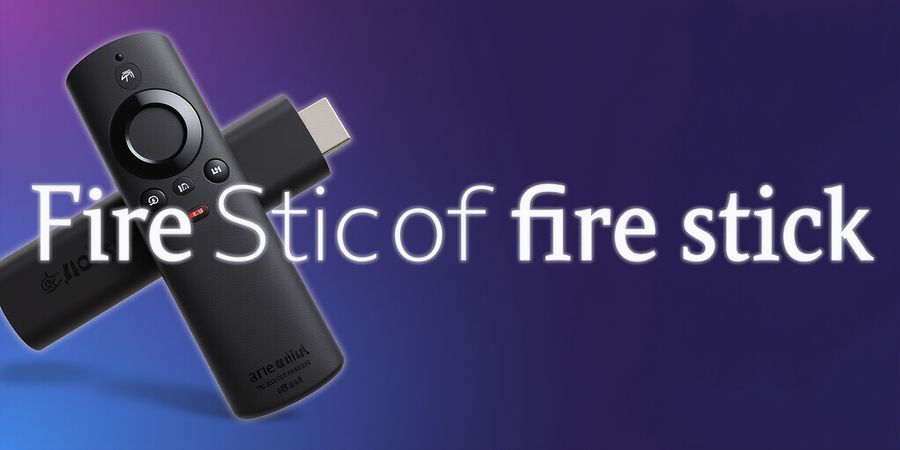
If you want to get apps on your Fire Stick that aren’t in the Amazon Appstore, this guide shows you how to do it, step by step. The Fire Stick is great for streaming, but sometimes you need something extra that the official store doesn’t offer.
Sideloading Apps on Fire Stick
Tools you’ll need
- A PC or laptop with an internet connection
- Your Fire Stick with USB debugging enabled (Settings → Applications → Manage Installed Applications → USB Debugging)
- A reliable APK source (e.g., APKPure, APKMirror)
Step‑by‑step installation
- Enable "Apps from Unknown Sources" On the Fire Stick, go to Settings → Applications → Manage Installed Applications → Apps from Unknown Sources and toggle it on.
- Install the Downloader app Open the Amazon Appstore, search for "Downloader", and install the app.
- Transfer the APK Open Downloader, tap File → Browser, paste the direct APK URL, and download the file.
- Install the APK In Downloader, tap the downloaded file and confirm the installation.
- Sign into the new app Launch the app from the Fire Stick home screen and sign in with your credentials.
Quick reference table – sideloading methods
Method | Pros | Cons |
|---|---|---|
Downloader | Simple, no PC needed | Limited to one app at a time |
ADB (Android Debug Bridge) | Install multiple apps, advanced control | Requires a PC, command‑line knowledge |
ES File Explorer | File transfer, backup | Not officially supported on Fire Stick |
SideQuest | Game modding, custom apps | Requires a PC, more complex setup |
Safety tips
- Only download APKs from reputable sites such as APKPure or APKMirror.
- Verify the app’s permissions before installation; avoid granting unnecessary access.
- Keep your Fire Stick firmware up to date to protect against known vulnerabilities.
Troubleshooting
- "App not installed" – Ensure the APK is compatible with your Fire Stick’s architecture (ARMv7 or ARM64). Re‑download a matching build.
- Network failures – Check that the Fire Stick is connected to Wi‑Fi and that the router isn’t blocking the download URL.
- Clear cache / reinstall – Settings → Applications → Manage Installed Applications → [App Name] → Clear Cache; then reinstall the app.
Frequently Asked Questions
Q: How do I install apps on Fire Stick? A: Enable unknown apps, install Downloader, download the APK, and install it.
Q: Can I sideload multiple apps at once? A: Yes, using ADB or SideQuest you can push multiple APKs from a PC.
Q: Is sideloading safe? A: When you follow safety tips and use reputable sources, sideloading is generally safe.
For more detailed guidance, see our Amazon account setup guide and remote control tips.
If you’re looking to sideload apps on a Fire Stick, a clear step‑by‑step guide will get you from enabling developer options to installing the APK without a hitch.
Sideloading Apps on Fire Stick
Tools Required
- A PC or laptop with internet access
- USB‑debugging enabled on your Fire TV Stick
- A reliable APK source (e.g., APKMirror, APKPure)
Step‑by‑Step Instructions
- Enable Developer Options On your Fire TV Stick, go to Settings → My Fire TV → Developer options and toggle “Apps from Unknown Sources” and “ADB debugging” to ON.
- Install the Downloader App From the Fire TV home screen, search for "Downloader" in the Appstore, install it, and open the app.
- Download the Target APK In Downloader, enter the URL of the APK you want to sideload. The app will download the file to the device’s internal storage.
- Transfer the APK (Optional) If you prefer to transfer via USB, connect your Fire TV Stick to your PC using a USB‑OTG cable, copy the APK to the Stick’s storage, and then open it from the file manager.
- Install the APK Locate the downloaded APK in the file manager, tap it, and follow the on‑screen prompts to install the app.
- Launch the App Once installed, the app will appear in the “Apps & Channels” section of your Fire TV home screen.
Troubleshooting Common Errors
- “App not installed” – Verify that the APK matches the Fire TV OS version and that “Apps from Unknown Sources” is enabled.
- Network failures – Check your Wi‑Fi connection and ensure the APK source is reachable.
- Installation hangs – Clear the cache of the Downloader app and retry.
Safety Tips
- Only download APKs from reputable sites and always review the permissions requested.
- Keep your Fire TV Stick updated to the latest firmware to avoid compatibility issues.
Quick Reference Table – Sideloading Methods
Method | Ease of Use | Requires PC | Requires Wi‑Fi | Typical Use |
|---|---|---|---|---|
Downloader App | ★★★ | No | Yes | One‑click download |
ADB (via PC) | ★★ | Yes | Yes | Advanced users |
ES File Explorer | ★★ | No | Yes | File transfer |
SideQuest (Android) | ★ | Yes | Yes | VR/AR apps |
Frequently Asked Questions
Q: How do I enable developer options on my Fire Stick? A: Go to Settings → My Fire TV → Developer options and toggle “Apps from Unknown Sources” and “ADB debugging” to ON.
Q: Can I sideload apps via Wi‑Fi without a PC? A: Yes, using the Downloader app or a file manager that supports HTTP/HTTPS downloads.
Q: What should I do if the app crashes after installation? A: Try clearing the app’s cache or reinstalling from a different APK source.
Q: Are there any risks to sideloading apps? A: Only if you download from untrusted sources; always verify app signatures and permissions.
Next Steps
- Try sideloading your favorite streaming app and enjoy uninterrupted playback.
- Explore our guide on "Amazon account setup" for a smoother Fire TV experience.
- Need help with remote control tips? Check our related article on "Fire TV remote troubleshooting".
Enjoy your newly expanded Fire TV Stick library – happy streaming!