
AirTag Explained: How It Works, Features, and Privacy
Discover the inner workings of AirTag, from its tiny hardware to its secure tracking features and privacy controls that protect you from unwanted tracking.
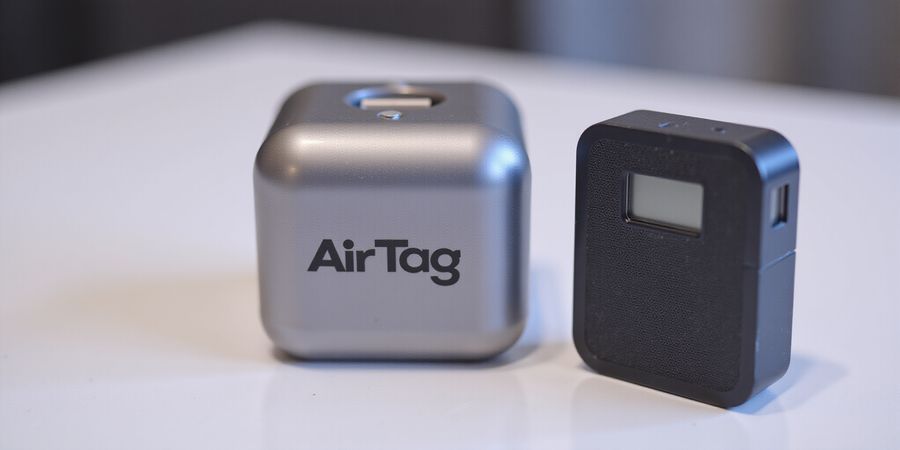
What Is AirTag? Unlocking the Mystery
Ever wondered what AirTags actually are? In this article we dig into their design, how they operate, and why they’re useful.
Hardware: The Tiny Powerhouse
- Size: 31 mm in diameter, 8 mm thick – a coin that fits in a pocket.
- Core chips: U1 for Ultra‑Wideband precision, Nordic nRF52832 for BLE, NFC, and power.
- Battery: CR2032 coin‑cell; Apple estimates about one year of battery life.
- Security: BLE ID rotates every 2 seconds; public keys change daily; all traffic is end‑to‑end encrypted.
How AirTag Works
- Sleep – The AirTag stays in low‑power mode until a nearby Apple device detects its BLE beacon.
- Advertising – Every 2 seconds it broadcasts a rotating identifier.
- Motion – An accelerometer samples every 10 seconds; if movement is detected, it samples every 0.5 seconds for 20 seconds.
- Lost Mode – The owner can enable Lost Mode manually in the Find My app; the AirTag remains in normal mode until the owner activates it.
- Sound – In Lost Mode, it chirps every 6 hours when it moves.
- Relay – Any Apple device nearby forwards its location anonymously to Apple’s Find My servers.
Alerts That Keep You Safe
Ever wondered how a device that fits in your palm can find its way home? That’s the magic of the Find My network. When an unknown AirTag moves with you, iOS/iPadOS 17.5+ fires a “AirTag detected near you” banner. The alert plays a tone if the tag is in Lost Mode or if you’ve enabled unwanted‑tracking notifications. Tap it, and you can see the owner’s contact info if the tag is in Lost Mode.
Privacy Controls
- Unwanted Tracking – Settings > Privacy & Security > Location Services → Unwanted Tracking.
- Disable Alerts – Turn off the notification if you prefer silence.
- Scan for Unknown Trackers – Settings > Privacy & Security > Location Services → Detect Unwanted Trackers.
- Apple’s Design – Daily rotating identifiers and encrypted traffic keep your data private.
Real‑World Example
Last month, a traveler in Paris found a stray AirTag on a café table. Because the tag was in Lost Mode, the owner’s contact number appeared instantly, and the traveler returned it to its rightful owner. The incident highlighted how the combination of UWB precision, BLE ubiquity, and the Find My network creates a safety net for everyone.
Quick FAQ
- What is an AirTag? An AirTag is a small, coin‑shaped tracking device that uses Bluetooth and the Find My network to help locate lost items.
- How does the “AirTag detected near you” alert work? When an unknown AirTag follows you, iOS will show a banner warning you and, if the tag is in Lost Mode, display the owner’s contact information.
- Can I disable the AirTag alerts? Yes, you can turn off the notification or use the “Unwanted Tracking” setting in Privacy & Security.
- How do I enable Lost Mode? Open the Find My app, select the AirTag, tap “Lost Mode,” and follow the on‑screen instructions.
For more details, visit the official Apple AirTag support page: https://support.apple.com/en-us/101602
Tiny Design, Mighty Tech
Picture a coin‑sized wonder: 31 mm across, 8 mm thick, wrapped in a rugged aluminum shell. Inside, a CR2032 coin‑cell keeps the thing alive for about a year, while the back cover cradles a heat‑tolerant PCB. It feels like a pocket‑knife, yet the tech stack inside is surprisingly sophisticated.
U1 Ultra‑Wideband: Precision Finder
Apple’s U1 chip turns the AirTag into a laser‑focused compass. Using Ultra‑Wideband radio, it measures distance with centimeter‑level accuracy when paired with an iPhone 11 or newer. The result? A directional arrow and speed gauge that feels like a GPS‑driven compass on your wrist. As you walk toward a lost item, the U1 chip whispers the exact path, making the hunt feel almost magical.
BLE Radio: Silent Whisper
The Nordic nRF52832 handles Bluetooth Low Energy, broadcasting a rotating identifier every 2 seconds. This tiny pulse keeps the AirTag alive while staying quiet enough to avoid battery drain. When your iPhone or another Apple device picks up the signal, it relays the location anonymously to Apple’s Find My network. The BLE radio is the AirTag’s silent messenger, always on standby.
NFC Interface: Quick Access
Tap an AirTag with an NFC‑enabled phone, and the device instantly shares its pairing information. That one‑tap handshake lets anyone scan and add the AirTag to their Find My list in seconds. NFC is the AirTag’s social handshake, making it easy for strangers to help you retrieve a lost key.
Power Management: Battery & Sleep
The AirTag spends most of its time in deep sleep, drawing a mere 2.3 µA. When motion is detected, it wakes up, samples the accelerometer every 10 s, and, if movement continues, increases sampling to every 0.5 s for 20 s. This smart cycle keeps the battery alive for over a year under typical use.
Security Layer: End‑to‑End Encryption
Every BLE packet contains a daily‑rotating public key, and the Find My network encrypts location data end‑to‑end. That means only the owner sees the coordinates, and no third party can intercept the trail. The encryption is like a secret diary that only the rightful owner can open.
User‑Centric Benefits: What It Means for You
- Precision Finding: U1 gives you a pinpoint location, like a GPS on steroids.
- Long Battery Life: One CR2032 lasts a year, so you never need to replace it.
- Quick Recovery: NFC lets anyone scan and help you recover a lost item.
- Silent Tracking: BLE’s low‑power design keeps your battery healthy.
- Privacy‑First: End‑to‑end encryption protects your data.
Feature | How It Helps | Battery Impact |
|---|---|---|
U1 UWB | Centimeter accuracy | Minor |
BLE Radio | Continuous updates | Low |
NFC | One‑tap recovery | Negligible |
Power Management | 1‑yr battery life | Minimal |
Encryption | Privacy guarantee | Zero |
Did you know the AirTag’s power consumption is remarkably efficient? Its design keeps you connected without draining your phone.
Next Up
We’ll explore how the Find My network turns every Apple device into a secret relay, turning a single AirTag into a global locator.
Discover Forest VPN: Secure, Affordable, and Flexible Internet Access
Forest VPN is your go‑to solution for a private, reliable, and cost‑effective internet experience. Whether you’re a traveler, a remote worker, or someone who simply values online privacy, Forest VPN offers a range of features that make staying connected safer and easier than ever.
Why Choose Forest VPN?
- Unmatched Security – Military‑grade encryption keeps your data safe from snoops, hackers, and even governments.
- Lightning‑Fast Speeds – Optimized servers around the globe mean you can stream, game, and browse without buffering.
- Unlimited Bandwidth – No data caps, no throttling, and no logs of your activity.
- Affordability – Plans start at just $3.99/month with flexible billing options (monthly, yearly, or lifetime).
How It Works
- Download & Install – Get the Forest VPN app from the App Store, Google Play, or the official website.
- Choose a Server – Pick from over 200+ locations worldwide; the app automatically selects the fastest route.
- Connect – One tap and your traffic is encrypted and routed through the VPN tunnel.
Real‑World Testimonials
“I travel to Europe and the U.S. all year long. Forest VPN keeps my data private and my streaming smooth. The price is unbeatable!” – Maria G., Digital Nomad
“As a small business owner, I need a reliable VPN for my team. Forest VPN’s customer support is top‑notch, and the connection speed is consistently high.” – James L., Freelance Developer
Quick Tips for Getting the Most Out of Forest VPN
- Enable Kill Switch – Prevent accidental data leaks if the VPN connection drops.
- Use Split Tunneling – Route only the apps you need through the VPN while keeping others on your local network.
- Keep the App Updated – New features and security patches are released regularly.
FAQ
Question | Answer |
|---|---|
Does Forest VPN keep logs? | No. Forest VPN is a strict no‑log service. |
Can I use Forest VPN on multiple devices? | Yes. One subscription covers up to 5 devices simultaneously. |
What if I need help? | 24/7 live chat support is available on the app and website. |
Enjoy a safer, faster, and more affordable internet experience with Forest VPN today.
Step‑by‑Step: Turning on Lost Mode
- Open the Find My app and tap Items. You’ll see a list of all your AirTags.
- Pick the one that’s missing. A detail screen pops up.
- Hit Mark as Lost. A prompt will ask for a phone number or email.
- Enter that contact info. Anyone who finds the tag can reach you.
- Flip Notify When Found if you’d like a push notification when the tag reappears.
- The AirTag will play a sound when someone else finds it and contacts you, or when you request it from the Find My app.
Audible Alerts: Why They Matter
- The AirTag will play a sound when you or someone else requests it from the Find My app.
- A louder tone means the tag has been found by a person nearby.
- If you hear the sound, open the Find My app to see the AirTag’s location on the map.
Best‑Practice Tips
- Keep your iPhone’s software updated; newer iOS versions improve detection.
- Check the battery status in the app; a low battery can delay alerts.
- Use a dedicated keychain; AirTags are designed for items that stay together.
- Store a spare AirTag in a hidden spot; if one is lost, the backup can help locate it.
These steps make Lost Mode feel less like a tech chore and more like a safety net. Ready to put your AirTag in action? Let’s dive into the next section to see how the Find My network actually tracks it.
What is Airtags? Keeping Control: Privacy Settings and Best Practices for AirTag Users
Ever wonder why your iPhone buzzes about an AirTag in your bag? That buzz is Apple’s privacy guard, not a glitch. AirTag is a small, coin‑shaped tracking device that uses Bluetooth, Ultra‑Wideband (UWB), and Apple’s Find My network to let you locate lost items and keep them from being used for unwanted tracking. Here’s what Airtags are and how they work.
How AirTag Works
AirTag broadcasts a Bluetooth signal that nearby Apple devices pick up. The signal is encrypted, and its identifier rotates every day so that only the owner’s device can recognize it. Location data travels end‑to‑end encrypted through the Find My network, so only Apple and the owner see the coordinates. That’s the whole picture of how AirTag works.
The “AirTag detected near you” Alert
If an unknown AirTag follows you for more than an hour, iOS will show a “AirTag detected near you” alert. The banner or lock‑screen notification tells you that a device has been detected nearby. Tap it to open the Find My app and see the AirTag’s last known location.
Lost Mode
Lost mode is handy if you misplace your AirTag. In the Find My app, follow these steps:
- Open Find My → Items → Select your AirTag.
- Tap “Lost Mode.”
- Enter a phone number so anyone who finds the AirTag can call you.
- The AirTag will play a sound and display your contact information on the lock screen of any iPhone that comes close.
Privacy Settings
1. Unwanted Tracking Alert
Navigate to Settings > Privacy & Security > Location Services > Unwanted Tracking. Turning this on will notify you if an unknown AirTag follows you. You can also disable the notification if you prefer silence, but be aware that the alert will no longer appear.
2. Manual Scan for Unwanted Trackers
Still in Settings > Privacy & Security > Location Services, tap Detect Unwanted Trackers. Your iPhone will scan the air for rogue tags, like a metal detector that only sounds when it finds a hidden stone.
3. Notification Preferences
In the same menu, you can choose to show alerts on the lock screen, banner, or none. Adjusting these settings is like tuning a radio to your favorite station.
These settings protect your AirTag privacy by ensuring only you can access location data.
Keeping Your iOS Updated
Regularly update iOS to get patches that tighten encryption, improve detection, and add new alerts. Think of updates as a yearly health check for privacy.
Real‑World Scenarios
- Backpack at the Airport: A friend left an AirTag in a backpack. When you walked past, your phone warned you. You immediately turned on Unwanted Tracking, and the tag stopped following you.
- Lunch Bag Surprise: A coworker’s AirTag slipped into your lunch bag. The manual scan revealed it, and you disabled notifications. You removed the tag and felt at ease.
These settings let you act like a detective, hunting hidden tags in crowds. Stay vigilant, tweak preferences, and let iOS do its guard duty.
Quick FAQ
Q: How do I know if an AirTag belongs to me? A: Use the Manual Scan feature to detect unwanted trackers. If you see a tag that you don’t recognize, you can disable notifications or contact Apple Support.
Q: Can I disable all AirTag alerts? A: Yes, but you’ll lose the safety net that warns you of unknown tags. It’s recommended to keep Unwanted Tracking alerts enabled.
Q: What happens if I find an AirTag that isn’t mine? A: Turn on Unwanted Tracking and use the Manual Scan to locate it. If you suspect abuse, contact Apple Support or local law enforcement.
Q: How does Lost Mode help? A: Lost Mode turns your AirTag into a beacon that displays your contact information and plays a sound, making it easier for someone who finds it to return it.
For more information, visit Apple’s AirTag support page: https://support.apple.com/en-us/101602.
Take Action Now: Practical Tips to Protect Your Privacy and Maximize AirTag Utility
What are AirTags? AirTags are small, coin‑shaped tracking devices that use Bluetooth, UWB, and the Find My network to help you locate lost items. When an AirTag is near an iPhone, it sends a secure signal that can be seen in the Find My app, and if you enable Lost Mode it will notify you when someone else finds it.
We’ve unpacked how AirTags work, why you see alerts, and how Lost Mode saves the day. But knowledge alone isn’t enough—action turns insight into security. Are you ready to lock down your settings and stay ahead of any unwanted tracking? Let’s get hands‑on.
Quick Reference Checklist
Step | Action | Why It Matters |
|---|---|---|
1. Check Settings | Settings > Privacy & Security > Location Services → Unwanted Tracking | Stops silent stalkers before they start. |
2. Enable Lost Mode | Find My app → Items → Select AirTag → Mark as Lost | Gives anyone who finds it a direct way to return it. |
3. Monitor Alerts | Keep notifications on for Unwanted Tracking | Early warning is your best defense. |
4. Stay Informed | Follow Apple Support updates at Apple Support – AirTag Alerts | New iOS versions improve detection algorithms. |
How to Put It Into Practice
- Open Settings on your iPhone. Tap Privacy & Security, then Location Services. Find Unwanted Tracking and toggle it on. It’s like installing a guard dog for your personal space.
- Activate Lost Mode in the Find My app. Enter a contact number or email so anyone who stumbles upon your missing AirTag can reach you. Think of it as leaving a lifeline in a sea of strangers.
- Watch the Alerts. If a notification pops up saying AirTag detected near you, tap it immediately. You’ll see the owner’s contact info if they’re in Lost Mode—no surprises.
- Check for Updates. Every iOS release patches vulnerabilities and sharpens detection. Keep your device current, and your AirTag ecosystem stays fortified.
Quick FAQ
Q: Can AirTags track me without my knowledge? A: If you receive an Unwanted Tracking alert, it means an unknown AirTag is nearby. You can disable the setting or delete the tag from the Find My app.
Q: What happens when I enable Lost Mode? A: The AirTag stops broadcasting its location to the Find My network but will notify anyone who finds it with your contact details.
Q: Are AirTags safe to use with children or pets? A: Yes, as long as you keep the Unwanted Tracking alert enabled and update your device regularly.
Q: How do I remove an AirTag from my account? A: Open the Find My app, tap the AirTag, and select “Remove Item.” Follow the on‑screen steps to erase it.
Empowering You Today
By following this checklist, you’re not just protecting your belongings—you’re asserting control over your personal space. Start now, and feel the confidence that comes from knowing every AirTag in your vicinity is under your command. Your next step? Open the Settings app and toggle Unwanted Tracking on. Let’s make privacy a habit, not a afterthought.
Further Resources
Take action. Protect your privacy. Own your AirTag experience.