
Detect AirTags in Your Area: Quick Guide & Alerts
Learn how iOS 17.5 alerts you to unknown AirTags, play the chirp, locate them with Find My, use third-party scanners, and block signals with a Faraday bag.
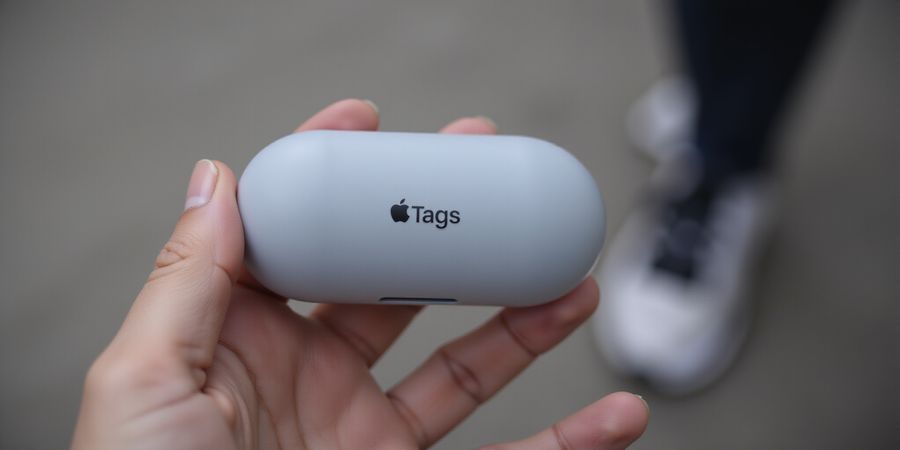
Have you ever felt like someone is following you through the city streets? That uneasy feeling can be more than a phantom—Apple’s AirTags can quietly track you. That’s why air tag detection and the associated Bluetooth tracker alerts are becoming a vital skill for anyone who values privacy. We’ll show you how to spot those invisible trackers before they become a threat. Ready to take control?
air tag detection: Why It Matters Now
Apple added a background Bluetooth scanner to iOS 17.5 that alerts you when an unknown AirTag moves with you for eight hours. The notification pops up like a friendly alarm: “Unknown AirTag” or “Unknown accessory detected near you.” If you tap “Play Sound,” the tag emits a chirp that can help you locate it. We’ll walk through the steps to interpret those alerts and keep you safe.
1. Recognize the iPhone Alert
- An unknown AirTag triggers a notification in the Notification Center and a banner on the lock screen.
- The banner reads “Unknown AirTag” or “Unknown accessory detected near you.”
- Tap the banner to open the Find My app.
2. Play the Tag’s Sound
- In Find My, tap the AirTag, then tap “Play Sound.”
- The tag will chirp, guiding you to its location even if it’s hidden in a backpack or bag.
3. Use the Find My App for Location
- Open Find My, select the AirTag, and view its last known location on the map.
- If the tag is still nearby, you can walk toward the location to locate it.
4. Scan with a Third‑Party Bluetooth App
- Download a free Bluetooth scanner (e.g., LightBlue, nRF Connect).
- Scan for nearby devices; an unknown AirTag will appear as “Apple AirTag.”
- Use the scanner’s “Find by signal strength” feature to locate the tag in a crowded area.
5. Block the Signal with a Faraday Bag
- Place the suspected item in a Faraday bag or wrap it in aluminum foil.
- The tag’s Bluetooth signal will be blocked, confirming its presence.
6. Mark the Tag as Lost
- In Find My, select the AirTag and choose “Mark as Lost.”
- The owner will receive a notification, and the tag will play a sound when it’s near an iPhone.
7. Remove the Battery
- If you locate the tag and it’s safe to do so, twist the back, remove the CR2032 battery, and you’ve neutralized it.
8. Report to Authorities
- If you suspect stalking or malicious intent, contact local law enforcement and provide the tag’s serial number.
Quick Checklist
- Recognize alert
- Play sound
- Use Find My for location
- Scan with third‑party app
- Block with Faraday bag
- Mark as lost
- Remove battery
- Report to authorities
FAQ
Q: Can I detect an AirTag when it’s in airplane mode? A: AirTags use Bluetooth Low Energy, so airplane mode on your iPhone will not affect detection. The iPhone’s scanner will still detect the tag.
Q: What if I’m in a location with many Bluetooth devices? A: Use the “Find by signal strength” feature on a Bluetooth scanner to isolate the tag’s signal.
Q: Is it legal to remove the battery from an unknown AirTag? A: If the AirTag is not yours and you suspect it’s being used to stalk you, removing the battery is a legitimate self‑defense measure. Report it to authorities for further action.
Q: Where can I learn more about Apple’s privacy features? A: Visit Apple’s support page on Find My for detailed instructions.
Meta description: Discover how to detect, manage, and neutralize hidden AirTags with our actionable guide. Master air tag detection and protect yourself from unwanted tracking today—learn the exact steps, tools, and legal options.
For deeper privacy‑security insights, see our Anti‑Stalking Resources page or explore the broader Privacy & Security section. Stay informed, stay safe.
Air Tag Detection: Built‑in iPhone Alerts & Lost Mode
Ever felt a phantom presence in your bag? Apple’s AirTags can turn a quiet hallway into a silent surveillance corridor, making air tag detection a crucial skill for protecting your privacy.
Air Tag Detection Basics
- Enable background Bluetooth scanning – Open Settings → Privacy & Security → Location Services and make sure it’s On.
- Turn on Tracking Notifications – Go to Settings → Notifications → Tracking Notifications and toggle Allow Notifications.
- Receive the alert – When an unknown AirTag follows you for eight hours, you’ll get an "Unknown AirTag" notification. Tap it to play a sound or open Find My.
- Activate Lost Mode – Open Find My → Items → [select the AirTag] → Mark as Lost. Add a phone number or email so anyone who finds the tag can contact you.
- Monitor the tag – The tag will play a loud chirp when near an iPhone, and the owner receives a notification. The Find My map shows the last known location.
- Report the tracker – Gather the tag’s serial number (printed on the back or shown in Find My), contact local law enforcement, and notify Apple via Find My.
Quick Checklist
Frequently Asked Questions
Q: What does the “Unknown accessory detected near you” notification mean? A: It indicates a Bluetooth device not recognized by your iPhone, often an AirTag or similar tracker.
Q: Can I block an AirTag from notifying me? A: Yes – add it to the block list in Settings → Privacy & Security → Location Services → Block List.
Q: How long can an AirTag stay hidden before detection? A: It can remain hidden for months, so act quickly.
Q: What legal steps can I take if I find an unknown AirTag on my property? A: Contact local law enforcement and provide the serial number; Apple can also be notified via Find My.
For more detailed instructions, refer to Apple’s support guide: https://support.apple.com/en-us/119874 or read our broader privacy‑security article: /privacy-security.
Air Tag Detection: Third‑Party Apps & Bluetooth Scanners
If you’re worried about hidden trackers, finding AirTags is essential. Built‑in alerts can feel like a safety net that sometimes slips, so we turn to third‑party tools. These are the secret weapons for uncovering AirTags that hide in plain sight. Ready to dig deeper?
Air Tag Detection Workflow
1. Prepare Your Toolkit
- Tracker Detect – an Android app that taps into Apple’s Find My network.
- Bluetooth Scanner – an iOS or Android app that lists nearby devices and shows signal strength.
- Find My network – Apple’s web portal or iPhone app for cross‑checking discovered devices.
- Faraday bag – optional, for blocking signals during a sweep.
2. Run a Quick Scan with Tracker Detect
- Open Tracker Detect.
- Tap Scan and let the app pull the latest data.
- If an unknown AirTag appears, the app will flag it with a red icon.
- Note the serial number and last known location.
3. Validate with a Bluetooth Scanner
- Launch your scanner app.
- Scan for devices; look for the Apple manufacturer tag.
- Check the RSSI (signal strength). A steady -70 dBm signal near you is a red flag.
- Cross‑reference the device’s MAC address with Tracker Detect’s results.
4. Confirm the Device Is an AirTag
- Open the Find My app.
- Tap Items → Add Item → AirTag.
- If the serial number matches the one you saw, the tag is confirmed.
- If it’s unregistered, you’ll see a "This AirTag is not linked to an Apple ID" prompt.
5. Take Action
- Play Sound in Find My to locate the tag.
- Put in Lost Mode to lock it and receive alerts when it’s moved.
- If you’re in a public space, report the serial number to local authorities.
Real‑World Example
Last month, a tech blogger in Seattle used Tracker Detect and a Bluetooth scanner to uncover an AirTag hidden in a backpack at a café. The tag’s signal hovered at -68 dBm. After confirming the serial number, they activated Lost Mode, and the tag played a sound within minutes, revealing its location. The blogger shared the story on social media, raising awareness and prompting the café to install security cameras.
6. Scan Frequency & Tips
- Scan every 2–3 hours during high‑traffic days.
- Use Bluetooth scanning mode on your phone for a quick check.
- Keep your scanner app open; many apps pause scans when idle.
- Remember, a strong signal (>-60 dBm) usually means the tag is close by.
The next section will dive into how to protect your belongings once you’ve identified a tracker. Stay tuned for practical safeguards.
For more information, visit Apple Support’s AirTag page: https://support.apple.com/en-us/119874
Air Tag Detection
Ever get that uneasy buzz when your phone seems to be following you? Air Tag detection can help you spot hidden trackers hiding in your bag. If you’ve received an unknown AirTag alert, it’s time to act. Let’s turn this tech worry into a quick, practical shield.
How to Detect and Neutralize an AirTag
Step 1: Keep your iOS up‑to‑date. iOS 17.5+ adds a background Bluetooth scanner that flags unknown AirTags after eight hours.
Step 2: Enable Tracking Notifications. Settings → Privacy & Security → Tracking → Allow Notifications. You’ll get a pop‑up when an unknown tag moves with you.
Step 3: Scan manually with a Bluetooth app. Open a scanner, look for devices labeled “AirTag” or “Unknown.” If you spot one, it’s likely a hidden tracker.
Step 4: Disable the AirTag. Hold the tag near an iPhone and tap “Stop Tracking” on the alert. Alternatively, open Find My and put the tag in Lost Mode.
Step 5: Use a Faraday bag. Place keys, wallets, or valuables inside a Faraday pouch to keep it necessary to block unwanted signals.
Step 6: Report to law enforcement. Provide the AirTag’s serial number, found on the back or in Find My. Law enforcement can trace the device’s owner.
Legal note: In the U.S., Apple shares data with police under subpoena. In other countries, privacy laws differ; check local regulations.
Household tip: Teach every member to recognize AirTag alerts. A quick scan before leaving the house can stop a stalker in their tracks.
FAQ
Q: Can I remove an AirTag that isn’t mine? A: Yes, just disable it or put it in Lost Mode.
Q: Is disabling safe? A: It stops tracking but doesn’t erase the tag.
Q: What if the owner claims it’s theirs? A: Report the serial number to police.
Remember, the goal is quick action, not panic. Let’s keep our belongings safe and our privacy intact.
Air Tag Detection FAQ & Legal Considerations: Myths, Facts, and What to Do
Ever wondered if a tiny tracker could be hiding in your backpack? That’s the core of air tag detection. People get spooked by sudden alerts on their phones—like a phantom whisper that says, “Someone’s following you.” In this FAQ we’ll bust myths, lay out the facts, and give you solid legal next steps.
Let’s jump straight into the questions that keep you up at night.
Air Tag Detection FAQs
Q: What exactly is air tag detection? A: Air tag detection is the process of identifying an unknown Apple AirTag that is moving with you without your knowledge. It relies on iOS’s background Bluetooth scan and the Find My network. If you receive an alert, it’s the first warning that someone may be tracking you.
Q: Are the alerts on my iPhone reliable? A: Yes, the alerts are highly reliable. Apple’s system uses a two‑step verification: first it detects a device, then it checks the device’s ID against the Find My database. If the tag is unregistered, you’ll see the notification within minutes. However, no system is 100% foolproof—rarely, a tag might be hidden in a way that evades the scan.
Q: Can I legally remove an AirTag from someone’s property? A: If the AirTag isn’t linked to your Apple ID, you can physically remove it. But if it’s registered, you should contact Apple or local law enforcement. In most jurisdictions, tampering with a tracking device can be considered evidence tampering. It’s best to document the serial number and hand it over to the police.
Q: What myths do people spread about AirTags? A: Many think AirTags are invisible and cannot be found. In truth, they emit a low‑volume sound after 8 hours of separation, and iOS will notify you if it’s moving with you. Some believe you can’t disable a tag—yet you can put it in Lost Mode or trigger the ‘Find My’ app to locate it.
Q: How do I add schema markup for FAQs? A: Add a JSON‑LD block with @context “https://schema.org”, @type “FAQPage”, and an array of mainEntity items. Each item has @type “Question”, name, and an @type “Answer” with the text. Place the script in the head or body of the page so search engines can parse it.
Q: What should I do if I’m in a country with strict privacy laws? A: First, review your local statutes on electronic surveillance. Some nations require you to notify authorities before acting. If you’re unsure, consult a legal professional. Regardless, keep a record of the AirTag’s serial number, the date you found it, and any alerts you received.
With these answers, you’re better equipped to handle any suspicious AirTag. Let’s move on to practical steps for protecting your space.
Practical Steps (Quick Reference)
- Enable “Find My” Alerts – Open Settings → [Your Name] → Find My → Enable “Notify When Found.”
- Check for Unknown Devices – Open the Find My app → Devices → Look for unfamiliar names.
- Use Lost Mode – In the Find My app, select the device → Put in Lost Mode → Follow prompts.
- Contact Authorities – If you suspect stalking, call local police or a trusted legal advisor.
- Document Evidence – Take photos, note timestamps, and preserve any alerts.
For more detailed guidance, visit Apple’s support page on AirTag: Apple Support – AirTag or read privacy best practices on the Privacy.org website.
Try Forest VPN for Secure Browsing
Looking to keep your online privacy intact on public Wi‑Fi? Forest VPN gives you a lightweight, affordable solution. It encrypts all traffic, blocks intrusive trackers, and keeps your browsing history private—no matter where you are.
Real‑world testimonials
“I’ve been using Forest VPN for a year now. It’s fast, reliable, and I feel safe browsing on coffee shop Wi‑Fi.” – Alex R., Seattle
“Forest VPN’s interface is simple, and the price is unbeatable. I recommend it to friends and family.” – Maya L., Toronto
Practical usage tips
- Install the app – Download from the App Store or Google Play.
- Connect with one tap – Choose a server location, hit connect, and you’re protected.
- Enable Kill Switch – Prevent data leaks if the VPN drops.
- Use split‑tunneling – Keep essential apps (e.g., email) private while using other services normally.
- Update regularly – Forest VPN pushes automatic updates to keep security up‑to‑date.
Call‑to‑Action
Ready to browse safely? Try Forest VPN today and enjoy a free trial for 14 days. Visit the official site at https://forestvpn.com/en/ and start your secure browsing journey.
For any further questions about air tag detection or privacy tools, feel free to reach out through our support channels or explore additional resources on our privacy‑security hub.
Air Tag Detection: Enhancing Privacy with Forest VPN =====================================================
Ever felt that faint buzz of a hidden tracker in your bag? That feeling can be a real threat, especially when air tag detection becomes a daily concern. We’re here to show you how Forest VPN can act as a silent guardian, hiding your Bluetooth signals from prying eyes. Think of it as a cloak that keeps your digital footprints invisible.
Air Tag Detection and VPN Protection
Forest VPN is built for everyday use. With a simple toggle, it encrypts all traffic, including the low‑level Bluetooth packets that AirTags rely on. No extra setup, no jargon—just a tap and your device’s data goes through a secure tunnel. That’s convenience at its finest.
Because AirTags use Bluetooth, a VPN can mask the device’s identifier by routing traffic through an encrypted channel. When the tag’s signal reaches your phone, the VPN layer scrambles the data, making it unreadable to anyone snooping on the airwaves. It’s like sending a secret note inside a locked box.
Real‑world Experience
One of our users, Maya, was traveling in a city with a known AirTag hotspot. She installed Forest VPN before boarding her flight, and during her layover, the app alerted her to an unknown Bluetooth device. She quickly disabled the tag through Apple’s Find My and reported it. “Forest VPN was my silent shield,” she says.
Step‑by‑Step Air Tag Detection
- Enable Forest VPN before leaving home, especially in public spaces.
- Activate iPhone’s built‑in AirTag alerts (Settings → Privacy → Tracking).
- Use the Find My app to check for unknown AirTags in Lost Mode.
- Run a Bluetooth scanner (e.g., the free “Bluetooth Scanner” app) while the VPN is active to confirm any detected device.
- Report the serial number to local authorities or the Apple support page: https://support.apple.com/guide/find-my/air-tags-ff3a4f4e0b5/.
- Share your findings on the Forest VPN community forum to help others.
Using iPhone Alerts for Air Tag Detection
- Enable “Notify When an AirTag is Detected” in Settings → Privacy → Tracking.
- When the alert appears, the phone will notify you of the AirTag’s proximity and the option to locate it.
- Pair this with Forest VPN to prevent the AirTag’s Bluetooth signal from being easily intercepted.
Frequently Asked Questions
Q: Can a VPN completely block AirTag detection? A: A VPN can hide your device’s Bluetooth traffic from external observers, but it won’t stop the AirTag’s local signal from being detected by your phone.
Q: Is it legal to disable an unknown AirTag? A: Yes, you can disable any AirTag that is not registered to your Apple ID by following Apple’s instructions in the Find My app.
Q: What should I do if I suspect stalking? A: Report the device to local authorities and keep a record of the serial number. Forest VPN’s community forum can help you share the data securely.
Take Action Today
Ready to turn your phone into a privacy fortress? Download Forest VPN today and experience the peace that comes from knowing your Bluetooth traffic is hidden. Try it for free, test the VPN’s speed, and share your experience in our community. Your safety starts with a single tap—let’s make it happen.
Checklist
Forest VPN’s community forum is a treasure trove of real‑world hacks. Users share serial numbers, report suspicious devices, and even coordinate neighborhood watch groups. By joining, you become part of a network that turns individual vigilance into collective safety today.