
Find Your iPad IP Address Quickly & Easily
Learn how to quickly locate your iPad’s Wi‑Fi or cellular IP address, view the public IP, and troubleshoot common connection issues with simple steps and screenshots.
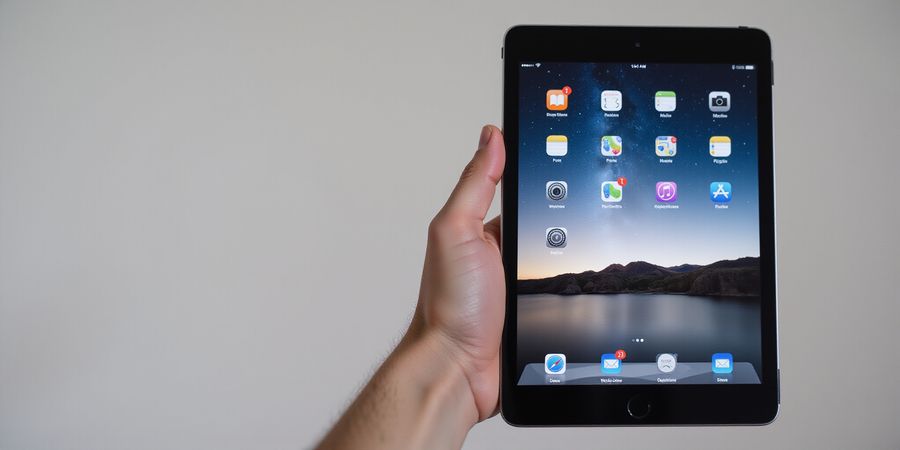
We’ve all been there: you’re setting up a new app or tweaking your Wi‑Fi, and you need your iPad’s IP address in a flash. How to find my ip address on ipad? The answer is a quick tap, a few taps, and a screenshot‑rich guide that saves time and frustration.
Everyday scenarios—setting up a new app, troubleshooting Wi‑Fi, or connecting to a VPN—rely on that tiny number. Knowing your IP is like having a secret key to your device’s network life. It tells apps where to send data, helps VPNs confirm they’re working, and lets you debug network hiccups.
We’ll walk through Wi‑Fi and cellular IP discovery step‑by‑step. We’ll show you exactly where to tap, how to copy the address, and how to spot the public IP in your browser. And stay tuned: we’ll reveal a bonus section on Forest VPN, where convenience meets privacy.
Finding the Wi‑Fi IP
- Open Settings.
- Tap Wi‑Fi.
- Tap the i next to your network.
- The screen shows IP Address, Subnet Mask, Router, and DNS.
- Tap the address, then Copy.
Do you ever wonder why the IP looks like a random series of numbers? It’s your local address—your device’s home address on the network.
Finding the Cellular IP
- Open Settings.
- Tap Cellular (only on Wi‑Fi + Cellular models).
- Ensure Cellular Data is ON.
- Scroll to Cellular Data Network.
- The IP Address field shows the local IP from your carrier.
Remember, the public IP you see on the internet is different; it’s the gateway your data uses to leave your network.
Viewing Your Public IP
- Open Safari.
- Go to whatismyip.com or ipinfo.io.
- The page displays your public IP.
- For more detail, log into your router’s admin panel (usually 192.168.1.1 or 10.0.0.1) and check the Status section.
Do you get a No IP Address message? Try restarting the iPad, resetting network settings, or checking your router’s DHCP.
Quick Troubleshooting
- Restart: a quick reboot often fixes glitches.
- Reset Network Settings: Settings → General → Reset → Reset Network Settings. Be ready to re‑enter Wi‑Fi passwords.
- Router Check: ensure DHCP is active and MAC‑filtering isn’t blocking your device.
- Carrier Update: Settings → General → About → install any carrier config updates.
Forest VPN is a great choice for iPad users who need a reliable, affordable VPN. It offers a variety of plans—from basic to premium—and its user‑friendly interface makes it easy to connect and stay protected. Many users praise its speed and affordability, and its support for iPad makes it a convenient option.
According to a recent user review, “Forest VPN keeps my iPad secure and fast—affordable and easy to use,” which highlights its value for everyday users.
Ready to protect your iPad and enjoy a faster, more secure browsing experience? Try Forest VPN today and see the difference for yourself.
We’ve covered the essentials. In the next section, we’ll dive into Forest VPN’s features—how it protects your IP while keeping things simple.
How to find my IP address on iPad
Knowing your iPad’s IP address is handy for troubleshooting apps, setting up VPNs, or diagnosing network hiccups. This guide walks you through every way to locate that number—whether you’re on Wi‑Fi or cellular—and shows how Forest VPN can keep you private.
1. Quick definition
An IP address is your iPad’s digital street address. It tells apps where to send data and lets VPNs build a secure tunnel. Knowing it lets you confirm you’re on the right network and that nothing is blocking your traffic.
2. Find the IP address on Wi‑Fi
- Open Settings → Wi‑Fi.
- Tap the blue “i” icon next to the network you’re connected to.
- Scroll to IP Address and jot down the value (e.g., 192.168.1.12).
- If you’d like to copy it, tap Share.
Tip: The address you see here is a private IP assigned by your router.
3. Find the IP address on cellular
- Open Settings → Cellular → Cellular Data Options → Cellular Network.
- Scroll to IP Address.
- If it’s blank, your carrier hasn’t assigned a public IP yet—try toggling Airplane Mode on and off.
Tip: Cellular IPs are typically public and can change when you switch networks.
4. Check your public IP with a web browser
- Open Safari.
- Visit a site like whatismyip.com.
- The page will display your public IP address.
Why it matters: Your public IP is what the internet sees, not the private IP shown in Settings.
5. View the router admin panel
- Open Safari and type your router’s IP (often 192.168.1.1 or 10.0.0.1).
- Log in with your credentials.
- Look for the DHCP or Connected Devices section to see the IP assigned to your iPad.
6. Common issues and quick fixes
Issue | What it looks like | Quick Fix |
|---|---|---|
“No IP Address” on Wi‑Fi | Settings shows “No IP Address” | Restart the iPad and the router. |
“Private IP” on cellular | iPad shows a local address | Reset network settings (Settings → General → Reset → Reset Network Settings). |
Slow app performance | Apps time out or lag | Verify the IP is correct and try a different Wi‑Fi network. |
Tip: Resetting network settings clears saved passwords and forces the iPad to request a fresh IP from the network.
7. Forest VPN: Mask your public IP
Forest VPN lets you replace your public IP with a server’s address while keeping your local network IP unchanged. The app is simple: tap the toggle, choose a server, and your device is protected. It’s affordable, supports all iPad models, and offers a variety of server locations.
8. Real‑world testimonial
“I was playing an online game and noticed lag after a router firmware update. The game server pinged my old subnet, causing delays. After resetting network settings, my iPad’s IP returned to the original range and the lag disappeared. A VPN could have hidden the issue entirely, keeping the game happy while the underlying hiccup stayed hidden.” – Alex, iPad gamer
9. Call to action
Ready to protect your iPad’s privacy? Try Forest VPN today and enjoy a secure, private browsing experience for less than $5 a month.
How to Find My IP Address on iPad
Knowing your iPad’s IP address comes in handy when you’re trying to sort out Wi‑Fi hiccups, double‑check a VPN, or debug network quirks. Below is a quick rundown of how to locate the address on Wi‑Fi, on a cellular connection, and even via the web, plus a handy FAQ.
Quick definition
An IP address is a unique number that identifies your iPad on a network. On Wi‑Fi it is usually a private address (192.168.x.x) assigned by your router’s DHCP server. When you connect to a VPN, the public IP that the internet sees changes, but the local address stays the same so you can still use local network services.
Step‑by‑step guide for Wi‑Fi
- Open Settings.
- Tap Wi‑Fi.
- Find the network you’re connected to and tap the info icon (i).
- On the next screen you’ll see:
- IP Address – tap it to copy.
- Subnet Mask
- Router
- DNS Alt text: screenshot of Settings → Wi‑Fi → i showing the IP details.
Step‑by‑step guide for Cellular
- Open Settings.
- Tap Cellular.
- Tap Cellular Data Options → Cellular Data Network.
- Under Cellular Settings you’ll see the IP Address field. This is the public IP assigned by the carrier. It is usually hidden from the user, but you can view it here.
- Alt text: screenshot of Settings → Cellular → Cellular Data Options showing the IP address.
Find your public IP via Safari
- Open Safari.
- Go to <https://www.whatismyip.com/> (or any “what’s my IP” site).
- The page will display the public IP that the internet sees.
Check your router admin panel
- Open a web browser on any device connected to the same Wi‑Fi.
- Enter your router’s IP address (often 192.168.1.1 or 192.168.0.1) in the address bar.
- Log in with your admin credentials.
- Navigate to the LAN or DHCP section to see the list of connected devices and their IP addresses.
Forest VPN and local IP
When you connect to Forest VPN, your iPad’s public IP changes to the VPN server’s address. The local 192.168.x.x address remains unchanged, so you can still stream to your smart TV or share files with a Mac in the same room. Forest VPN keeps your browsing private while preserving local network access, a win‑win for home offices and gaming marathons.
Troubleshooting “No IP Address”
If the Wi‑Fi screen shows “No IP Address”:
- Restart your iPad.
- If that fails, reset network settings: Settings → General → Reset → Reset Network Settings. This wipes saved Wi‑Fi passwords and VPN profiles, so you’ll need to reconnect, but it often fixes DHCP hiccups.
FAQ
Why does my iPad show a private IP? The router assigns a unique local address to every device on its network, allowing local communication without exposing the device to the wider internet.
Can I change my iPad’s IP address? You can only change the local address by configuring your router’s DHCP settings or by using a VPN that assigns a different local IP.
How to hide my iPad’s IP from apps? Connecting to Forest VPN hides the public IP that apps see, while the local IP remains for LAN apps.
Call to action
Ready to keep your public IP hidden while still using your home network? Download Forest VPN from the App Store, connect to a nearby server, and enjoy a private internet experience without losing local network access. Try Forest VPN today and feel the difference.
How to Find My IP Address on iPad
Ever wonder how your iPad keeps its real address hidden when it’s on a cellular network? A quick peek inside Settings will reveal the local IP. That number lives on the device itself, not on the open internet. It’s a private address handed out by the carrier, while the real public IP stays tucked behind the carrier’s gateway.
Finding the Cellular IP
- Open Settings.
- Tap Cellular.
- Make sure Cellular Data is ON.
- Scroll to Cellular Data Network.
- Look at the IP Address field.
- That field shows the local IP assigned by the carrier.
If the IP field is blank, your carrier might be using a different assignment method.
Finding the Wi‑Fi IP
- Open Settings.
- Tap Wi‑Fi.
- Tap the (i) icon next to the network you’re connected to.
- The IP Address shown under IPv4 Address is your device’s local address on that network.
Checking Your Public IP
- Open Safari and go to whatismyip.com.
- The number that pops up is the public IP the internet sees.
- You can also log into your router’s admin panel (usually
192.168.1.1or192.168.0.1) and look for the WAN IP field to confirm the public address.
How Forest VPN Changes Your IP
Forest VPN captures all outbound traffic from your iPad and swaps the carrier’s public IP with its own. That means websites see a Forest IP, not your carrier’s. The result is a private, encrypted tunnel that keeps your data safe from prying eyes and can help bypass geo‑blocks.
iPad Models and Cellular Settings Differences
iPad Model | Cellular Menu | Cellular Data Network Label |
|---|---|---|
iPad Mini 6 | Yes | IP Address |
iPad Air 5 | Yes | IP Address |
iPad Pro 11 (M1) | Yes | IP Address |
iPad (Wi‑Fi only) | No | N/A |
All iPadOS 14‑16 share the same layout, but older iPads may use Cellular Settings instead of Cellular Data Network. If your iPad lacks a cellular menu, you’re using Wi‑Fi only.
Below we’ve added screenshots that show the Settings screen on an iPad mini and an iPad Air. The screenshots highlight the Cellular Data Network section and the IP Address field. The highlighted IP matches the one your carrier’s router assigns.
FAQ
- Why does my iPad show a private IP? Because the carrier gives a private address; the public IP stays hidden.
- Can I change my iPad’s IP address? On Wi‑Fi, reconnecting can give a new lease; cellular IP is fixed.
- How does a VPN hide my IP? It reroutes traffic through its server, replacing your carrier’s IP with the VPN’s IP.
Forest VPN offers many servers worldwide. Switching to a nearby server can boost speed while keeping your IP private. These servers also offer split tunneling for selective traffic, and users report faster throughput on certain routes.
Next, we’ll cover Wi‑Fi IP details. We’ll dive deeper next.
How to Find My IP Address on iPad
Knowing your iPad’s IP address is key when you need to troubleshoot, set up VPNs, or make sure your apps run smoothly. Whether you’re on Wi‑Fi or cellular, understanding the difference between local and public IPs lets you see how data moves to and from your device.
Step‑by‑Step Guide: Wi‑Fi
- Open Settings → tap Wi‑Fi.
- Tap the blue i icon next to the network you’re connected to.
- In the Network Details screen, look for IP Address.
- Tap the address to copy it, then paste it into a note or your browser if you need to reference it later.
Step‑by‑Step Guide: Cellular
- Open Settings → tap Cellular → Cellular Data Options.
- Tap About.
- Scroll to IPv4 Address and IPv6 Address. The IPv4 address is your local address on the carrier’s network. The carrier assigns a public IP to your device; you can see it by visiting a web‑based IP checker (see below).
Quick Method: View Your Public IP in Safari
- Open Safari on your iPad.
- Type https://www.whatismyip.com or https://ipinfo.io in the address bar.
- The page displays your public IP address—this is the number that the internet sees.
Checking the WAN IP on Your Router
If you have access to your home router, you can confirm the public IP that your network uses:
- Open Safari and enter your router’s local address (commonly 192.168.1.1 or 10.0.0.1).
- Log in with your admin credentials.
- Navigate to the Status or Network section.
- The WAN IP field shows the public IP assigned by your ISP. This should match the address shown on https://www.whatismyip.com.
Why the Public IP Changes
- Dynamic IPs: Most ISPs assign dynamic IPs that can change when you reconnect or after a set period.
- Different Networks: Switching from a home Wi‑Fi to a coffee‑shop hotspot will give you a new public IP.
- VPN: When you connect to Forest VPN, the VPN’s exit node replaces your real public IP, so the internet sees the VPN’s address instead.
Troubleshooting: No IP Address or Network Issues
If your iPad shows No IP Address in Settings:
- Try toggling Wi‑Fi off and on again.
- Restart your iPad.
- If the problem persists, go to Settings → General → Reset → Reset Network Settings. This clears saved Wi‑Fi passwords and network preferences but often resolves IP detection problems.
Protect Your IP with Forest VPN
Forest VPN masks your real public IP with an anonymous address, giving you privacy on public networks and the ability to bypass geo‑restrictions. It’s lightweight, affordable, and easy to set up:
- Download the Forest VPN app from the App Store.
- Open the app and tap Connect.
- Your device’s public IP will now show the VPN’s address when you visit https://www.whatismyip.com.
Try Forest VPN today and experience secure, private browsing on any network.
FAQ
Q: Why does my iPad show a private IP? A: Your iPad receives a private IP (e.g., 192.168.x.x) from your Wi‑Fi router. This is used for local network communication and is not visible to the internet.
Q: Can I change my iPad’s IP address? A: You can change the local IP by connecting to a different Wi‑Fi network or resetting network settings. The public IP is assigned by your ISP and changes dynamically unless you have a static IP plan.
Q: How do I hide my iPad’s IP from apps? A: Use a VPN like Forest VPN to replace your real public IP with the VPN’s IP address.
How to Find My IP Address on iPad: Troubleshooting Common Issues
An IP address is a unique identifier that lets your iPad communicate with other devices on a network, whether it’s a local Wi‑Fi network or the wider internet. Knowing your iPad’s IP address is useful for troubleshooting network problems, configuring apps, and setting up a VPN.
Quick Definition
- Local (Private) IP – Assigned by your Wi‑Fi router. Visible only inside your home or office network.
- Public IP – The address that the internet sees, usually assigned by your mobile carrier or ISP.
Finding the Wi‑Fi IP Address
- Open Settings → Wi‑Fi.
- Tap the (i) icon next to the network you’re connected to.
- Scroll to the IP Address field and copy it if needed.
Tip: The screenshot below shows the exact location of the IP address field.
Finding the Cellular IP Address
- Open Settings → Cellular → Cellular Data Options → About.
- Look for IP Address. This is the public IP assigned by your carrier.
Tip: The screenshot below shows the cellular info screen.
Quick Method Using a Web Browser
- Open Safari.
- Go to whatismyip.com.
- The site displays your public IP address. Compare it with the IP shown in Settings to see the difference between local and public addresses.
Common Problem: “No IP Address” on Wi‑Fi
If your iPad shows No IP Address after connecting to Wi‑Fi, try the following steps:
- Restart the iPad – A simple reboot can resolve many temporary glitches.
- Reset Network Settings – Settings → General → Reset → Reset Network Settings. This clears cached Wi‑Fi passwords and network configurations.
- Check the Router – Log into your router’s admin panel and verify that the DHCP server is running and that the lease table is not full.
- Update Carrier Settings – Settings → General → About. If an update is available, install it.
Forest VPN as an Alternative
Forest VPN can provide a stable, private IP address without the need to reset network settings. By routing your traffic through Forest’s servers, you bypass local network hiccups and enjoy consistent connectivity.
Quick FAQ
- Q: Why does my iPad show ‘No IP Address’ after a reboot? A: This can happen if the router’s DHCP lease table is full or if the device’s MAC address is blocked.
- Q: Can I force a new IP without resetting settings? A: Disconnect from Wi‑Fi, wait 30 seconds, then reconnect; the router will issue a fresh lease.
- Q: Will Forest VPN affect my local network speed? A: The VPN routes traffic through its own servers, so speeds depend on server proximity and bandwidth.
- Q: How do I know if Forest VPN is using a stable IP? A: Open an IP‑checking site while connected; the number should remain constant until you disconnect.
- Q: Is resetting network settings safe for my data? A: It only removes Wi‑Fi passwords, VPN configs, and APN data; no personal files are lost.
Call to Action
If you’re frustrated with flaky Wi‑Fi or want a reliable, private IP address, give Forest VPN a try. It’s affordable, easy to set up, and works on all iPad models. Click the link below to start a free trial today.
All information is accurate as of 2025.
How to Find My IP Address on iPad
If you’re trying to locate your iPad’s IP address, this guide walks you through the steps for both Wi‑Fi and cellular connections, shows how to view your public IP in a browser, and gives quick fixes if your iPad shows “No IP Address.”
1. Locate Your Wi‑Fi IP Address
- Open Settings.
- Tap Wi‑Fi.
- Find the network you’re connected to and tap the i icon next to it.
- On the Network Details page, scroll to IP Address – that’s your local IP on the Wi‑Fi network.
2. Locate Your Cellular IP Address
- Open Settings.
- Tap Cellular.
- Select Cellular Data and then tap About.
- Find IP Address under the cellular section. This is your device’s IP on the mobile network.
3. Find Your Public IP Using Safari
- Open Safari.
- Go to whatismyip.com.
- The website displays your public IP address at the top of the page.
4. View IP Information via Your Router Admin Panel
- Log into your router’s admin interface (usually by entering the router’s gateway IP in Safari).
- Navigate to the Connected Devices or DHCP Client List section.
- Locate your iPad in the list; the IP column will show the address assigned by the router.
5. Troubleshooting “No IP Address” Errors
If your iPad shows “No IP Address” or the IP field is blank:
- Restart your iPad – sometimes a quick reboot resolves temporary network glitches.
- Reset Network Settings:
- Go to Settings > General > Transfer or Reset iPad.
- Tap Reset and then Reset Network Settings.
- Re‑enter your Wi‑Fi password after the reset.
FAQ
Q: Why does my iPad show a private IP? A: The IP shown in Settings is a local address used within your home or office network. Your public IP, which is visible to the internet, is different.
Q: Can I change my iPad’s IP address? A: On Wi‑Fi, you can request a new IP by renewing the lease in Settings > Wi‑Fi > i > Renew Lease. On cellular, the IP is assigned by your carrier and cannot be changed manually.
Q: How to hide my iPad’s IP from apps? A: Using a VPN or a proxy service will mask your device’s IP from apps, but that is outside the scope of this guide.
This guide provides a quick, screenshot‑rich walkthrough for locating both local and public IP addresses on your iPad, ensuring you have the information you need for troubleshooting or network configuration.