
Fire Stick How-To: Log In, Install Apps, and Cast Easily
Get your Fire Stick up and running in minutes—learn how to log in, install Netflix, Prime Video, Kodi, and cast content from Android with our step‑by‑step guide
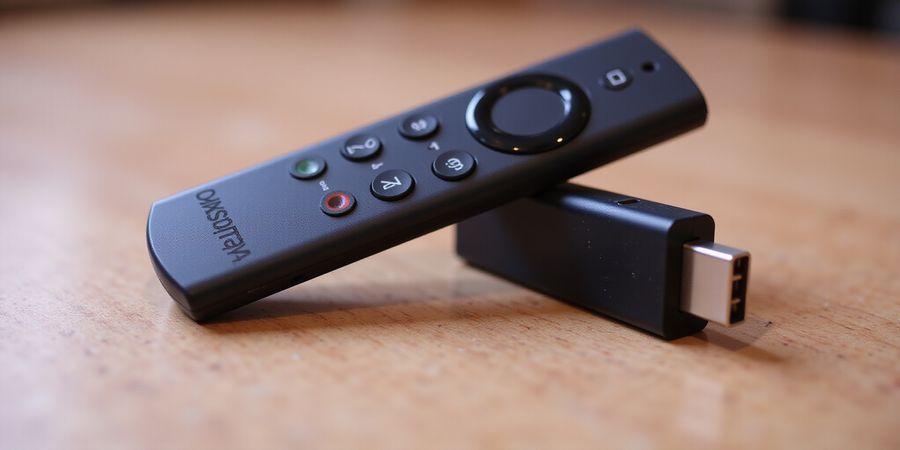
firestick how to
Ever wonder why your Fire Stick feels like a stubborn puzzle? The phrase “firestick how to” pops up in search bars, and we’re here to solve that mystery. Think of the Fire Stick as a tiny theater that needs a ticket before the show starts. We’ll walk through logging in, installing apps, casting, and polishing performance—no tech degree required.
For more Amazon device guides, see our guide on the Fire TV Stick remote: https://www.amazon.com/gp/help/customer/display.html?nodeId=201348270 For official troubleshooting steps, visit Amazon’s support page: https://www.amazon.com/gp/help/customer/display.html?nodeId=G1G5E4QY5
Fire Stick Login Help
Step 1: Open Settings
Step 2: Select Your Account
Step 3: Enter your Amazon credentials or tap Create account
Step 4: If prompted, complete two‑factor authentication
Step 5: Verify your email to finish the setup.
Common Login Errors
• Wrong password: Reset using the Forgot password link. • Two‑factor code not received: Check spam folder. • Account blocked: Contact Amazon support for verification.
Fire Stick App Installation
Installing from the App Store
Open the Home screen. Tap the Search icon. Type the app name. Select the app and tap Install. Wait for the download to finish.
Installing Popular Apps
- Netflix – Search “Netflix”, tap Install, launch and sign in.
- Prime Video – Search “Prime Video”, tap Install, launch and sign in.
- Kodi – Search “Kodi”, tap Install, launch and set up.
Sideloading Apps
Enable Apps from Unknown Sources in Settings. Download the Downloader app. Search for the APK file. Tap Install. Launch the app and enjoy.
Troubleshooting Installation Errors
• Error 1001: Clear cache in Settings → Apps. • Error 2002: Check Wi‑Fi signal strength. • App not appearing: Restart the Fire Stick.
Fire Stick Casting Guide
Casting from Android
Open the source app. Tap the Cast icon. Choose your Fire Stick. Adjust screen mirroring settings if needed. Enjoy the movie.
Supported Apps and Network Requirements
Supported apps include YouTube, Netflix, Hulu, Disney+, and Amazon Prime Video. Ensure your Wi‑Fi network is 2.4 GHz or 5 GHz with at least 20 Mbps downstream speed. If casting frequently, consider a wired Ethernet connection for stability.
Performance Tips
• Clear app cache. • Set video resolution to 720p for weaker Wi‑Fi. • Use Ethernet adapter for streaming. • Replace the remote battery. You can wizard the remote with Alexa, turning it into a virtual controller.
Troubleshooting Matrix
Below is a quick reference for the most common issues.
Issue | Symptom | Quick Fix | Further Action |
|---|---|---|---|
Remote not responding | No vibration or screen reaction | Replace batteries, re‑pair via Settings | Check Bluetooth interference |
Wi‑Fi drops | Random buffering | Restart router, move closer | Update firmware |
App crashes | Immediate exit | Re‑install app | Check for OS update |
FAQ
Q: How do I sideload apps? A: Enable Unknown Sources, download APK via Downloader, install.
Q: Why does my Fire Stick restart? A: Check power cable, firmware update, or overheating.
Q: Can I use Bluetooth headphones? A: Yes, pair them in Settings → Remotes & Accessories.
If you’re still stuck, our community forum offers real‑time help from other users.
Remember, keeping your Fire Stick updated is like giving it a fresh coat of paint.
Firestick How To: Mastering Login, Secure Access & Password Reset
Looking for firestick how to? This guide will walk you through logging in, resetting passwords, linking multiple Amazon accounts, and securing your Fire Stick.
!firestick how to login
Log into Your Fire Stick Account
- Press the Home button on the remote.
- Navigate to Settings > Login.
- Enter your Amazon credentials.
- Confirm with Continue.
Resetting Your Password
Forgot your password? No problem. Click Forgot password? on the login screen. An email arrives with a verification code. Enter it, choose a new password, and you’re back in. If the email doesn’t show, check spam or resend the link.
Linking Multiple Amazon Accounts
Want to share the Fire Stick with family? Go to Settings > Login > Add account. Log in with the second Amazon profile. Each account gets its own content library, like separate shelves in a library.
Two‑Factor Authentication
When 2‑FA is on, a code pops up on your phone. Enter it on the Fire Stick. This extra layer keeps your account like a vault, not just a lock.
Best Practices for Account Security
- Use a dedicated email for your Fire Stick.
- Enable Auto‑Login to skip the password each time.
- Regularly review connected devices in your Amazon account.
- Keep your device’s firmware updated.
Step | Action | Result |
|---|---|---|
1 | Open Settings → Login | Access credentials screen |
2 | Enter email & password | Authenticate user |
3 | Reset password if needed | New secure credentials |
4 | Link additional accounts | Multi‑profile setup |
Remember: a strong password is like a sturdy fence around your streaming home. Keep it unique and change it often.
Now that you know how to log in, reset passwords, and secure your account, keep these tips handy whenever you set up a new Fire Stick or share it with friends. Happy streaming!