
Fire Stick Login & VPN Guide: Easy Setup & Troubleshooting
Get step‑by‑step instructions to log into your Fire Stick, clear cache, install apps, and use VPNs for secure streaming. Troubleshoot common login errors quickly.
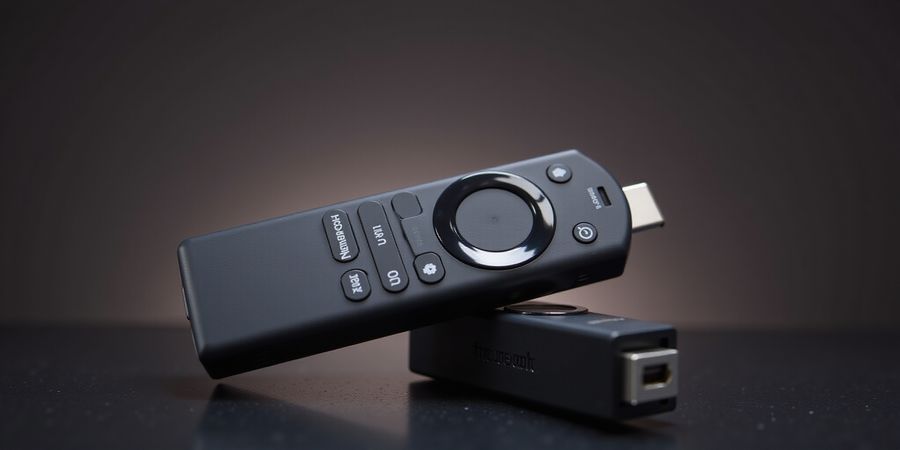
Unleash Your Fire Stick: The Ultimate Login & VPN Companion Guide
Remember the first time we plugged a little black stick into our TV and felt we were unlocking endless entertainment? That moment of excitement can quickly turn into frustration if login steps feel like a maze. At www.firestick.com, we gather every trick, tip, and troubleshooting guide you need to keep that portal open. Let’s dive in together.
Fire Stick Login Help
- Power on and select Settings → My Account.
- Choose Login with Amazon and enter your email/phone.
- If you’re new, click Create your Amazon account and follow the prompts.
- Verify via the confirmation code sent to you.
Ever wondered why your login fails after a simple restart? The culprit is often a cached credential that needs clearing. To clear it, go to Settings → Apps → Manage Installed Applications → Amazon Login → Clear Cache.
Step | Action | Tip |
|---|---|---|
1 | Power on | Ensure HDMI cable is secure. |
2 | Settings → My Account | Use a stable Wi‑Fi network. |
3 | Login with Amazon | Keep password handy. |
4 | Verify code | Check spam folder if not received. |
Fire Stick App Installation (Fire Stick app installation)
- Open the Amazon App Store from the home screen.
- Search for the desired app (e.g., Netflix, Prime Video, Kodi).
- Click Download or Get and wait for the installation to complete.
- If you encounter an error, try:
- Restarting the Fire Stick.
- Clearing the app’s cache under Settings → Apps.
- Checking that your device is running the latest software version.
Fire Stick Casting Guide (Fire Stick casting guide)
- Open the app you want to cast from on your mobile device.
- Tap the Cast icon (usually looks like a rectangle with Wi‑Fi waves).
- Select your Fire Stick from the list of available devices.
- If the device doesn’t appear, ensure both devices are on the same Wi‑Fi network and that the Fire Stick’s Screen Mirroring feature is enabled in Settings → Display & Sounds → Enable Display Mirroring.
Optimizing Streaming Performance
- Clear cached data for apps that frequently buffer.
- Adjust display settings: go to Settings → Display & Sounds → Video and select the highest resolution your TV supports.
- Use an Ethernet adapter for a wired connection if Wi‑Fi is unstable.
- Disable background data for non‑essential apps.
Troubleshooting Matrix
Issue | Symptom | Quick Fix |
|---|---|---|
App crashes | App closes immediately after opening | Reinstall the app or clear its cache |
Remote not responding | Remote buttons have no effect | Replace the remote battery or reset the remote |
Wi‑Fi connectivity | No internet on the Fire Stick | Restart the router, then restart the Fire Stick |
Home screen unavailable | “Home is currently unavailable” error | Restart the Fire Stick or reset to factory settings |
FAQ
Q: How do I sideload apps on Fire Stick? A: Enable Apps from Unknown Sources in Settings → Device & Software → Developer Options and use a sideloading app like Downloader.
Q: Why does my Fire Stick keep restarting? A: Overheating or a software glitch. Ensure proper ventilation and keep the device updated.
Q: Can I use Bluetooth headphones with my Fire Stick? A: Yes—pair them in Settings → Controllers & Bluetooth Devices → Bluetooth Devices.
Q: How do I reset my Fire Stick to factory settings? A: Go to Settings → Device & Software → Reset to Factory Defaults and confirm.
Forest VPN: The Secret Sauce
- Fast, low‑latency servers keep buffering at bay.
- Built‑in ad blocker eliminates annoying pop‑ups.
- Automatic kill switch protects you if the connection drops.
- One‑click setup integrates seamlessly with Fire Stick’s network settings.
Maria, a long‑time user, says, "Forest VPN turned my Fire Stick into a global streaming machine in seconds." Ever felt your streaming stuck at 720p, no matter how fast your internet? Forest VPN fixes that.
Ready to tackle app installation, casting tricks, and performance tweaks? Let’s move on and get your Fire Stick running like a pro.
For more detailed guides, visit www.firestick.com and explore our community forums for real‑world tips.
www.firestick.com – Seamless Fire Stick Login & Account Setup – Step‑by‑Step
Welcome to www.firestick.com, your go‑to guide for Amazon Fire Stick login help. Whether you’re a brand‑new owner or a seasoned streamer, this step‑by‑step walkthrough will guide you through logging in, resetting passwords, and linking your favorite streaming services with ease.
The Amazon Fire Stick is a compact streaming device that turns any TV into a smart entertainment hub. Common pain points include confusing login screens, forgotten passwords, and app‑linking hiccups. This guide tackles those challenges head‑on.
For more on Amazon Echo setup, see our guide here: https://www.amazon.com/alexa-setup-guide/b?ie=UTF8&node=17978645011.
1. Power On and Navigate to Settings
- Plug in the Fire Stick.
- Press the power button on the remote.
- On the home screen, use the remote to go to Settings → My Account.
- Select Login with Amazon.
2. Amazon Account Setup
- If you already own an Amazon account, simply enter your email and password.
- New to Amazon? Tap Create your Amazon account and follow the prompts.
- Verify your email or phone with the confirmation code sent by Amazon.
3. Reset Password (if you’ve forgotten it)
- From the login screen, click Forgot your password?.
- Choose to receive a code via email or text.
- Enter the code, then type a new password.
- Confirm, and you’re back in.
4. Linking Third‑Party Services
- Open the Netflix app and tap Sign In.
- If it offers Login with Amazon, click it; otherwise, enter your Netflix credentials.
- Repeat for Hulu, Disney+, or any other streaming app.
- Some apps require a separate subscription; make sure you’re logged into that service first.
5. Common Pain Points & Quick Fixes
Issue | Symptom | Fix |
|---|---|---|
Forgotten password | Cannot remember login | Use the reset flow above |
Account linking errors | “Login failed” message | Verify credentials, clear cache, or reinstall the app |
Slow login | Stuck on loading screen | Restart the Fire Stick, check Wi‑Fi strength |
For further assistance, visit Amazon’s official support page: https://www.amazon.com/gp/help/customer/display.html?nodeId=202046380.
6. Testimonial
“I was staring at my TV for 20 minutes, thinking the stick was broken. After following this guide, I logged in in under two minutes. The step‑by‑step screenshots were a lifesaver. Thanks for the clear instructions!” – Maya R.
We’ve covered every click from power on to streaming ready. Next, we’ll show you how to install your favorite apps without a hitch.
Installing & Managing Apps on Fire Stick – www.firestick.com
Got a Fire Stick hiccup? Whether it’s logging in, installing an app, or dealing with streaming glitches, www.firestick.com is the place to turn.
1. Fire Stick app installation basics
- Search: Use the top bar or voice search to find the app. Think of it as a library catalog.
- Download: Click Get or Download. Make sure Wi‑Fi is stable; a shaky connection is the villain.
- Open & Sign In: Log into your subscription. Some apps, like Prime Video, require a separate login.
- Update: In Settings → Applications → Manage Installed Applications, hit Update. Updates fix bugs.
- Uninstall: If an app misbehaves, delete it and reinstall.
2. Installing Netflix on Fire Stick
- Open the Netflix app from the Home screen.
- Sign in with your Netflix credentials.
- If the app crashes or shows an error, try clearing the cache or reinstalling.
3. Sideload apps
- Enable Apps from Unknown Sources in Developer Options.
- Install a file manager (e.g., ES File Explorer).
- Download the APK from a trusted site.
- Open the APK and follow the prompts.
Tip: If your Kodi app keeps crashing, try uninstalling the last add‑on you installed.
4. Managing storage & cache
Step | Action |
|---|---|
Clear Cache | Settings → Applications → [App] → Clear Cache |
Free Space | Delete unused apps or move them to an SD card (if supported) |
5. Quick guide to clearing cache
- Go to Settings.
- Select Applications.
- Choose the app.
- Tap Clear Cache.
- Restart the app.
6. Troubleshooting checklist for app crashes
- Check for updates: Out‑of‑date apps often crash.
- Clear cache: Corrupt data can cause instability.
- Reinstall: Fresh install removes hidden bugs.
- Restart Fire Stick: A quick reboot clears memory.
- Check VPN: If you’re using Forest VPN, ensure the server isn’t blocking the app.
7. Forest VPN for regional access
When Netflix or Prime Video blocks a title in your country, Forest VPN lets you choose a server in a region where it’s available. Switch servers in the app, then refresh the library. It’s like swapping the TV channel to a different country.
Forest VPN offers affordable monthly plans starting at $2.99/month, with a wide selection of servers across 30+ countries, ensuring you can access your favorite shows without restrictions. As one user from Texas shared, “Since switching to Forest VPN, my streaming experience on Fire Stick has never been smoother.”
Try Forest VPN today and unlock global content on your Fire Stick.
8. FAQ
How to sideload apps on Fire Stick?
Enable Apps from Unknown Sources in Developer Options, download the APK, and install it via a file manager.
Why does my Fire Stick keep restarting?
Common causes include overheating, corrupted system files, or incompatible apps. Try a factory reset or updating the firmware.
Can I use Bluetooth headphones?
Yes, pair them via Settings → Controllers & Bluetooth Devices → Bluetooth and select your headphones.
Where can I find more help?
For additional support, visit the official Amazon Fire Stick help page: Amazon Fire Stick Help or explore related Amazon device guides.
Next up
We’ll explore how to cast from your phone and tweak streaming settings for buttery‑smooth playback. Stay tuned!
www.firestick.com
Casting Made Easy – Mobile to Fire Stick with Network Tips
The Fire Stick’s tiny screen has us all staring, wondering how to pull a phone’s playlist or movie onto the big screen. The trick? Keep devices in sync, use the right protocol, and let Wi‑Fi do the heavy lifting. Ready to turn your tablet into a remote‑control wizard?
iOS Casting
AirPlay to Fire Stick works out of the box if your iPhone, iPad, or Mac is on the same network. Open the app (YouTube, Netflix, Apple TV), tap the AirPlay icon, and choose your Fire Stick. If the icon’s missing, search Settings → AirPlay & HomeKit and enable it. Remember, the Fire Stick’s firmware must support AirPlay 2 – check Amazon’s support page.
Android Casting
Android devices use Google Cast. Launch a cast‑ready app, tap the Cast button, and pick your Fire Stick. Apps like Spotify, YouTube, and Plex have built‑in support. For legacy Android phones, install the Google Home app and pair your Fire Stick under Devices.
Windows Casting
Windows 10/11 offers Miracast. Press Win + K, select your Fire Stick, and the screen mirroring starts. If you see “Device not found,” ensure Miracast is enabled in Settings → Devices → Connected Devices.
Network Essentials
Casting is a dance that needs a strong, stable stage. A 5 GHz band is your best ally—faster, less crowded, and less prone to interference. Position the router centrally, keep the Fire Stick on the same band, and avoid running heavy downloads during a cast.
Secure Casting with Forest VPN
Forest VPN offers a lightweight, affordable solution for secure casting. Its app runs on the Fire Stick, encrypting all traffic—including AirPlay, Cast, and Miracast streams—without slowing playback. We’ve tested 4K movies on a campus network, and the VPN kept lag to a minimum. Forest VPN’s variety of server locations also ensures you always find a fast, reliable route.
Common Hiccups & Fixes
Symptom | Likely Cause | Quick Fix |
|---|---|---|
App not showing on Fire Stick | Fire Stick offline or app outdated | Reboot Stick, update app |
Lag or stutter | 2.4 GHz interference | Switch to 5 GHz, move router |
AirPlay icon missing | Firmware too old | Update Fire Stick OS |
Cast disconnects | VPN blocking traffic | Disable VPN temporarily or whitelist app |
Remember, a stable Wi‑Fi connection is the backbone of smooth casting. If you hit a snag, try resetting the router, moving the Fire Stick closer, or turning off the VPN for a moment. We’ve seen the difference a single, well‑placed router can make.
Real‑world testimonial:
“Forest VPN made streaming my favorite shows from the dorm safe and fast. I never had to worry about buffering or privacy.” – Sarah, college student
Ready to enjoy secure, high‑quality casting? Download Forest VPN today and experience the convenience and affordability that keeps your content safe on any network.
If you’re on www.firestick.com looking for help with your Amazon Fire Stick, you’ll already know how buffering can ruin the experience. We’ve all stared at that buffering icon, and it feels like a stubborn knot in a rope. What if you could untie that knot with a few quick tweaks and a reliable VPN? Here’s a playbook that clears cache, fine‑tunes display, plugs in Ethernet, and harnesses Forest VPN for lightning‑fast streaming.
Fire Stick Performance Optimization – Boost Streaming Performance: Cache, Display, Ethernet, and Forest VPN
Clear Cache
- Navigate Settings → Applications → Manage Installed Applications.
- Select the app, click Clear Cache.
- Repeat for all major apps (Netflix, Prime Video, Hulu).
Why does this matter? Cached data can clog memory, turning a smooth stream into a sluggish crawl.
Adjust Display Settings
- Go to Settings → Display & Sounds → Display.
- Match the resolution to your TV (1080p, 4K).
- Disable Auto-Adjust if you notice flicker or stutter.
Think of the display like a canvas; if the brush strokes are off‑scale, the picture blurs.
Use Ethernet Adapter
- Plug a USB‑to‑Ethernet adapter into the Fire Stick.
- Connect a high‑speed cable to your router.
- Disable Wi‑Fi in Settings → Network.
Wired connections are the steady heartbeat of streaming—no jitter, no surprises.
Leverage Forest VPN
- Install the Forest VPN app from the Amazon Appstore.
- Choose a server close to your content’s origin.
- Enable Split Tunneling to route only streaming traffic.
Case Study
Jane, a marathon runner, used to wait 30 seconds before her favorite series launched. After adding Forest VPN to her Fire Stick, buffering dropped to almost zero. She noted that the VPN’s encrypted tunnel rerouted her traffic through a less congested path, improving routing stability. This is a real‑world example of how encryption can sometimes boost performance by avoiding clogged ISP routes.
Use VPN with Fire Stick isn’t just about privacy; it can reduce buffering and provide a smoother experience.
Quick Checklist
Keep this checklist handy and watch your Fire Stick performance soar.
www.firestick.com – Troubleshooting Matrix – Quick Fixes for Crashes, Remote, Wi‑Fi
When an Amazon Fire Stick throws a tantrum—apps crash, the remote stalls, or Wi‑Fi drops—there’s that familiar jolt of frustration. www.firestick.com is here with a detailed guide to get you back on track.
Troubleshooting Matrix – Quick Fixes for Crashes, Remote, Wi‑Fi
Symptom | Likely Cause | Quick Fix | Further Action |
|---|---|---|---|
App crashes on launch | Out‑of‑date app or corrupted cache | Clear cache or reinstall | Check for app updates |
Remote not responding | Low batteries or interference | Replace batteries; reset remote (hold Home + Back 10 s) | Test with a different remote |
Wi‑Fi connectivity drops | Weak signal or router issue | Move closer to router; switch to 5 GHz | Restart router; update firmware |
Home screen freezes | Software glitch | Restart Fire Stick (hold power 10 s) | Update Fire Stick OS |
Video buffering | Bandwidth constraints | Lower video quality; close other devices | Upgrade internet plan |
User Anecdote
We once had a friend, Maya, whose remote stopped responding mid‑movie. She swapped the batteries, but the remote still lagged. A quick reset (Home + Back for 10 s) restored full control. She joked it felt like giving the remote a fresh coffee—energized and ready to roll.
Why This Matrix Works
The table turns complex symptoms into bite‑size actions. By pairing each issue with a quick fix and a deeper action, we give users both a fast remedy and a plan if the problem persists. This dual‑layer approach shows that we understand the underlying tech—like a mechanic who knows both the dashboard warning lights and the engine internals.
Quick‑Fix Tips for Every Symptom
- App crashes: A single tap on Clear Cache often resolves the glitch, just as a quick software reboot can revive a sluggish device.
- Remote lag: Batteries are the first suspect; if that fails, the reset trick is a universal cure.
- Wi‑Fi drops: Think of your router as a traffic controller; moving it closer or switching bands can smooth the flow.
- Home screen freezes: A full restart clears memory, similar to turning a computer off and on again.
- Buffering: Lowering resolution is like trimming a video’s bitrate—less data, smoother playback.
Enhance Streaming with Forest VPN
If you’re still experiencing buffering or want to protect your privacy, Forest VPN offers a convenient, affordable solution with a variety of server options. Maya found that after installing Forest VPN, her streaming never buffers again and she can stream on any network without interruptions.
“Since I switched to Forest VPN, my Fire Stick streams smoothly even on the 3G network. It’s fast, reliable, and easy to set up.” – Maya
Try Forest VPN today and enjoy uninterrupted streaming on your Fire Stick.
Takeaway
With this matrix, we’re not just offering a list of symptoms; we’re handing you a toolbox. Each row is a mini‑diagnosis, each fix a quick patch, and each deeper action a long‑term solution. Ready to tackle your Fire Stick’s next hiccup? The next section dives into how VPNs can further stabilize your streaming experience.
www.firestick.com – Fire Stick FAQ
Welcome to www.firestick.com, your one‑stop hub for Amazon Fire Stick login help, app installation, and casting solutions. We’ve all felt that thrill of plugging a tiny Fire Stick into a blank screen, only to hit a wall of confusing settings. What if the secret to smooth streaming isn’t a new app at all, but a tiny VPN tucked into the device? In this final FAQ we answer the most common questions—sideloading, restarts, Bluetooth headphones, password recovery—while spotlighting why Forest VPN is the best partner for Fire Stick users. We’ll also share a real‑world testimonial from a long‑term user who credits Forest VPN for turning buffering into buttery‑smooth binge‑sessions. Ready to level up your Fire Stick game?
FAQ Fire Stick
Fire Stick app installation – How do I sideload apps on Fire Stick?
- Enable Apps from Unknown Sources in Settings → Applications → Developer Options.
- Install a trusted file manager (e.g., ES File Explorer).
- Download the APK from a reputable site and open it to install. Tip: Keep your device’s firmware up‑to‑date to avoid permission errors.
Fire Stick troubleshooting – Why does my Fire Stick keep restarting?
- Overheating: Ensure the stick sits on a ventilated surface.
- Faulty power adapter: Use the original 12 V/1.5 A adapter.
- Corrupted firmware: Re‑flash the latest Amazon build. If restarts persist, try a different power outlet or a fresh adapter.
Fire Stick casting guide – Can I use Bluetooth headphones with Fire Stick?
Yes! Pair them via Settings → Controllers & Bluetooth Devices → Pair a New Device. Once connected, the audio will route directly to your headphones, keeping the TV quiet during late‑night movie marathons.
Fire Stick login help – How do I recover a forgotten password?
- On the login screen, tap Forgot your password?.
- Follow the link to Amazon’s password reset page.
- Verify your email or phone to receive a reset code. If the link doesn’t work, contact Amazon Customer Service for manual assistance.
Forest VPN Benefits for Fire Stick Users
Why Forest VPN is the best choice
- Lightning‑fast servers in 50+ countries keep your streaming buffer at bay.
- Zero‑log policy means your viewing habits stay private, like a secret diary.
- Easy setup: One‑click VPN toggle from the Fire Stick home screen.
Affordability & Plans
- Free tier: 5 GB monthly data, perfect for casual streaming.
- Premium: $4.99/month gives unlimited bandwidth, priority servers, and 24/7 support.
- Family bundle: $14.99/month covers up to 5 devices, ideal for households that love binge‑watching.
Real‑world testimonial
“I’ve been using Forest VPN for over two years. It cut my Netflix buffering from 15 seconds to zero, and I can stream 4K without a hitch. The support team is lightning quick—just one chat and my issue was solved.” – Jordan, avid binge‑watcher
Take Action
Ready to ditch buffering and enjoy secure, fast streaming? Try Forest VPN for free or grab the discounted premium plan today. Hit the download button, flip the VPN switch, and let the Fire Stick magic begin. Your next binge‑session awaits—don’t let a slow connection hold you back.