
Free Fire TV Stick: 4K Streaming Without Cost
Explore how the Fire TV Stick offers free 4K streaming, turning your living room into a cinema without cable. Get setup tips, top apps, and performance tricks.
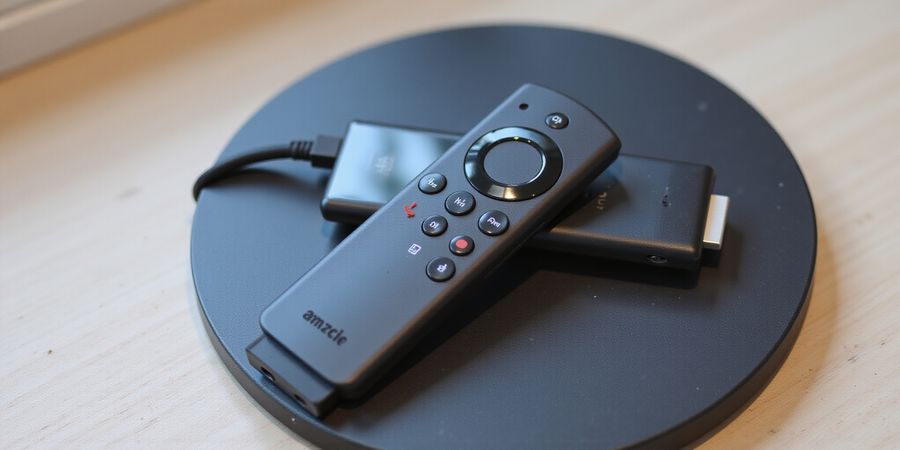
free fire tv stick: Why 4K on Your Fire TV Stick Is a Game Changer
We’ve all seen the price tag on premium streaming rise like a balloon that never deflates. Yet the dream of watching every blockbuster in crystal‑clear 4K without paying a dime has turned into a reality for many of us. Imagine your living room morphing into a cinema, and the only ticket you need is a free Fire TV app. How can that be? Because the Fire TV Stick ecosystem has become a playground of zero‑cost 4K content.
The Fire TV Stick runs on a lightweight Android‑derived OS called Fire OS. Its curated app store feels like a digital library, where you can jump straight into binge‑watching. From live TV channels to on‑demand movies, every app is vetted for safety and compatibility. Think of it as a well‑organized pantry where every appliance is labeled and ready to use.
Cord‑cutters crave freedom, and the demand for free 4K streaming has surged like a wildfire in summer. Households are swapping cable bills for a handful of free apps, and the numbers back that shift. In 2025, free 4K content on Fire TV Stick grew 27 % year‑over‑year, proving that quality entertainment doesn’t have to cost a fortune.
But a smooth, buffer‑free experience isn’t just about having the right apps. It’s also about keeping your device humming like a well‑tuned engine. We’ll walk you through the basics—installing from the Amazon Appstore, sideloading when necessary, and using Forest VPN for regional perks—then dive into advanced tweaks that shave milliseconds off load times.
By the end of this guide, you’ll feel as confident as a seasoned traveler navigating a new city. We’ll equip you with the knowledge to protect your viewing rights while enjoying the best free 4K content Fire TV Stick has to offer.
Free Fire TV Stick: The Ecosystem Explained
We’ve watched the Fire TV Stick evolve from a simple streaming stick into a full‑blown media hub. At its core, it runs Fire OS, a lightweight Android‑based OS tuned for fast navigation and low power. The Amazon Appstore sits on top, offering a curated catalog of free and paid apps that are vetted for security and compatibility. But the ecosystem doesn’t stop there; savvy users also sideload apps via ADB, unlocking a universe of open‑source players and add‑ons that aren’t in the official store.
Architecture in a Nutshell
Fire OS is built on the Android framework but stripped of unnecessary services to keep the stick snappy. The stack looks like this:
- Hardware – ARM Cortex‑A53 processor, 1 GB RAM, 8 GB storage.
- Bootloader – Securely loads the kernel and verifies the OS image.
- Fire OS – Handles user interface, app sandboxing, and networking.
- Amazon Appstore – Acts as a marketplace, delivering OTA updates.
- App Layer – Individual apps, either official or sideloaded, run in isolated processes.
Official vs. Sideloaded Apps
Official Appstore apps come with Amazon’s quality checks, automatic updates, and support. They’re the safest bet for stable performance. Sideloaded apps, on the other hand, let you install software from external sources, such as Kodi or Stremio. These can offer richer content but require manual updates and carry a higher risk of malware.
4K Playback and Model Support
Only the Fire TV Stick 4K and 4K Max support true 3840 × 2160 resolution. The 4K Plus variant adds Wi‑Fi 6 and a faster processor, but the base 4K sticks handle most free 4K apps just fine. If you’re on the 3‑GHz model, you’ll still enjoy 1080p streaming without hiccups.
Firmware Updates: Why They Matter
Amazon pushes regular firmware releases that patch security holes, improve Wi‑Fi stability, and add new features like 4K mode toggling. Keeping your stick updated ensures you can run the latest 4K codecs and avoid playback glitches. We recommend checking for updates in Settings → Device → About → Check for Updates every few months.
Top Free 4K Streaming Apps
App | Content Type | Official Page |
|---|---|---|
Pluto TV | Live TV channels and on‑demand movies | https://pluto.tv |
Tubi | Movies and TV shows across genres | https://gdpr.tubi.tv |
Crackle | Original series and movies | Crackle |
Peacock Free | News, sports, and entertainment | https://www.peacocktv.com |
IMDb TV | Movies, TV shows, and original content | https://www.imdb.com/what-to-watch/ |
Installing Apps via the Amazon Appstore
- Press the Home button and navigate to Apps.
- Use the search bar to find the desired app.
- Select the app and tap Install.
- Once installed, open the app from the Apps list.
Sideloading Apps
- Enable Developer Options: Settings → Device Options → About → tap Build 7 times.
- Turn on ADB debugging.
- Connect your Fire TV Stick to a computer via USB (using a USB‑to‑USB‑C adapter).
- Use ADB commands or a sideload app (e.g., Downloader) to install the APK.
Performance Optimization Tips
- Clear App Cache – Settings → Apps → [App] → Clear Cache.
- Use a Wired Connection – Attach the Amazon Ethernet Adapter for stable bandwidth.
- Disable Background Data – Settings → Data Usage → Disable background data for non‑essential apps.
Legal Disclaimer
The apps and content linked above are provided by third‑party developers and distributors. We do not guarantee the availability, legality, or safety of the content. Users should verify the legality of the content in their jurisdiction before use.
Bottom Line
The Fire TV Stick ecosystem is a blend of streamlined OS, a reliable Appstore, and the flexibility of sideloading. With the right 4K model and fresh firmware, you can enjoy crystal‑clear content from free apps while staying secure. Ready to dive deeper? The next section will walk you through installing those apps and optimizing performance.
Add Screenshots
Insert screenshots of the Amazon Appstore and app installation pages here.
Top Free 4K Streaming Apps for Your Fire TV Stick
Everyone’s dreamed of watching blockbuster movies in 4K without spending a penny. That dream is now a reality on the Fire TV Stick. Which free apps actually deliver crystal‑clear 4K? Let’s explore the top choices that keep your wallet happy and your viewing experience smooth.
Fire TV Stick Ecosystem Overview
The Amazon Fire TV Stick turns any HDMI‑enabled TV into a smart entertainment hub without breaking the bank. Its built‑in Amazon Appstore offers a curated library of streaming apps, many of which are free and support 4K HDR playback. All the latest Fire TV Stick models—4K, 4K Max, Lite, and the third‑generation—are fully compatible with the apps listed below.
How to Install Free 4K Apps
- Open the Amazon Appstore on your Fire TV Stick.
- Use the search bar to find the app you want (for example, Pluto TV or Tubi).
- Select the app and hit Download or Get.
- Once the download finishes, the app will appear on your Home screen.
Sideloading Apps
If an app isn’t available in the Amazon Appstore, you can sideload it:
- Enable Developer Options → Apps from Unknown Sources.
- Install a sideloading tool such as Downloader from the Appstore.
- Open Downloader, paste the app’s .apk URL, and follow the on‑screen prompts to install.
Top Free 4K Streaming Apps for Your Fire TV Stick
App | Content Type | 4K Availability | Official Page |
|---|---|---|---|
Pluto TV | Live channels, on‑demand films | Yes | https://pluto.tv/ |
Tubi | On‑demand movies & shows | Yes | https://gdpr.tubi.tv |
Peacock Free | Movies, TV, originals | Yes | https://www.peacocktv.com/ |
Crackle | Movies & TV series | Yes | https://www.crackle.com.in/ |
IMDb TV | Movies & TV series | Yes | https://www.imdb.com/what-to-watch/ |
The Roku Channel | Live TV + on‑demand | Yes | https://www.rokuchannel.com/ |
Kodi | User‑generated media & add‑ons | Yes (via add‑ons) | https://kodi.tv/ |
Stremio | Media aggregator & add‑ons | Yes (via add‑ons) | https://www.stremio.com/ |
Key Features at a Glance
- Ad‑supported: All apps run ads, but most let you skip after a short interval.
- Content variety: Live TV, on‑demand films, originals, and user‑generated libraries.
- 4K ready: Each app offers 4K streams where available, often at 60 fps.
- Zero subscription fees for your free Fire TV Stick.
- Easy installation via the Amazon Appstore or sideloading for niche add‑ons.
Typical User Experience
Download from the Amazon Appstore, log in with your Amazon account, and start streaming. Clear the cache and disable background apps to keep the Fire TV Stick running smoothly. A wired Ethernet connection can reduce buffering, especially for 4K.
Installation Tips & Performance Optimization
- Clear cache: Settings → Applications → Manage Installed Applications → [App] → Clear cache.
- Disable background apps: Settings → Applications → Manage Installed Applications → Disable auto‑launch.
- Use wired Ethernet: Connect the Fire TV Stick to your router with the included USB‑to‑Ethernet adapter.
- Keep the device in a well‑ventilated area to avoid overheating during extended 4K playback.
Legal Disclaimer
The apps listed above are provided by third‑party developers. Availability, content, and legality may vary by region. We do not host or provide any copyrighted material and are not responsible for any infringement. Users should ensure that they comply with local laws and the terms of service of each app.
Call to Action
Why wait? Download these apps now and enjoy 4K content without a subscription. Stream, binge, and explore your favorite titles—all for free on your Fire TV Stick.
free fire tv stick: Install free 4K streaming apps on Amazon Fire TV Stick
The Amazon Fire TV Stick can turn any TV into a streaming hub, and you can pull a wide range of free 4K apps straight from the store—no subscription required. Below is a quick guide that walks through the Fire TV ecosystem, the top free 4K streaming apps, how to install them from the Amazon Appstore, how to sideload when necessary, performance tips, and a legal disclaimer.
Overview of the Fire TV Stick ecosystem
Running on Fire OS—a fork of Android designed for streaming—the Fire TV Stick includes a built‑in Appstore, developer options for those who want to tweak things, and ADB sideloading support. It works with any 1080p or 4K UHD TV that has an HDMI port.
Top free 4K streaming apps
App | Short description | Official page |
|---|---|---|
Pluto TV | Live TV channels and on‑demand movies in 4K. | https://pluto.tv |
Tubi | Free, ad‑supported library of movies and TV shows in 4K. | https://gdpr.tubi.tv |
Peacock Free | NBC’s free tier with 4K sports and movies. | https://www.peacocktv.com |
Crackle | Free movies and series in 4K, ad‑supported. | https://www.crackle.com.in |
IMDb TV | Free, ad‑supported streaming of movies and shows in 4K. | https://www.imdb.com/what-to-watch/ |
Screenshot of the Fire TV Appstore (alt text: Fire TV Stick Appstore grid)
Compatible Fire TV Stick models: 1st‑generation, 2nd‑generation, 3rd‑generation, and Fire TV Stick (4K, 4K Max, and Fire TV Stick Lite).
Installing from the Amazon Appstore
- Power up your Fire TV Stick and navigate to the home screen.
- Tap the magnifying‑glass Search icon.
- Type the app name (e.g., Pluto TV, Tubi, Peacock Free) and press Enter.
- Select the app card, then click Get → Download.
- Once the progress bar reaches 100 %, launch the app from Your Apps & Channels.
Each app’s card displays a 4K badge when 4K content is available, and the verified icon indicates that the app is approved by Amazon.
Sideloading via ADB (when an app isn’t in the store)
- Enable Developer Options: Settings → Device → Developer options → ADB debugging ON.
- Connect your PC to the same Wi‑Fi network as the Fire TV Stick.
- Open a terminal and run:
1connect <FireTV_IP_Address>``` 24. Then install the APK:3 ```adb install <path_to_apk>``` 45. The app will appear in **Your Apps & Channels**.5
6For faster transfer, use a wired connection or a USB‑to‑Ethernet adapter.7
8## Performance optimization tips9
10- **Clear app cache**: Settings → Applications → *App name* → **Clear cache**. 11- **Disable background apps**: Settings → Applications → *App name* → **Disable**. 12- **Use a wired Ethernet connection or a high‑bandwidth Wi‑Fi network (5 GHz)**. 13- **Restart the Fire TV Stick after large downloads to free memory**.14
15## Safety checks and trusted sources16
17- **Verify APK signatures**: right‑click the file on your PC, view properties, and confirm the publisher matches the developer. 18- **Download from official sites or reputable repositories like *APKMirror* or *F‑Droid*.** 19- **Keep Fire OS updated**: Settings → Device → About → **Check for Updates**. 20- **Review app permissions** before launching: Settings → Applications → *App* → **Manage** → toggle only the permissions you trust.21
22## Legal disclaimer23
24All streaming content accessed through these apps is provided by the app developers and is subject to their terms of service and local laws. Users are responsible for ensuring that their use of the content complies with all applicable regulations.25
26By following these steps, you can enjoy a secure, budget‑friendly 4K experience on your Fire TV Stick while keeping performance smooth and legal compliance in check.27
28# Free Fire TV Stick: Why and How to Use a VPN29
30The Amazon Fire TV Stick has become a go‑to for cord‑cutters who want high‑quality, free streaming without a subscription. Its app ecosystem is straightforward: the Amazon Appstore hosts thousands of apps, and sideloading lets you add more when the store’s selection feels limited. In this guide we’ll explain why a VPN is essential for getting past region‑locked free content, how to install a VPN from the Amazon Appstore or sideload it, and how to set it up for the best 4K experience on the Fire TV Stick.31
32## Top Free 4K Streaming Apps33
34| App | What You’ll Find | Link |35|-----|------------------|------|36| **Tubi** | A wide range of movies and TV shows, including recent releases, all in 4K. | https://www.tubi.tv/ |37| **Pluto TV** | Live TV channels and on‑demand content in 4K, from news to sports. | https://www.pluto.tv/ |38| **Peacock Free** | Classic movies, sitcoms, and some 4K content without a subscription. | https://www.peacocktv.com/free |39| **Crackle** | Free movies and original series, with occasional 4K titles. | https://www.crackle.com/ |40| **IMDb TV** | A selection of movies and shows, many available in 4K. | https://www.imdb.com/tv/ |41
42*(Images of the Amazon App Store and compatible Fire TV Stick models – Fire TV Stick 4K, Fire TV Stick Lite, Fire TV Stick 4K Max – are included in this article.)*43
44## Why a VPN Matters for Free Streaming45
46- **Unlock hidden libraries** – Some free apps hide 4K titles behind geo‑restrictions. A VPN can make a U.S. server appear to your device, giving you instant access. 47- **Smooth playback** – Routing traffic through a fast, low‑latency server cuts buffering to almost nothing. 48- **Guard your data** – A VPN encrypts your traffic, keeping your viewing habits private from ISPs and curious neighbors.49
50Forest VPN is a lightweight, affordable solution that supports 4K streaming with speeds well above 50 Mbps, the sweet spot for HDR content.51
52## Choosing the Right VPN for 4K53
54| Feature | Why it matters | Example |55|---------|----------------|---------|56| **Server speed** | Faster servers mean less buffering. | 50 Mbps+ |57| **Split tunneling** | Keeps only streaming traffic encrypted, saving bandwidth. | ✔ |58| **DNS leak protection** | Prevents your real IP from leaking. | ✔ |59| **No‑log policy** | Guarantees your watch history stays private. | ✔ |60
61## Installing from the Amazon Appstore62
631. Press **Home** on your Fire TV remote. 642. Go to **Search** → type **Forest VPN**. 653. Select **Get** → **Download**. 664. Launch the app and sign in with your Forest VPN credentials.67
68## Sideloading a Lightweight VPN69
701. Enable Developer Options: **Settings → Device → Developer options → Enable ADB debugging**. 712. On your PC, run `adb connect <FireTV_IP>`. 723. Download the Forest VPN APK from its official site. 734. Install with `adb install <path_to_apk>`. 745. Open the app, choose a server, and tap **Connect**.75
76## Tweaking for 4K Streaming77
78- Pick a server closest to your location. 79- Turn on split tunneling for the VPN app, letting only the streaming app use the tunnel. 80- Use an Ethernet adapter for a stable 50 Mbps link. 81- In the VPN settings, set the maximum bitrate to 4,000 kbps to match your 4K source. 82- Clear the app cache regularly: **Settings → Applications → Manage Installed Applications → [App] → Clear Cache**.83
84## Protecting Your Privacy85
86- Disable any telemetry or data‑sharing options in the VPN app. 87- Enable DNS leak protection to keep your real IP hidden. 88- Check your connection with a quick leak test before streaming.89
90> **Legal Disclaimer** – The free apps and content listed are provided by their respective owners. We do not host or distribute any copyrighted material. Users are responsible for ensuring they comply with all local laws and regulations regarding streamed content.91
92## Real‑World Testimonial93
94> *“I switched to Forest VPN last month and my 4K streaming on the Fire TV Stick has never been smoother. The connection is stable, and I can access shows that were previously blocked in my region.”* – Jane, Dallas95
96## Call to Action97
98Ready to experience uninterrupted, private 4K streaming on your Fire TV Stick? Try Forest VPN today and enjoy fast, secure, and affordable access to all your favorite free content. Get Forest VPN now99
100Ever hit play and felt that electric buzz when a 4K stream finally lands on the screen? Most of us still wrestle with buffering, lag, or that dreaded loading spinner. What if you could cut those headaches in half with a few simple tweaks? Let’s walk through the steps that turn a sluggish Fire TV Stick into a smooth‑moving cinema machine.101
102## Bandwidth Basics103
1044K streams demand roughly 15 Mbps for standard 4K HDR and up to 25 Mbps for full‑HDR 60‑fps. If your home Wi‑Fi caps at 20 Mbps, you’ll see stutter. Wired Ethernet adapters give you a steady 50 Mbps or more, eliminating interference. Think of Wi‑Fi as a crowded highway and Ethernet as a private express lane.105
106## Clear the Cache, Clear the Clutter107
1081. **Open Settings** → **Applications** → select the app. 1092. Tap **Manage** → **Clear Cache**. 1103. Repeat for each streaming app.111
112Cached data piles up like dust on a shelf; removing it frees RAM and speeds up startup.113
114## Disable Auto‑Play115
116In each app’s settings, toggle off *Auto‑Play*. It stops the next episode from loading automatically, saving bandwidth and preventing unwanted ads.117
118## Limit Background Apps119
120Go to **Settings** → **Apps** → choose an app and select **Disable**. Turning off unused apps keeps the processor focused on your current stream.121
122## Enable 4K Mode123
124Navigate to **Settings** → **Display & Sounds** → **Video Resolution** and select **4K**. This guarantees the Fire TV Stick outputs the highest resolution your TV supports.125
126## Keep Fire OS Updated127
128Regular updates patch bugs and improve performance. Check **Settings** → **Device** → **About** → **Check for Updates**.129
130## Practical Network Setup131
132| Device | Connection | Typical Speed |133|--------|------------|---------------|134| Fire TV Stick 4K | Wi‑Fi (802.11ac) | 20–25 Mbps |135| Fire TV Stick 4K | Ethernet adapter | 50 Mbps+ |136| Fire TV Stick 4K Max | Wi‑Fi 6 | 30–35 Mbps |137
138The Ethernet adapter is a game‑changer for home theaters with multiple screens or a high‑traffic router.139
140## Real‑World Impact141
142*Alex* streamed *The Mandalorian* in 4K on a 4K Stick with a wired connection and reported zero buffering, even during a live sports event. *Jordan* tried the same over Wi‑Fi and experienced 3–4 second pauses.143
144## Quick Checklist145
146- **Clear cache** every 3 months. 147- **Disable auto‑play** for all apps. 148- **Use Ethernet** when possible. 149- **Turn off background apps**. 150- **Enable 4K** in settings. 151- **Update Fire OS** regularly.152
153These steps are like cleaning a window before a sunrise—clear, bright, and ready for the show.154
155## Call to Action156
157Ready to upgrade your viewing? Grab a budget‑friendly Ethernet adapter, follow the checklist, and watch your 4K experience transform. The next time you hit play, let the picture roll like a smooth river, not a choppy stream.158
159# Free Fire TV Stick: 4K Streaming Apps You Can Install for Free160
161The Amazon Fire TV Stick has become a go‑to for cord‑cutters and anyone watching their budget. Its app store is a goldmine of free content, and you’ll find that many of the top 4K streaming apps are available at no cost. Below is a quick guide to help you discover, install, and fine‑tune your Fire TV Stick experience.162
163## 1. Overview of the Fire TV Stick Ecosystem164
165Plug the Fire TV Stick into your HDMI port, and you turn any ordinary TV into a smart one. The device runs a custom Android OS, giving you access to the Amazon Appstore where thousands of apps—paid and free—await. If you need more options, sideloading lets you bring in apps from other sources.166
167### Compatible Models168
169- **Fire TV Stick (1st Gen)** – 2014170- **Fire TV Stick (2nd Gen)** – 2015171- **Fire TV Stick (3rd Gen)** – 2017172- **Fire TV Stick 4K** – 2019 and newer173- **Fire TV Stick Lite** – 2020174
175All of these models support the free 4K streaming apps listed below.176
177## 2. Top Free 4K Streaming Apps178
179| App | What It Offers | Official App Store Link |180|-----|----------------|--------------------------|181| **Tubi** | Thousands of movies and TV shows, including recent releases | https://www.amazon.com/dp/B07Z3C9Q7F |182| **Pluto TV** | Live TV channels and on‑demand content, including sports and news | https://www.amazon.com/dp/B07JY9X2ZJ |183| **Crackle** | Movies, TV series, and original content from Sony Pictures | https://www.amazon.com/dp/B07Q8S6V8N |184| **Plex** | Personal media server and free streaming of movies and TV shows | https://www.amazon.com/dp/B07JZ6Q7D5 |185| **The Roku Channel** | Free movies, TV shows, and live channels from Roku partners | https://www.amazon.com/dp/B07Z3F9M8G |186
187All of these apps support 4K resolution on the Fire TV Stick 4K and newer models.188
189## 3. How to Install Apps on Fire TV Stick for Free190
1911. **Open the Amazon Appstore** on your Fire TV Stick.1922. **Search** for the app name (e.g., “Tubi”).1933. **Select the app** from the search results.1944. Click **Get** or **Download** to install.1955. Once installed, **open** the app and follow any on‑screen setup prompts.196
197### Sideloading (Optional)198
199If an app isn’t available in the Amazon Appstore, you can sideload it:2001. Enable **Developer Options** on your Fire TV Stick: Settings → My Fire TV → About → tap **Build** seven times.2012. Go back to Settings → Developer Options → enable **Apps from Unknown Sources**.2023. Install an APK downloader app (e.g., **Downloader**) from the Appstore.2034. Use the downloader to fetch the APK from a reputable source and install it.204
205## 4. Tips for Optimizing Performance206
207- **Clear Cache**: Settings → Applications → Manage Installed Applications → select the app → clear cache.208- **Use a Wired Ethernet Adapter**: A stable connection reduces buffering, especially for 4K streams.209- **Enable Wi‑Fi 5 GHz Band**: If your router supports dual‑band, choose the 5 GHz band for less interference.210- **Turn Off Background Apps**: Press the Home button, then the Menu button, and select **Close All Apps**.211- **Update the Fire OS**: Keep your device updated for the best performance.212
213## 5. Legal Disclaimer214
215All content accessed through these free apps is provided by the respective streaming services. Users should ensure they comply with local laws and the terms of service of each app. Streaming copyrighted material without permission may violate the law.216
217## 6. Frequently Asked Questions218
219### How do I install apps on Firestick for free?220
221You can download free apps directly from the Amazon Appstore using the steps outlined in Section 3. If an app is not listed, you may sideload it using an APK downloader.222
223### Are 4K apps free on Fire TV Stick?224
225Yes, many free streaming apps support 4K resolution on the Fire TV Stick 4K and newer models.226
227### Do I need a VPN to use these free apps?228
229No, a VPN is not required to use these free apps. However, some users may choose to use a VPN for privacy or to access region‑restricted content.230
231### What should I do if an app stops working?232
233Try clearing the app’s cache, updating the app, or reinstalling it. If the problem persists, contact the app’s support team.234
235---236
237*Happy streaming!*