
How to Find and Manage Your Router's SSID & Guest Network
Learn how to locate your router’s SSID, rename it, set up a secure guest network, and troubleshoot common Wi‑Fi issues for better performance and safety.
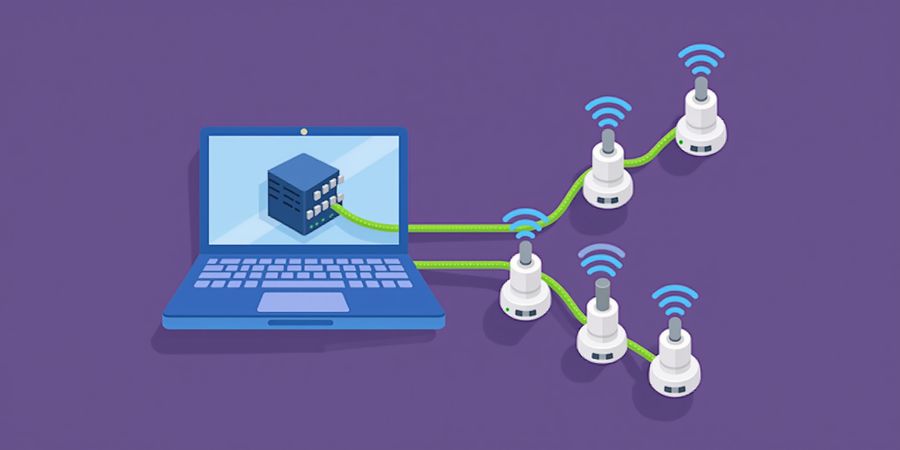
What is the SSID on a router? Definition
The SSID, or Service Set Identifier, is the name that a router broadcasts to identify its wireless network. Devices use it to pick the right network, and the name appears on the router’s admin page. Knowing your SSID helps you avoid mix‑ups and boosts security.
What is the SSID on a router? Finding the SSID
- Open the router’s admin page—most routers use 192.168.1.1 or 192.168.0.1.
- Go to the Wireless or Wi‑Fi settings.
- Look for the SSID; it sits next to “Network name,” “SSID,” or “Wireless name.”
- If the network is hidden, toggle the broadcast option on.
What is the SSID on a router? Changing the SSID and Enabling a Guest Network
- In Wireless settings, hit “Edit” or “Advanced.”
- Swap the existing SSID for a new one that fits your naming scheme—think Home‑5G, Home‑Guest.
- Save; the router might restart.
- For a guest network, find the “Guest” or “Guest Network” tab, turn it on, give it its own SSID, and set a different password.
- Turn on isolation so guests stay off your main network.
What is the SSID on a router? Security Settings
- Opt for WPA3 if your router supports it; if not, go with WPA2‑PSK and a robust passphrase.
- Make sure passwords are at least 12 characters long and mix letters, numbers, and symbols.
- If your router allows, enable MAC‑address filtering on the main network.
- Keep the guest network isolated so it can’t reach your shared drives and printers.
What is the SSID on a router? Troubleshooting Checklist
- Hidden SSID: If devices can’t see your network, toggle the “Hide SSID” setting off.
- Interference: Switch to the 5 GHz band if the 2.4 GHz band is congested.
- Firmware update: After updating firmware, re‑check SSID and password settings.
- Device compatibility: Older devices may not support WPA3; use WPA2‑PSK on those devices.
Forest VPN for Secure Remote Access
Need to reach your network safely no matter where you are? Forest VPN gives you affordable, reliable connections that are easy to set up. Its user‑friendly interface and solid encryption make it a solid addition to any home or small‑office Wi‑Fi setup. Give Forest VPN a try and keep your data safe while you’re on the move.
What Is the SSID on a Router? A Quick Overview
The SSID, or Service Set Identifier, is the name a Wi‑Fi router pushes out so devices can spot and join the network. Think of it as the network’s “call sign” on the radio dial. Without an SSID, your phone would drift aimlessly, just like a sailor without a compass.
What Is the SSID on a Router? How Forest VPN Enhances Your Wi‑Fi Experience
Forest VPN automatically spots your router’s SSID and flips the best security settings on for you. By default, it sets up WPA3 encryption and strong password rules, keeping your main and guest networks separate and safe. The service also lets you spin up multiple virtual SSIDs, each with its own firewall rules, so you can give guests a dedicated network without touching your home setup.
What Is the SSID on a Router? Practical Tips and User Experiences
- Easy Setup – One‑click installation on the Forest VPN app pulls the SSID from your router and pushes the optimal settings.
- Affordability – The 2025 Forest VPN plan starts at just $3.99/month, giving you enterprise‑grade security for a fraction of the cost of traditional VPN services.
- User‑Friendly – “I never had to touch a router’s admin page again,” says Maya, a freelance photographer. “Forest VPN keeps my network secure while I focus on my work.”
- Guest Network – Create a separate SSID for visitors with a 30‑minute session limit, perfect for coffee shops or co‑working spaces.
What Is the SSID on a Router? Best Practices for Naming and Managing SSIDs
- Keep SSID names short (≤ 32 characters) and use only letters, numbers, hyphens, and underscores to avoid compatibility issues.
- Avoid using personal information or common names that could be targeted by attackers.
- Regularly rotate SSIDs if you suspect a compromise; Forest VPN can automate this task for you.
What Is the SSID on a Router? Summary and Call to Action
A clear, secure SSID is the first layer of your network’s identity. With Forest VPN, you get automated protection, a simple guest network setup, and peace of mind—all at an affordable price. Try Forest VPN today and experience the future of Wi‑Fi security.
The SSID, or Service Set Identifier, is the name a wireless network broadcasts so devices know where to connect. It’s the label your phone sees, and you can change it through the router’s admin interface.
What is the SSID on a router? Netgear
- Log in at 192.168.1.1.
- Click Wireless → Wireless Setup.
- The SSID shows in the Name (SSID) box.
- Toggle Enable SSID Broadcast to reveal or hide the name.
- In the Guest Network tab, add a new SSID and password to create a guest network. For more details, visit the manufacturer's support page: https://www.netgear.com/support/
What is the SSID on a router? TP‑Link
- Access 192.168.0.1.
- Go to Wireless → Basic Settings.
- Enter your new SSID into the SSID field.
- Enable Enable SSID Broadcast if you want it public.
- In Guest Network, enable it and set a distinct SSID. For more details, visit the manufacturer's support page: https://www.tp-link.com/us/support/
What is the SSID on a router? Asus
- Open 192.168.1.1.
- Navigate to Advanced Settings → Wireless.
- Edit the 2.4 GHz SSID and 5 GHz SSID boxes.
- Tick Hide SSID to keep each band discreet.
- In Guest Network, enable it and provide a separate SSID. For more details, visit the manufacturer's support page: https://www.asus.com/support/
What is the SSID on a router? Linksys
- Point your browser at 192.168.1.1.
- Click Wireless → Basic Wireless Settings.
- Replace the Network Name (SSID) with your chosen name.
- To create a guest network, check Enable Guest Network, set an SSID and password, then hit Save. For more details, visit the manufacturer's support page: https://support.linksys.com/
Security Settings
- Use WPA3 or WPA2‑PSK for encryption.
- Set a strong, unique password for each network.
- Enable network isolation so the guest network cannot access main‑network devices.
Troubleshooting Checklist
- Verify the SSID field is not hidden.
- Confirm the router’s firmware is up to date.
- Check that the correct band (2.4 GHz or 5 GHz) is selected.
- Ensure the device’s Wi‑Fi is turned on and searching for networks.
- If the SSID still does not appear, reset the router to factory defaults and reconfigure.
Quick navigation tip: use the router’s built‑in search bar to jump straight to “SSID” if the layout is confusing. Remember default IPs—192.168.1.1 for Netgear, TP‑Link, Asus, and Linksys.
If you want to secure your network further, consider using Forest VPN. It encrypts all traffic from your devices, protecting your SSID and guest network from eavesdroppers while keeping costs low.
Ready to give your Wi‑Fi a fresh identity?
What is the SSID on a router? Netgear
- Log in at http://192.168.1.1.
- Go to Wireless → Wireless Setup, type a new Name (SSID), then check Enable Guest Network and set its SSID.
- Click Apply, reboot if prompted, and test both networks.
- If your Netgear model supports WPA3, enable it under Security for stronger encryption.
- Ensure the guest network is set to Isolate from the main LAN to keep traffic separate.
What is the SSID on a router? TP‑Link
- Open http://192.168.0.1 in a browser.
- Navigate to Wireless → Basic Settings, enter a fresh SSID, and enable SSID Broadcast if you want it visible.
- Enable Guest Network, choose a unique SSID, set a password, then Save.
- Enable WPA3 in the Wireless Security tab if available.
- Verify that Guest Isolation is checked so guests cannot access the main network.
What is the SSID on a router? Asus
- Access http://192.168.1.1.
- In Advanced Settings → Wireless, edit the 2.4 GHz SSID and 5 GHz SSID, tick Hide SSID if desired.
- Scroll to Guest Network, enable it, provide a guest SSID, password, and click Apply.
- Turn on WPA3 in the Security section if supported.
- Enable Guest Isolation to separate traffic.
What is the SSID on a router? Linksys
- Hit http://192.168.1.1.
- Click Wireless → Basic Wireless Settings, replace the Network Name (SSID).
- Enable Guest Network, set its SSID and password, then Save.
- Enable WPA3 in the Wireless Security settings when available.
- Ensure Guest Isolation is active.
After you hit Apply, reboot the router. This guarantees settings take effect and clears any stale cache. Once restarted, scan for the new SSIDs on your devices and confirm they connect.
Firmware Updates for Older Models
Older routers may lack WPA3 or the latest guest‑network isolation. Search the manufacturer’s support site for a firmware update; installing it can unlock new security features and improve stability.
Troubleshooting Hidden SSIDs and Connectivity Issues
- If a network is hidden, enable SSID Broadcast or use the router’s “Show Hidden Networks” option.
- Verify that the SSID entered matches exactly, including case and spacing.
- Ensure the wireless channel is not congested; switch to a less crowded channel if needed.
- Restart the router after changing settings to apply changes.
Best Practices for Naming SSIDs
- Keep SSIDs short but descriptive (e.g., “Home‑Guest” vs. “Guest‑Network”).
- Avoid personal information or location data that could be used for targeted attacks.
- Use a consistent naming convention for main and guest networks to simplify management.
- Update passwords regularly and use WPA3 when available.
What is the SSID on a Router? Troubleshooting Hidden SSIDs & Connectivity Glitches: A Quick‑Fix Checklist
What’s the SSID on a router? Have you ever watched your Wi‑Fi disappear? It happens more often than you’d expect. Routers can hide SSIDs, drop connections, and produce weak signals—just like a lighthouse losing its beam. Let’s demystify the issue with a quick‑fix checklist.
Quick‑Fix Checklist
- Hidden SSID not connecting Have the device manually enter the SSID and double‑check the spelling. On the router, turn on SSID broadcast or add the SSID to the device’s network list. If the network still eludes the device, look again for typos or a misspelled name.
- Guest network invisible Open the guest network tab and make sure the SSID shows up. Turn on SSID broadcast for the guest band and reboot the router. Also confirm the guest network is set to 5 GHz for better speeds.
- Frequent disconnects Check for firmware updates; older firmware can cause handshake hiccups. Update to the latest firmware, then reset the Wi‑Fi adapter on each device. If the problem persists, try a factory reset and fresh setup.
- Weak signal Measure signal strength with a meter; a value below -70 dBm is weak. Move the router to a central spot, remove obstacles, or add a mesh node. Signal drops when walls, appliances, or microwave ovens interfere.
- Channel interference Open the router’s channel list and note any overlapping channels. Switch to an unused 5 GHz channel or
What is the SSID on a router? Naming with Purpose: Best Practices for SSID Clarity & Security
Picking a clear SSID is like choosing a street name for your network. A concise, descriptive tag lets devices land in the right spot without wandering aimlessly. It also tells guests whether they’re in the main house or just in the front yard. Below are the rules that keep your Wi‑Fi tidy and safe.
Why a clear SSID matters for security
Short names reduce typing errors, just as a short address cuts down on delivery mistakes. They also shrink the beacon payload, giving routers a tiny edge in speed. Avoiding personal data keeps your address private, like hiding the exact house number from strangers.
- Keep it short yet descriptive – 8–12 characters is the sweet spot.
- Skip personal data – no full name, address, or phone.
- Use a consistent scheme – for dual‑band, append ‘2.4G’ or ‘5G’.
- Tag guest SSIDs clearly – add ‘Guest’ or ‘Visitors’.
- Limit special characters – stick to letters, numbers, hyphens, underscores.
- Rotate the SSID regularly – a quarterly change thwarts long‑term scanners.
Here’s a quick cheat sheet you can print or keep on your phone. It shows the core rules and a few example names for each scenario.
Scenario | Example SSID |
|---|---|
Home | SmithHome‑WiFi |
Office | Office‑5G |
Guest | Office‑Guest |
Dual‑band | Home‑2.4G / Home‑5G |
Set a calendar reminder to change the SSID every three months. This habit is like changing your lock after a vacation; it keeps attackers guessing.
Certain symbols confuse older devices; for example, the at‑symbol (@) can break the connection on some routers.
After renaming, reboot the router and scan with your phone to confirm the new name appears. If it doesn’t, double‑check the admin page.
Never use the same string for SSID and password. That’s like using the same key for your house and your diary. Keep them separate to avoid accidental compromise.
Create a simple template like <Location>-<Band>-<Purpose>. For example, ‘Downtown‑5G‑Guest’ instantly tells you where and what it is.
Keep a log of SSID changes in a spreadsheet; it helps troubleshoot when a device suddenly disappears.
If you have multiple access points, sync their SSIDs for seamless roaming. Consistent names let devices hop without dropping.
Tidy SSID is first defense.
We’ve walked through the why and how; now it’s your turn to tidy up. Try renaming your routers today and watch the chaos shrink. Share your results in the comments—your story could help someone else keep their Wi‑Fi calm.
If you want an extra layer of security for your home network, consider using Forest VPN. Its affordable plans and easy‑to‑use interface make it a great complement to your SSID naming best practices. “After setting up Forest VPN, my home network feels more secure and my devices stay connected even when I travel,” says John D. from Austin. Try Forest VPN today and experience the difference.