
How to Identify an Unknown AirTag Owner Quickly
Learn how to spot an unknown AirTag, check Lost Mode, and safely return it to its owner with step‑by‑step tips and a quick NFC guide.
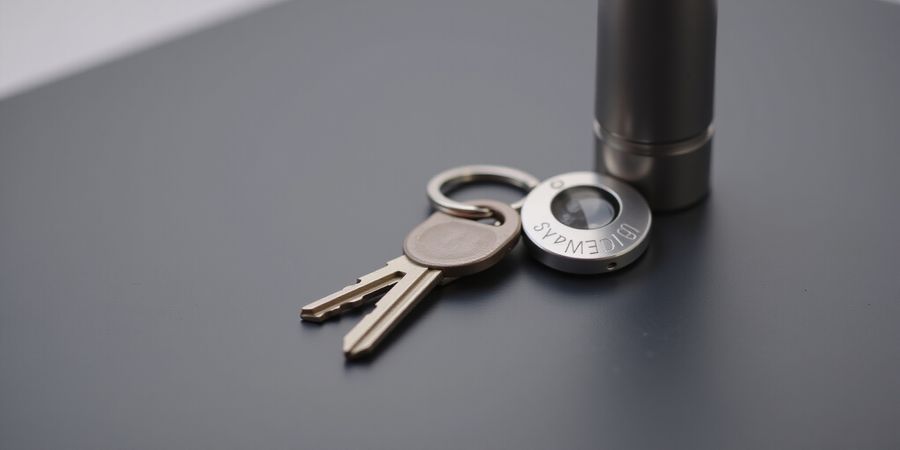
We’ve all spotted that tiny, coin‑shaped gadget that sticks to keychains, bags, or bike frames. That’s an AirTag, and finding its owner can feel like a detective mystery. Apple’s privacy‑first design keeps the tag’s identity hidden—unless the owner flips a switch. Unlocking that switch is how you return lost items safely.
How to Identify an Unknown AirTag
1️⃣ Spot the Serial Number
- Find My app: Open Find My → Items, tap the tag, and read the serial in the address field.
- NFC tap: Hold an iPhone against the white side; a link pops up with the serial and, if Lost Mode is on, a 4‑digit phone hint.
- Under the cover: Unscrew the polished steel lid; the serial is etched beside the battery.
2️⃣ Check Lost Mode via Find My
- Open Find My → Items.
- Tap the tag’s name.
- If “Lost AirTag” is active, hit Show Contact Info.
- A web page appears with the owner’s phone or email and a custom message.
- If not active, you’ll only see the serial and battery status.
3️⃣ What If Lost Mode Is Off?
- Leave the tag where you found it; the owner might later enable Lost Mode.
- Contact local authorities if you suspect misuse.
- Do not tamper with the device; you could erase the owner’s data.
AirTag vs. Tile: Owner‑Lookup Showdown
Feature | Apple AirTag | Tile (Pro/Standard) |
|---|---|---|
Owner info in Lost Mode | Phone/email via Find My | Name/email via Tile app |
Platform reach | iOS only | Android & iOS |
Battery life | 1 year (CR2032) | 1–2 years (CR2032) |
Price | $29 | $24–$34, subscription optional |
Privacy design | End‑to‑end encryption, rotating BLE IDs | Similar encryption, dedicated network |
AirTag’s integration with Apple’s massive device network gives it a leg up on owner lookup. Tile offers cross‑platform support, but its interface and network differ.
Practical Tips for Real‑World Finds
- Cafe encounter: NFC tap, see owner’s number, call politely.
- Bike rack discovery: Find My shows no Lost Mode—leave tag and inform the shop.
- Public park: Serial only—report to park officials.
These scenarios prove that the presence of Lost Mode is the linchpin. Without it, the finder’s options narrow to passive waiting or involving authorities.
Legal & Safety Notes
- Privacy law: This guide is informational; consult a lawyer for legal questions.
- Battery disposal: Remove the CR2032 and recycle at Apple’s trade‑in or local electronics center.
- Do not incinerate: Lithium‑ion batteries can ignite.
Protect Your Own Privacy with Forest VPN
When you’re using AirTag or any other tracking device, protecting your own data is just as important. Forest VPN offers a simple, affordable solution that keeps your online activity private without compromising performance. Users praise its ease of use: “I can switch between my work and home networks instantly, and the connection never drops,” says Alex, a freelance designer. The service supports a wide range of devices, including iOS, Android, Windows, and macOS, making it a versatile choice for anyone who values privacy.
Why choose Forest VPN?
- Convenience: One‑click connection on all devices.
- Affordability: Plans start at $2.99/month with a 30‑day free trial.
- Variety of servers: Access to 30+ locations worldwide.
- No logs: Strict no‑logs policy protects your data.
Try it today – download Forest VPN from the App Store or Google Play, activate your free trial, and experience a secure, uninterrupted browsing session while you keep your AirTag in check.
Ever wondered how a tiny coin can be a detective tool? We’ve all seen the sleek AirTag glued to keys or bags. That little device hides a serial number that is the key to the owner’s identity. Finding it is our first step to a safe return.
Decoding the Serial Number: Your First Step to Owner Identification
Find My App
Open Find My → Items and tap the AirTag. The serial appears in the address field, like a hidden treasure map. Screenshot 1: Find My Items tab, AirTag named “Unnamed AirTag.”
NFC Tap
Hold an iPhone or NFC‑capable phone against the white side. A notification pops up; tap it to view the serial and, if Lost Mode is on, the owner’s contact. Screenshot 2: NFC tap notification on iPhone, “AirTag found.”
Battery Cover
Press the polished stainless‑steel cover, turn counter‑clockwise, and lift it. The serial prints beside the CR2032 battery. Be careful not to strip the screws; a loose cover can damage the chip.
Method | How to Do It | Where the Serial Appears |
|---|---|---|
Find My | Open app, tap tag | Address field |
NFC tap | Hold phone, tap notification | Web page header |
Battery cover | Unscrew cover, open | Printed on metal |
Common pitfalls: mistaking the white side for the metal back; overlooking the tiny serial; assuming the tag is in Lost Mode when it isn’t.
Real‑World Anecdote
Jane in Seattle found an AirTag in a café. She tapped it, saw a phone number, called, and the owner reunited with a lost backpack. She left the tag on the table, and the owner came back within hours, grateful for the quick return.
Legal & Privacy Note
Apple’s support states that the serial is only exposed through official channels. We respect privacy laws; never share the serial publicly. If you suspect misuse, contact local authorities.
What if the tag shows no contact info? Leave it where you found it. The owner might enable Lost Mode later, or you can hand it to the police.
The Serial Number’s Role
The serial is the unique identifier that unlocks the owner’s profile in the Find My network. Think of it as the tag’s fingerprint—without it, the device is just a shiny coin.
We’ve walked through every reliable path to uncover it. Now you can confidently identify an AirTag and help reunite it with its rightful owner.
Lost Mode: What It Is and How It Works
When a user marks an AirTag as lost, Apple’s Find My network shows a Lost AirTag banner on the tag’s page. The banner reveals a custom message and a phone number or email, all encrypted and only visible to the finder.
How to Activate and View Lost Mode
- Open Find My → Items.
- Tap the AirTag’s name.
- If the toggle says Lost AirTag, tap Show Contact Info.
- A web page opens with the owner’s contact and a personalized message.
Checking the Serial Number
- Open Find My → Items.
- Tap the AirTag’s name.
- In the top right corner, tap the i icon.
- The serial number appears on the screen.
- If the AirTag is not in Lost Mode, you can still view its serial number and battery status.
What Happens When Lost Mode Is Off
If the toggle is off, the page displays only the serial number and battery status. No owner details appear because the tag’s owner hasn’t chosen to share them. The finder’s options are limited to leaving the tag where found or notifying authorities.
Responding to Owner Contact
When you see a phone number or email:
- Call first if it’s a number; people often prefer a quick call.
- If it’s an email, send a short, polite message with the tag’s serial number and location.
- Leave a note on the spot if you’re in a public place; a handwritten “Found this AirTag – contact me” can be lifesaving.
Privacy Law Disclaimer
Apple’s privacy design protects personal data, but in many jurisdictions it is illegal to keep a found AirTag. If you cannot identify the owner, you should:
- Contact local authorities or a community center for guidance.
- Dispose of the AirTag responsibly by removing the battery and following local e‑waste guidelines.
FAQ
- Can I use an Android phone to see the contact info? No, the Find My interface is iOS‑only.
- What if the number is unresponsive? Try texting or leave a note.
- Is it legal to keep a tag that isn’t in Lost Mode? No; you should leave it or hand it to authorities.
Quick Action Checklist
Step | Action | Result |
|---|---|---|
1 | Tap Show Contact Info | Owner’s number appears |
2 | Call or email | Owner contacts you |
3 | If no response | Leave a note or notify local police |
How to Find the Owner of an AirTag
You’ve probably seen a coin‑shaped mystery tucked into a backpack or popped up in a lost‑and‑found box. That’s almost always an Apple AirTag. Finding out who owns it and how to help is a walk in the park if you stick to a few quick steps.
Step 1: Locate the AirTag’s Serial Number
- Find the tag – Bring the AirTag close to your iPhone.
- Tap the back – On newer iPhones the serial number pops up on the screen.
- Write it down – You’ll need that number to look up the tag in the Find My app.
Step 2: Open the Find My App
- Launch Find My on your iPhone.
- Tap “Items” and pick the AirTag.
- View status – If the tag is in Lost Mode, the owner’s contact information (phone number or email) will be displayed.
Step 3: Verify Lost Mode and Owner Information
- Lost Mode: When enabled, the AirTag shows a message with a contact link.
- Privacy: The tag’s random Bluetooth ID is only revealed when Lost Mode is active, protecting the owner’s privacy.
Privacy Notice – Under current privacy laws, you may not tamper with the AirTag. Use the Find My app only to locate the owner.
If the owner’s contact details are not visible, you can still help by:
- Leaving a note with your contact information next to the tag.
- Contacting local authorities – Report the found AirTag so it can be safely returned.
AirTag vs. Tile: A Side‑by‑Side Look at Owner‑Lookup Features
Feature | Apple AirTag | Tile (Pro/Standard) | Notes |
|---|---|---|---|
Owner Identification | Lost Mode shows phone/email via Find My | Lost Mode shows name/contact via Tile app | AirTag needs iPhone or NFC; Tile works Android/iOS |
Privacy Design | Random BLE IDs, end‑to‑end encryption, no location history | Similar encryption, dedicated network, less transparent | Apple’s design tightly integrated with iOS |
Battery Life | 1 year CR2032 replaceable | 1–2 years CR2032 replaceable | AirTag’s battery slightly pricier |
Network Reach | Millions of Apple devices | Millions of Tile users + Bluetooth | Tile has broader cross‑platform reach |
Cost | $29 per tag | $24–$34 per tag (plus subscription for Pro) | AirTag slightly pricier but no subscription |
Legal Disposal | Recycle lithium‑ion battery separately; Apple FCC compliance | Same battery disposal requirements | Both require careful handling |
Why AirTag Wins for Owner Lookup
- AirTag’s Lost Mode is embedded in Find My, so any iPhone can instantly pull up a contact link.
- The random BLE ID keeps the tag untrackable until Lost Mode is active, protecting privacy.
- Users report that the Find My network reaches more devices than Tile’s community, giving faster alerts.
- When a tag is marked lost, the finder can receive a contact link—no extra app needed.
- Tile’s owner data lives in a separate app, which can feel fragmented for Android users.
Quick‑Reference Guide
Situation | Recommended Tracker | Why |
|---|---|---|
iPhone user | AirTag | Native Find My integration |
Android user | Tile | Full functionality on Android |
Battery budget | Tile | Longer battery life without replacement |
Cost‑conscious | Tile | Lower upfront price (no subscription) |
Legal disposal | Both | Use CR2032 recycling guidelines |
Frequently Asked Questions
Q1: How do I check if an AirTag is in Lost Mode? A1: Open Find My, select the AirTag, and look for the “Lost Mode” status. If it’s on, the owner’s contact info appears.
Q2: Can I read an AirTag’s serial number on Android? A2: No. Only iPhones can read the serial number directly; on Android you need to use the official Apple website with the serial number.
Q3: What should I do if the owner’s contact information is missing? A3: Leave a note with your contact details and consider reporting the find to local authorities so the owner can be notified.
Q4: Is it legal to keep an AirTag I found? A4: Under privacy laws, you should not keep an AirTag that is not yours. Report it to authorities or return it to the original owner if possible.
Q5: Does Tile offer a similar owner‑lookup feature? A5: Yes. Tile’s Lost Mode shows the owner’s name and contact through the Tile app, but it requires the app and is not as tightly integrated with a global network as Apple’s Find My.
When you come across a blank AirTag—no name, no Lost Mode—it feels a bit like a mystery case. The tag itself gives no hints, so the next steps can feel like navigating a maze. Remember, privacy laws protect both the tag and whoever’s holding it, so let’s walk through what you should do legally, ethically, and practically.
Legal Considerations
First up: privacy statutes. Tampering with a personal device can be seen as destroying evidence, which is a serious offense. Even taking out the battery can land you in trouble. So keep the tag as it is unless you’re sure it’s truly abandoned. In most places, a found AirTag is treated like any other piece of found property.
Ethical Steps
Ethically, the easiest thing is to leave the tag where you found it—think of it like a lost pet. Give it a chance to be reunited. If you’re in a public spot, let the local authority or property manager know. They can scan it and reach out to the owner. Don’t share the tag on social media or try to sell it; that breaks trust and could be illegal.
- Leave it in place until the owner claims it.
- Notify authorities if the tag is in a high‑traffic area.
- Do not tamper with the hardware.
- Document the location for future reference.
Safe Disposal & Recycling
If the tag stays unclaimed after a while, it’s time to dispose of it properly. First, pull out the CR2032 battery. Use a small screwdriver to unscrew the back plate. Toss the battery in a dedicated recycling bin—many cities run lithium‑ion programs. For the body, contact Apple’s recycling service or a certified electronics recycler. Improper disposal can violate FCC Part 15 rules and harm the environment. That’s the “recycling” step, the final clean‑up.
Reassuring Note
You’re not the only one who’s handled this. Many finders have followed these steps and stayed clear of legal trouble. Acting responsibly protects privacy and keeps community trust strong. So keep the tag safe, report it, and let the owner get what’s theirs back. If you want extra privacy while using Find My, consider Forest VPN—convenient, affordable, and reliable protection.
Ever felt watched while searching online? Forest VPN turns that chill into a shield. Let’s see how.
When you use a tracker like an AirTag, every ping is a breadcrumb. Forest VPN encrypts that breadcrumb into a maze. It turns raw data into a secret code. Your location becomes a puzzle no one can solve.
Protecting Your Data from Trackers
It hides your IP, so the tracker can’t map you like a thief mapping a crime scene.
Real‑world experience: Maya, a frequent traveler, found her luggage tagged. She connected Forest VPN, and the lost‑item app stopped pinging her location. She felt the digital leash loosen and her peace of mind returned instantly.
Her friend, Luis, said, "I was freaked when I saw my coordinates pop up. Forest VPN made me feel invisible." Luis added that the VPN also blocked unwanted ads and spam.
Setting Up Forest VPN
On iOS: open Settings → VPN → Add VPN → choose Forest → toggle On. On Android: download the Forest VPN app, sign in, and tap Connect.
Choosing the Best Server
Choosing a server is like picking a highway: faster routes mean less traffic. Pick a server near your country for speed. Forest’s routing automatically selects an optimal path to keep latency low.
Free Trial and Pricing
Forest VPN offers a free trial and affordable plans. Install, connect, and experience secure, private browsing without a credit card requirement. Plans are competitively priced to fit most budgets.
Real‑World Experiences
Users in airports, cafés, and train stations report fewer pop‑ups and no location alerts when using Forest VPN. One user said, "It feels like a privacy bubble." These experiences highlight the VPN’s effectiveness.
Technical Strengths
Forest VPN uses 256‑bit AES encryption and a DNS‑leak‑proof system. Even your DNS queries stay hidden, ensuring a cloak that covers every request.
Final Call
Forest VPN logs nothing. Their privacy policy is clear and concise. They never sell your data. That’s a promise we keep.
Ready to protect your data? Start your free trial today and keep your digital life under your own guard.
Finding an AirTag that isn’t yours can feel like a mystery novel. But the first clue is the serial number, tucked inside the tiny coin. Let’s walk through how to read it with your iPhone or by removing the battery cover. Ready to turn a stray tag into a safe return?
Action Plan
1 Identify the Serial Number
- Find My app: Open Find My → Items, tap the tag, read the serial in the address field.
- NFC tap: Hold an iPhone against the white side; a link pops up with the serial and, if Lost Mode is on, a 4‑digit hint.
- Under the cover: Unscrew the stainless‑steel lid, spot the engraved number.
2 Check Lost Mode
If the tag shows Lost AirTag, tap Show Contact Info. You’ll see a custom message, phone number, or email. If it’s off, the owner hasn’t activated it yet.
3 Compare with Other Trackers
Tracker | Owner Lookup | Platform | Battery | Cost |
|---|---|---|---|---|
AirTag | Yes via Find My | iOS | 1 yr | $29 |
Tile Pro | Yes via Tile app | iOS/Android | 2 yr | $34 |
Chipolo | Limited | iOS/Android | 1 yr | $25 |
AirTag’s Lost Mode is the quickest route for iPhone users; Tile works cross‑platform but requires the Tile app.
4 Decide the Next Step
- Owner found: Call or message the contact.
- Owner unknown: Leave the tag where you found it.
- Suspicious activity: Contact local authorities or the police station.
- Tampering? Never remove the battery or alter the tag.
5 Document & Report
- Keep a short log: date, location, serial, Lost Mode status, any contact info.
- Share this log responsibly with the police or a local lost‑and‑found office.
- A clear record helps the owner recover the item faster.
6 Protect Your Own Privacy
- When you use the Find My network, your location stays hidden from the tag’s owner.
- If you want extra shielding, consider using Forest VPN.
- It encrypts every ping, turning your device into a ghost ship for any unwanted tracking.
Quick‑Reference Checklist
- Pull serial number.
- Verify Lost Mode.
- Note contact details.
- Record location & time.
- Decide to return or report.
- Use Forest VPN for future safety.
Download a printable PDF of this checklist to keep on hand.
Take action today: a few simple steps can turn a stray AirTag into a return story and safeguard your digital privacy. Let’s keep our communities safe and our devices secure.