
How to Rename & Secure Your WiFi SSID for Guests
Learn how to rename your router’s SSID, set up a secure guest network, and protect your Wi‑Fi from unwanted connections with step‑by‑step guidance.
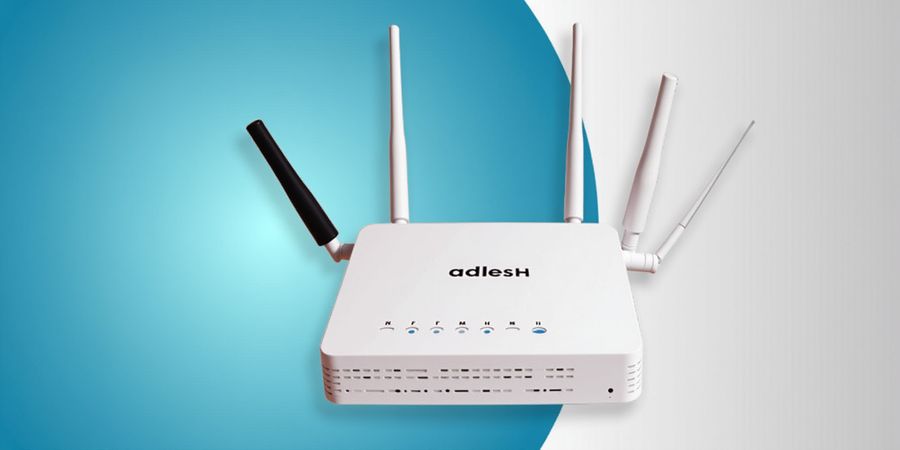
Ever wondered why your router’s name feels like a secret handshake? The SSID, or Service Set Identifier, is the public face of your wireless world. When we say wifi see incognetio tab, we’re hinting at the hidden clues that reveal your network’s identity. A clever name can protect, organize, and even make guests feel welcome. Ready to dive in?
Think of the SSID as a storefront sign—anyone walking past can see if they want to step inside. It tells devices which network to join and signals the router’s presence across the airwaves. Without a clear SSID, your devices wander aimlessly, and attackers sniff for default names. Naming it smartly is like putting a neon sign that says, “Welcome, but keep your keys safe.”
For home users, a well‑named SSID keeps kids from accidentally connecting to the office Wi‑Fi. Small‑office admins use distinct names to segment departments and enforce policy. Visitors appreciate a dedicated guest network that feels familiar yet stays isolated. We’ll show you how to locate, rename, and secure that SSID, then walk through guest network setup, encryption, and troubleshooting. Ready for the next step?
wifi see incognetio tab: Locating the SSID
- Log in to your router’s admin page (usually 192.168.1.1 or 192.168.0.1).
- Find the “Wireless” or “Wi‑Fi” section.
- The SSID is displayed in the “Network Name” field.
wifi see incognetio tab: Renaming the SSID
- Click the SSID field and replace the current name with a unique, memorable one.
- Avoid using personal information or default names.
- Save the changes and allow the router to reboot.
wifi see incognetio tab: Enabling a Guest Network
- In the Wireless settings, enable the “Guest Network” option.
- Assign a distinct SSID for guests (e.g., “Home‑Guest”).
- Restrict guest access to the internet only, disabling local network visibility.
wifi see incognetio tab: Securing the Connection
- Choose WPA3 if available; otherwise, use WPA2‑PSK.
- Set a strong, unique password (at least 12 characters).
- Enable MAC‑address filtering or a dedicated VLAN for extra isolation.
wifi see incognetio tab: Troubleshooting Hidden Networks
- Verify that the SSID broadcast is enabled in the router settings.
- Ensure your device’s Wi‑Fi adapter is updated and set to the correct band (2.4 GHz or 5 GHz).
- Reset the router if the network still does not appear.
wifi see incognetio tab: Leveraging Forest VPN
Forest VPN offers a simple, affordable way to add an extra layer of privacy. With its intuitive mobile app and desktop client, you can protect all traffic from the moment your device connects to the wireless network. Users report that Forest VPN’s lightweight design keeps battery usage low while delivering fast speeds. Many households find the subscription plans flexible, with options ranging from single‑device to unlimited‑device bundles.
Testimonials
“I switched to Forest VPN after setting up my guest network. It’s fast, easy to use, and my kids can’t get into the wrong sites.” – Maya, small‑office owner “Forest VPN’s app is so simple. I set it up in minutes and feel secure every time I’m at home.” – Daniel, tech‑savvy homeowner
Call to Action Try Forest VPN today and experience a secure, hassle‑free connection. Download the app from the official website or visit the support page for step‑by‑step guidance.
Summary of Best Practices for Naming SSIDs
- Use a unique, memorable name that avoids personal details.
- Keep the main network SSID and the guest SSID distinct.
- Enable WPA3 or WPA2‑PSK with a strong password.
- Disable SSID broadcast only when troubleshooting; otherwise, keep it enabled for ease of use.
- Regularly update router firmware to protect against new threats.
With these insights, you’re ready to take control of your network’s first impression and keep your devices safe. Ready to make your Wi‑Fi name work for you and enjoy peace?
wifi see incognetio tab: What Is an SSID?
When users type in the wifi see incognetio tab, they’re usually trying to figure out what an SSID actually is and how to tweak it on their routers. SSID (Service Set Identifier) is the broadcasted name of a wireless network that appears in device lists and router admin pages.
wifi see incognetio tab: Custom SSID Best Practices
- Security – Default names (e.g., “Netgear‑1234”) reveal router brand and model, inviting targeted attacks.
- Organization – Separate SSIDs for home, guest, and IoT devices reduce traffic collisions.
- Visibility – Devices list SSIDs alphabetically; a clear name cuts through clutter.
How SSIDs Appear on Your Device
When you open the Wi‑Fi settings on a phone or laptop, the SSID shows up in bold, often with an icon that indicates the encryption type. If the SSID is hidden, it will be invisible unless you manually type it into the network list. Most routers broadcast the SSID on both the 2.4 GHz and 5 GHz bands, so you’ll see two entries unless you give them distinct names (e.g., “Home‑2.4G” vs. “Home‑5G”).
Common Misconceptions
- “SSID is static” – The name can change, but the network’s BSSID (MAC address) stays the same.
- “Hidden SSID is safer” – It’s more convenient to hide than to secure; attackers can still sniff the beacon frames.
wifi see incognetio tab: How to Find and Change Your SSID
- Log into the router’s admin page via
http://192.168.1.1or the brand‑specific URL (e.g.,https://www.routerlogin.net/for Netgear). - Navigate to Wireless Settings or Basic Wireless.
- Edit the SSID field – give it a unique name and click Save.
Pro tip: If you’re unsure which band you’re on, check the icon next to the SSID in your device list – a small “5G” tag means 5 GHz.
wifi see incognetio tab: Setting Up a Guest Network
- Enable Guest Network in the router’s Wireless Settings.
- Set a separate SSID (e.g., “Home‑Guest”).
- Choose WPA3 if available; otherwise, use WPA2‑PSK with a strong password.
- Enable client isolation so guest devices cannot see each other or the main network.
- Set a password policy: minimum 12 characters, mix of letters, numbers, and symbols.
wifi see incognet
Where to Find the SSID on Router Admin Pages
The SSID is the name your devices see when they scan for Wi‑Fi. You’ll find it in the Wireless section of most router admin pages. Below is a quick map of the common URLs and navigation paths for the top brands.
Brand | Typical URL | Navigation Path |
|---|---|---|
Netgear | https://www.routerlogin.net | Wireless → Basic Wireless Settings |
TP‑Link | http://192.168.0.1 | Wireless → Wireless Settings |
ASUS | http://192.168.1.1 | Wireless → Wireless Settings |
Linksys | http://192.168.1.1 | Basic Wireless Settings |
D‑Link | http://192.168.0.1 | Wireless → Basic |
Google Nest Wifi | https://home.google.com/welcome/ | Wi‑Fi → Wi‑Fi settings |
Amazon eero | http://192.168.0.1 | Settings → Wi‑Fi |
You’ll usually spot the SSID near the top of the page, often highlighted in color or bold. Dual‑band routers display two fields—one for 2.4 GHz, another for 5 GHz. If you want to hide your network, look under the Advanced or Security tabs.
How to Change the SSID and Enable Guest Network
- Open a browser on a device that’s already connected to the router.
- Type the router’s URL and log in with your admin credentials.
- Head to the Wireless section.
- Find the SSID field—it’s typically the first input box.
- To rename the network, erase the current text and type your new name, then hit Save or Apply.
- To add a guest network, look for Guest Network or Guest Wi‑Fi. Enable it, give it its own SSID (e.g.,
Home‑Guest), set a password, and toggle isolation if your router supports it. Finally, hit Save or Apply.
Security Settings and Best Practices
- WPA3: If your router can do WPA3, switch to it for better encryption. Otherwise, stick with WPA2‑PSK and choose a solid passphrase.
- Password policies: Pick a password that mixes letters, numbers, and symbols—12 characters or more. Steer clear of common words or anything that reveals personal info.
- Guest isolation: Turn on Guest Network Isolation so visitors can’t peek into your main LAN.
- Firmware updates: Regularly update the firmware to fix security holes and boost performance.
Quick Troubleshooting Checklist
- Hidden SSID not visible: Flip the Show/Hide SSID toggle or uncheck Hide SSID.
- Dual‑band confusion: Check the label next to each SSID—2.4 GHz or 5 GHz.
- Guest network not working: Double‑check that it’s enabled and that isolation is set properly.
- Connectivity issues: Reboot the router, clear the Wi‑Fi cache on your device, and make sure the SSID and password line up.
Actionable Takeaways
- Give the main and guest networks different prefixes—like Home‑Main and Home‑Guest.
- Enable guest isolation so visitors stay isolated from your main LAN.
- Update the firmware first, then change SSIDs to dodge compatibility hiccups.
- Remember the band names; appending ‑5G to a 5 GHz SSID nudges devices to pick the faster link.
Internal and External Resources
- Broader Networking Guides: https://www.networkworld.com/networking/
- Manufacturer Support Pages:
- Netgear: https://www.netgear.com/support/
- TP‑Link: https://www.tp-link.com/en/support/
- ASUS: https://www.asus.com/support/
- Linksys: https://www.linksys.com/#erid39195564
- D‑Link: https://www.dlink.com/en/support/
- Google Nest Wifi: https://support.google.com/googlenest/
- Amazon eero: https://support.eero.com/hc/en-us
FAQ
Q: What is an SSID? A: The SSID is the name a wireless network broadcasts, which devices show when they scan for Wi‑Fi.
Q: How do I find my SSID on my router? A: Log into your router’s admin page, head to the Wireless section, and the SSID field will show the current network name.
Q: How do I change my SSID? A: Follow the steps in the “How to Change the SSID and Enable Guest Network” section and then hit Save.
Q: What does “hidden SSID” mean? A: A hidden SSID means the network stops broadcasting its name; devices need to type the SSID manually to connect.
Q: How do I enable a guest network? A: Turn on the Guest Network option in the Wireless section, assign it a unique SSID and password, and enable isolation if your router offers it.