
How to View, Change, and Secure Your SSID
Learn how to find, rename, and secure your Wi‑Fi SSID on iPhone, Windows, Mac, and popular routers. Follow step‑by‑step tips for a safer network.
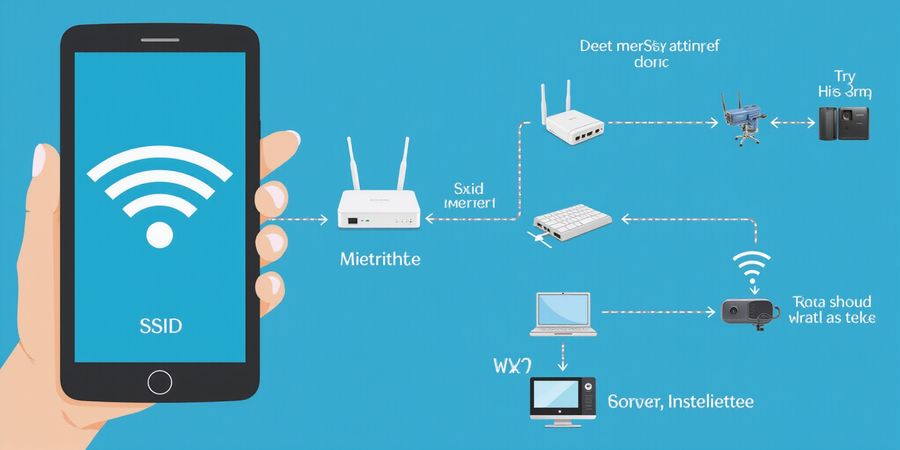
What Is an SSID Wireless?
An SSID, or Service Set Identifier, is simply the name that tells your phone or computer which Wi‑Fi network to connect to. When you scan for networks, the SSIDs you see—like “HomeWiFi” or “CoffeeShop”—are the labels broadcast by the router so devices can find and join the network.
Broadcast vs. Hidden SSID
- Broadcast SSID – The router sends the network name over the air. Most home routers do this by default, making it easy for devices to discover the network.
- Hidden SSID – The router does not send the network name. Devices must be told the SSID manually. Hidden SSIDs can add a layer of obscurity, but they do not provide true security.
How to View Your Current SSID
On an iPhone or iPad
- Open Settings > Wi‑Fi.
- Tap the i icon next to the connected network.
- The SSID appears at the top of the screen.
On a Windows PC
- Click the Wi‑Fi icon in the taskbar.
- Right‑click the connected network and choose Properties.
- The SSID shows under Network name.
On a Mac
- Click the Wi‑Fi icon in the menu bar.
- Select Open Network Preferences.
- The SSID is listed next to Name.
Changing the SSID on Popular Routers
Below is a quick‑reference guide for three common router brands. Follow the steps for your device model.
Brand | Model | Access URL | Steps |
|---|---|---|---|
TP‑Link | Archer C7 | |
|
Netgear | Nighthawk R7000 | |
|
Asus | RT‑AC68U | |
|
Tip: After changing the SSID, reconnect all devices using the new name.
Choosing a Secure SSID
- Avoid personal information (e.g., “John’s Home”).
- Use a random mix of letters, numbers, and symbols.
- Enable WPA3 encryption in the router’s security settings for stronger protection.
For more detailed guidance, visit our Wi‑Fi security guide at /wifi-security or the router manufacturer support page at https://support.router.com.
FAQ
Can I hide my SSID? Yes. In most router admin panels, you can disable SSID broadcast under wireless settings. However, this only makes the network less visible; it does not provide encryption.
What is the difference between WPA2 and WPA3? WPA2 uses AES encryption and is widely supported. WPA3 adds stronger password requirements and forward secrecy, offering better protection against brute‑force attacks.
Will hiding my SSID improve security? Not significantly. It only reduces casual discovery. Real security comes from using strong encryption and a complex password.
Next Steps
- Check your router’s admin panel to confirm the current SSID and security settings.
- Update the SSID using the brand‑specific steps above.
- Enable WPA3 (or WPA2 if WPA3 is unavailable) and set a strong password.
- Reconnect all devices with the new SSID.
By following these steps, you’ll ensure your wireless network is both easy to identify and secure against unauthorized access.