
Can You Identify an AirTag Owner? Quick Guide
Discover how to read an AirTag’s serial number, check Lost Mode, and find owner details. Learn steps to identify an unknown AirTag quickly and safely.
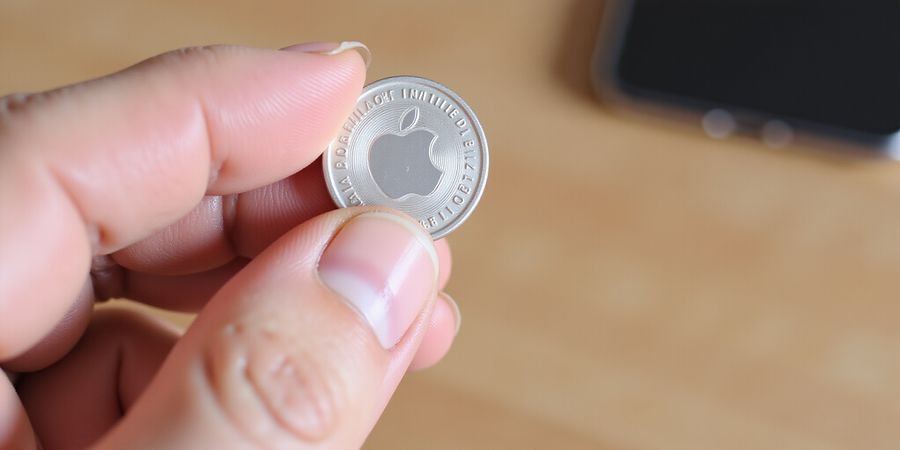
Picture this: you’re rummaging through an old wallet and stumble on a shiny, coin‑shaped object. It’s an AirTag. Curious whether you can discover who it belongs to? Let’s dive in.
Apple built AirTags with privacy at the core, so the owner’s name stays hidden unless they decide to share it.
This guide tackles the big question: Can you see who an AirTag belongs to? We’ll walk through reading the serial number, checking Lost Mode in Find My, comparing Airtag with Tile, and figuring out what to do when the owner is a mystery.
How to Read an AirTag’s Serial Number
Every AirTag carries a unique serial number that you can access in three ways:
Method | Steps | Notes |
|---|---|---|
Find My app |
| Only works if the AirTag is already paired to an Apple ID. |
NFC tap |
| Works on any NFC phone. |
Under the battery |
| Requires opening the device. |
Source: Apple Support – How to find the serial number of an AirTag.
Checking Lost Mode via Find My
AirTags that are in Lost Mode will notify anyone who finds them and can display contact information.
- Open Find My.
- Go to Items → tap the unknown AirTag.
- If it’s in Lost Mode, the screen will show Lost Mode is enabled and a Contact button.
- Tap Contact to see the owner’s name, phone number, and a Get in touch link.
- Optionally, tap Play Sound to locate the AirTag physically.
What if Lost Mode is not enabled? The AirTag will simply show its last known location. No owner contact info appears. You can still play a sound to find it physically.
Apple’s Privacy Design & Owner Identification Limits
- End‑to‑end encryption keeps location data hidden from anyone but the owner.
- There is no public database for searching an AirTag by serial number alone.
- Only the registered Apple ID holder can receive the owner’s contact details in Lost Mode.
- Apple can disclose ownership info only under a subpoena or lawful request from law enforcement.
Airtag vs Tile – Owner Identification Capabilities
Feature | Apple AirTag | Tile (Pro, Standard, etc.) |
|---|---|---|
Owner lookup | Only via Lost Mode; no public serial‑number search. | Owner can publish a “Tile ID” link; finders can scan QR code or use the Tile app to see owner info if enabled. |
Serial number visibility | Visible under battery or via NFC; no public lookup. | Visible under battery; public lookup possible via Tile’s “Find a Tile” web tool. |
Lost Mode | Built‑in Lost Mode with contact info and phone number. | “Lost Mode” available on Tile Pro; displays a custom message and contact info. |
Privacy controls | Strong end‑to‑end encryption; no background tracking. | Encryption varies; some models allow background tracking. |
Legal disclosure | Apple may disclose only under subpoena. | Tile’s privacy policy allows disclosure to law enforcement under certain conditions. |
Cost | Free (requires Apple ID). | Subscription required for Pro features. |
What to Do If the Owner Cannot Be Identified
Action | Why it Matters | How to Execute |
|---|---|---|
Contact local authorities | Legal statutes in several states prohibit unauthorized tracking. | Call 911 or local police; provide serial number and location. |
Disable the AirTag | Prevents further location tracking and protects privacy. | Remove the battery or contact Apple Support. |
Dispose responsibly | Avoid accidental misuse. | Return to an Apple Store for safe disposal or recycle through Apple’s recycling program. |
Document the find | Creates a record in case the owner later reports it. | Take photos of the AirTag, serial number, and any markings; keep a log. |
With the facts in hand, we’re ready to explore how to act if the owner stays hidden.
Forest VPN: A Reliable Choice for Privacy
If you’re looking for a reliable VPN to protect your privacy, Forest VPN offers convenience, affordability, and a variety of options. With a user‑friendly interface and multiple server locations, it’s an excellent choice for everyday privacy.
We’ve all stared at a shiny, coin‑shaped gadget and thought, What’s that? It’s an AirTag, and the serial number is the first thing you need to find if you want to know who owns it. With privacy built into the design, the serial number is the only public clue we can use.
How to Read an AirTag’s Serial Number
You can pull the serial number in three practical ways:
- Find My app – Open Find My, tap Items, select the AirTag, and the number shows under Details. This works only if the tag is already linked to an Apple ID.
- NFC tap – On any NFC‑capable phone, swipe the back of the AirTag. A URL appears that opens the Find My interface for that AirTag, where you can see its serial and, if Lost Mode is enabled, the owner’s contact information.
- Battery cover – Twist the cover counter‑clockwise, lift the battery, and the etched serial sits on the metal plate.
Tip: If the serial looks wrong, double‑check the digits. A single misplaced number can mean the difference between a match and a dead end.
Checking Lost Mode via Find My
If the AirTag is in Lost Mode, the Find My interface will display a Lost Mode is enabled banner and a Contact button.
- Open Find My and select the unknown AirTag.
- Look for the Lost Mode notice.
- Tap Contact – a web page opens with the owner’s name, phone, and a Get in touch link.
- Optionally, hit Play Sound to locate the tag physically.
- If you wish to stop the tag from tracking you, remove the battery or reach out to Apple Support.
Reality check: If Lost Mode isn’t active, you’ll see only the last known location. No owner data appears.
Why the Serial Number Matters
The serial number is the gateway to deeper investigations. While Apple doesn’t provide a public lookup, law‑enforcement agencies can request ownership data using the serial. For everyday finders, the serial lets you verify the device’s authenticity and ensures you’re not dealing with a counterfeit.
Quick Comparison: AirTag vs. Tile
Feature | Apple AirTag | Tile (Standard/Pro) |
|---|---|---|
Owner lookup | Only via Lost Mode | Owner can publish a QR or link; finders can scan to see details |
Serial visibility | Under battery or NFC | Under battery; public lookup via Tile’s web tool |
Lost Mode | Built‑in, shows contact | Pro model offers Lost Mode with custom message |
Privacy | End‑to‑end encryption | Varies; some models allow background tracking |
Legal disclosure | Apple discloses only by subpoena | Tile may share under law‑enforcement requests |
Bottom line: AirTag keeps the owner’s identity private unless they choose to reveal it. Tile gives owners more freedom to share.
If the Owner Is Still a Mystery
- Contact local authorities – Provide serial and location.
- Disable the tag – Remove the battery to stop tracking.
- Dispose responsibly – Return it to an Apple Store or recycle via Apple’s program.
- Document the find – Snap photos of the serial and any markings; keep a log.
Legal considerations: In many jurisdictions, accessing or sharing personal data from an AirTag without consent may be subject to privacy laws. If you are unsure whether you can keep or use the device, consult local regulations or seek legal advice.
We’ve walked through the serial‑reading steps, the Lost Mode check, and the privacy nuances. Next, we’ll dive into what you can do if the owner remains elusive.
Using Find My to Reveal Lost Mode: What the Owner’s Info Looks Like
Finding a shiny, coin‑shaped gadget on the sidewalk usually sparks a quick question: is it a lost AirTag? The answer is tucked inside the Find My interface, which acts like a lighthouse for lost devices, guiding you through a series of privacy‑tight steps. Did you know that the interface can actually tell you whether the owner has turned on Lost Mode? Let’s dig into that.
First, launch Find My on your iPhone, tap Items, and pick the unknown tag. If Lost Mode is on, a bright banner will flash across the screen, shouting “Lost Mode enabled” like a neon sign you can’t ignore. That banner is the gateway to the owner’s information; without it, you’re stuck with just a location dot.
Tap the banner’s Contact button. A web page pops up, revealing the owner’s name, phone number, and a message. The info appears only if the owner chose to share it, keeping privacy tight. Think of it as a secret handshake: you get a quick nod if the owner is willing, but no full profile is handed over.
Notice the owner’s display: a simple text line, sometimes a custom note, and a link to contact. If they added a phone number, a tap will dial them; if not, a message prompt appears. The page also shows the AirTag’s serial number and last‑known location, giving you a clear map of where the device was last seen.
You can tap Play Sound to hear a clear tone that echoes through your pocket, helping you find the tag physically. The sound is like a tiny lighthouse beacon, guiding you toward the exact spot. Adding the tag to your list locks it into your device’s ecosystem, allowing future tracking and notifications if it moves again.
What if Lost Mode is not enabled? The banner disappears, and you only see the last known location. No contact info appears, so you’re left with a map and a mystery. In that case, you can still play a sound, but you can’t reach the owner. It’s like finding a treasure map with no X marking the spot.
If you’re still stuck, consider contacting local authorities with the serial number. We’ll cover that deeper in the next section, where we’ll explore legal steps and safe disposal. Until then, keep the tag in your pocket, play the sound when needed, and stay patient—ownership information can surface like a sunrise if the owner finally decides to respond.
Privacy Disclaimer
Under U.S. privacy laws and Apple’s privacy policy, the owner’s personal contact information is only shared if the owner has explicitly chosen to do so in Lost Mode. The information displayed is limited to what the owner has provided, and Apple does not store or transmit the owner’s personal data beyond what is shown on the contact page.
Comparison: Airtag vs. Tile
Feature | Apple Airtag | Tile (Pro) |
|---|---|---|
Owner Identification | Owner info visible only in Lost Mode (name, phone, message) | Owner info visible in Lost Mode (name, phone, message) |
Serial Number | Visible on contact page | Visible on contact page |
Privacy Design | No background tracking; only location when in Lost Mode | Background tracking via Tile network; owner info only in Lost Mode |
Cost | $29 (per tag) | $29 (per tag) |
Ecosystem | Seamless with iOS and Find My | Works across iOS and Android; requires Tile app |
Screenshot Note
The accompanying screenshots in the article illustrate the Find My interface and the Lost Mode banner, showing exactly where to find the contact button and serial number.
Remember, every AirTag is designed to protect privacy, so the owner’s identity stays hidden unless they choose to share. That’s why we rely on Lost Mode to bridge the gap.
Ever wondered if the secret behind an AirTag is as tight as a vault? We’ve seen the shiny coin‑shaped gadget, but the real mystery lies in who can peek inside. In this section, we unpack Apple’s armor: end‑to‑end encryption, the silent absence of a public lookup, and the strict legal gates that guard owner data.
End‑to‑End Encryption: The Invisible Shield
Apple’s design feels like a sealed envelope that only the sender and receiver can read. Every location ping is wrapped in layers of encryption before it hops through the Find My network. Even Apple’s servers never see the raw data—just an anonymized hash that keeps the owner’s trail hidden.
No Public Lookup: The Silent Gate
Unlike some Bluetooth trackers, AirTags refuse to open a public directory. No database lets you type a serial number and pull up a name. That means a finder cannot simply Google a tag’s ID. The only way to learn who owns it is through the owner’s own action—by enabling Lost Mode and choosing to share contact details.
When Apple Can Open the Gate: Legal Conditions
Apple will only reveal ownership under a subpoena or a lawful request. In practice, that means law‑enforcement agencies must present a court order. Apple’s privacy team reviews each request to ensure it meets strict criteria, protecting users from unwarranted snooping.
How This Aligns With Privacy Law
The U.S. federal privacy framework, the EU’s GDPR, and California’s CCPA all emphasize data minimization and user consent. Apple’s approach—no public lookup, end‑to‑end encryption, and limited disclosure—meets or exceeds these standards. When a user opts into Lost Mode, they grant explicit permission to share their contact info, a clear consent that satisfies legal norms.
Building Trust Through Transparency
Apple’s public statements about AirTag privacy are more than marketing. They reference the company’s own privacy policy, the legal safeguards in place, and real‑world case studies where Apple refused to disclose data without proper authorization. By openly sharing these details, Apple turns a complex security protocol into a simple promise: your data stays yours.
When you find an AirTag, remember that the owner’s identity is protected unless they choose to reveal it. If you’re curious, you can check for Lost Mode, but beyond that, the system is built to keep personal information safe. This design not only safeguards users from unwanted tracking but also builds a foundation of trust that makes Apple’s ecosystem feel like a safe harbor.
AirTag vs Tile: A Side‑by‑Side Owner‑Lookup Showdown
We’ve all spotted a shiny, coin‑shaped tag and wondered who it belongs to. AirTag and Tile are the most common contenders, but their owner‑lookup mechanics play out like a stealthy cat versus a loud rooster. Who can actually see the owner’s name? Let’s dive in.
Quick Comparison Table
Feature | Apple AirTag | Tile (Standard & Pro) |
|---|---|---|
Owner lookup | Only through Lost Mode; no public serial‑search | Owner can publish a “Tile ID” link; public lookup via Tile app |
Serial number visibility | Visible under battery or via NFC; no public lookup | Visible under battery; public lookup via Tile’s web tool |
Lost Mode | Built‑in; shows contact info if enabled | Available on Pro; displays custom message and contact |
Privacy controls | End‑to‑end encryption; no background tracking | Encryption varies; some models allow background tracking |
Legal disclosure | Apple discloses only under subpoena | Tile may share data with law enforcement per policy |
Cost | Free with Apple ID | Subscription needed for Pro features |
What Does This Mean for Finders?
When you tap an unknown AirTag, the Find My app will either show Lost Mode is enabled and a contact button, or just the last‑known location. If Lost Mode is off, the owner’s name stays a secret, like a locked diary. In contrast, a Tile in Pro mode can reveal a QR code or link that anyone can scan to see the owner’s details, unless they choose to hide them. This openness makes Tile easier to identify, but also exposes owners to more privacy risk.
Practical Implications
If the owner is unknown, you can still play a sound on both devices to locate the physical tag. For AirTag, this requires adding it to your Find My list first.
- AirTag: You’ll see the serial number but no name unless Lost Mode is active. If it’s not, you may need to contact local authorities, especially if the tag appears in a suspicious location.
- Tile: If the owner has enabled the public lookup, you can instantly view their contact info. If not, the same play‑sound step applies.
Bottom Line
AirTag offers tighter privacy, which can protect owners but makes identification harder for finders. Tile trades a bit of privacy for transparency, giving you a higher chance to connect with the owner. Decide which balance suits your needs.
Take Action
If you’re worried about tracking privacy, consider a reliable VPN. Forest VPN is convenient and affordable, with a variety of plans that keep your data safe while you browse or use apps. Give it a try and stay protected.
When the Owner Is Unknown: Legal, Ethical, and Practical Next Steps =====================================================================
Finding a shiny, coin‑shaped device on a sidewalk can feel like unearthing a lost treasure. Can we see who an AirTag belongs to? Apple keeps ownership hidden unless the owner chooses to share. That mystery is why we’re here to walk you through the next steps.
1. Locate the serial number The serial number is the only public key in Apple’s privacy vault. You can read it by tapping the back with an NFC‑capable phone, opening the battery cover, or using the Find My app if the tag is already linked. Follow the method that works best for you.
2. Check Lost Mode If the owner has activated Lost Mode, the Find My interface will show a bright banner and a contact button. Tapping that button opens a web page with the owner’s name, phone number, and a custom message. If Lost Mode is off, you’ll only see the last known location.
3. When Lost Mode is disabled The AirTag becomes a silent ghost. It still pings the Find My network, but no one can read the data. That means you can’t identify the owner, but you can still play a sound to locate the physical tag if you’re nearby.
4. Legal and ethical considerations In most jurisdictions, using a tracking device without the owner’s permission is illegal and can expose you to civil or criminal liability. If you’re unsure about the laws in your area, contact local authorities for guidance.
5. What to do if the owner cannot be identified
- Disable the AirTag: Remove the battery or use the Find My app to reset the device.
- Document the find: Photograph the serial number, note the location, and keep a log. This record can help authorities if the owner later reports the tag.
- Recycling: Apple offers a recycling program that safely handles old AirTags. Drop it into an Apple Store or mail it in using Apple’s recycling envelope.
6. Report suspicious activity If you suspect the tag is part of a stalking attempt, report it to Apple by opening the Find My app, selecting the tag, and choosing “Report an issue.” Apple will investigate.
7. Protect your own privacy online While you’re dealing with AirTags, it’s also wise to safeguard your personal data online. Forest VPN offers a convenient, affordable way to encrypt your internet traffic and keep your browsing private. With a variety of server locations and a user‑friendly interface, Forest VPN helps you stay secure whether you’re at home or on the go. Try Forest VPN today and enjoy peace of mind.
8. Next steps Grab the serial, check Lost Mode, and if the owner’s name stays hidden, disable the tag and recycle it. Your quick action keeps the community safe and the AirTag ecosystem honest.
If you’re still unsure, reach out to local law enforcement with the serial and location. They’ll guide you on the next steps.