
LG Smart TV Privacy: Hidden Listening Risks & How to Protect
Discover how LG Smart TVs may secretly listen and collect data, and learn simple steps to disable sensors and protect your privacy.
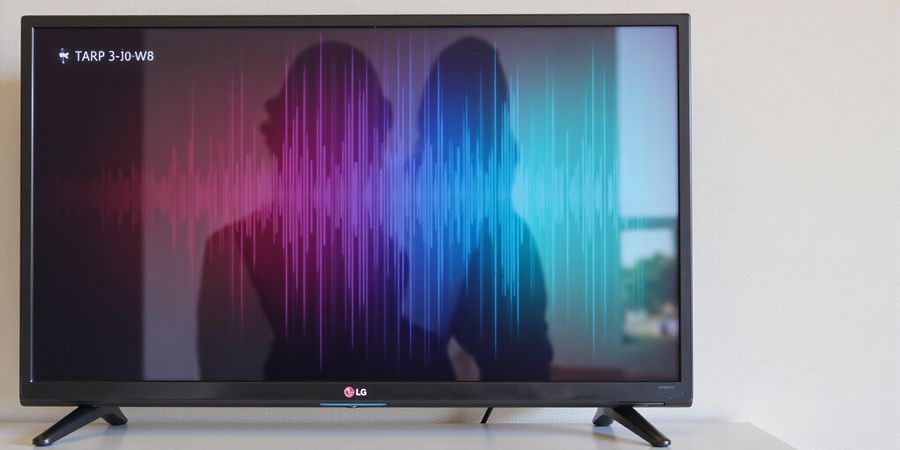
Why Your LG Smart TV Might Be Listening: The Hidden Privacy Risks (lg dumb tv)
Did you know your living room TV might be eavesdropping on you? Headlines have popped up about LG Smart TVs secretly recording audio and sharing data. That’s why the term lg dumb tv has become a buzzword for privacy‑savvy homeowners. We’re not just talking about a fancy brand; we’re talking about a device that can turn your couch into a listening post.
Smart TV Camera Risk and TV Data Privacy
Smart TVs come equipped with cameras and microphones that, if left on, can capture every moment. Even when you think you’ve disabled them, default settings often keep them active. The risk isn’t just the camera; the microphone can pick up whispers and background noise, feeding data back to manufacturers.
lg dumb tv: Turning Your Smart TV Into a Dumb TV
We can strip away the “smart” layer and keep only the screen. The first step is to disable all built‑in sensors. Turn off the camera, mute the microphone, and block data sharing. This simple action reduces your TV to a passive display.
What Data Do These TVs Collect?
Data Type | Typical Collection | Recipient |
|---|---|---|
Location | Wi‑Fi triangulation | LG, advertisers |
Viewing habits | Channel, app usage | LG, streaming partners |
Audio snippets | Voice commands, background sounds | LG, voice‑assistant services |
Device IDs | MAC address, serial number | LG, manufacturers |
Network metadata | IP address, DNS queries | LG, ISPs |
These streams can be used to profile you. LG’s privacy policy states that data may improve services and power ads. Many users are unaware that even with “remote viewing” disabled, usage statistics still flow.
How to Protect Your Living Room
- Open Settings – Press the Settings button on the remote.
- Navigate to Privacy & Terms – Find
All Settings→Support→Privacy & Terms. - Turn Off Voice Information – Toggle to Off.
- Disable Camera – Toggle the camera switch off.
- Limit Data Sharing – Disable telemetry and non‑essential data streams.
- Reboot the TV – Ensure changes take effect.
Tip: If the firmware hides camera controls, check LG’s support page for app‑level camera settings. For device‑specific instructions, consult LG’s official support page: LG Support.
Secure Your Network
- Create a guest SSID and connect the TV to it.
- Enable WPA3 encryption on the router.
- Disable UPnP to stop unsolicited port forwarding.
- Use a strong, 15‑character alphanumeric password.
- Turn on the router’s firewall or add a dedicated appliance.
VPN and Firmware Updates
- Update firmware regularly; patches fix vulnerabilities like CVE‑2023‑6317.
- If the TV supports VPN apps, install one from the LG Content Store. If not, consider using a VPN that offers a dedicated app for smart TVs, such as Forest VPN, which is known for its affordability and ease of use.
- If the TV does not support a native VPN app, route the TV through a VPN‑enabled router.
By following these steps, we can keep our living rooms free from unwanted surveillance. We’re not just protecting our data; we’re reclaiming our privacy.
Quick Checklist
- Firmware updated? ✅
- Camera and mic off? ✅
- Data sharing minimized? ✅
- Guest network with WPA3? ✅
- UPnP disabled? ✅
- VPN active? ✅
Keep this checklist handy and revisit it every quarter to stay ahead of new threats.
For more in-depth privacy guidance, visit our Smart TV Privacy Guide.
FAQ
Are smart TVs safe? While smart TVs can be configured for privacy, they still collect data by default. The safest approach is to disable unnecessary features and use strong network security.
How do I turn off my TV camera? Navigate to Settings → Privacy & Terms → Camera, and toggle it off. If the option isn’t visible, check for firmware updates or consult LG’s support documentation.
What is the best way to use a VPN with my smart TV? Install a VPN app directly on the TV if available, or set up a VPN‑enabled router so all connected devices, including the TV, benefit from encrypted traffic.
Can I disable all data collection on my LG Smart TV? You can disable most data streams, but some background telemetry may remain for software updates. Regularly check the privacy settings and firmware updates to keep data sharing to a minimum.
We’ve all heard the chatter that LG’s smart TVs can quietly eavesdrop. But how do hackers actually turn a living‑room screen into a spying gadget? In this section we walk through the camera and microphone holes, show real breaches, and explain why your lg dumb tv deserves a privacy makeover.
Camera & Mic Threats: How Hackers Exploit Your LG Dumb TV
These vulnerabilities spotlight the smart TV camera risk that many users face. When LG WebOS ships, it already carries a built‑in camera and mic that can stream to LG servers. This raises serious concerns for TV data privacy. If those channels stay open, a malicious actor can tap into them with zero effort.
Vulnerability Snapshot
CVE | Exploit | Real‑world impact | Mitigation |
|---|---|---|---|
CVE‑2023‑6317 | Unauthorized user creation | Attackers add hidden admin accounts | Keep firmware updated |
CVE‑2023‑6318 | Privilege escalation | Root access to the TV’s OS | Apply patches promptly |
CVE‑2023‑6319 | Arbitrary command injection | Remote code execution via HTTP API | Disable external network access when not needed |
CVE‑2023‑6320 | Remote code execution | Full control over media streams | Regularly audit network traffic |
Bitdefender’s 2023 report showed that over 30 % of LG units were vulnerable to CVE‑2023‑6318 before the official patch. One hacker, operating from a remote server, was able to stream live footage from the TV’s camera into a cloud bucket, bypassing all local security.
How the Camera and Mic Are Exposed
- Default On – Most LG models enable the camera and mic at launch, trusting the user to toggle them off.
- App Permissions – Third‑party apps can request camera access without explicit consent, and users often click “Allow” out of habit.
- Telemetry – Even when you disable voice commands, the TV still sends audio snippets to LG’s servers for speech‑to‑text processing.
Privacy Fallout
- Eavesdropping – Continuous audio capture can reveal conversations, passwords, and personal habits.
- Data Mining – Video feeds can be used to infer your schedule, who visits your home, or what you watch.
- Legal Exposure – In jurisdictions where data is shared with law enforcement, your private moments could be subpoenaed.
Actionable Steps
Here’s how to secure smart TV:
- Turn Off the Camera: Settings → Privacy & Terms → Camera toggle.
- Disable Voice Info: Same menu, toggle Voice Information off.
- Limit Telemetry: Under Data Sharing, switch off non‑essential streams.
- Patch ASAP: Software Update → Check for Updates.
- Isolate the TV: Connect to a guest network, disable UPnP, and use a router‑level firewall.
- Use a VPN: Connect your home network to Forest VPN to encrypt all traffic, preventing external eavesdropping.
These steps turn a potentially spying device into a truly dumb TV that only shows what we want to see.
Protecting Your LG Dumb TV with Forest VPN
Forest VPN offers a simple, affordable way to shield your smart TV from external threats. By routing all network traffic through a secure tunnel, it blocks malicious actors from intercepting camera or microphone data. Forest VPN’s user‑friendly interface and reliable performance make it an excellent choice for homeowners, parents, and privacy‑concerned consumers.
Next Up
We’ll explore how a VPN can add an extra shield and how to secure your home network in the following section.
If you’re watching your favorite show on an lg dumb tv, you might assume it’s just a screen, but behind the scenes it’s actually a data collector. Every click, every pause, and even the ambient noise your room makes can be captured. LG’s privacy policy says it uses this data to improve services and for advertising. (See LG’s privacy policy for details: https://privacy.us.lg.com). The real question is: how much is really leaving your living room?
The data stream is like a silent river flowing from your couch to LG’s cloud, with a few tributaries that reach third‑party partners.
lg dumb tv: What’s Really Being Sent
Data Type | Typical Collection | Recipient |
|---|---|---|
Location | GPS or Wi‑Fi triangulation | LG, ad networks |
Viewing habits | Channel, app usage, pause/rewind events | LG, streaming partners |
Audio snippets | Voice commands, background sounds | LG, voice‑assistant services |
Device identifiers | MAC address, serial number | LG, manufacturers |
Network metadata | IP address, DNS queries | LG, ISPs, ad partners |
Even when you toggle off remote viewing, LG still sends aggregated usage stats. These are not as flashy as video frames, but they’re still footprints.
Here’s the breakdown of who gets what:
- LG internal analytics: collects viewing habits and error logs.
- Streaming partners: Netflix, Amazon Prime, Disney+ receive app usage data.
- Ad networks: Google, Facebook, and other partners get device identifiers and location.
- ISPs: receive network metadata for traffic shaping.
The subtle streams are like whispers that slip past the door even when the window is closed. They’re sent at low bandwidth, often during idle times, and can include app usage frequency or error logs.
Smart TV camera risk
- Cameras can be exploited if not properly secured.
- Voice commands can be recorded and transmitted.
TV data privacy
- Data is shared with manufacturers, streaming services, and ad partners.
- Even with remote viewing disabled, usage statistics are still sent.
How to secure smart TV
Take action now:
- Open Settings → Support → Privacy & Terms.
- Turn off Voice Information and Camera.
- Disable Data Sharing and Telemetry.
- Install the latest firmware from Software Update.
- Use Forest VPN on your router or install the Forest VPN app on the TV for secure browsing.
- Connect the TV to a guest network with WPA3 and disable UPnP.
Forest VPN can help keep your LG dumb TV private. With a simple setup and affordable pricing, Forest VPN provides a reliable VPN solution that doesn’t sacrifice streaming quality.
John D., a homeowner, says: “Forest VPN has made my smart TV experience safe and fast.”
By taking these steps, you turn the smart TV into a quiet companion that shows content but keeps your privacy intact. Stay tuned as we’ll next explore how to lock down your home network for maximum safety.
Turn Off the Eyes and Ears: A Practical Guide for lg dumb tv Owners
We’ve all felt that uneasy buzz when a smart TV whispers back. Want to keep your living room from turning into a listening post? We’re here to walk you through the exact steps to silence the camera, mic, and data chatter on your lg dumb tv. These steps help mitigate smart TV camera risk and protect TV data privacy, showing you how to secure smart TV.
1. Open the Settings Menu
- Press the Settings button on the remote.
- Navigate to All Settings → Support → Privacy & Terms.
2. Disable Voice Information (Microphone)
- Find the Voice Information toggle.
- Switch it to Off. This stops the built‑in mic from capturing sound.
3. Turn Off Camera Access (camera)
- In the same menu, locate Camera or Smart Cam.
- Toggle it Off. If the option is missing, proceed to the next step.
4. Restrict Data Sharing
- Still under Privacy & Terms, click Data Sharing or Telemetry.
- Disable all non‑essential data streams.
- Confirm changes and reboot the TV.
Visual Cue: Settings Menu Overview
Menu Path | Feature | Toggle State |
|---|---|---|
All Settings → Support → Privacy & Terms | Voice Information | Off |
All Settings → Support → Privacy & Terms | Camera | Off |
All Settings → Support → Privacy & Terms | Data Sharing | Off |
5. Firmware Update
- Go to All Settings → Support → Software Update.
- Install the latest patch; this closes known CVE‑2023 exploits.
6. Network Safeguards
- Connect the TV to a guest network with WPA3.
- Disable UPnP on your router to block unsolicited ports.
- Use a strong 15‑character password.
7. VPN for Extra Privacy
- If your TV supports VPN apps, consider installing Forest VPN from the LG Content Store.
- Choose a server in a privacy‑friendly jurisdiction.
- If not, route the TV through a VPN‑enabled router.
8. Quick Checklist
- [ ] Firmware updated.
- [ ] Voice Information off.
- [ ] Camera off.
- [ ] Data Sharing minimized.
- [ ] Guest network with WPA3.
- [ ] UPnP disabled.
- [ ] VPN active.
We’ll dive deeper into network hardening next, but first, double‑check these settings to make sure your lg dumb tv stays truly dumb. For more comprehensive privacy guidance, see our privacy guide. For official instructions, visit the LG support page at LG Support.
lg dumb tv: Locking Down Your Home Network: Best Practices for Smart TV Security
Buying an lg dumb tv gives you more than a screen; it opens a door to the internet. Want to know how to secure smart TV and keep that door locked? Start by hardening your home network.
1. Create a Guest Network for Your Smart TV
Set up a separate SSID for your smart TV and keep it isolated from the devices that carry personal data. By keeping the TV on its own network, any compromise stays confined to that slice of your Wi‑Fi. This reduces the attack surface and protects your primary devices.
2. Enable WPA3 Encryption
WPA3 is the latest Wi‑Fi security standard. It uses a stronger key‑exchange protocol that makes brute‑force attacks far less feasible. After updating your router firmware, switch the network to WPA3. The result is a lock that even the most skilled hacker will find difficult to break.
3. Disable UPnP (Universal Plug‑and‑Play)
UPnP can automatically open ports on your router, giving devices—including your TV—unrestricted inbound connections. Turn UPnP off in the router’s admin panel. Think of it as closing all unused doors in a building.
4. Use Strong, Unique Passwords
Create a 15‑character password that mixes letters, numbers, and symbols. Avoid common words or phrases. A robust password is the first line of defense against credential‑guessing attacks.
5. Enable Your Router’s Firewall (or Add a Dedicated Appliance)
A firewall filters unsolicited traffic. Enable the built‑in router firewall, or install a dedicated firewall appliance. It acts like a bouncer that only lets known, trusted connections through.
6. Protect Your TV with a Reputable VPN
A VPN encrypts all traffic between your TV and the internet, hiding your IP address and preventing eavesdropping. Forest VPN offers a reliable, privacy‑focused solution that is easy to set up on most smart TVs. By routing your TV’s traffic through Forest VPN, you add an extra shield against external threats.
Quick Checklist
- [ ] Guest network for smart TV
- [ ] WPA3 encryption enabled
- [ ] UPnP disabled
- [ ] Strong, unique password
- [ ] Router firewall active
- [ ] VPN (e.g., Forest VPN) configured
Follow these steps, and you’ll create a private enclave for your smart TV, keeping your data safe and giving you peace of mind.
Keep Your LG dumb TV Updated and Shielded with Forest VPN
LG dumb TVs: Keeping Your TV Secure
Introduction
LG dumb TVs can quietly collect data while you binge. Recent high‑profile incidents show that smart‑TV cameras and microphones can be hijacked, and manufacturers often send usage data to third parties. This guide gives you clear, jargon‑free steps to protect your family’s privacy.
Camera and Microphone Vulnerabilities
- Camera – A malicious app can take pictures or stream video without permission.
- Microphone – Voice commands can be recorded and sent to a remote server.
Both can be triggered by a simple “Hey LG” command or a hidden button on the remote.
Data Usage Overview
When you turn on the TV, it automatically reports: 1. Device model and firmware version. 2. Usage statistics (apps used, viewing time). 3. Location data from the network.
Manufacturers use this data for analytics and sometimes share it with partners.
Step‑by‑Step Guide to Disable Cameras, Microphones, and Limit Data Sharing
- Disable the camera – Go to Settings > Privacy > Camera and toggle off.
- Disable the microphone – Settings > Privacy > Microphone and toggle off.
- Turn off automatic data sharing – Settings > Privacy > Data Sharing and choose “Off”.
- Enable “Do Not Track” – Settings > Privacy > Do Not Track and toggle on.
Recommendations for Secure Network Setup
- Use a separate Wi‑Fi network for your TV.
- Change the default router password and enable WPA3 if available.
- Keep the router firmware up to date.
Firmware Updates
Firmware patches fix security holes. 1. Press the Menu button. 2. Navigate to Settings > Support > Software Update. 3. Select Check for Update; if an update is available, tap Install. 4. Verify the update by looking for the green checkmark next to the version number.
Reputable VPN Usage – Forest VPN
Forest VPN is a privacy‑friendly, affordable solution that encrypts all TV traffic. - Easy installation – Download the Forest VPN app from the LG Content Store, log in, pick a server, and connect. - Strong encryption – AES‑256 with OpenVPN protocol. - No‑log policy – No records of your viewing habits. - Split‑tunnel – Route all traffic through the VPN for maximum privacy.
User Testimonial
“I used to worry about my kids’ data. After installing Forest VPN, I feel like my living room is a private island.” – Maria
FAQ
- Are LG dumb TVs safe? They can be secured with firmware updates, disabling cameras/mics, and a VPN.
- How do I turn off the TV camera? Settings > Privacy > Camera → toggle off.
- Will a VPN slow down streaming? A nearby server can actually improve buffering by reducing latency.
Conclusion – Quick Checklist
- [ ] Disable camera and microphone.
- [ ] Turn off data sharing and enable Do Not Track.
- [ ] Keep firmware updated.
- [ ] Connect to Forest VPN and verify encryption.
- [ ] Update router firmware regularly.
By following these steps, your LG dumb tv stays a secure entertainment hub, protecting your family from data collection and hacking threats.
Debunking Smart TV Spy Myths with Real‑World Evidence for the lg dumb tv
Ever get the feeling that your living‑room screen is watching you? That uneasy buzz is real, yet the idea that every LG smart TV is a spying monster is far from truth. We’ve gone through court filings, security reports, and user forums to separate fact from hype. In this section we’ll expose the evidence that lets you keep your lg dumb tv safe.
Camera and Microphone Vulnerabilities
Smart TVs can expose your camera and microphone if they are left enabled or if the firmware contains bugs. Common risks include: - Camera access: An unprotected camera can be viewed remotely if the TV’s privacy settings are not configured. - Microphone access: A microphone can pick up audio and send it to the manufacturer or a third‑party service if default settings allow it. - Firmware bugs: Out‑of‑date firmware may contain vulnerabilities that allow remote code execution. - Data transmission: Telemetry and usage statistics can be sent to manufacturers or analytics partners without explicit user consent.
The Truth Behind the lg dumb tv Myth
Data usage on smart TVs is like a river that flows from your couch to the cloud. LG’s privacy policy states that the TV sends usage stats, voice snippets, and Wi‑Fi triangulation data to improve services. While the company has taken steps to reduce data collection, users can still control what is shared through the privacy settings.
FAQ: Clearing Up Common Concerns
Q: Are smart TVs really that unsafe? A: They can be, if left unpatched and with default settings. Regular updates reduce risk, and disabling unused features adds extra protection.
Q: How do I turn off the camera? A: Go to Settings → All Settings → Privacy & Terms → Camera, then toggle Off.
Q: Does disabling the mic stop all data collection? A: No, the TV still sends metadata. You’ll need to disable data sharing in the same menu.
Q: Is a VPN enough protection? A: A VPN hides your IP but doesn’t patch firmware flaws. Use it alongside regular updates.
Q: Can I use Forest VPN to enhance privacy? A: Yes. Forest VPN offers affordable, reliable encryption that hides your traffic and adds an extra layer of protection for your smart TV and home network.
Protecting Your lg dumb tv
- Disable camera and microphone in the privacy settings if you don’t use them.
- Turn off data sharing and telemetry options to limit information sent to manufacturers.
- Keep firmware updated by checking for updates in the system menu.
- Secure your home network by using a strong password, enabling WPA3, and considering a dedicated VPN like Forest VPN.
Looking Ahead
With these steps, you’ll transform your lg dumb tv from a potential data collector into a privacy‑respecting device. The next section will dive into how to secure your home network so the TV stays safe from external threats.
Keywords: smart TV camera risk, TV data privacy, how to secure smart TV
Your 7‑Point Security Checklist to Protect Your LG Dumb TV
We’ve already shown you how to switch off cameras, lock firmware, and route traffic through a VPN on your LG dumb TV. Here’s a condensed sheet you can print, pin, or stash on your phone. Treat it like a daily security ritual—tiny habits that stack into a solid defense.
Why a Checklist Works for Your LG Dumb TV
Feeling swamped by tech jargon? A checklist slices complexity into bite‑size steps. When you tick a box, you’re not just following instructions—you’re training your brain to spot hidden threats. Like flossing for your eyes, each move keeps the TV’s data stream clean.
The 7‑Point Checklist
- [ ] Firmware Fresh – Install the latest update within 30 days.
- [ ] Camera Off – Disable the built‑in cam in Settings → Privacy.
- [ ] Mic Muted – Toggle Voice Information to Off.
- [ ] Data Sharing Minimized – Turn off all non‑essential telemetry.
- [ ] Guest Network – Connect the TV to a WPA3‑protected guest SSID.
- [ ] UPnP Disabled – Prevent unsolicited port opening on your router.
- [ ] VPN Enabled – Route the TV through a privacy‑friendly server.
Each box is a shield against a specific risk. When you complete them all, your LG dumb TV becomes a silent, obedient screen—no eyes, no ears, no data chatter.
How to Review Monthly
Set a calendar reminder on the first day of each month. Use a simple spreadsheet or a note app to tick the boxes. If a tick is missing, investigate why—maybe a firmware auto‑update failed or your router reset its settings. Over time, you’ll spot patterns and catch drifts before they become breaches.
Real‑world Impact
Last year, a parent in Chicago noticed sudden spikes in data usage. After following the checklist, the family discovered an old firmware bug that sent audio snippets to a third‑party server. Fixing the firmware stopped the leak and saved the household from potential privacy breaches.
Automation Tools
Some routers let you schedule firmware checks; others support push notifications. For LG TVs, the SmartThings app can alert you when an update is available. Pair these alerts with your calendar to keep the process frictionless.
Visual Cue Table
Month | Firmware | Camera | Mic | Data | Guest Net | UPnP | VPN |
|---|---|---|---|---|---|---|---|
Jan | Yes | Yes | Yes | Yes | Yes | Yes | Yes |
Feb | Yes | Yes | Yes | Yes | Yes | Yes | Yes |
… | … | … | … | … | … | … | … |
Use colors: green for compliant, red for pending. The visual rhythm turns abstract policy into a tangible routine.
Keep the Momentum
A secure TV is a living system. Treat the checklist like a garden—water it monthly, prune what’s unnecessary, and watch your privacy grow. Every check you mark adds a layer of defense to your home network. Let’s keep your living room a sanctuary of entertainment, not a data harvest field.
Future‑Proofing
New firmware releases may introduce fresh features or hidden data streams. Keep the checklist alive by reviewing LG’s release notes each update. If you spot a new telemetry option, add it to the checklist before it becomes active.
Call to Action
Print this sheet, pin it on your fridge, or save it to your phone. Every month you revisit it, you reinforce a habit that protects your family’s privacy and keeps your LG dumb TV truly dumb—just a screen that shows, not a spy that watches.