
How Router Logs Threaten Your Privacy (and How VPN Helps)
Discover what your router logs—DNS lookups, HTTP headers, and device pings—reveal about your online habits, and how a VPN can keep that data private.
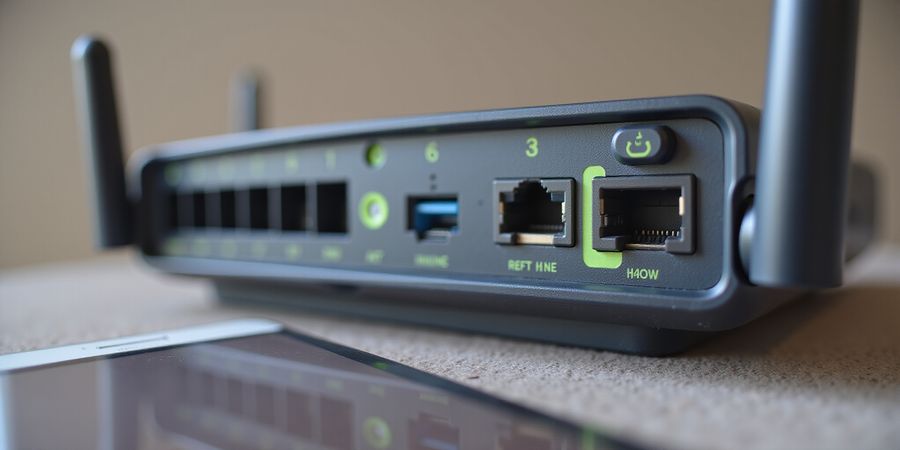
What can a router see?
Ever wondered what your router is actually keeping track of while you binge‑stream, game, or work from home? The answer is simpler—and more invasive—than you think. Your router keeps a running log of every DNS lookup, HTTP header, and device ping. We’re going to pull back the curtain and show you what’s really on file.
When you type a URL, the router translates it into an IP address via DNS. That query is recorded with a timestamp, source MAC, and target domain. HTTP headers, including the user‑agent and referrer, slip through the router’s net and become part of the log. In effect, your router is a silent diary of every web request your devices make.
If you’re curious about how to peek into those logs, most routers expose a web interface. On Netgear, navigate to Advanced → Administration → Logs; on TP‑Link, go to Advanced → System → System Log; on Asus, find System Log → General Log. These menus reveal timestamps, source IPs, and the destination domains. It’s like opening a diary that records every line you write.
Imagine your child launching a Fortnite session. The router logs every packet, every ping, every ping‑pong dance with the game server. Or picture a video call from a remote employee; the router notes the video stream’s IP and bandwidth usage. These logs can reveal patterns you’d rather keep hidden.
Enter Forest VPN, a frontline defender that masks all that traffic from the router itself. By routing your device’s packets through an encrypted tunnel, Forest VPN keeps DNS queries and HTTP headers invisible to the router. It’s like putting a privacy cloak over your network traffic.
But what does it mean for your privacy? Every DNS query is a clue to the sites you visit, and HTTP headers can expose device types, app versions, and even the language you prefer. If a malicious actor gains access to those logs, they could map your family’s habits or target vulnerable devices. That’s why masking the traffic before it reaches the router is a game‑changer.
According to the 2026 Cisco Security Report, 62 % of households still use routers that log traffic by default. Firmware updates in 2026 added more granular logging options, but many users remain unaware. One homeowner, Maria, shared: “I never realized how much data was slipping through my router until I installed Forest VPN. My family’s browsing history stayed private, and I finally felt in control.”
Quick reference – where to find logs on common routers
Router brand | Log navigation path |
|---|---|
Netgear | Advanced → Administration → Logs |
TP‑Link | Advanced → System → System Log |
Asus | System Log → General Log |
Linksys | Status → System Log |
D-Link | Status → System Log |
Caution: Remember to respect the privacy of other household members. If you need to monitor usage, consider using parental‑control features or setting up a separate guest network.
Ready to keep your router’s diary from reading your secrets? Download Forest VPN today and shield your home network from privacy breaches. It’s affordable, easy to set up, and works with any router.
What can a router see?
Ever wonder what your router actually sees while you binge‑watch, game, or work from home? The answer is a mix of useful data and privacy risk. Every packet leaves a breadcrumb trail that can help you troubleshoot or expose hidden activity. In this section we’ll unpack those breadcrumbs and see how a VPN can blur them.
Introduction to Router Logging
Router logs are the first line of defense and a detective’s notebook. They capture DHCP leases, authentication attempts, DNS lookups, and blocked URLs. Each entry is a snapshot of a moment in your network’s life. By reviewing them you can spot odd spikes, unauthorized devices, or firmware glitches.
Step‑by‑Step: Accessing the Admin Panel
Brand | Common URL | How to Find Logs |
|---|---|---|
Netgear | | Settings → Advanced → Advanced Setup → Advanced Routing → Log Settings |
TP‑Link | | System Tools → System Log |
Asus | | Advanced Settings → System Log |
Linksys | | Administration → System Log |
Tip: If the default IP doesn’t work, check your router’s manual or the label on the device.
Export, Filter, and Search Logs
- Export – Most routers let you download a
.txtor.logfile. Look for “Download Log” or “Export Log”. - Filter – Open the file in a text editor and use find/replace to isolate URLs, timestamps, or MAC addresses.
- Search – In Windows use
Find(Ctrl + F); on macOS useFindin TextEdit; on Linux usegrep.
Example: Find a Suspicious Domain
1grep -i "badexample.com" router.logThis pulls every line that contains the domain, making it easy to spot malware or unwanted content.
Log Retention Settings
Most routers keep logs for a limited period. In the log settings you can:
- Adjust the number of entries (e.g., 500, 1000, unlimited).
- Set a time window (e.g., last 24 hours, last 7 days).
- Enable continuous logging for critical environments.
If you want to keep logs longer for troubleshooting, increase the entry limit; if privacy is a priority, shorten the window or clear logs regularly.
Protecting Your Log Data
- Change the admin password to something strong and unique.
- Disable remote administration unless you need it.
- Enable HTTPS for the admin interface if available.
- Export logs to a secure drive and delete them after review.
- Use a router‑log‑viewer to check router browsing history and view Wi‑Fi activity logs.
Caution: Respect Household Privacy
When you’re monitoring a shared network, be mindful of other members’ privacy. Use parental‑control features to filter content for children, but always disclose that monitoring is happening. This helps maintain trust while keeping the network safe.
Forest VPN: Blurring the Trail
Forest VPN encrypts traffic right at the device, so the router only sees encrypted packets. The logs lose granular details like DNS queries or URL paths, turning them into opaque blobs. This makes it harder for an attacker to map your browsing habits.
I switched to Forest VPN and the logs became a blur; the no‑logs policy and instant IP masking kept my home network safe.
Spotting Anomalies
Look for patterns that repeat outside normal hours. A spike in DHCP leases at 3 a.m. might be a bot. Unusual authentication failures from a device that never logged in before could be a compromise.
Firmware Anomalies
Some firmware updates leave residual log entries that mimic attacks. Compare the timestamp of new logs with the update schedule. If they line up, the firmware is probably fine; if not, investigate.
Quick Reference Table
Router Model | Log Path | Export Option |
|---|---|---|
Netgear Nighthawk R7000 | Settings → Advanced → Advanced Setup → Advanced Routing → Log Settings | Yes |
TP‑Link Archer C7 | System Tools → System Log | Yes |
Asus RT‑AC68U | Advanced Settings → System Log | Yes |
Linksys WRT1900AC | Administration → System Log | Yes |
FAQ
Can a router see my browsing history? Yes. A router logs DNS queries and, on many models, the URLs requested by devices. If you’re concerned, use a VPN like Forest VPN to encrypt traffic before it reaches the router.
What logs should I keep? Keep DHCP leases and authentication attempts for at least a week to troubleshoot connectivity issues. Clear logs regularly if privacy is a priority.
How do I enable HTTPS for the admin interface? Check your router’s firmware settings for “Secure Administration” or “HTTPS Admin”. If unavailable, consider a firmware upgrade.
Where can I learn more about network security? See our Network Security Guide.
Call to Action
Ready to protect your home network while keeping logs manageable? Try Forest VPN today and experience a truly no‑logs, instant‑IP‑masking solution that keeps your data private and your router logs innocuous.
Ever thought about what your router actually records while you stream, game, or work? Let’s lift the veil on those hidden logs. They include DNS lookups, HTTP headers, and device pings. Knowing where they are can help you troubleshoot or keep tabs on privacy. Ready to dig in?
Here’s a handy quick‑reference table that shows default IPs, login URLs, and the exact log navigation for Netgear, TP‑Link, and Asus. Use it as a cheat sheet the moment you power up your router.
Brand | Default IP | Login URL | Username | Default Password | Log Path |
|---|---|---|---|---|---|
Netgear | 192.168.1.1 | <https://www.routerlogin.net/> | admin | password | ADVANCED → Administration → Logs |
TP‑Link | 192.168.0.1 | <http://tplinkwifi.net> | admin | admin | Advanced → System → System Log |
Asus | 192.168.1.1 | <http://192.168.1.1> | admin | admin | System Log → General Log |
Open a browser on any connected device. Type the router’s default IP or the given URL. Log in with the defaults—admin/password for Netgear, admin/admin for TP‑Link and Asus. Inside, head to the log section: Netgear: ADVANCED → Administration → Logs; TP‑Link: Advanced → System → System Log; Asus: System Log → General Log. If login fails, reset the router or hit “Forgot password.” Turn on Forest VPN’s local DNS leak protection in the DNS settings to keep your browsing off those logs.
Once you’re in the log screen, export the file—most routers give you a plain‑text syslog.txt download. To zero in on what you care about, run grep or just open it in a text editor and filter by domain, timestamp, or MAC. A quick filter cuts a long list into useful nuggets.
Retention options vary. For Netgear, hit ADVANCED → Administration → Logs and set how many days or lines to keep. TP‑Link gives you a Maximum Log Size setting under Advanced → System → System Log. Asus lets you pick Continuous or Delete after X days in System Log → General Log.
Treat logs like any other sensitive data. Switch the admin password right after your first login. Turn off WAN admin so only LAN devices can reach the UI. Enable HTTPS, whitelist trusted IPs, and clear logs on a regular basis. These habits keep the logs from slipping into the wrong hands.
Keep in mind the privacy of everyone in the house. If you need to keep tabs on or limit certain devices, look into the router’s built‑in parental‑control features.
Give Forest VPN a spin. Its local DNS leak protection keeps your browsing out of router logs, so you get real privacy.
What can a router see
What can a router see? When you log into your router's admin panel, a treasure trove of data pops up. Each DNS query, HTTP header, and ping is stored like breadcrumbs. That trail can reveal who visited which site, when, and from what device. With tools like grep, awk, Excel, and PowerShell, you can view Wi‑Fi activity logs, check router browsing history, and become a router log viewer.
Exporting, Filtering, and Searching Logs
Exporting logs
Exporting logs is simple. Most routers let you download a plain‑text file from the admin UI. The file lists time, source, target, and action. Save it to your PC and you’re ready to filter.
Filtering by URL
Use grep to find a domain. In a terminal, run: grep "example.com" syslog.txt. The command prints every line containing that domain. In a text editor, search for the domain and jump to the hits.
Filtering by Timestamp
Open the log file in Excel. Drag the first column to the date format. Then use the filter drop‑down to show only the day you care about. You can also sort by time to see the peak traffic moments.
Extracting MAC Addresses
On Linux, awk is handy: awk '/00:1A:2B:3C:4D:5E/' syslog.txt. This prints all lines with that MAC. In PowerShell, use: Select-String -Path syslog.txt -Pattern "00:1A:2B:3C:4D:5E".
Forest VPN’s Split Tunnel Advantage
Forest VPN lets you split traffic. With split tunnel, only the traffic you choose goes through the VPN; the rest stays local. That means you can log only traffic that matters, like streaming or gaming. The router still records all device activity. It keeps the log file lean and focused.
Filtering Lets You Focus
Filtering lets you focus on what matters. Without filtering, logs look like a wall of noise. Narrowing to a domain, time, or MAC cuts through the clutter and reveals anomalies.
Tool Cheat Sheet
Tool | Command | Note |
|---|---|---|
grep | | Quick domain search |
awk | | MAC extraction |
PowerShell | | Windows MAC filter |
Excel | Filter date column | Timestamp filtering |
Real‑World Example: Spotting a Rogue Device
Last week, we noticed a spike in our Wi‑Fi traffic. Using the MAC filter, we found a line with 00:1A:2B:3C:4D:5E. That address didn’t belong to any of our devices. We traced it to a neighbor’s lost phone that had
What can a router see?
We’ve all clicked a link and wondered what can a router see? The truth is that home routers log every DNS lookup, HTTP header, and device ping, creating a digital diary of your network activity.
Privacy and Parental Controls
When multiple people share a home network, it’s important to respect each other’s privacy. If you’re concerned about who sees what, consider enabling the router’s built‑in parental‑control features or setting up separate guest networks. This way, you can keep sensitive traffic isolated while still enjoying the convenience of a shared Internet connection.
Protecting Your Log Data
- Change the default admin password immediately after setting up your router.
- Disable remote (WAN‑side) administration unless you truly need it.
- Enable HTTPS for the admin interface if your router supports it.
- Use a strong, unique password for any VPN or remote‑access services.
Quick Reference Table – Router Models & Log Navigation
Router | Log Section | Navigation Path |
|---|---|---|
Netgear | Log | Advanced → Administration → Logs |
TP‑Link | System Log | Advanced → System → System Log |
Asus | General Log | System Log → General Log |
Linksys | Log | Administration → Log |
Log Retention Settings
Most routers let you set a retention period measured in days or lines. Here’s a side‑by‑side snapshot of the retention controls for three common routers:
Router | Retention Option | Default | Max | Notes |
|---|---|---|---|---|
Netgear | Log Retention | 7 days | 30 days | Numeric value |
TP‑Link | Maximum Log Size | 2000 lines | 10 000 lines | Slider |
Asus | Continuous / Delete after X days | Continuous | 365 days | Toggle |
A short anecdote illustrates the impact: after a security audit, network admin Maria cut her office router’s retention to just 7 days. Within a month, the log file shrank from 1.2 GB to a neat 30 MB, eliminating the risk of accidental data exposure.
Forest VPN Auto‑Disconnect Feature
Forest VPN’s auto‑disconnect feature can prevent prolonged exposure of sensitive data by cutting off sessions automatically after a set timeout. When combined with a 7‑day retention policy you get a privacy shield that feels as tight as a zip‑lock on a secret jar.
FAQ
Can a router see my browsing history?
Yes. Most consumer routers log DNS queries, HTTP headers, and sometimes full URLs (depending on the firmware). While the logs are useful for troubleshooting, they can also expose sensitive browsing habits if left unprotected.
Take Action
Now lock down your logs today: adjust the retention period, secure the admin interface, and consider Forest VPN for an added layer of privacy. Ready to protect your network? Try Forest VPN now and experience secure, private browsing without the hassle.
For more on network security, see our Network Security Guide.
What can a router see? Protecting your logs with Forest VPN
Router logs are the silent witnesses of every device that touches your network. They record DNS queries, HTTP requests, connection attempts, and even the time a device wakes up. If those logs fall into the wrong hands, an attacker can map your household’s habits, locate vulnerable devices, or even launch targeted phishing attacks.
Step‑by‑step: Accessing the admin panel on popular brands
Brand | Typical URL | Login credentials | Navigation to logs |
|---|---|---|---|
Netgear | admin / password | Settings → Advanced → Log Settings | |
TP‑Link | admin / admin | System Tools → System Log | |
Asus | admin / admin | Advanced Settings → System Log |
- Open a web browser on a device connected to the LAN.
- Enter the router’s IP address.
- Log in with the admin username and password.
- Navigate to the log section using the links above.
Exporting, filtering, and searching logs
- Export – Most routers let you download a plain‑text or CSV file. Click Export or Download Log.
- Filter – Use spreadsheet software or a text editor to filter by date, device MAC, or URL.
- Search – Use the router’s built‑in search bar or run
grepon the exported file to locate specific activity.
Log retention settings
- Netgear: Set Log Size to 1 MB and Retention to 30 days.
- TP‑Link: Enable Auto‑Clear after 15 days.
- Asus: Choose Keep logs for 7 days or Delete older than 30 days.
Protecting log data
- Change default admin passwords – Use Forest VPN’s built‑in password manager to generate and store a 12‑character strong password.
- Disable WAN‑side admin access – Block external admin ports in the router’s firewall.
- Enable HTTPS on the admin UI – Force TLS to encrypt traffic.
- Whitelist trusted IPs – Allow only your office IP or local subnet to reach the admin page.
- Regularly clear logs – Schedule a nightly purge via Forest VPN’s auto‑purge feature.
Privacy reminder
While protecting your logs is essential, remember to respect the privacy of other household members. Avoid sharing logs that reveal personal browsing habits unless consent is given, and consider using parental‑control features for children.
Quick reference table
Router | Log path | Log format |
|---|---|---|
Netgear | Settings → Advanced → Log Settings | Plain text |
TP‑Link | System Tools → System Log | CSV |
Asus | Advanced Settings → System Log | JSON |
Real‑world testimonial
“Since integrating Forest VPN, our logs never hit the public internet. I can review them from my office, and the remote portal stays locked unless the VPN is active. It feels like a security guard who never sleeps.” – Maria, small business owner
Takeaways
- Update every default admin password with a unique, 12‑character mix.
- Disable WAN‑side admin to keep the UI invisible from the internet.
- Force HTTPS on the router UI; encryption is the first line of defense.
- Whitelist only known IPs; treat the router like a gated club.
- Schedule nightly log clears via Forest VPN’s auto‑purge; data never lingers.
Ready to keep your router logs private? Install Forest VPN today and let its auto‑VPN, password manager, and secure remote portal protect your network from the start.