
Turn Your Apple Device Into a Live‑TV Hub with YouTube TV
Learn how to transform your iPhone, iPad, or Mac into a cable‑free live‑TV hub using the YouTube TV app and Forest VPN for fast, unrestricted streaming.
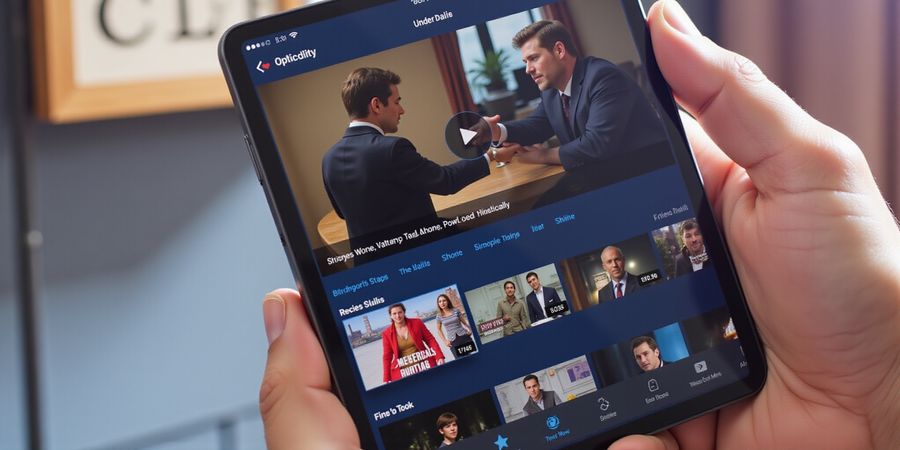
We’re about to turn your Apple device into a live‑TV hub—no cable, no limits. Imagine binge‑watching your favorite shows instantly, while Forest VPN lifts geo‑locks and speeds up every stream. Ready to dive in? We’ll walk you through device compatibility, downloading the YouTube TV app, signing in, troubleshooting common hiccups, and fine‑tuning quality. Let’s get the ball rolling.
Device Compatibility & Requirements
We’ve mapped out what Apple gear can run YouTube TV and what OS version it needs. It’s a quick checklist:
Device | Minimum OS | Notes |
|---|---|---|
iPhone / iPad | iOS 14+ | App available in the App Store for all latest OS versions |
Mac | macOS 12+ (Apple Silicon or Intel) | iOS app runs on Apple‑silicon Macs; Intel Macs need the iOS app via iOS device |
Apple TV | tvOS 13+ | Available on Apple TV 4K and newer models |
We’ve pulled these details straight from Apple’s support pages and YouTube TV’s help center.
Installing the YouTube TV App
iPhone & iPad
- Open the App Store.
- Search for “YouTube TV.”
- Tap Get → Install.
- Launch the app once the download finishes.
Tip: If you see “YouTube” instead of “YouTube TV,” double‑check the icon—it looks like a TV screen.
Mac (Apple‑silicon)
- Open the Mac App Store.
- Search for “YouTube TV.”
- Click Get → Install.
- Open from the Applications folder.
Apple TV (Optional)
- Go to Apps.
- Search for “YouTube TV.”
- Hit Install.
Signing In to YouTube TV
iPhone & iPad
- Open the app.
- Tap “Already a member?” or Sign in.
- Enter your email and password.
- Complete any on‑screen verification.
- You’re greeted by the Home screen.
If you don’t have an account, the app will guide you through creation.
Mac
- Launch the app.
- Click Sign in at the top‑right.
- Use the same credentials as on iOS.
- Verify if prompted.
Apple TV
- Open the app.
- Navigate to Sign in with the remote.
- Enter credentials or use the Apple TV passcode.
Troubleshooting Common Issues
1. CBS Channels Missing
- Check region: CBS only streams in the U.S.
- Update app: Ensure you’re on the latest version.
- Clear cache: Reinstall on iOS or Mac.
- VPN or firewall: Disable temporarily to test.
2. Playback Errors
- Restart the app.
- Check speed: 5 Mbps for 720p, 10 Mbps for 1080p.
- Disable background refresh: Settings → General → Background App Refresh.
3. Sign‑In Failures
- Verify credentials.
- Reset password via the “Forgot password?” link.
- Two‑factor: Confirm any code sent.
Optimizing Streaming Quality
Setting | How to Adjust | Recommendation |
|---|---|---|
Resolution | Settings → Video Quality | 1080p on Wi‑Fi; 720p on cellular |
HDR | Settings → HDR | Enable if your display supports HDR10 |
Data Saver | Settings → Data Saver | Turn on to reduce bandwidth |
We’ve distilled these steps from the official YouTube TV Help Center and Apple Support. Follow along, and you’ll be watching live TV in no time.
We’re about to turn your Apple device into a live‑TV hub—no cable, no limits. This guide walks you through YouTube TV sign‑in on iPhone step by step and shows you how to get the best experience on iPhone, iPad, Mac, and Apple TV. Ready? Let’s dive in.
iPhone & iPad
- Open the App Store.
- Search for YouTube TV.
- Tap Get → Install.
- Open the app.
- Sign in with your YouTube TV credentials.
- Enjoy live channels.
Mac (Apple‑silicon or Intel)
- Open the Mac App Store.
- Search for YouTube TV.
- Click Get → Install.
- Launch from Applications.
- Sign in with the same account.
- Stream like a pro.
Apple TV
- Navigate to Apps.
- Search for YouTube TV.
- Hit Install.
- Sign in via remote.
- Start watching.
Quick Reference Table
Device | Minimum OS | Storage (approx.) | Network | Notes |
|---|---|---|---|---|
iPhone / iPad | iOS 14+ | 100 MB | 5 Mbps | App available in App Store |
Mac | macOS 12+ (Apple‑silicon or Intel) | 120 MB | 5 Mbps | Compatible with both chipsets |
Apple TV | tvOS 13+ | 80 MB | 5 Mbps | Works on 4K models |
Pre‑Verify Checklist
- OS up‑to‑date? Yes.
- Storage free? 200 MB spare.
- Internet speed? ≥10 Mbps for 1080p.
- VPN? If you’re using Forest VPN, ensure it’s set to a region that supports YouTube TV.
Troubleshooting Quick‑Fixes
Issue | Fix | Why |
|---|---|---|
CBS missing | Verify region; update app; reinstall; or use Forest VPN to access region‑locked content | Region‑locked content |
Playback stalls | Restart app; check speed; enable Data Saver | Buffering issues |
Sign‑in fails | Reset password; check 2FA; clear cache | Credential errors |
FAQ
Why is CBS missing on youtube tv sign in on iphone? CBS may be unavailable in your region. Using Forest VPN can help you access CBS by routing your traffic through a supported country.
How can I improve streaming quality on YouTube TV? Adjust the resolution in the app settings, enable HDR if supported, and make sure you’re on a 5 Mbps or higher connection.
Using Forest VPN with YouTube TV
Forest VPN offers a fast, reliable connection that keeps your streaming uninterrupted. It’s affordable, easy to set up, and has servers in multiple countries, so you can always find a region where YouTube TV and CBS are available.
Actionable Takeaways
- Update your device before installing; it’s the simplest fix for many errors.
- Keep a 200 MB buffer; the app can grow if you add more channels.
- Use Forest VPN if you’re in a region where CBS is missing.
- Use the pre‑verify checklist to catch issues early.
Now that we’ve mapped every requirement, we’re ready to hit play. Grab your device, follow the steps, and let the live‑TV adventure begin. Feel free to share your experience in the comments—let’s keep the conversation alive.