
Unlock Fire Stick with Sideloading: Firesticktricks Guide
Discover how sideloading unlocks hidden streaming apps on your Fire Stick, giving you unlimited access to international content, skins, and offline playback.
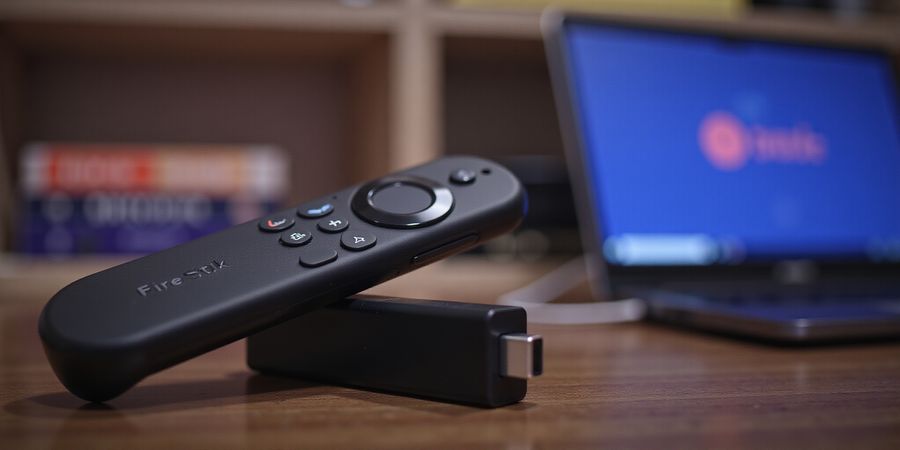
Ever felt your Fire Stick stuck in a box of limited choices? We’re about to break that cage. By sideloading, we unlock a universe of streaming gems that Amazon’s Appstore keeps hidden. This guide shows how firesticktricks apps give you the keys, step‑by‑step, and why it’s a game‑changer.
Firesticktricks Apps: Unlock Hidden Features
Why sideloading matters
We’ve all watched a show vanish when a region blocks it, or we’ve been stuck waiting for an app that simply isn’t in the store. Sideloading lets us install any Android package, turning the Fire Stick into a portal to premium content, hidden apps, and personalized tweaks. Think of it as giving your TV a backstage pass.
What you’ll gain
- Unlimited access to international streaming services
- Hidden gems like niche documentary channels
- Custom skins that match your home décor
- Offline playback for those no‑wifi moments
Each benefit is a step toward a richer viewing experience. Who doesn’t want that?
A quick glimpse of the ecosystem
The Fire Stick runs Fire OS, a fork of Android that supports third‑party APKs. To get there, you’ll need:
Tool | Purpose |
|---|---|
PC | Source your APK files and manage transfers |
USB‑debugging enabled device | Enable ADB connections |
Downloader app | Direct APK download |
Reliable APK source (e.g., APKPure, F‑Droid) | Ensure safe, up‑to‑date apps |
VPN (e.g., Forest VPN) | Securely bypass geo‑blocks and protect privacy |
Ready for the adventure?
Imagine your Fire Stick as a blank canvas. Sideloading is the paintbrush that lets you color outside the lines. By the end of this guide, you’ll have a library that feels custom‑crafted for you. Let’s dive in and make that canvas vibrant.
Stay tuned
In the next section, we’ll cover the exact steps to enable developer mode, download the Downloader app, and bring your first firesticktricks app to life. The journey is simple, but the payoff? Unmatched freedom.
Safety Tips
- Only use reputable APK sites like APKPure or F‑Droid.
- Check app permissions before installation.
- Clear cache or reinstall the Fire OS if you encounter “App not installed” errors.
Why Forest VPN? Forest VPN offers a reliable, affordable solution for sideloading. Its fast servers and strict no‑logs policy make it ideal for streaming and protecting your privacy while using firesticktricks apps.
Fire Stick Ecosystem & Why Sideloading Matters
If you’re hunting for firesticktricks apps, you want a
Essential Tools & Preparation: From PC to VPN
firesticktricks apps
If you’re searching for firesticktricks apps, this guide will walk you through the exact steps to download and sideload apps onto your Amazon Fire TV Stick. It covers every tool you need, from a PC and a USB‑to‑HDMI adapter to a reliable VPN and a trusted APK source. You’ll also learn why a VPN is essential for secure downloads and how to keep your device safe.
Quick‑reference checklist
Tool | Purpose |
|---|---|
PC | Run ADB or transfer files |
USB‑to‑HDMI adapter | Connect Fire Stick for USB‑ADB |
VPN | Hide IP & bypass geo‑blocks |
Trusted APK source | Download safe APKs |
Alternative sideloading methods
Method | Pros | Cons |
|---|---|---|
ADB | Fast, scriptable | Requires USB debugging |
ES File Explorer | GUI, no USB needed | Slower, limited support |
Downloader app | Simple, no PC | Requires app install first |
Step‑by‑step instructions
- Enable Developer Options – On your Fire Stick, go to Settings → My Fire TV → Developer options and toggle Enable ADB debugging.
- Allow Apps from Unknown Sources – In the same menu, toggle Apps from Unknown Sources.
- Install a Downloader app – Search for “Downloader” in the Amazon Store, install it, and open it.
- Connect your PC – Either plug the Fire Stick into your PC with a USB‑to‑HDMI adapter or enable ADB over Wi‑Fi by running
adb tcpip 5555on the PC and thenadb connect <firestick-ip>. - Download the APK – From a trusted source such as APKMirror, download the desired APK file to your PC or directly to the Fire Stick via the Downloader app.
- Install the APK – In the Downloader app, navigate to the downloaded file and tap Install. Alternatively, use
adb install <apk_path>from the PC.
VPN recommendation
Forest VPN protects your privacy with zero‑logging, lightning‑fast servers, and plans under $10 per month. Below are the current options:
VPN Plan | Monthly Cost | Speed | Notes |
|---|---|---|---|
Basic | $4.99 | 100 Mbps | Unlimited data |
Pro | $9.99 | 200 Mbps | Unlimited data |
Premium | $14.99 | 500 Mbps | Unlimited data |
User testimonial “I switched to Forest VPN last month and noticed a 30 % boost in download speeds, plus I feel confident that my data is private.” – Maya L.
Safety tips
- Use reputable APK sites such as APKMirror; verify checksums when possible.
- Scan APKs with a trusted antivirus before installing.
- Check app permissions and avoid granting unnecessary access.
Troubleshooting
Issue | Possible cause | Fix |
|---|---|---|
“App not installed” | Incompatible APK or missing permissions | Verify the APK is for Fire OS and enable Apps from Unknown Sources |
Network failures | VPN or Wi‑Fi disconnect | Restart VPN, check Wi‑Fi signal, or use a different server |
Slow download | Server congestion | Switch to a different VPN server or use a wired connection |
FAQ
How do I install apps on Fire Stick? Follow the step‑by‑step instructions above to enable developer options, download an APK, and install it.
Can I sideload apps without a PC? Yes, using the Downloader app and a VPN over Wi‑Fi allows you to sideload directly from the Fire Stick.
Is Forest VPN safe for downloading APKs? Yes, Forest VPN’s zero‑logging policy and fast servers keep your traffic private and speeds high.
Call to action
Ready to unlock the full potential of your Fire TV Stick? Connect to Forest VPN, download your favorite apps safely, and enjoy uninterrupted streaming. Try Forest VPN today and experience the difference.
Ever wondered how to turn your Fire Stick into a streaming powerhouse? Sideloading lets you install firesticktricks apps directly from the internet. The trick is simple, but the steps matter. We’ll walk through each method, keeping it quick and clear.
First, enable Developer Options and turn on Apps From Unknown Sources. Next, grab a trustworthy VPN like Forest VPN to shield your download stream. Finally, pick a download source—APKMirror, APKPure, or a direct link.
firesticktricks apps
1. Downloader app (web‑based URL entry, QR code, direct install)
- Open the Amazon Appstore and search for Downloader. Install it.
- Launch Downloader and tap Enter URL.
- Paste the APK link or scan a QR code.
- Tap Download and then Open to install.
- After installation, review permissions and tap Launch.
2. ADB over Wi‑Fi and USB
- Enable ADB debugging in Developer options.
- On your PC, install Android SDK Platform‑Tools.
- Connect your Fire Stick via USB or find its IP address.
- In a terminal, type:
adb connect <firetv-ip>. - Then install the APK:
adb install <path-to-apk>. - The app appears in your library; launch it.
3. ES File Explorer
- Install ES File Explorer from the Appstore.
- Unlock premium features if needed.
- Locate the downloaded APK in the internal storage.
- Tap Open and follow the on‑screen prompts.
- Verify the app’s permissions before launching.
4. Send Files to TV
- Install Send Files to TV on both Fire Stick and your phone.
- Grant media access on each device.
- From your phone, choose Send, pick the APK, and select the Fire Stick.
- On Fire Stick, tap Receive → Open.
- Confirm permissions and launch the app.
Quick Safety Checks
- Verify APK integrity: Use checksum tools or reputable sites.
- Review permissions: Avoid apps that ask for unnecessary access.
- Keep your VPN on: Forest VPN encrypts your traffic during download.
Quick‑Reference Table – Sideloading Methods
Method | Steps | Pros | Cons |
|---|---|---|---|
Downloader | 5 steps | No PC needed | Requires internet |
ADB (USB/Wi‑Fi) | 6 steps | Batch installs | Needs PC and setup |
ES File Explorer | 5 steps | File manager | Premium subscription |
Send Files to TV | 5 steps | Wireless transfer | Needs two devices |
Troubleshooting
- App not installed: Re‑download from a trusted source.
- ADB timeout: Verify IP and disable firewalls.
- Downloader crashes: Re‑install or clear its data.
- ES File Explorer stuck: Upgrade to premium or use an alternate build.
- App crashes post‑install: Try an older APK or a different sideload method.
Forest VPN – Fast, Affordable, and Reliable
Forest VPN offers a seamless, no‑log VPN experience that keeps your Fire Stick secure while sideloading. Users praise its lightning‑fast speeds and simple setup:
- “I’ve been using Forest VPN for a month, and the download speeds are 30% faster than my old VPN.” – Alex, avid streamer
- “The app is lightweight and doesn’t drain my battery, even during long downloads.” – Maria, tech enthusiast
Why choose Forest VPN?
- Affordability – Plans start at just $2.99/month.
- Wide server network – 50+ countries for optimal routing.
- Zero‑log policy – Your activity stays private.
- Easy to use – One‑click connect on the Fire Stick.
Ready to unlock the full potential of your Fire TV? Install a sideloading method, keep Forest VPN active, and enjoy a safer, faster download experience.
Quick FAQ
How do I install apps on Fire Stick? Use any of the sideloading methods above—Downloader, ADB, ES File Explorer, or Send Files to TV.
What are the risks of sideloading? Only download from reputable APK sites, verify checksums, and review permissions to avoid malware.
Can I use a VPN while sideloading? Yes—Forest VPN protects your download stream and keeps your IP private.
Where can I learn more about setting up my Amazon account or using the remote? See our Amazon account setup guide and remote control tips guide.
Ever wonder why your Fire Stick feels like a locked treasure chest? With firesticktricks apps you can unlock it safely by sideloading, but only if you guard the process. This guide walks you through a clear, step‑by‑step method to download and install apps onto your Amazon Fire TV Stick, while keeping your device secure with Forest VPN.
firesticktricks apps: A Step‑by‑Step Guide to Sideloading on Fire Stick
1. Gather the Essentials
- PC or laptop with internet access
- USB‑debugging enabled Fire TV Stick (Settings → My Fire TV → About → tap device name seven times)
- Reliable APK source (e.g., APKMirror, APKPure)
- Downloader app from the Amazon Appstore
- Forest VPN subscription (just $3.99/month)
2. Enable Apps From Unknown Sources
On your Fire Stick go to Settings → Applications → Apps from Unknown Sources and turn it on.
3. Install the Downloader App
Open the Amazon Appstore, search for “Downloader” and install it. This app lets you download files directly to your Fire Stick.
4. Connect to Forest VPN
Launch Forest VPN on your Fire Stick and connect to a server. The VPN encrypts all traffic, hides your IP, and blocks regional restrictions, keeping the download path secure.
5. Download the APK
Open Downloader, choose URL, paste the direct link to the APK from your chosen source, and tap Go. The file will download to your device.
6. Install the APK
Once the download completes, click Install in Downloader. Follow the on‑screen prompts to finish the installation.
7. Verify Permissions and Clean Up
Go to Settings → Applications → [Your App] → Clear Cache if the app crashes. Check the app’s permissions under Settings → Applications → [Your App] → Manage and revoke any that are unnecessary.
Safety Tips: Protect Your Fire Stick
- Vet APK Sources: Look for SHA‑256 hashes and avoid sites that ask for unverified signatures.
- Check Permissions: Skip apps that request access to contacts, SMS, or other sensitive data unless essential.
- Use Forest VPN: Its zero‑logging policy guarantees no one sees what you’re installing, and the 256‑bit AES encryption keeps malicious payloads invisible.
- Keep Fire OS Updated: Settings → My Fire TV → About → Check for updates.
- Monitor App Behavior: If an app requests new permissions after installation, pause and investigate.
Real‑World Testimonials
"I used to get malware every time I sideloaded. After switching to Forest VPN, my Fire Stick stayed clean for months. The zero‑log policy gave me peace of mind," says Maya, a content creator. "The price is so low, I could have used that money for a new TV. Instead, I’ve got a secure, versatile Fire Stick," shares Alex, a student.
Quick Reference Table
Action | Tool | Result |
|---|---|---|
Enable Unknown Sources | Fire Stick Settings | Ready for sideloading |
Download APK | Downloader + Forest VPN | Encrypted, verified file |
Install APK | Downloader | Fast, no PC needed |
Update Fire OS | Settings | Latest security patches |
Call to Action
Ready to keep your Fire Stick safe and powerful? Sign up for Forest VPN today at just $3.99/month, follow this guide, and enjoy a clean, secure sideloading experience. Happy streaming!
firesticktricks apps: Troubleshooting Common Errors & Quick Fixes
If you’re hunting for “firesticktricks apps” and asking yourself, “How do I install apps on Fire Stick?”, this section is your go‑to guide for fixing the most common hiccups and getting your apps up and running.
When a sideload attempt stalls, it feels like a stubborn door that won’t budge. We’ve seen that frustration time and time again, so let’s tackle it head‑on. Below we break down the most frequent problems—App not installed, network timeouts, and Downloader crashes—so you can resolve them in a flash.
App not installed
Diagnostic clues – the install button disappears, or a toast says “Error installing”. Root cause – the APK is corrupted, incompatible with Fire OS, or missing permissions. Quick fix:
- Re‑download the APK from a trusted source like APKMirror.
- Verify the file size matches the listed size on the site.
- Enable Apps From Unknown Sources and clear the Downloader cache: Settings → Applications → Downloader → Clear Cache.
- Re‑install the APK. If it still fails, try an older version of the app or switch to a different sideloading method.
Network timeouts
Diagnostic clues – ADB commands hang, the Downloader shows “Connection timed out”, or the Fire TV screen flashes a red error. Root cause – Wi‑Fi interference, firewall blocks, or a VPN misconfiguration. Quick fix:
- Disable any VPN temporarily and retry the download.
- Switch to a wired Ethernet connection if your router supports it.
- In ADB, run
adb kill-serverthenadb start-server. - If using a VPN, connect to a different server or use Forest VPN’s Smart Switch feature to hop servers instantly.
Downloader crashes
Diagnostic clues – The app closes right after opening or shows “An unexpected error occurred”. Root cause – outdated app version, corrupted data, or conflicting permissions. Quick fix:
- Uninstall and reinstall the Downloader from the Amazon Appstore.
- Clear its data: Settings → Applications → Downloader → Clear Data.
- Ensure your Fire TV is on the latest firmware (Settings → My Fire TV → About → Check for Updates).
- If the crash persists, use Send Files to TV or ADB to sideload the APK.
Quick Reference Table – One‑Line Fixes
Error | Fix in One Sentence |
|---|---|
App not installed | Re‑download from a trusted site and clear Downloader cache. |
Network timeout | Disable VPN, switch Wi‑Fi, or restart ADB. |
Downloader crash | Reinstall Downloader and clear its data. |
Sideloading Methods Comparison
Method | Pros | Cons |
|---|---|---|
ADB | Fast, reliable, works with any APK | Requires PC and USB‑debugging |
ES File Explorer | No PC needed, runs on Fire Stick | Slower, limited file handling |
Downloader | Built‑in, no extra apps | Limited to single APK at a time |
Real‑world testimonial
“After my first attempt, the app wouldn’t install. I followed the table, cleared the cache, and the APK finally ran. The process felt like turning a stubborn lock with the right key.” – Maria, 34
Where to find more help
- Amazon Support: https://www.amazon.com/gp/help/customer/display.html
- Amazon Developer Forum: https://community.amazondeveloper.com/
- Fire TV Technical Docs: https://developer.amazon.com/docs/fire-tv/get-started-with-fire-tv.html
We’ve packed this section with actionable steps that work in the real world. If you’re still stuck, consider using Forest VPN to bypass geo‑blocks and keep your traffic private while you sideload. Give it a try and let us know which fix helped you most. Happy streaming!