
Upgrade Asus RT‑AX82U with Merlin: Speed & Security
Discover how AsusWRT‑Merlin transforms your RT‑AX82U into a powerhouse router with custom firewall, traffic shaping, built‑in VPN, and unbeatable stability.
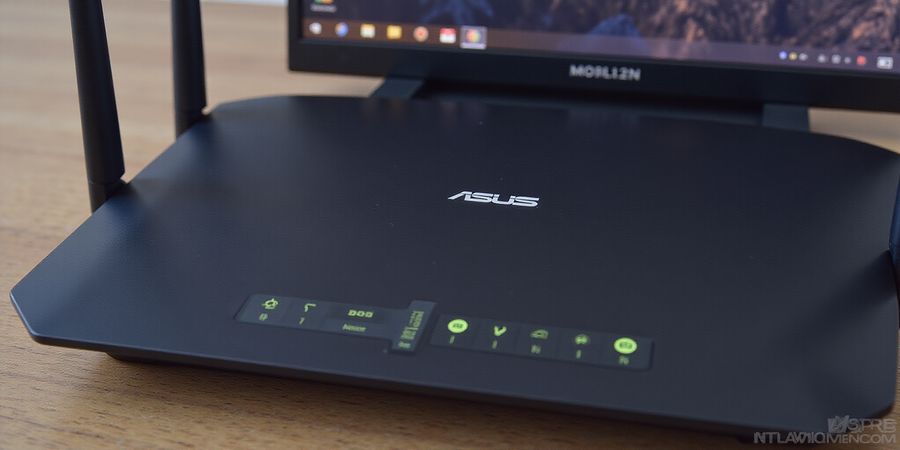
Asus RT‑AX82U Setup: Why Merlin Makes Your Router a Powerhouse
Ever had your network freeze right in the middle of a stream while setting up your Asus RT‑AX82U? We’ve all been there. AsusWRT‑Merlin turns that frustration into smooth sailing. It’s like giving your RT‑AX82U a second brain that knows how to keep traffic flowing. Ready to see the magic?
Merlin pulls out the features that the stock firmware keeps hidden behind a curtain. You’ll get custom firewall rules, traffic shaping, and a built‑in VPN server. It’s a toolbox that turns your router into a security hub, bandwidth manager, and remote gateway—one sleek package.
Feature | Benefit |
|---|---|
Custom firewall | Precise control over inbound/outbound traffic |
Traffic shaping | Prioritize gaming, streaming, or business apps |
Built‑in VPN | Secure remote access without third‑party apps |
OpenVPN client | Connect to corporate networks easily |
DNS filtering | Block malicious domains on all devices |
Stability is the backbone of any network. Merlin’s kernel patches and custom scripts patch bugs before they bite. Users report fewer reboots and smoother Wi‑Fi even under heavy load. Think of it as a seasoned mechanic tightening every bolt before a long road trip.
Routers age when they’re pushed to the limit. By optimizing power draw and memory usage, Merlin lets your RT‑AX82U stay fresh longer. It’s like giving your phone a battery‑saving mode that never compromises speed.
Now that we’ve seen the why, let’s dive into the how. The following steps will guide you from download to a fully‑flashed router ready for work or play.
Before we start flashing, let’s make sure every safety net is in place. Think of this checklist as the router’s life jacket – if it’s missing, the firmware update could sink the device. In this section we’ll walk through each prerequisite with step‑by‑step clarity. Ready to secure your RT‑AX82U?
Prerequisites & Safety Checklist
1. Router Model & Firmware Version
Do you know which firmware version you’re on? A mismatch can turn a smooth upgrade into a brick nightmare. Check the back panel or open the web GUI, go to Advanced > System Information, and note the Firmware Version and Hardware Version. For RT‑AX82U V1, look for a 388.x firmware; V2 requires 400.x. This is the compass that guides the rest of the process.
2. Backup Current Settings
Restoring settings after a failed flash is easier than a full factory reset. In the GUI, navigate to Administration > System > Backup & Restore, click Backup, and save the ZIP file on your computer. Think of this backup as a safety net that catches you if the firmware misbehaves.
3. Correct Firmware File
Using a non‑compatible file can trigger authentication failures or a failed upgrade. Download the exact file for your model from the official Merlin GitHub releases page. Verify the filename contains your hardware version and firmware number – for example, RT‑AX82U_388.2_2_0-gnuton1_puresqubi.w for V1.
4. Reliable Power Supply
Power interruptions during flash can brick the router. If you have a UPS, use it; otherwise, plug the router into a dedicated, stable mains outlet. A sudden loss of power is like a storm hitting a ship – it can sink the whole operation.
5. Ethernet Cable
A wired connection is more reliable than Wi‑Fi during firmware updates. Connect your computer directly to the router’s LAN port with a CAT6 cable. This direct link is the highway that carries the firmware safely.
6. Browser Support
Some browsers (e.g., Chrome 115+) have stricter security that can block the flash dialog. Use Chrome, Firefox, or Edge with JavaScript enabled. If you hit a roadblock, try switching browsers or an incognito window.
7. Checksum Verification Tool
Confirming the integrity of the downloaded file protects against corrupted or tampered firmware. On macOS or Linux, run sha256sum on the .w file. On Windows, use an online SHA‑256 calculator. Compare the output with the hash listed on the release page. If they match, the file is safe; if they don’t, you’re about to receive a faulty update.
Item | Why It Matters | How to Prepare |
|---|---|---|
Router Model & Firmware | Prevents bricking from wrong firmware | Check the GUI’s System Information |
Backup Settings | Eases recovery after a failed flash | Save the ZIP via Backup & Restore |
Correct Firmware File | Avoids authentication errors | Download the exact file from GitHub |
Reliable Power | Stops mid‑flash power loss | Use a UPS or stable outlet |
Ethernet Cable | Ensures stable data transfer | Connect via CAT6 LAN port |
Browser Support | Prevents flash dialog blocks | Use Chrome/Firefox/Edge |
Checksum Verification | Guarantees file integrity | Run |
These steps are the safety net that keeps your RT‑AX82U from turning into a brick. By following them, you’re setting the stage for a smooth flash and a resilient router.
Takeaway
When you’re ready to flash, keep this checklist in front of you like a map. Each item protects a different part of the journey, ensuring that the upgrade is as smooth as a well‑oiled machine. Let’s move on to downloading the firmware and flashing it through the web UI.