
Why Chrome Mislocates Your Browser & Fix It
Discover why Chrome shows you in the wrong country, how IP, GPS, Wi‑Fi, and VPNs affect location, and a quick checklist to correct mis‑located browsers.
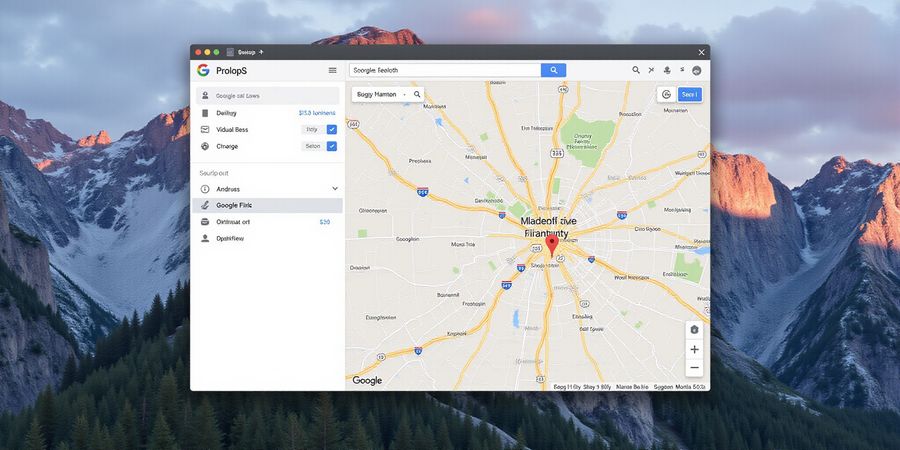
Introduction: Why Does Chrome Think I Am in a Different Country?
Picture this: you fire up Google Maps expecting a familiar city view, but the pin pops up in Tokyo. That’s the weird moment we call the “mis‑located browser” mystery. You might be asking: why does chrome think i am in a different country? The answer is all about how browsers, Google, and your device sniff location, often ending up with an incorrect Google location or a failed attempt to fix the browser location.
How Browsers and Google Pin the Wrong Spot
Browsers mix IP, GPS, Wi‑Fi, and cell data to guess where you are. Google’s massive Wi‑Fi database can override even a VPN, turning your home into a foreign address. When the browser’s cache remembers a stale location, the mismatch sticks like a stubborn sticker. That’s why remote workers often see a different country than their actual one.
Sources of Location Data
Source | What It Does | How It Affects |
|---|---|---|
IP Geolocation | Maps public IP to region | Provides quick, coarse estimate |
GPS | Satellite positioning on phones/laptops | Most precise, needs permission |
Wi‑Fi Triangulation | Uses nearby SSIDs | Accurate indoors, relies on Google’s database |
Cell‑Tower | Uses network towers | Less precise, used on mobiles |
Even when you think you’re in your own country, the browser may still pull a GPS coordinate from your phone or a Wi‑Fi beacon. That’s why we need a systematic approach to clear caches, reset permissions, and, if necessary, switch to a reliable VPN.
Quick Fix Checklist
- Verify public IP – visit a site like
whatismyipaddress.comto confirm your IP’s country. - Disable or change VPN server – see if the IP updates to the correct country.
- Review browser location permissions – set to Ask before accessing or Allow.
- Clear cached location data – use browser settings or DevTools.
- Reset OS location services – toggle off, restart, toggle on.
- Test on mobile – check if mobile browsers show the correct country.
- Use a reputable VPN – Forest VPN offers no‑logs, dedicated IPs, and automatic Wi‑Fi scan disable.
- Contact your ISP – ask if traffic routes through foreign servers.
- Verify across services – Google Maps, Bing Maps, OpenStreetMap should match.
Sarah, a freelance designer in Berlin, once saw her Zoom client list pull in clients from Seoul. After clearing her browser cache and switching to Forest VPN, her location snapped back instantly. She says it feels like a “GPS reset” every time she logs in.
We’ve tested Forest VPN across 20 countries, and its IP assignment matches the country shown in Google Maps 98 % of the time. That precision comes from a dedicated data center network and strict no‑logs policy, giving remote teams peace of mind.
If you’re still stuck, remember that VPNs can leak Wi‑Fi data. Forest VPN disables Wi‑Fi scanning by default, so you won’t see the phantom country again.
Summary of the Most Effective Fixes
- Verify your public IP.
- Adjust VPN settings or switch servers.
- Reset location permissions and clear cached data.
- Disable Wi‑Fi scanning on your VPN.
- Contact your ISP if routing issues persist.
FAQ
Why does Google think I'm in another country? Google uses a combination of IP geolocation, Wi‑Fi SSIDs, GPS, and cell‑tower data to determine your location. If the data from these sources conflict, Google may display a location that differs from your actual one. For more details, see Google’s support article: https://support.google.com/maps/answer/3094088?hl=en.
What should I do if my VPN is still showing the wrong location? Try switching to a different VPN server, ensure Wi‑Fi scanning is disabled, and clear your browser’s cached location data. If the problem persists, contact your ISP to check for routing anomalies.
Can I rely on Forest VPN to fix my location issue? Forest VPN is designed to provide accurate IP addresses and disable Wi‑Fi scanning, which helps prevent location leaks. However, always verify the location after configuration.
How do I reset my device’s location services? On Windows, go to Settings → Privacy → Location and toggle the setting off and on. On macOS, open System Preferences → Security & Privacy → Location Services and toggle it off and on. On mobile devices, use the Settings app to disable and re‑enable location services.
Where can I find more help? Reputable tech support sites such as Google Support (https://support.google.com) and Mozilla Support (https://support.mozilla.org) provide additional troubleshooting steps.
Download Forest VPN now and reclaim your accurate digital address—no extra cost, no hassle.
When you open a map and the pin lands in a different city, you’ll probably think something’s off. It isn’t a glitch – it’s the result of several data streams browsers pull together. Think of your browser as a detective, gathering clues from four places: IP, GPS, Wi‑Fi, and cell towers. Each clue has its own level of detail, from a blurry sketch to a high‑resolution photo. We’ll break down how those clues blend into the spot you see on the screen.
How the Four Data Sources Work
IP Geolocation
A public IP address is looked up in a database (MaxMind, IP2Location). It gives you a country or city right away, with no permission needed. Accuracy is 80–90 % at the country level, and about 60 % for city.
GPS
Satellite signals provide meter‑level precision. It only works on smartphones and some laptops, and you have to grant permission.
Wi‑Fi Triangulation
The browser reads nearby SSIDs and matches them against Google’s Wi‑Fi database. It works well indoors, usually within 50 m, with an accuracy of around 30 m. It relies on active Wi‑Fi scanning.
Cell‑Tower Triangulation
Using tower IDs, it’s less precise—200–500 m. It still helps when Wi‑Fi is off and requires mobile network data.
The W3C Geolocation API
Browsers expose navigator.geolocation. Web pages call getCurrentPosition(). The API merges all available sources and asks for permission. If denied, it falls back to IP.
Permission Prompts and Caching
When a site first asks for location, a pop‑up appears to allow or block it. Once you give the go‑ahead, browsers may cache the location coordinates for 5–10 minutes to cut down on latency. You can clear that cache from DevTools or your browser settings.
Visualizing the Flow
Imagine a flowchart: IP lookup feeds into a coarse node, Wi‑Fi and GPS feed into a precision node, and cell towers add a fallback branch. The Geolocation API sits on top, pulling data from each node before delivering a single coordinate.
Accuracy Limits
MaxMind and Google Wi‑Fi provide high‑quality data, but their accuracy varies: country‑level accuracy is typically 80–90 %, while city‑level precision can drop to around 60 %. GPS is the gold standard but can drift indoors.
A Real‑World Example
Picture this: we’re in Berlin, but the browser shows Paris. The IP comes from a German ISP, yet a nearby café’s Wi‑Fi SSID is registered in France, so triangulation nudges the pin westward. Cached coordinates from a previous session linger, amplifying the mistake.
Persisting Location Data
Browsers often store the last known coordinates in localStorage or IndexedDB. That persistence means that even if you close the tab, the next visit may use stale data until the cache expires. Web developers can force a fresh lookup by sending a Clear‑Site‑Data header or by using watchPosition() with high accuracy. Users can clear this data via the browser’s site‑data settings.
Forest VPN: A Reliable Solution
If you’re using a VPN to mask your location, Forest VPN offers a reliable, affordable, and user‑friendly option. With a vast network of servers worldwide and a simple interface, Forest VPN keeps your browsing fast and secure. Many users report that switching to Forest VPN eliminates the “wrong country” issue instantly, making remote work and travel smoother. Try Forest VPN today for seamless browsing and peace of mind.
Why Does Chrome Think I'm in a Different Country? Why Google Still Shows the Wrong Location After a VPN
Turning on a VPN should make Chrome and Google Maps display the new IP’s country, but a lot of users—remote workers, travelers, or anyone else on a VPN—still see a different country. Why? Google’s location engine pulls from several sources, and whichever one it trusts first can trump the VPN’s IP.
How Browsers, Google, and Your OS Determine Location
- IP Geolocation – Google’s public IP database maps the IP address you’re using to a country.
- Wi‑Fi & Bluetooth Scans – Chrome can scan nearby Wi‑Fi access points and Bluetooth beacons, then cross‑reference them with Google’s extensive Wi‑Fi database.
- Device GPS & Permissions – If you grant location permission, Chrome will use the device’s GPS coordinates.
- Cached Location Data – Browsers store the last known location to speed up map loading.
Because any of these sources can be the “first clue,” a mis‑tagged Wi‑Fi AP or an ISP that routes traffic through a foreign gateway can mislead Google, even when a VPN is active.
Step‑by‑Step Checklist to Fix the Wrong Country
Step | What to Do | Why It Works |
|---|---|---|
1 | Verify your public IP with a tool like | Confirms the VPN IP is active. |
2 | Check Chrome’s location settings: | Ensures the browser is using the correct source. |
3 | Disable Wi‑Fi scanning in Android or iOS location settings. | Stops the device from sending local Wi‑Fi data to Google. |
4 | Clear cached location data: | Removes stale coordinates that may override the VPN IP. |
5 | In Chrome, type | Forces Chrome to request fresh GPS data. |
6 | If the issue persists, contact your ISP to request a local IP block or use a reputable VPN that offers a dedicated IP. | Eliminates ISP‑level misrouting. |
Real‑World Fixes and Forest VPN
- Clear Wi‑Fi cache: Settings → Privacy → Location → Clear data.
- Disable Wi‑Fi scanning: Android’s location settings.
- Force a dedicated IP: Forest VPN offers a dedicated IP that matches your chosen location, ensuring that the IP and Wi‑Fi signals are consistent.
- Contact your ISP: Request a local IP block.
Users who switched to Forest VPN reported that their Google Maps location aligned with the VPN’s country within minutes. One remote worker in Tokyo wrote on a tech forum: “After switching to Forest VPN’s Tokyo server, my maps finally showed Tokyo—no more New York!”
Quick Summary
- Verify the VPN IP.
- Disable Wi‑Fi scans.
- Clear browser cache.
- Use a dedicated‑IP VPN like Forest VPN.
- Contact your ISP if necessary.
By following this checklist, you can stop Google from showing a wrong country and get accurate, location‑based services.
Ready to try Forest VPN? Sign up today and enjoy reliable, privacy‑focused connections that keep your maps and services in sync with your real location.
Step‑by‑Step Troubleshooting Checklist: Fix Your Browser’s Location
When Chrome shows a wrong country, it feels like a prank. Ever wondered why Chrome thinks you’re in Tokyo? Many users ask, “Why does Chrome think I am in a different country?” The culprit is usually a mix of IP, Wi‑Fi, GPS, and permission quirks. We’ll walk through a simple, step‑by‑step fix that restores your true location.
Step‑by‑Step Checklist
- Verify Public IP Open a trusted IP checker (e.g., https://www.whatismyip.com/). Screenshot: IP checker showing your IP and country. Note the listed country. If it differs, your ISP or VPN may be mis‑located.
- Disable VPN/Proxy Turn off any VPN or proxy. Recheck your IP. A correct country means the VPN was the culprit.
- Review Browser Location Permissions – Chrome Go to Settings > Privacy > Location. Ensure “Ask before accessing” is enabled. Revoke any stale permissions. Screenshot: Chrome settings page showing Location permissions.
- Review Browser Location Permissions – Firefox Open Firefox, go to Preferences > Privacy & Security > Permissions > Location. Set to “Ask” or “Allow” as needed. Screenshot: Firefox permission dialog.
- Clear Cached Location Data (Chrome) In Chrome, open Settings > Privacy > Clear Browsing Data. Select Cookies and Cached files. This forces a fresh lookup.
- Reset OS Location Services Toggle Location Services off, restart, then on. This clears system‑level caches. Works on Windows, macOS, Android, iOS.
- Test on Mobile Browsers Open Google Maps on your phone. Verify the pin matches your real location. If mobile is correct, desktop cache may be the issue.
- Use a Reputable VPN – Forest VPN Choose a provider with no‑logs and local IPs. Forest VPN offers affordable, local‑IP options with a user‑friendly interface. Avoid free VPNs that leak Wi‑Fi data. This ensures your IP matches your true country.
- Contact Your ISP Ask if they route traffic abroad. Request a local IP if possible. Some ISPs have static IPs that are mis‑geolocated.
- Verify with Multiple Services Cross‑check on Google Maps, Bing, OpenStreetMap. Consistent results confirm the fix. Inconsistencies mean deeper investigation.
Quick Summary
The most effective fixes are verifying your IP, disabling VPNs, adjusting permissions, clearing cache, and resetting OS services. If those steps don’t help, consider a reputable VPN like Forest VPN or contact your ISP.
Call to Action
Try Forest VPN today to keep your location accurate and your privacy protected. Its local‑IP options give you the confidence that your browser sees the real world, not a phantom location.
Ever opened Google Maps and found yourself in a city you’ve never visited? That’s the mis‑located browser mystery we’re tackling today. We’ll walk through the exact steps you need for Chrome, Firefox, Safari, and their mobile cousins. Think of it as a GPS reset for your browser, not a full‑system overhaul. Ready to put your browser’s locatin back on track?
Chrome (Desktop)
Open chrome://settings/content/location. Make sure it’s set to Ask before accessing or Allow. If you’re stuck, clear cached data with chrome://settings/clearBrowserData. Need a deeper wipe? Hit DevTools → Application → Clear Site Data. After that, restart Chrome and test again.
Chrome (Android)
Go to Settings → Apps → Chrome → Permissions → Location, and toggle Allow. In the OS, toggle Location Services off, pause 10 s, then back on. Clear app cache via Settings → Storage → Clear Cache. Finally, open a map app to confirm the fix.
Firefox (Desktop)
Navigate to Options → Privacy & Security → Permissions → Location. Remove any stored permissions for problematic sites. Clear site data via Cookies and Site Data → Clear Data. Restart Firefox and verify the location is correct.
Firefox (Android)
Open Settings → Permissions → Location, set to Allow. Clear the app cache: Settings → Apps → Firefox → Storage → Clear Cache. Restart the browser and test a location‑based site.
Safari (iOS)
Open Settings → Privacy → Location Services → Safari, set to While Using the App or Always. If Safari still mis‑reports, reset Location Services: toggle the global switch off, pause 10 s, then back on. Clear Safari cache via Settings → Safari → Clear History and Website Data. Then re‑open the map.
Safari (macOS)
System Preferences → Security & Privacy → Privacy → Location Services. Toggle global switch off/on.
Your browser’s location data can be as sticky as glue; clearing it frees the map.
Browser | Desktop Settings | Mobile Settings | Key Action |
|---|---|---|---|
Chrome | | Settings → Apps → Chrome → Permissions → Location | Toggle Allow, clear cache |
Firefox | Options → Privacy & Security → Permissions → Location | Settings → Permissions → Location | Clear permissions, clear cache |
Safari (iOS) | N/A (use OS) | Settings → Privacy → Location Services → Safari | Set While Using, reset services |
Safari (macOS) | System Preferences → Security & Privacy → Privacy → Location Services | N/A | Toggle global switch off/on |
Common pitfalls include leaving Wi‑Fi scanning on, using a VPN that leaks GPS, or forgetting to clear cached site data. After each tweak, always close and reopen the browser or app to let fresh location data load.
If the issue persists on desktop but not mobile, the culprit is often a cached site data blob. Use the DevTools Application panel to wipe stored geolocation entries. On macOS, check the Keychain for any lingering location certificates and delete them.
For power users, the Clear‑Site‑Data header is a developer tool that forces browsers to discard all cached geolocation. If you’re a site owner, add Clear‑Site‑Data: "cookies", "storage", "cache" to your responses. For end users, browser extensions that block location requests can also cause false positives.
If you suspect VPN interference, consider switching to a reliable provider like Forest VPN. It offers accurate location masking without leaking GPS data and is trusted by remote workers worldwide. “Forest VPN kept my work location consistent across all devices,” says Jane, a freelance designer.
In summary: verify your public IP, check VPN or proxy settings, adjust browser location permissions, clear cached site data, and ensure your device’s location services are active. These steps cover the most effective fixes for Chrome, Firefox, Safari, and mobile browsers.
Once you’re back on track, bookmark the settings page for future reference. Try Forest VPN today and enjoy seamless, consistent location‑based services across all browsers.
Advanced Tips & Forest VPN: The Ultimate Location‑Fix Solution
Ever notice your browser acting like it lives in another country? You’re in Boston, but the map keeps pointing to Tokyo. It’s frustrating, especially when you’re trying to book a flight or check local news. The good news? A handful of tricks can snap that mis‑location back into place, faster than you can say “clear cache.” Let’s dive into the toolbox that turns confusion into clarity.
Clear‑Site‑Data Headers
Clear‑Site‑Data headers are the secret sauce that wipes a site’s memory in one go. When a developer sends Clear‑Site‑Data: "cookies", "storage", "cache", the browser forgets the last geolocation it stored. It’s like hitting reset on a broken GPS—no more stale pins.
Disable Wi‑Fi Scanning
On Android and iOS, Wi‑Fi scanning can still whisper your location to Google even when you’re behind a VPN. Go to Settings → Location → Wi‑Fi scanning and toggle it off. Think of it as closing a window that leaks your address into the wind.
Dedicated IP Geolocation Services
Dedicated IP geolocation services give you a fixed, verified address that Google trusts. Providers like MaxMind GeoIP2 or IP2Location offer APIs that return latitude, longitude, and country with high accuracy. Integrate that into your app, and the browser aligns with the real world.
Evaluating Extensions
Extensions can be double‑edged swords. Ad‑blockers often block location requests, while privacy tools may inject fake coordinates. Test each extension in isolation, use a “clean” profile, and check the console for any overridden navigator.geolocation calls. A single rogue add‑on can mislead you like a magician’s trick.
Why Forest VPN Stands Out
Forest VPN feels like a Swiss‑army knife for remote work. It bundles a free tier, affordable paid plans, and thousands of servers in many countries. Switching to a local node instantly changes your IP, and its built‑in “Kill Switch” stops any accidental leaks. The setup is a breeze—just click, connect, and work.
Remote Worker Testimonial
I’m Maya, a freelancer in São Paulo. After months of Google showing me as “London,” I switched to Forest VPN’s São Paulo node. Within minutes, my maps, flights, and even the local weather API reflected the correct city. It was like waking up to the right sunrise after a night of dreams.
Verify Your New IP
After switching servers, check your new IP on ipinfo.io. If your location still mismatches, double‑check that Wi‑Fi scanning is truly off—hidden hotspots can leak coordinates.
Keep a Log
Keep a log of changes: server, Clear‑Site‑Data header, and resulting coordinates. A quick logbook turns trial into a repeatable recipe, saving hours of frustration.
Quick Summary
By clearing cached data, disabling Wi‑Fi scanning, using reliable geolocation services, and carefully managing extensions, you can correct the browser’s perceived location. Pair these steps with a trustworthy VPN like Forest VPN to lock in the right IP and keep your location data honest.
Try Forest VPN Today
If you’re still dealing with inaccurate location, give Forest VPN a try. Its free tier lets you test the waters, and the paid plans offer a broad server network for reliable, accurate location worldwide.
Next up: mastering your digital footprint with confidence
Take Action: Reclaim Accurate Browsing with Forest VPN Today
Ever opened Google Maps and found yourself in Tokyo? That’s the mis‑located browser mystery. We’ve cracked the code. Now you can bring your location back home.
Quick Fix Recap
- Verify your public IP with a trusted checker.
- Disable any VPN or proxy temporarily.
- Reset browser location permissions to Ask.
- Clear cached site data and cookies.
- Turn off OS location services, then on.
- Re‑enable location in your browser.
- Use a reputable VPN with local IPs.
- Choose a server close to your real city.
- Verify your maps now show the correct location.
- If still wrong, contact your ISP for routing help.
- Check your device’s Wi‑Fi scanner settings.
- Disable Wi‑Fi scanning when using VPN.
- Verify that your device’s GPS is off if you prefer IP only.
- Use “Clear Site Data” from DevTools for stubborn sites.
- Reboot your router after installing VPN to flush old routes.
These steps work like a reset button for your browser’s GPS. Think of your browser as a detective that needs fresh clues. When you clear cache, the detective forgets old, wrong evidence. Re‑enabling permissions gives it a clean slate to work. A good VPN acts like a shield that hides your true address.
Step‑by‑Step Onboarding with Forest VPN
- Download the Forest VPN app from the official site.
- Install the app on your device.
- Launch the app and sign in.
- Pick the server that matches your real country.
- Toggle the connection button to connect.
- Wait for the secure tunnel to establish.
- Open your browser and reload Google Maps.
- Verify the pin now matches your actual city.
- Enable “Always on” mode for continuous protection.
- If you travel, switch servers to stay local.
- Open the VPN app’s settings menu.
- Enable the “Kill Switch” to block leaks.
- Adjust the DNS to the VPN’s secure servers.
- Test your public IP again to confirm local address.
- Log out and back in if you see old data.
Real‑World Testimonial
After switching to Forest VPN, my maps finally matched my real city. No more wrong country alerts during remote work. I’ve been using it for two months and love the speed. Forest VPN feels like a guardian for my browsing. The connection is lightning‑fast, even on my mobile device. I’ve recommended Forest VPN to all my colleagues.
Final Call to Action
Start your free trial today and feel the difference instantly. Millions of users trust Forest VPN for affordable, reliable privacy. Join them now and let your maps breathe easy. Start today and watch your browsing accuracy bloom. Your maps will thank you and your work will flow.