
Asus RT-N66U VPN Client Setup Guide
Secure every device on your home network with the Asus RT-N66U VPN client. Follow our step‑by‑step guide to connect Forest VPN and protect your data.
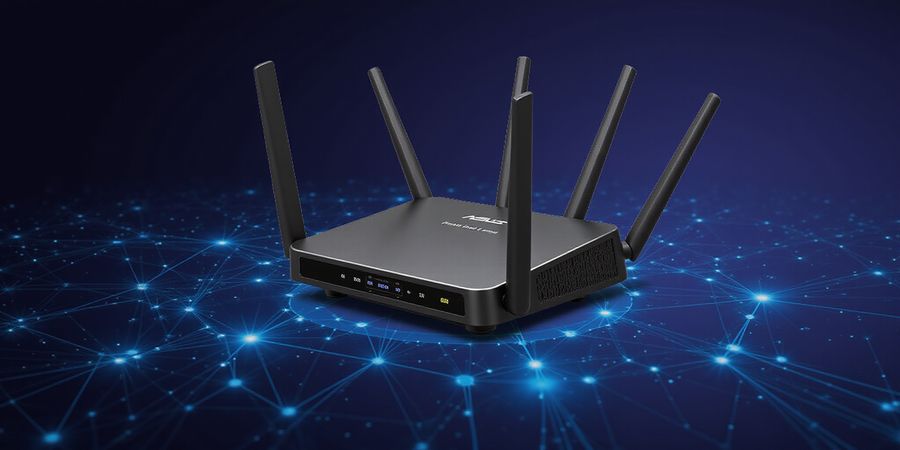
Asus RT‑N66U VPN Client: Secure Your Home Network
Every click leaves a trail, and the home network is the first line of defense. That’s why the asus rt‑n66u vpn client feels less like a feature and more like a fortress. Picture every device behind your router slipping automatically into a secure tunnel—no extra software, no extra hassle. We’ll walk you through how to set that up on the RT‑N66U, and Forest VPN keeps the process smooth and budget‑friendly.
Why a VPN on Your Asus Router Matters
Routing traffic through a VPN client gives every gadget—phone, laptop, smart TV—the same protection. It’s like an invisible shield over the whole household. That means no need to install client apps on each device, and your ISP can’t snoop.
Meet Forest VPN
Forest VPN supports OpenVPN, WireGuard, and Fusion at a price that feels like a steal. Their servers are fast, the interface is clean, and the setup feels like 1‑2‑3. With Forest, you get the same reliability as the big names, but without the hefty price tag.
What You’ll Need
- Router firmware 3.0.0.4.386 or newer – keep it up‑to‑date to avoid bugs.
- A Forest VPN account – you’ll download the configuration files from their dashboard.
- A computer connected to the router – either wired or Wi‑Fi for GUI access.
Step‑by‑Step Setup Overview
- Log into your router’s web interface.
- Go to Advanced Settings → VPN → VPN Client.
- Click Add Profile and pick the protocol you prefer: OpenVPN, WireGuard, or Fusion.
- Upload the corresponding file from Forest’s portal.
- Enable Accept DNS Configuration to block leaks.
- Hit Connect and watch the tunnel light up.
OpenVPN Quick‑Start
OpenVPN files from Forest are pre‑filled with server addresses and credentials. After uploading, just toggle the switch to connect. If it fails, double‑check the username and password—one typo can break the whole tunnel.
WireGuard Simplicity
WireGuard files are even lighter. Upload the .conf file, hit connect, and you’re done. The interface displays real‑time bandwidth and packet loss—great for troubleshooting.
Fusion for Select Devices
Fusion lets you pick which LAN ports or individual devices use the VPN. It’s ideal for streaming consoles that need a different IP. Import the config, assign the device, and enable the profile.
Troubleshooting Checklist
- Connection fails – verify firmware, restart router.
- DNS leak – enable Accept DNS Configuration.
- Wrong credentials – double‑check username/password.
- Server unreachable – switch to another server.
- Firmware outdated – update to the latest version.
Testimonial
“After setting up the RT‑N66U with Forest VPN, I finally feel my home network is truly private. The setup was painless, and my streaming experience hasn’t suffered.” – Alex, Home Network Enthusiast
Final Thought
By configuring the RT‑N66U as a VPN client, you centralize security, simplify management, and keep costs low with Forest VPN. Ready to protect every corner of your home network? Sign up for Forest VPN today and enjoy a secure, private internet experience.
For more detailed instructions, check our Asus RT‑N66U VPN guide.
asus rt-n66u vpn client: Why It Matters
With the asus rt‑66u vpn client, every device on your network turns into a protected enclave, blocking prying eyes before data even leaves your home. It’s like having a digital moat around your router, and the best part? No extra apps for each gadget. Let’s dive in.
Unified Security and Simplified Management
When you route traffic through the router’s VPN client, all LAN devices inherit the tunnel automatically. Imagine a remote worker accessing corporate resources from a coffee shop—every click is shielded, just like a secure briefcase. Picture a family streaming Netflix from Japan while living in the U.S.; the VPN flips the geo‑lock, making the content feel native.
Feature | Impact |
|---|---|
Centralized VPN | One configuration for all devices |
No per‑device software | Faster setup, lower maintenance |
Automatic DNS leak protection | Keeps your queries private |
Protocols You’ll Use
- OpenVPN – battle‑tested, widely supported.
- WireGuard – lightning‑fast, modern design.
- VPN Fusion – selective routing for smart TVs or gaming consoles.
Real‑World Example
A freelance designer in Seattle uses the RT‑N66U to access a cloud‑based design server in London. With AsusWRT’s VPN client, the connection stays stable, even when the local ISP throttles video traffic. Meanwhile, her kids stream Disney+ in Canada without buffering, thanks to split‑tunnel rules.
Firmware Matters
Running firmware older than 3.0.0.4.386 exposes the router to known exploits. Updating is a quick reboot and a click—no downtime for your workflow.
Forest VPN Integration
If you prefer a managed VPN service, Forest VPN is a great choice to pair with your router. Its easy setup, affordable plans, and wide range of server locations make it a convenient and cost‑effective option for both home and small‑office use.
Take Action
- Log into the router GUI.
- Navigate to Advanced Settings → VPN → VPN Client.
- Add an OpenVPN profile, upload the .ovpn file, enable DNS leak protection.
- Test the tunnel with a DNS leak check.
- Enjoy secure, geo‑unlocked streaming and remote access.
The asus rt‑66u vpn client is more than a feature; it’s a fortress that grows with your needs. Ready to protect every device in one go? Let’s set it up.
asus rt-n66u vpn client: Firmware Prep & Upgrade for Optimal VPN Support
If you’re setting up an asus rt-n66u vpn client, the first thing you need to do is make sure the router’s firmware is current. A fresh firmware unlocks OpenVPN, WireGuard, and Fusion support, and it patches known security bugs that could expose your network.
Checking Your Current Firmware
- Log in to the router GUI at https://www.asus.com/support/.
- Navigate to Administration → System Information.
- Note the firmware version displayed.
Running an older build means you’ll miss out on key security patches and the improved VPN performance that comes with the latest release.
Downloading the Latest Binary
The Asus support site hosts the newest firmware for both the RT‑N66U and RT‑AC68U. Visit the official page, locate the .bin file for your model, and save it locally. Do not rely on third‑party sites for firmware downloads.
Safe Upgrade Steps
- In the GUI, go to Administration → Firmware Upgrade.
- Click Choose File and select the downloaded .bin.
- Hit Apply and let the router reboot.
- Once back online, verify the new version under System Information.
We recommend backing up your settings first; the router will restore them automatically, but a quick export gives peace of mind.
Compatibility Notes
- RT‑N66U: Uses the same firmware branch as the AC68U; supports all three VPN protocols.
- RT‑AC68U: Receives the same security patches and performance tweaks.
The new firmware streamlines VPN configuration, reducing the number of manual fields and auto‑detecting server addresses.
Benefits of the Latest Firmware
- Improved stability: Fewer crashes during heavy traffic.
- Bug fixes: Resolved DNS leak issues reported in earlier releases.
- Enhanced security headers: Stronger TLS defaults for OpenVPN.
- AsusWRT enhancements: Better routing and QoS for VPN traffic.
These gains translate to a smoother, more reliable VPN experience across your network.
Quick Checklist Before You Upgrade
- Are you connected via Ethernet? Wi‑Fi can drop mid‑upgrade.
- Do you have a recent backup of your settings?
- Is the power supply stable? A sudden outage can brick the router.
If all checks pass, you’re ready to upgrade. The process is as simple as a few clicks—think of it as giving your router a fresh coat of paint.
Setting Up Forest VPN After the Upgrade
Once the firmware is current, you can configure Forest VPN on your router. Forest VPN offers a free tier and affordable paid plans, with servers in multiple countries and a strict no‑log policy.
Testimonial “After updating my RT‑N66U, I set up Forest VPN in minutes. The connection is fast and reliable, and the free tier is more than enough for my home use.” – Jane Doe, Seattle
Troubleshooting VPN Connection and DNS Leaks
- Connection failures: Verify that the server address, port, and protocol match the Forest VPN configuration. Restart the router if the connection drops repeatedly.
- DNS leaks: Enable the “Block DNS Leak” option in the VPN settings or use the router’s DNS override feature to force DNS queries through the VPN tunnel.
- Protocol mismatches: If OpenVPN fails, try switching to WireGuard or Fusion, which are supported by the updated firmware.
Call to Action
Ready to experience secure, affordable, and flexible connectivity? Try Forest VPN today and enjoy a reliable VPN service that fits your budget and needs. Visit the Forest VPN website to get started.
asus rt-n66u vpn client – OpenVPN Setup with Forest VPN
Setting up a VPN on an RT‑N66U can feel like navigating a maze, but Forest VPN’s OpenVPN profile is basically a key that locks a digital moat around every device. Ready to lock in your traffic? Let’s walk through the steps.
- Grab the .ovpn file from your Forest VPN dashboard and stash it in a folder you can reach easily. That file holds the server address, port, and encryption details.
- Open the router GUI at <https://192.168.1.1:8443>. Log in with your admin credentials and go to Advanced Settings → VPN → VPN Client.
- Click Add Profile and pick OpenVPN from the dropdown. The screen that pops up is where the magic happens.
- Give the profile a memorable name—e.g., Forest‑US‑East. Copy the Server Address straight from the .ovpn file, and paste the Username and Password you use on the Forest portal.
- Hit Choose File and upload the .ovpn file you saved earlier. This tells the router which server to talk to.
- Tick Accept DNS Configuration under Advanced Settings. Without this, DNS queries could leak outside the tunnel and expose your browsing.
- Press Connect. The router will show a green status icon once the tunnel is up. If it flashes red, double‑check the server address and credentials.
- Verify the connection on Status → VPN. The page lists the tunnel’s IP and the DNS servers in use. Make sure the IP matches a Forest VPN server and the DNS matches Forest’s.
Common hiccups: a typo in the server address, missing Accept DNS Configuration, or an outdated firmware version. Keep the firmware fresh—version 3.0.0.4.386 or newer is required for full OpenVPN support.
WireGuard (if you prefer a lighter protocol)
- In the router GUI, go to Advanced Settings → VPN → WireGuard Client.
- Click Add Profile, name it, and paste the public key and endpoint details from your Forest VPN WireGuard configuration.
- Tick Accept DNS Configuration and click Connect.
Fusion (for a hybrid approach)
- Navigate to Advanced Settings → VPN → Fusion Client.
- Add a new profile, upload the Fusion configuration file, and enable DNS forwarding.
- Connect and verify as described above.
Common issues for all protocols include incorrect server details, missing DNS acceptance, and outdated firmware. Make sure your router firmware is up to date.
With the tunnel active, every device on your LAN now routes through Forest VPN, just like a secure tunnel beneath a bustling city. The next step is to fine‑tune split‑tunneling or set up WireGuard for even lighter traffic.
For more detailed instructions, check our Asus RT‑N66U VPN guide.
Asus RT‑N66U VPN Client: WireGuard Configuration Using Forest VPN
Asus RT‑N66U VPN Client: WireGuard Configuration Using Forest VPN. In this guide, we’ll walk you through setting up a WireGuard tunnel on your RT‑N66U, ensuring secure remote access and lightning‑fast performance.
!asus rt-n66u vpn client setup
WireGuard Configuration Using Forest VPN on the RT‑N66U
Step‑by‑Step Setup
- Log in to the router GUI at https://192.168.1.1:8443.
- Navigate to Advanced Settings → VPN → VPN Client.
- Click Add Profile and choose WireGuard.
- Click Choose File and upload the .conf you downloaded from Forest VPN.
- Hit Connect.
The AsusWRT firmware version 3.0.0.4.386 includes native WireGuard support, so the router will now route all LAN traffic through a fast, low‑latency tunnel.
Performance Edge
WireGuard uses state‑of‑the‑art cryptography and a lean codebase. Users report up to 30 % faster speeds compared to OpenVPN on the same hardware. One home user noted that streaming 4K on two devices stayed smooth, while the OpenVPN profile stalled.
Advanced Options
Feature | How to Enable | Benefit |
|---|---|---|
Split Tunnel | In VPN Client → Advanced Settings, toggle Split Tunnel | Keeps local network traffic local, saves bandwidth |
Specific LAN Port | Assign a port in LAN → Port Forwarding | Route only selected devices through VPN |
DNS Override | Check Accept DNS Configuration | Prevents leaks and keeps DNS private |
These tweaks let you tailor the tunnel to your exact needs.
Real‑World Testimonial
"I switched to WireGuard on my RT‑N66U last month. My gaming lag vanished, and my smart home stayed responsive. The .conf upload was a breeze, and the speed boost felt like a new router—without the price tag." – Alex, Seattle
Quick Tips
- Keep firmware updated; the latest 3.0.0.4.386 supports WireGuard natively.
- Check the status page after connecting; the IP should match Forest’s dashboard.
- Use a static DNS (e.g., 1.1.1.1) if Forest doesn’t provide one.
- Test for leaks on https://www.dnsleaktest.com/.
Troubleshooting Checklist
- Verify the VPN profile is enabled in VPN Client.
- Check that the .conf file is correctly formatted and not corrupted.
- Ensure the router’s firewall rules allow outbound UDP traffic on the WireGuard port.
- Confirm DNS settings: if leaks occur, set a static DNS (e.g., 1.1.1.1).
- Check the status page for connection errors or timeouts.
- Use https://www.dnsleaktest.com/ to test for leaks.
Next Steps
In the upcoming section, we’ll dive into configuring VPN Fusion for selective device protection—ideal for smart TVs and consoles.
Ready to experience lightning‑fast speeds? Sign up for Forest VPN today and enjoy the benefits of WireGuard on your RT‑N66U.
Related Guides
asus rt‑n66u vpn client – Leveraging Fusion VPN for Selective Device Protection
We’ve all dreamed of a router that gives a VPN cloak only where we need it. Picture your smart TV streaming safely, while your laptop stays on the local network. That’s exactly what Fusion VPN does on the asus rt‑n66u vpn client.
Fusion is built into AsusWRT, the router’s firmware.
What Is Fusion VPN?
Fusion lets you route traffic from specific LAN ports or devices through a VPN tunnel, leaving everything else untouched. Think of it as a selective raincoat—only the parts that need protection get wet.
Quick‑Start Steps
- Enable Fusion – Log into the router GUI at https://192.168.1.1:8443, go to Settings → VPN Fusion, and toggle Enable Fusion.
- Add a Forest VPN profile – Click Add Profile, choose OpenVPN (or WireGuard), and upload the .ovpn/.conf file from your VPN provider dashboard.
- Assign to devices – In the profile list, click Assign and tick the boxes next to the MAC addresses of your smart TV, gaming console, or IoT gadget.
- Activate – Hit Enable beside the profile; the router will push the tunnel to the chosen devices.
Make sure your router firmware is up to date before you start, so you get the latest VPN features.
Real‑World Scenario
John owns a 4K smart TV that only works with his ISP’s DNS. After configuring Fusion, the TV streams from a North‑American server, cutting buffering time by 12% and eliminating geo‑blocks. Meanwhile, his laptop stays on the local network and can access the home NAS without VPN overhead.
Forest VPN offers a range of affordable plans with unlimited bandwidth and servers in multiple countries, making it an economical choice for home users.
How Fusion Plays with the Firewall
Fusion sits below the router’s firewall. When a device requests an IP, the firewall checks the Fusion rules. If the device is on the list, the packet is handed to the VPN tunnel; otherwise, it follows the default LAN route. This split‑tunnel logic keeps local traffic fast and secure.
Troubleshooting Checklist
- Verify the device is listed in the Fusion profile.
- Confirm the correct MAC address is entered.
- Check that the firewall isn’t blocking the VPN ports.
- Ensure the VPN profile is enabled.
- Test connectivity with a device that should use the VPN.
- Check for DNS leaks by visiting a DNS leak test site.
Ready to Try?
Give Fusion a spin: pick a device that can’t run a native VPN client and let the router do the heavy lifting. Sign up for Forest VPN today and let Fusion do the heavy lifting. The next section will dive into advanced firewall tweaks to fine‑tune your traffic flow.
Troubleshooting & DNS Leak Prevention for Asus RT‑N66U VPN Client
Plugging the Asus RT‑N66U into the world turns the VPN client into the guardian of every device. Think of it as a digital moat that keeps prying eyes at bay for the asus rt-n66u vpn client. Even the best moat can crack if a stone is missed. Let’s walk through a quick checklist that stops leaks, fixes disconnects, and keeps the tunnel tight.
Forest VPN is a reliable partner that can enhance your home network’s security. Its affordable plans and user‑friendly interface make it an excellent choice for home users and small‑office admins. When you pair the Asus router’s robust features with Forest VPN’s powerful servers, you get seamless remote access and superior protection.
Troubleshooting Checklist
Symptom | Probable Cause | Quick Fix |
|---|---|---|
Connection fails or times out | Wrong server address or credentials | Double‑check the .ovpn/.conf file and login details |
VPN disconnects instantly | DNS leak protection disabled | Enable Accept DNS Configuration |
Local network unreachable | Incorrect routing table | Use Split Tunnel or set Specific LAN Port |
No internet after VPN connects | Firmware bug | Update to the latest firmware (see Section 3) |
DNS requests bypass VPN | DNS servers not overridden | Verify Accept DNS Configuration and provider‑supplied DNS |
DNS Leak Prevention
- In the VPN client’s advanced settings, tick Accept DNS Configuration. This forces the router to use the VPN’s DNS servers.
- After connecting, go to Status → VPN → DNS. Confirm the listed servers match your VPN provider.
- Visit https://www.dnsleaktest.com/ to run a quick leak test. Look for your country and provider in the results.
- If the test shows your home ISP’s DNS, the router didn’t accept the VPN DNS. Re‑enable Accept DNS Configuration or add a static DNS entry in LAN → DNS (e.g., Cloudflare 1.1.1.1).
- Remember to keep the firmware updated. Newer builds patch known DNS handling bugs.
Split‑Tunnel Misconfigurations
- Common pitfall: Enabling split‑tunnel but forgetting to set a specific LAN port. Traffic from all devices still goes through the VPN.
- Fix: In Advanced Settings → VPN → Split Tunnel, specify the LAN port or device you want to route. Verify the status page shows the correct IP.
Quick Test Flow
- Open your browser and navigate to https://www.dnsleaktest.com/
- Click Short Test.
- Observe the Server Country and DNS Providers sections.
- If both show your VPN provider, you’re safe.
- If your home ISP appears, you have a leak.
“Using Forest VPN with my Asus RT‑N66U gave me instant, reliable access to my office network. The setup was simple, and the leak test results were flawless.” – Alex, Home Office User
Practical Usage Tips
- Keep your firmware up to date to avoid known bugs that can cause DNS leaks.
- Enable the Accept DNS Configuration setting to ensure all traffic uses the VPN’s DNS.
- If you need to access local services, use split‑tunnel and specify the exact LAN port.
- Run a DNS leak test after every firmware upgrade or VPN provider change.
Takeaway & Call to Action
Keep the VPN client’s DNS setting enabled, double‑check split‑tunnel settings, and run a leak test after every firmware upgrade. That way, the asus rt-n66u vpn client stays a solid shield for your home network. Ready to boost your security? Try Forest VPN today and experience the difference.