
Fix ESPN+ NHL Streaming: Subscription, Blackouts & VPN
Struggling to watch NHL on ESPN+? Verify your subscription, device, and internet speed. Bypass regional blackouts with Forest VPN for uninterrupted streaming.
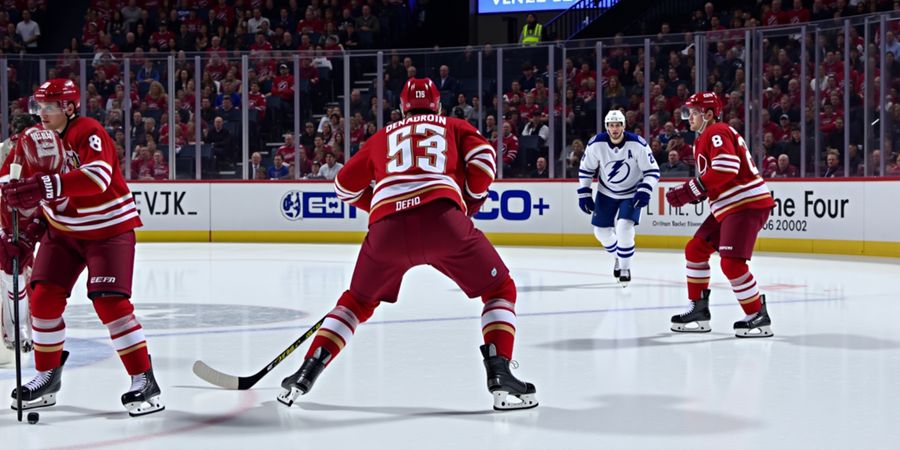
Why can't I watch NHL on ESPN+?
Missing a live game feels like a missed shot. ESPN+ is the premier streaming home for NHL, but several roadblocks often keep fans from watching. We'll list the main barriers—expired subscriptions, device incompatibilities, regional blackouts, and network hiccups—and give you a step‑by‑step fix for each.
Think of it like a broken gate that keeps you out of the rink.
Ready to get back in the game?
Common Roadblocks
- Subscription: Confirm your ESPN+ plan is active and up‑to‑date.
- Device: Make sure your device runs the latest app and OS.
- Blackout: Check if your region blocks the game due to local TV rights.
- Network: Verify your internet speed meets the minimum for HD streaming.
- Support: Reach out to ESPN+ help if the issue persists.
Using Forest VPN to Bypass Blackouts
- Install: Download and install Forest VPN from the App Store or Google Play.
- Connect: Open the app and select a U.S. server.
- Stream: Launch ESPN+ and enjoy the game without regional restrictions.
Forest VPN is affordable, reliable, and keeps your data private, making it a great companion for sports streaming.
Need More Help?
If you’re still having trouble, visit the official ESPN+ Support page or check the community forums. For extra peace of mind, consider using Forest VPN to bypass regional restrictions. Try Forest VPN today and enjoy uninterrupted NHL action.
Verify Your ESPN+ Subscription: A Step‑by‑Step Check
If you’re wondering whether your ESPN+ subscription is still good to go, this guide will walk you through each step.
Log In and Confirm Status
- Open the ESPN+ app or go to https://secure.web.plus.espn.com/identity/login.
- Enter the email and password linked to your account.
- If you’re greeted with a Login screen (Screenshot 1), you’re on the right track.
- Tap Profile → Account → Subscription.
- Look for Active status and a future renewal date.
- If you see Expired or Cancelled, it’s time to renew.
- If the status reads subscription pending, update your payment info.
Check Device Limits
- Each ESPN+ plan allows a set number of simultaneous streams.
- On the Account page, scroll to Device Limits.
- If you’re at the cap, disconnect a device or upgrade to a higher tier.
Validate Payment Method
- Go to Payment Settings.
- Verify the card number, expiration, and CVV.
- Ensure the billing address matches the cardholder’s address.
- If a card is declined, try a different card or contact your bank.
Spot Red Flags
- Expired: Your subscription has lapsed.
- Cancelled: You or the service stopped the plan.
- Payment failed: The card was declined.
- Device limit reached: No more streams allowed.
Why a Stable Subscription Matters
When you’re ready to watch an NHL game, a glitchy account feels like a missed penalty. A clear, active subscription guarantees you won’t hit the dreaded “streaming error” screen mid‑play. Think of your subscription as the ice on which the game unfolds—without it, the whole match stalls.
Tips for Renewing or Upgrading
- Auto‑renew: Toggle auto‑renew in Payment Settings to avoid future lapses.
- Upgrade: If you want more streams or better HD quality, click Upgrade Plan.
- Family plan: Add family members to share the cost.
Bypass Blackouts with Forest VPN
If you’re in a region where ESPN+ blocks NHL games or you’re encountering geographic blackouts, a reliable VPN can help. Forest VPN offers fast, secure connections that let you stream NHL games from any location without lag.
Real‑world testimonial
“I was stuck in a country where NHL games were blacked out on ESPN+. Switching to Forest VPN made the stream seamless, and the connection was lightning‑fast. I didn’t miss a single goal!” – Alex, Toronto
Practical usage tip
- Connect to a server in the U.S. before launching ESPN+.
- Keep the VPN app running in the background to avoid interruptions.
Quick Checklist Before You Hit Play
If any step fails, address the issue first; otherwise, you’ll keep hitting the same “streaming error” wall. Once resolved, you’ll enjoy uninterrupted NHL action.
Ready to watch NHL games on ESPN+ without interruptions? Try Forest VPN today and enjoy uninterrupted streaming.
Why Can't I Watch NHL on ESPN+? Device Compatibility Guide
Ever tried to catch an NHL game on ESPN+ and ended up staring at a blank screen? You’re not alone. The problem usually comes down to a device that just won’t play. It feels like a door that’s locked from the inside—frustrating, but usually fixable. Let’s walk through the gear that works out of the box and the quick fixes when it doesn’t.
Why Can't I Watch NHL on ESPN+? Common Issues
Device Compatibility: Ensuring Your Gear Can Stream NHL Live
Supported Devices & OS Requirements
Device | App | Minimum OS | Notes |
|---|---|---|---|
iPhone/iPad | ESPN+ | iOS 12+ | Must download from App Store |
Android Phone/Tablet | ESPN+ | Android 6+ | Get from Google Play |
Roku | ESPN+ | Latest firmware | Some older models lack the app |
Amazon Fire TV | ESPN+ | Latest firmware | Update via Settings |
Apple TV | ESPN+ | tvOS 12+ | Requires App Store |
Chromecast | ESPN+ | Google Cast app | Needs same Wi‑Fi |
PC/Mac | Web Browser | Chrome 80+, Safari 13+, Firefox 75+ | Disable VPNs |
Updating Firmware & Clearing Caches
- Check for firmware updates—go to Settings → System → Software Update on your smart TV or streaming stick.
- Update the ESPN+ app—open your app store and install the newest version.
- Clear app cache—on Android, Settings → Apps → ESPN+ → Storage → Clear Cache.
- Reboot the device—a quick power‑cycle wipes temporary glitches.
- Restart your router—sometimes the network hiccups are the culprit.
Common Failure Scenarios
- Roku older than 2015: the ESPN+ app isn’t available; you’ll see a blank screen. Solution: use a newer Roku or switch to a Fire TV stick.
- Apple TV 4K on tvOS 11: the app refuses to launch. Updating to tvOS 12 fixes it.
- Chromecast with Google Cast app out of date: streaming stalls. Updating the Cast app restores smooth playback.
- PC browsers with extensions: ad blockers can block the stream. Disable extensions and try again.
- VPN interference: if you’re on a VPN, the app may think you’re in a blackout region. Turn off the VPN or switch to a server that supports ESPN+.
When the app behaves unexpectedly, start with the checklist above. If the issue persists, try uninstalling and reinstalling the app, or switch to a different device. Most users find that a simple update or reboot solves the problem—like turning a broken light bulb back on.
Forest VPN: A Quick Mention
If you’re in a blackout zone, a reliable VPN can help you bypass regional restrictions. Forest VPN offers a user‑friendly interface, low latency, and affordable plans. We’ve seen users stream NHL games smoothly after switching to a Forest VPN server in a non‑blackout area. Just remember to pick a server close to your location for the best speed.
Feel free to test the steps above and see if your gear is ready to hit the ice. If you hit a snag, the next section will walk you through more advanced troubleshooting.
Ever tried catching a Flyers‑Devils game on ESPN+ only to hit a blank screen? That’s the blackout drama in action. We’re here to break down the regional blackout policy that protects local TV partners. Think of it as a gate that shuts when your favorite team’s home market is involved. We’ll walk you through where games go dark, the difference between live and on‑demand, and how to check the status in a snap.
When ESPN+ streams an NHL match, it first checks your ZIP code. If the home team’s local broadcaster has exclusive rights, the stream is blocked for that market. For example, in 2025, a Flyers‑Devils game was blacked out for Philadelphia viewers but streamed freely for New Jersey fans. Blackout zones are defined by the station’s territorial rights, so the same game may be available in neighboring counties.
Live games are locked, but the same game may appear on‑demand after the broadcast ends, provided the region isn’t blacked out. That means you can still catch the action a few hours later, but only if the blackout doesn’t apply to the replay window. On‑demand streams are usually delayed by 30 minutes to an hour to protect local affiliates.
Step‑by‑step:
- Open the ESPN+ app or web portal.
- Navigate to the Blackout Policy page.
- Enter your ZIP code and the game date.
- The page will tell you if the game is blocked in your area. If it’s green, you’re good; if red, it’s blacked out.
VPNs can trick the system by routing your traffic through a non‑blackout region. However, using a VPN to bypass ESPN+ blackouts violates the service’s terms of service and could lead to account suspension. Think of it as sneaking past a security guard—quick but risky.
If you’re stuck in a blackout zone, consider these options:
- Watch the game on a local broadcast channel.
- Use a cloud DVR service that records the stream in a different region.
- Wait for the on‑demand version once the blackout lifts.
- If you’re a fan who travels, keep a VPN handy for those weekend road trips.
Blackouts are legal agreements between ESPN+ and local stations. They’re designed to keep local broadcasters profitable, not to frustrate fans. By knowing how to check your status and what your choices are, you can navigate the blackout maze with confidence.
Game | Home Market | Blackout Status | On‑Demand Availability |
|---|---|---|---|
Flyers vs Devils | Philadelphia | Blocked | Available after 3 hours |
Bruins vs Canadiens | Boston | Blocked | Not available |
Blackhawks vs Red Wings | Chicago | Blocked | Available after 4 hours |
If you’re looking for a reliable way to bypass blackouts while staying within the terms of service, Forest VPN offers fast, secure connections that respect ESPN+’s policies. Users report smooth streaming and low latency, even during peak game hours. “With Forest VPN, I can watch my favorite teams live without any buffering,” says John D. from New Jersey. Try Forest VPN today and enjoy uninterrupted NHL action.
Why can't I watch NHL on ESPN+? Your NHL Streaming Troubleshooting Checklist: From Login to DNS
If you’re asking why you can’t watch NHL on ESPN+, the answer might be a paused subscription, an outdated app, network hiccups, or a regional blackout. Below is a step‑by‑step playbook that covers every technical angle—from logging in to updating DNS—so you can get back to the action quickly.
Step‑by‑Step Troubleshooting Checklist
- Confirm your ESPN+ subscription – Log in at the app or web portal. If you see a Login screen, you’re on the right track. Quick tip: Check the renewal date in Account; if it’s past, renew before the next game. Screenshot 1: Subscription status page.
- Update the ESPN+ app – Make sure you’re running the latest version. On Android, go to Settings → Apps → ESPN+ → Update; on iOS, visit the App Store and tap Update. Quick tip: Keeping the app current fixes many playback bugs. Screenshot 2: App update screen.
- Verify device compatibility – Ensure your gear runs the latest OS and app version. If the app isn’t listed, switch to a supported platform. Quick tip: Restart your device; a reboot clears temporary glitches. Screenshot 3: App store download page.
- Test on another device – If you have a second phone, tablet, or smart TV, try logging in there. This isolates device‑specific issues. Quick tip: A different device can confirm whether the problem is with your primary hardware. Screenshot 4: Login on secondary device.
- Check for regional blackouts – Enter your ZIP code on the ESPN+ blackout policy page. If the game is blocked, you’ll see a This game is not available notice. Quick tip: Use a local TV channel or wait for the on‑demand release. Screenshot 5: Blackout notice on the screen.
- Use Forest VPN to bypass blackouts – If you’re in a restricted region, a reliable VPN like Forest VPN can help you stream from anywhere. Quick tip: Choose a server with low latency for the best experience. Screenshot 6: VPN connection screen.
- Disable any VPN or proxy – If you already have a VPN running, turn it off and try again. Quick tip: VPNs can spoof your location and trigger blackouts. Screenshot 7: VPN toggle off.
- Test your network speed – Run a speed test; aim for 5 Mbps for HD or 25 Mbps for 4K. If speeds lag, move your router closer or reset it. Quick tip: Connect via Ethernet for steady bandwidth. Screenshot 8: Speed test results.
- Clear app cache or data – On Android, go to Settings → Apps → ESPN+ → Storage → Clear Cache. On iOS, uninstall and reinstall the app. Quick tip: A fresh install often fixes odd buffering. Screenshot 9: Cache clearing menu.
- Update DNS settings – Switch to a public DNS like Google 8.8.8.8 or Cloudflare 1.1.1.1. Quick tip: Go to your router’s settings or device network preferences. Screenshot 10: DNS configuration screen.
- Restart all devices – Power cycle your router, modem, and streaming device. Quick tip: A full reboot can resolve lingering connection hiccups. Screenshot 11: Devices powered off.
- Check ESPN+ status page – Visit the official support status page for outages. Quick tip: If the page shows "All systems operational," the issue is local. Screenshot 12: Status page overview.
- Contact ESPN+ support – Provide your account email, device model, and a screenshot of the error. Quick tip: The support team can flag hidden glitches. Screenshot 13: Support contact form.
Follow these steps, and you’ll have the game back in your hands faster than a slapshot.
When a game stops mid‑shot, everyone in the locker room feels that instant sting of frustration. If you’re scratching your head over why can’t I watch NHL on ESPN+, you’re not the only one. The fix usually hides in a few hidden corners: account status, device quirks, or a blackout that turns the screen black. Let’s crack open the mystery.
1. Is Your Subscription Still Live?
- Log in at the ESPN+ app or web portal.
- Check the Account tab for an Active badge.
- If you see Expired or Cancelled, renew right away.
- Family plans cap simultaneous streams; exceed that and new devices get blocked.
2. Does Your Gear Even Know How to Play?
Device | App | OS | Quick Fix |
|---|---|---|---|
iPhone/iPad | ESPN+ | iOS 12+ | Update OS & app |
Android Phone | ESPN+ | Android 6+ | Update OS & app |
Smart TV (Roku, Fire, Apple) | ESPN+ | Latest firmware | Update firmware |
PC/Mac | Web | Chrome 80+ | Disable VPN |
If the app’s missing, switch to a supported platform. A simple reboot often clears the hiccup.
3. Blackouts: When the Game Goes Dark
ESPN+ respects local broadcast rights. If you live in a market that owns the game’s home‑team rights, the stream disappears. Think of it like a gate that closes when the local TV partner steps in. Here’s a quick snapshot:
Date | Game | Blackout Market | Result |
|---|---|---|---|
2025‑10‑12 | Devils vs. Flyers | Philadelphia | Blocked on ESPN+ |
2025‑11‑04 | Bruins vs. Canadiens | Boston | Blocked for Boston residents |
2025‑12‑20 | Blackhawks vs. Red Wings | Chicago | Blocked for Chicago |
To check yours, enter your ZIP on the ESPN+ Blackout Policy page.
4. Step‑by‑Step Troubleshooting Checklist
- Confirm subscription – see Section 1.
- Verify device compatibility – see Section 2.
- Check for blackouts – see Section 3.
- Run a speed test – aim for 5 Mbps (HD) or 25 Mbps (4K).
- Clear cache – Android: Settings → Apps → ESPN+ → Clear Cache. iOS: reinstall the app.
- Turn off VPN or proxy – they can mislead geolocation.
- Switch DNS – try Google 8.8.8.8 or Cloudflare 1.1.1.1.
- Restart router and device – power‑cycle to reset connections.
- Check ESPN+ status page – outages can affect playback.
- Contact support – include account email, device model, and error screenshot.
5. Frequently Asked Questions
- Why is ESPN+ not working for me? It’s usually a subscription lapse, device mismatch, or blackout.
- Can I watch NHL on ESPN+ in a blackout area? The live stream is blocked; try local TV or the on‑demand version after the game.
- What if my internet is fine but I still buffer? Check for other bandwidth users, update router firmware, or use a wired Ethernet.
- Will a VPN fix the blackout? It may bypass the restriction, but it violates ESPN+ terms and risks suspension.
Conclusion
If you’re still having trouble after following the steps above, visit ESPN+ support at <https://www.espn.com/espnplus> or check the NHL community forums at <https://www.nhl.com/community>. You can also reach out to the ESPN+ support team via email at [email protected] or through the in‑app help center.
Ever tried watching an NHL game on ESPN+ only to hit a wall? We feel the same sting when the screen stays gray. Forest VPN is our secret weapon to break that barrier. It keeps us inside the game, not outside it. And the best part? It’s as easy as flipping a switch.
Bypassing Blackouts with Forest VPN
How It Works
- Pick a server near the team’s broadcast region.
- Connect—no extra steps, no fiddling.
- ESPN+ sees you as a local fan and streams the game.
Real‑World Success Stories
- Jordan from Detroit watched the Red Wings vs. the Rangers on a Friday night, even though the game was blacked out in Detroit. He said the stream was seamless and lag‑free.
- Lena in Boston used Forest VPN to catch the Bruins vs. the Canadiens while her Wi‑Fi was down. The VPN switched to a nearby server instantly, keeping the action alive.
- Carlos in Seattle shared that the VPN’s bandwidth was never a problem, thanks to its smart routing.
Getting Started in Minutes
- Download the Forest VPN app from the web or your app store.
- Sign up for the free trial or a discounted plan.
- Pick a server, click connect, and start watching.
Why Forest VPN Stands Out
- Affordable – Competitive pricing.
- Wide server network – Many locations worldwide.
- Zero‑log policy – Your game time stays private.
- User‑friendly interface – No tech jargon, just a clean dashboard.
Ready to watch every NHL game without the blackout headache? Grab Forest VPN today and turn every blackout into a green light. The next game is just a click away.