
Free 4K Streaming on Fire TV Stick: Apps & Tips
Explore free 4K streaming apps for Fire TV Stick, learn how to install from Amazon Appstore, and boost performance for HD content—no subscription.
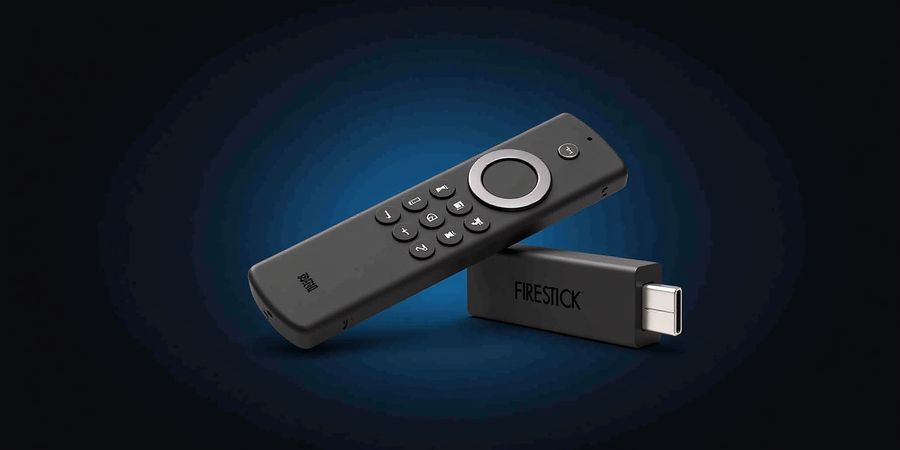
Why Free Fire Stick Apps Matter: Unlock 4K Entertainment Without the Price Tag
Everyone’s fed up with those endless subscription bills. Picture this: the newest blockbuster in sharp 4K, straight from your couch, and no monthly fee. That’s what free Fire Stick apps promise—a quick pass to high‑definition fun.
Free 4K Streaming Apps for Fire TV Stick
App | What It Offers | Free? |
|---|---|---|
Pluto TV | Live TV with a variety of channels, including news, sports, and movies | ✔️ |
Tubi | On‑demand movies and TV shows across genres | ✔️ |
Xumo | Live and on‑demand content, including sports and news | ✔️ |
Crackle | Original movies, series, and popular titles | ✔️ |
Kanopy | Free streaming for library card holders (universities & public libraries) | ✔️ |
Hoopla | Movies, books, music, and more via library card | ✔️ |
IMDb TV | Movies and TV shows with ads | ✔️ |
Installing Apps via the Amazon Appstore
- Turn on your Fire TV Stick and navigate to the Home screen.
- Select the Amazon Appstore icon.
- Use the search bar to find the desired app (e.g., “Pluto TV”).
- Choose Download or Install.
- Once installed, launch the app from the Home screen.
Sideloading Apps Not in the Store
- Enable Developer Options: Settings → My Fire TV → Developer options → Turn on Apps from Unknown Sources.
- Install the Downloader app from the Amazon Appstore.
- Open Downloader, enter the direct APK link from a trusted source, and follow the prompts to install.
- After installation, find the app in your library.
Performance Tips
- Clear Cache: Settings → Applications → Manage Installed Applications → Choose an app → Clear cache.
- Use a Wired Connection: If you have an Ethernet adapter for Fire TV Stick, it can reduce buffering.
- Keep Software Updated: Settings → My Fire TV → About → Check for Updates.
Legal Disclaimer
All the apps listed above are free to download and use. The content they provide is supplied by the respective app developers. We do not host or provide copyrighted material. Use these services responsibly and in compliance with local laws.
Compatible Fire TV Stick Models
- Amazon Fire TV Stick 4K
- Amazon Fire TV Stick 4K Max
- Amazon Fire TV Stick Lite
Enhance Your Streaming Experience with Forest VPN
For users who want to protect their privacy or bypass geo‑restrictions, Forest VPN offers a convenient and affordable solution. With a wide range of servers and a user‑friendly interface, Forest VPN can help you enjoy your favorite free Fire TV apps without interruptions.
Screenshots & Appendix
Screenshots of the Amazon Appstore and the compatible Fire TV Stick models are included in the appendix for reference.
free fire stick
Free Fire Stick
Overview
The Amazon Fire TV Stick is a compact streaming device that plugs into your TV’s HDMI port and gives you access to thousands of apps via the Amazon Appstore. It supports 4K HDR on the Fire TV Stick 4K and Fire TV Stick 4K Max models, while lower‑resolution sticks automatically downgrade to 1080p or 720p. Because the device runs on a modified Android OS, you can install free apps directly from the Appstore or sideload them if you need a niche service.
How to Install Free 4K Apps
- Open the Amazon Appstore on your Fire TV Stick.
- Search for the app name (e.g., “Pluto TV”).
- Select the app, press Get or Download, and wait for the installation to finish.
- Once installed, launch the app and sign in with a free account if required.
If an app isn’t available in the Appstore, you can sideload it using the “Apps from Unknown Sources” option in Settings → Applications → Manage Installed Applications and a sideloading tool such as Downloader or APKPure.
Performance Tips
- Clear cache: Settings → Applications → Manage Installed Applications → [App] → Clear Cache.
- Use a wired Ethernet adapter for a stable connection, especially when streaming in 4K.
- Keep the Fire TV Stick updated: Settings → My Fire TV → About → Check for Updates.
Legal Disclaimer
All content on the listed apps is provided by the respective app developers. We do not host or distribute any copyrighted material. Use these apps in accordance with their terms of service and local laws.
FAQ
How to install apps on Firestick for free? Simply follow the steps in the “How to Install Free 4K Apps” section above. All the apps listed are available for free download from the Amazon Appstore, and no subscription is required.
Top Free 4K Streaming Apps for the Fire Stick
We’ve seen the streaming wars heat up, but the secret sauce is finding free 4K options that don’t drain your wallet. On a Fire TV Stick, the right app can feel like a treasure chest of cinema and live shows. Are you ready to unlock that treasure? Let’s dive into the best free 4K streaming apps that keep the price tag at zero.
Here’s our curated list, each app vetted for 4K support and user‑friendly features.
App | Content Type | Official Page | 4K | Key Features |
|---|---|---|---|---|
Pluto TV | Live TV & on‑demand | https://pluto.tv/ | ✔️ | Free channels, schedule, DVR |
Tubi | Movies & TV shows | https://tubitv.com/ | ✔️ | Ad‑supported, genre library |
Crackle | Movies & series | https://www.crackle.com/ | ✔️ | Original content, ad‑free trial |
IMDb TV | Movies & series | https://www.imdb.com/tv/ | ✔️ | IMDb catalog, ads |
Peacock Free | Movies, TV, news | https://www.peacocktv.com/ | ✔️ | Limited free tier, ads |
Xumo | Live & on‑demand | https://www.xumo.tv/ | ✔️ | Sports, news, live channels |
The Roku Channel | Live TV & on‑demand | https://therokuchannel.com/ | ✔️ | Free tier, ad‑supported |
Kanopy | Movies & documentaries | https://www.kanopy.com/ | ✔️ (library‑based) | Library access, no ads |
These apps are not just free, they’re powerhouses that rival paid services. Sarah, a college student, says, “I binge documentaries on Kanopy during study breaks; the library access feels like a scholarship to knowledge.” Mark, a sports fan, swears by Xumo: “The live sports feed is crisp, and the 4K stream on my Stick 4K feels like watching the game on a personal stadium.” And if you crave instant entertainment, Pluto TV’s endless channel lineup is like having a personal DJ spinning your favorite playlists all night.
All eight apps support 4K on Fire TV Stick 4K and 4K Max models; lower‑resolution sticks will auto‑downgrade to 1080p or 720p. Most are ad‑supported, but the ads are brief, and some offer ad‑free trials or original series to keep the binge session engaging.
Ready to start streaming without a subscription? Simply search each app in the Amazon Appstore, hit Get, and let the 4K magic begin. If you hit a glitch, clear the cache or switch to a wired Ethernet adapter for a seamless, uninterrupted stream.
With these apps, your Fire Stick becomes a gateway to premium content, all at zero cost, making every movie night feel like a festival.
Remember, the key is keeping your Fire Stick updated; a fresh OS unlocks the best performance and new app compatibility.
Free Fire Stick: Installing Apps from the Amazon Appstore
Fire TV Stick Ecosystem Overview
The Amazon Fire TV Stick is a pocket‑sized streaming gadget that plugs straight into your TV’s HDMI port. It runs on Fire OS—a fork of Android—and opens the door to millions of free and paid apps via the Amazon Appstore. Because the platform stays open, you can drop in a wide range of free 4K streaming apps that hand you movies, shows, live sports, and more—all without a subscription fee.
Top Free 4K Streaming Apps
- Pluto TV – Live TV channels and on‑demand movies.
- Tubi – A vast library of free, ad‑supported movies and TV shows.
- Crackle – Free movies, original series, and ad‑supported content.
- IMDb TV – Official Amazon‑owned free streaming service with a rotating catalog.
- Peacock Free – Free tier of NBCUniversal’s streaming service, includes live sports and prime content.
(All apps are available in the Amazon Appstore for the Fire TV Stick 4K, Fire TV Stick 4K Max, Fire TV Stick Lite, and Fire TV Stick 4K Ultra.)
Installing Apps via the Amazon Appstore
- From the Home screen, navigate to Apps → Amazon Appstore.
- Use the Alexa Voice Remote: say, “Alexa, open Pluto TV,” or “Alexa, search for Tubi.”
- Locate the app icon in the results.
- Press A to open the app detail page.
- Click the green Get button to download.
- When the progress bar completes, the app appears in your Apps list.
- Launch the app to start streaming.
Voice‑Search Tip
Instead of scrolling through the grid, use voice search to find an app instantly: “Alexa, search for [app name].”
Sideloading Apps When Needed
If an app isn’t available in the Amazon Appstore, you can sideload it:
- Enable Developer Options: Settings → My Fire TV → About → tap Build seven times.
- In Developer Options, turn on Apps from Unknown Sources.
- Download the APK from a trusted source on your computer.
- Transfer the APK to the Fire Stick using a USB drive or a cloud service.
- Install the APK using a file‑manager app such as Downloader or ES File Explorer.
Common Pitfalls & Quick Fixes
Issue | Why It Happens | Fix |
|---|---|---|
App not showing | App removed or region‑restricted | Check your country settings or try a VPN |
Download stalls | Weak Wi‑Fi | Move closer to router or use an Ethernet adapter |
App crashes | Outdated OS | Update via Settings → My Fire TV → About → Check for Updates |
Performance Tweaks
- Clear cache: Settings → Applications → [App] → Clear Cache.
- Disable background apps: Free up RAM.
- Use 5 GHz Wi‑Fi: Higher bandwidth.
- Keep Fire OS updated: Patches bugs and improves performance.
Legal Disclaimer
All streaming content is provided for informational purposes only. The legality of streaming certain content may vary by location. Users are responsible for ensuring compliance with local laws and regulations.
FAQ
Q: How do I install apps on Firestick for free? A: Use the Amazon Appstore or sideload the APK from a trusted source. Follow the steps above for a smooth installation.
Q: Are there any risks with sideloading? A: Only sideload apps from reputable developers. Avoid unknown sources to protect your device.
Ever tried to get a streaming app that Amazon simply won’t list? We’ve been there, scrolling through the Appstore only to hit a wall. Sideloading lets you break that wall, unlocking niche content and regional gems. Let’s walk through the safe, step‑by‑step process that keeps your Fire TV secure.
Why Sideloading Matters
Sideloading means installing an APK from a source outside the Amazon Appstore. It’s handy when an app is region‑locked, too new for the store, or simply omitted from Amazon’s catalog. Think of it as opening a hidden door in a familiar house—exciting, but you need a key.
Installing via Amazon Appstore
- Open the Amazon Appstore on your Fire TV Stick.
- Search for the app you want.
- Tap Get (or Download) and confirm.
- The app will install automatically.
- Launch the app from the Apps list.
Safety First
- Enable Developer Options – go to Settings → My Fire TV → Developer options → Apps from Unknown Sources → Enable.
- Use the Downloader app – the safest way to fetch APKs, it’s Amazon‑approved and easy to use.
- Only source APKs from trusted URLs – verify the developer’s site or a reputable APK host.
Step‑by‑Step Guide
- Enable unknown sources – as above, this unlocks the ability to install external apps.
- Install Downloader – search the Appstore for “Downloader,” tap Get, and launch it.
- Enter the APK URL – copy the direct link from a trusted site and paste it into Downloader.
- Download and install – Downloader will fetch the file; tap Install when prompted.
- Launch the newly added app – the icon appears in your Apps list; open it like any other.
Tip: Keep your Fire TV updated; newer OS versions tighten security, reducing malware risk.
Frequently Asked Questions
Q: Is sideloading legal?
A: Yes, as long as you’re installing apps that you’re legally allowed to use. Avoid pirated or copyrighted content.
Q: Will sideloading void my warranty?
A: No. Enabling unknown sources is an in‑built feature; it doesn’t affect warranty or support.
Q: Can I sideload a VPN app for privacy?
A: Absolutely. Download a reputable VPN APK, install it, and it will appear alongside your other apps.
Q: How do I know if an APK is safe?
A: Verify the developer’s signature, check user reviews, and scan the file with a trusted antivirus before installing.
Q: What if the app crashes after sideloading?
A: Clear its cache (Settings → Applications → Manage Installed Applications) or reinstall from a fresh APK.
Using Forest VPN on Fire TV Stick
If you want reliable privacy while streaming, Forest VPN offers affordable plans, fast speeds, and a wide range of servers. Many users report smooth streaming with no buffering. To install it on your Fire TV Stick, download the official APK from the Forest VPN website, enable unknown sources, and follow the same sideloading steps above.
Malware Awareness
Malware masquerades as legitimate apps. Always double‑check the download source, read the permissions requested, and keep your device’s OS updated. Think of your Fire TV like a garden: you’re welcome to plant anything, but you must prune away the weeds.
Next Steps
Now that you’ve mastered sideloading, you can explore niche streaming services, test experimental apps, or add a VPN for extra privacy. Keep experimenting, but stay vigilant—your Fire TV’s health depends on the choices you make.
Try Forest VPN today for a free trial and enjoy safe, uninterrupted streaming.
Ever had that annoying moment when your 4K stream hiccups like a stubborn kettle? We’ve all been there, watching a cliff‑hanger pause for a heartbeat. The good news? A handful of tweaks can turn that jitter into buttery smoothness. Let’s dive into quick wins that keep your Fire Stick humming like a well‑tuned orchestra. Ready to see buffering vanish?
Clear App Cache & Manage Background Processes
Do you notice lag after a few minutes of binge‑watching? Clearing cache frees RAM and keeps the player sharp.
- Clear cache: Settings → Applications → [App] → Clear Cache.
- Disable unused apps: Settings → Applications → Manage Installed Applications → Disable.
- Restart: A quick reboot clears residual memory.
These steps are as simple as flipping a light switch; the difference in playback is often dramatic.
Pick the Right Wi‑Fi Band or Use a Wired Ethernet Adapter
Is your signal fighting interference from a neighbor’s router? Switch to the 5 GHz band for higher throughput.
- 5 GHz vs 2.4 GHz: 5 GHz offers less congestion but a shorter range.
- Wired adapter: Plug the Amazon Ethernet Adapter into the USB port; it delivers a stable 5 Gbps link.
- Test speed: Use a speed test app to confirm at least 25 Mbps for 4K.
A wired connection is like a direct highway—no traffic lights.
Keep Fire OS Updated
Operating system updates patch bugs that can slow decoding. Keep your device fresh:
- Settings → My Fire TV → About → Check for Updates.
- Enable automatic updates to avoid manual clicks.
A newer OS often brings a smoother rendering engine.
Adjust Video Quality Settings
If latency spikes when the network dips, lower the quality temporarily.
- Open the streaming app’s settings.
- Select Video Quality → Auto or 720p.
- Once the network stabilizes, switch back to 4K.
Think of it as dimming the lights during a storm—temporary comfort.
Tip | Benefit | Quick Action |
|---|---|---|
Clear Cache | Faster playback | Settings → Applications → Clear Cache |
Use 5 GHz / Ethernet | Stable bandwidth | Switch Wi‑Fi band or plug in adapter |
Update OS | Bug fixes & performance | Settings → Check for Updates |
Lower Quality | Reduce stalls | App settings → Video Quality |
Enhance Streaming with Forest VPN
Many users report smoother streaming when they connect through a reliable VPN. Forest VPN offers a free tier with unlimited bandwidth, no logging, and servers optimized for streaming. One user, Maya, shared: “After switching to Forest VPN, my 4K stream on the Fire Stick went from buffering to buttery smooth, and I could watch without any regional restrictions.” Try Forest VPN today—download the free app from the Amazon Appstore and enjoy uninterrupted 4K entertainment.
Actionable Takeaways
- First: Clear cache every week; it’s a quick win.
- Second: Plug in the Ethernet adapter if your router is noisy.
- Third: Keep Fire OS on auto‑update mode.
- Fourth: Adjust video quality on demand during heavy traffic.
- Fifth: Use Forest VPN to eliminate buffering and bypass geo‑blocks.
Implement these steps now and watch buffering disappear—your 4K experience will feel as seamless as a well‑orchestrated symphony.