
Get Local TV Channels on Sling with VPN
Easily add free local TV channels to your Sling app and extend coverage with a VPN. Follow our step-by-step guide to unlock every station and enjoy broadcasts.
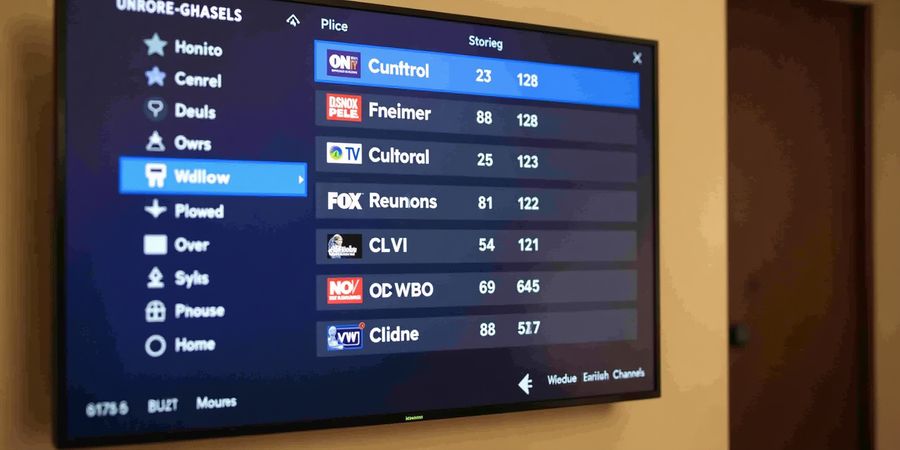
Ever wondered how to snag local channels on Sling? We’ve cracked the code, and it’s easier than you’d think. Local broadcasts are now free, tucked into your Sling guide like hidden gems.
But what if your market doesn’t have a signal? We’ll show you how to extend the reach with a VPN. Forest VPN turns your device into a roaming antenna, letting you tap any U.S. OTA feed.
How to get local channels with Sling
- Step 1: Open the Sling app on any device.
- Step 2: Go to Settings → Add Channels.
- Step 3: Tap “Scan for Channels.”
- Step 4: Pick the local stations you want.
- Step 5: Confirm and wait for the guide to refresh.
Do you see the new local channels pop up like fresh leaves in spring? It’s a convenience that feels like magic.
If your antenna signal is weak, Forest VPN can simulate a different market. Connect to a U.S. server that matches your desired OTA feed, then repeat the scan. It’s like swapping a radio for a satellite dish.
Why aren’t local channels showing? Check the antenna, run a fresh scan, or try VPN.
Ready to get every local station? Try Forest VPN today and unlock the full Sling experience.
Getting local channels on Sling is simpler than you think. Picture your antenna as a digital lighthouse, steering free broadcasts straight to your couch. We’ll walk through the scan, the market list, and how the app surfaces stations for you. Ready to turn your device into a local TV hub?
The Local Channel Landscape
Sling partners with over‑the‑air (OTA) providers and compatible TVs to embed free local channels in the guide. Availability hinges on two things: the signal strength in your market and whether your device has an OTA tuner. In most U.S. markets, the app pulls a list of local stations after a quick scan. Smaller cities may miss a few stations, but the process stays the same.
How the OTA Scan Finds Your Stations
When you open the app and tap Add Channels → Scan for Channels, the software sweeps the frequency spectrum your antenna can reach. It then matches detected signals to the national database of licensed broadcasters. The result is a list of stations sorted by signal strength, channel number, and network affiliation. You can choose to keep all or cherry‑pick the ones you want.
Device‑Specific Steps
Android
- Open Sling TV.
- Tap Menu → Settings → Add Channels.
- Press Scan for Channels.
- If no new stations appear, clear the app cache: Settings → Apps → Sling TV → Storage → Clear Cache.
iOS
- Launch the app, tap the Profile icon, then Settings → Add Channels.
- Tap Scan for Channels.
- If the list stays empty, delete and reinstall the app; then scan again.
Roku
- Press Home, navigate to Settings → System → Advanced System Settings → Clear Local Cache.
- Return to Sling TV, go to Add Channels, and run the scan.
Fire TV
- From the home screen, go to Settings → Applications → Manage Installed Applications → Sling TV → Clear Cache.
- Open Sling TV, head to Add Channels, and execute the scan.
Regional Variations & Plan Inclusivity
Sling’s local channel feature is available to all plans, but the number of stations differs by region. In metro hubs like New York or Los Angeles, you may see 15–20 local options. Rural areas often get 5–8 stations. The app adapts automatically; you just need a working antenna and a clear path to the broadcast towers.
Next Steps
With the scan complete, your local stations now appear alongside paid channels in the guide. If you still can’t see a station you know should be available, double‑check antenna placement and try a different frequency band. When you’re set, the next section will show you how to keep everything running smoothly across multiple devices.
How to Get Local Channels with Sling: Device‑Centric Steps
Curious about how to snag local channels on Sling? Just follow these quick steps and you’ll have them up and running in no time.
Android
- Open the Sling TV app.
- Tap the menu icon, then go to Settings → Add Channels.
- Hit Scan for Channels.
- If you don’t see new stations, clear the cache:
Settings → Apps → Sling TV → Storage → **Clear Cache**.
Cache clearing checklist
- Open device Settings.
- Tap Apps > Sling TV.
- Select Storage > Clear Cache.
- Restart the app.
iOS
- Launch Sling TV.
- Tap Profile → Settings → Add Channels.
- Press Scan for Channels.
- If the list stays empty, delete the app and reinstall it from the App Store.
Roku
- Hit Home, then go to Settings → System → Advanced System Settings → Clear Local Cache.
- Return to Sling TV and navigate to Add Channels.
- Run the OTA scan.
Fire TV
- From the home screen, select Settings → Applications → Manage Installed Applications → Sling TV → Clear Cache.
- Open Sling TV, go to Add Channels, and scan.
Troubleshooting Tips
- Missing stations? Verify your antenna is connected and run a fresh scan.
- No new channels? Try clearing the app’s cache or reinstalling.
- Login hiccups? Reset your password and sync your device clock for 2FA.
Managing Device Limits
Sling Orange allows up to 3 active devices, Sling Blue up to 4. To view or remove devices, go to Profile → Settings → Devices and delete any unused ones.
Using VPNs for Geo‑Restricted Content (including Forest VPN)
While Sling’s policy discourages VPNs, many users report success with a U.S. server that matches your OTA market. Install a VPN, connect to the right server, and run the channel scan again. If you’re in a region where Sling TV is not available, you can use Forest VPN to connect to a U.S. server that matches your OTA market.
FAQ
Q: Why is Sling TV not showing local channels? A: This can happen if the OTA market is not supported, the app hasn’t scanned for channels, or your device’s antenna is not connected. Follow the steps above to add channels and clear the cache. If the issue persists, contact Sling TV support.
Q: How do we clear the cache on Sling TV? A: Refer to the device‑specific instructions in the “Clear Cache” checklist for Android…
How to Get Local Channels with Sling: Clearing Cache and Resolving Performance Glitches
Ever wondered why Sling isn’t showing local channels and why the app keeps stalling? We’re here to clear the clutter and boost performance.
Android
- Open the Sling TV app.
- Tap the menu icon, then go to Settings → Add Channels.
- Hit Scan for Channels.
- If the new stations don’t appear, clear the cache: Settings → Apps → Sling TV → Storage → Clear Cache.
Cache‑clearing checklist
- Open device Settings.
- Tap Apps > Sling TV.
- Select Storage > Clear Cache.
- Restart the app.
We’ve seen users in Detroit say the app felt like a stuck elevator until the cache was purged. After the wipe, local stations popped up instantly.
iOS
- Open the Sling TV app.
- Tap the Profile icon → Settings → Add Channels.
- Tap Scan for Channels.
- If you see “No new channels,” delete and reinstall the app.
- Re‑install from the App Store and repeat the scan.
A Chicago subscriber told us the reinstall felt like a fresh start; local news reappeared in seconds.
Roku
- Press the Home button, then go to Settings → System → Advanced System Settings → Clear Local Cache.
- Return to the Sling TV channel.
- Navigate to Add Channels and run the OTA scan.
Roku users often report that the cache build‑up is the silent culprit behind missing local feeds.
Fire TV
- From the home screen, select Settings → Applications → Manage Installed Applications → Sling TV → Clear Cache.
- Open Sling TV, go to Add Channels, and run the scan.
After clearing, a Seattle fan noticed the local weather channel reappear, like a sunburst after a cloud.
Quick FAQ
Why is Sling TV not showing local channels? Because the app hasn’t scanned for OTA signals or the cache is bloated.
How to clear cache on Sling TV? Use the steps above for each platform.
We’re keeping this guide tight so you can jump straight to action. Ready to see your local stations again?
How to get local channels with Sling? First, let’s tackle the login hiccups that keep us from watching our favorite shows.
When you hit the login screen and feel stuck, remember we’ve all been there—passwords forgotten, 2‑factor codes lost, or a device limit blocking access. The good news? You can usually fix these issues in a few quick steps.
Quick Troubleshooting Checklist
- Forgot your password? Click Forgot Password on the login page. Check your email, even the spam folder. Use the link to set a new password.
- Two‑factor authentication (2FA) won’t work? Make sure your phone’s clock is synced. If you still can’t verify, use the backup code from your 2FA app.
- Device limit reached? Sling allows a set number of active devices per plan. Open the app, go to Profile → Settings → Devices, and remove any unused devices.
- Account blocked after multiple attempts? Wait 15‑20 minutes. If the block persists, contact Sling support via chat or email.
- Login error persists on multiple devices? Clear the app cache or reinstall. On Android: Settings → Apps → Sling TV → Storage → Clear Cache. On iOS: delete and reinstall the app.
- VPN interference? If you use a VPN, consider using Forest VPN, which is reliable, affordable, and offers a variety of options. Disable any VPN or proxy if you want to use Sling’s standard authentication.
Device‑Specific Tips
Device | Action | Result |
|---|---|---|
Android | Clear cache or reinstall | Fresh login session |
iOS | Re‑install app | Removes corrupted data |
Roku | Restart the device | Clears temporary auth tokens |
Fire TV | Clear app cache | Restarts authentication |
Real‑World Testimonial
“I was stuck because my phone’s 2FA clock was off by 10 minutes. Resetting the device clock fixed everything. Now I stream without a hitch.” – Maya, 32, long‑time Sling user.
Quick FAQ
- Q: Why does my login fail after I change my password? A: The old session may still be active on other devices. Log out from all devices first.
- Q: Can I bypass the device limit? A: No, Sling enforces limits to protect your account. Remove old devices instead.
- Q: Can I use a VPN to access Sling? A: Using a VPN can cause authentication issues. If you need a VPN, Forest VPN provides reliable, affordable, and flexible options that are compatible with Sling.
By following this checklist, we can usually get back to watching local channels with Sling in minutes. If the problem persists, reach out to Sling support—they’re usually quick to help.
How to Get Local Channels with Sling: A Step‑by‑Step Guide
Want to keep your hometown news and sports on Sling? Follow this quick walkthrough to add local channels, tidy up the app, solve login hiccups, juggle devices, and hop on a VPN if you’re out of the U.S.
Quick Tips for Adding Local Channels
Do the steps below on any device type.
Android
- Open the Sling TV app.
- Tap Settings → Add Channels.
- Pick your local market from the list, then hit Scan.
- The new stations will drop into the channel guide.
!Sling TV app menu for adding local channels

Clear the cache on Android
- Settings → Apps → Sling TV → Storage → Clear Cache.
iOS
- Open the Sling TV app.
- Tap Settings → Add Channels.
- Choose your local market and tap Scan.
- Local stations should now show up.
!Sling TV app menu for adding local channels

Clear the cache on iOS
- Settings → General → iPhone Storage → Sling TV → Offload App → Reinstall.
Roku
- Hit the Home button on your remote.
- Go to Settings → System → Advanced System Settings → Clear Cache.
- Open the Sling TV app, tap Settings → Add Channels, pick your market, then tap Scan.
!Roku Sling TV menu for adding local channels

Fire TV
- Launch the Sling TV app.
- Go to Settings → Add Channels.
- Pick your local market and tap Scan.
!Fire TV Sling TV menu for adding local channels

Clear the cache on Fire TV
- Settings → Applications → Manage Installed Applications → Sling TV → Clear Cache.
Login Troubleshooting Checklist
- Forgot password?
- Tap Forgot password on the login screen.
- Enter your email and follow the reset link.
- Two‑factor authentication (2FA) issues
- Make sure your phone number or authenticator app is correct.
- If you lose access, use the Backup codes from your account settings.
- Account blocked
- Wait 24 hours and try again, or reach out to Sling TV support via the app.
Managing Multiple Devices
- The Standard plan allows up to 4 simultaneous streams; the Premium plan allows 6.
- To view or remove devices, go to Settings → Account → Devices.
- If you exceed the limit, Sling TV will prompt you to sign out older devices.
Using a VPN for Geo‑Restricted Content
If you’re traveling or living outside the U.S. and local channels are missing:
- Pick a reputable VPN that gives you a U.S. server in the market you need.
- Set up split tunneling to route only Sling TV traffic, or just connect to the server before launching the app.
- Open Sling TV, add channels, and the local stations should pop up.
Quick FAQ
Why is Sling TV not showing local channels? The local market may be outside your current location. Use the Add Channels feature or a VPN to connect to the correct U.S. market.
How do I clear the cache on Sling TV? Follow the device‑specific steps above to clear the app’s cache, which can fix streaming glitches.
What should I do if I can’t log in? Reset your password, verify 2FA, or contact Sling TV support.
Can I use Sling TV on multiple devices at once? Yes, but each plan has a device limit. Manage them in Settings → Account → Devices.
Is a VPN necessary for local channels? Only if you’re outside the U.S. or in a market where your local stations aren’t available by default.
Give Sling TV a spin today and catch your local news and sports from anywhere. If you hit a snag, the help pages at Sling TV Help Center are a solid resource.
How to Get Local Channels with Sling: Device Limits, Cache Clearing, and VPN Tips
Want to catch your local stations without a cable bill? This guide shows you how to add local channels, clear the Sling TV app’s cache, fix login hiccups, stay within device limits, and even use a VPN to broaden your reach.
Adding Local Channels to Your Sling TV App
- Open the Sling TV app on your device.
- Tap Profile → Settings → Add Channels.
- Go to the Local Channels tab and pick your city or ZIP code.
- Hit Scan for Channels.
- Browse the list that appears and tap Save.
Pro tip: If you’ve moved, run the scan again to refresh your lineup.
Clearing the Sling TV Cache on Your Device
Device | How to Clear Cache |
|---|---|
Android | Settings → Apps → Sling TV → Storage → Clear Cache |
iOS | Settings → General → iPhone Storage → Sling TV → Offload App (reinstall to clear cache) |
Roku | Settings → System → Advanced System Settings → Clear Cache |
Fire TV | Settings → Applications → Manage Installed Applications → Sling TV → Clear Cache |
Troubleshooting Login Issues
- Forgot your password?
- Tap Forgot password? on the login screen.
- Enter your email, check your inbox, and follow the reset link.
- Two‑factor authentication (2FA) not working?
- Make sure you’re using the right authentication app.
- If you can’t get codes, grab the backup codes that were given during setup.
- Account locked after multiple attempts?
- Wait 15 minutes, then try again.
- If the lock stays, reach out to Sling support.
Managing Device Limits and Streaming on Multiple Devices
- Sling’s plans let up to 3–4 devices stream at once.
- To see or remove devices:
- Open Sling TV → Profile → Settings → Devices.
- Tap a device and choose Remove.
- Keep a single high‑bandwidth device on the same Wi‑Fi network and use lower‑bandwidth ones for lighter content to keep the load balanced.
Using VPNs for International Availability
If you’re outside the U.S. or in a spot where OTA coverage is thin, a VPN can bring Sling’s local channels to you:
- Download the Forest VPN app.
- Connect to a server in the same U.S. state that hosts your local channel.
- Open Sling TV, run a channel scan, and the new stations will show up.
- For the best speed, go wired or switch to the VPN’s “Streaming” mode.
FAQ
Why is Sling TV not showing local channels?
- The app may not have scanned your region yet—try a fresh scan.
- Your local station could be off the air or not supported in your area.
How do I clear cache on Sling TV?
- Follow the device‑specific steps in the “Clearing the Sling TV Cache” section above.
Can I use Sling TV on multiple devices at the same time?
- Yes, but remember each plan caps you at 3–4 devices. Remove any unused ones to free up slots.
Does a VPN affect Sling’s streaming quality?
- A reputable VPN like Forest VPN keeps speeds high; just use the “Streaming” mode for the smoothest experience.
Take Action Now
You’ve got the playbook: add local channels, keep the app running clean, and stretch your coverage with Forest VPN. Ready to unlock unlimited local stations and flawless streaming? Start your Forest VPN trial today.