
Router VPN Setup Guide: Secure Your Home Network
Learn how to install and configure a VPN on popular home routers like Linksys, TP‑Link, and MikroTik. Protect every device with a single secure tunnel.
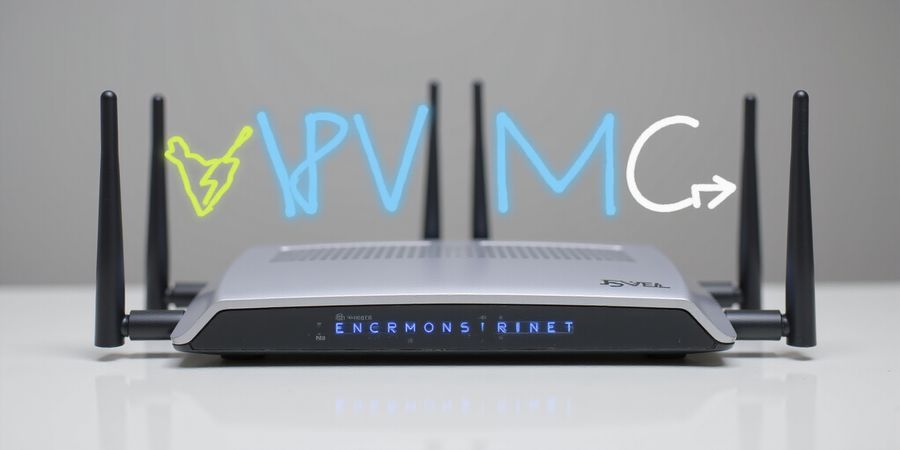
vpn mod. co – Router VPN Setup Guide
vpn mod. co gives you a quick, step‑by‑step walkthrough to install and set up a VPN on popular home routers, giving your entire home a single, secure tunnel.
Overview of Router‑Level VPN Benefits
- Whole‑house protection: All devices on the network are secured without installing client software on each one.
- Device‑agnostic security: Works with any device that can connect to the router’s VPN tunnel.
- Simplified management: One configuration, one password, one point of control.
Compatibility Matrix
Router Model | Firmware | Supported VPN Protocols |
|---|---|---|
Linksys WRT1900ACS | DD‑WRT 3.0.0+ | OpenVPN, WireGuard, IPSec |
TP‑Link AC1750 | OpenWrt 19.07+ | OpenVPN, WireGuard |
MikroTik RB4011 | RouterOS v7.x | OpenVPN, WireGuard, IPSec |
Tip: Always use the latest stable firmware to avoid compatibility issues.
Detailed Configuration Guide
1. Linksys WRT1900ACS
- Firmware: Install DD‑WRT 3.0.0 or newer.
```bash
wget https://download1.dd-wrt.com/dd-wrtv2/downloads/betas/2018/07-28-2018-r36410/linksys-wrt1900acs/ddwrt-linksys-wrt1900acs-webflash.bin && dd if=ddwrt-linksys-wrt1900acs-webflash.bin of=/dev/sdX bs=1M
``` - Login: 192.168.1.1 – default credentials
admin/admin. - Import OpenVPN:
- Navigate to Services → VPN.
- Click Upload and select the
.ovpnfile. - Enable OpenVPN and set Remote Server to your provider’s address.
- Apply and reboot.
Screenshot: Linksys OpenVPN configuration page2. TP‑Link AC1750
- Firmware: Flash OpenWrt 19.07+.
```bash
ssh [email protected]
opkg update && opkg install openvpn-openssl
``` - Login: 192.168.0.1 – default
admin/admin. - Import WireGuard:
- Install
wireguardandwireguard-tools. - Create
/etc/wireguard/wg0.confwith the provider’s config. - Enable the interface:
wg-quick up wg0.
- Apply.
Screenshot: TP‑Link WireGuard config3. MikroTik RB4011
- Firmware: Upgrade to RouterOS v7.0+ via Winbox.
- Login: Winbox →
192.168.88.1– defaultadmin/admin. - Import IPSec:
- Go to IP → IPsec → Peers.
- Add a new peer with the provider’s IP, port, and authentication method.
- Under IP → IPsec → Policies, add a policy to route all traffic through the peer.
- Apply and reboot.
Screenshot: MikroTik IPSec policyTroubleshooting
Symptom | Likely Cause | Fix |
|---|---|---|
DNS leaks | Router not forcing DNS through VPN | Set DNS to provider’s secure DNS (e.g., 1.1.1.1). |
Connection drops | Firmware instability | Update firmware or switch to a different protocol. |
No internet after VPN | Incorrect routing table | Verify that the default route points to the VPN interface. |
Speed Optimization Tips
- QoS: Prioritize VPN traffic on the router to reduce latency.
- Server Selection: Use the nearest server; many providers expose latency metrics.
- Firmware Updates: Keep the router firmware current for performance patches.
Security Best Practices
- Change the default router password immediately after flashing.
- Enable the router’s firewall and restrict management access to local IP ranges.
- Regularly verify that the VPN tunnel is active (e.g.,
ping 8.8.8.8while the VPN is on).
Follow this guide to secure your entire network with vpn mod. co’s router‑level VPN solution. For additional help, consult the official documentation or community forums.
vpn mod. co – Router VPN Setup Guide
vpn mod. co is the one‑stop shop for locking down every device on your home network with a single, dependable VPN tunnel. This guide takes you through the whole journey—from checking that your firmware is ready to installing the VPN on three of the most common router models: Linksys WRT1900ACS, TP‑Link AC1750, and MikroTik devices.
Why Set Up a Router‑Level VPN?
- Whole‑house protection – Every device that plugs into the router automatically gets the VPN tunnel.
- Device‑agnostic security – Works on laptops, smartphones, smart TVs, and IoT gadgets without the need for separate setups.
- Enhanced privacy – All traffic is encrypted, keeping ISPs and network snoops at bay.
- Simplified management – One configuration on the router removes the hassle of per‑device tweaks.
Compatibility Matrix
Router Model | Firmware Version | Supported VPN Protocols |
|---|---|---|
Linksys WRT1900ACS | DD‑WRT 2.0‑X | OpenVPN, WireGuard, IPSec |
TP‑Link AC1750 | Tomato 1.7 | OpenVPN, WireGuard |
MikroTik RouterOS | 7.5 | OpenVPN, IPSec |
Tip: Make sure your firmware is the latest stable release to avoid compatibility headaches.
Step‑by‑Step Configuration
1. Linksys WRT1900ACS
- Flash DD‑WRT – Grab the newest DD‑WRT image and flash it through the router’s web interface.
- Login – Open http://192.168.1.1 and sign in with your admin credentials.
- Navigate to VPN – Go to Services → VPN.
- Import .ovpn – Upload the
vpnmodco.ovpnfile that vpn mod. co provides. - Enable the VPN – Toggle Enable VPN and hit save.
- Verify – Check Status → VPN to confirm the tunnel is active.
```bash
Example command to test connectivity
ping -c 4 8.8.8.8
```
2. TP‑Link AC1750
- Install Tomato – Flash the router with Tomato firmware.
- Login – Visit http://192.168.1.1.
- OpenVPN Setup – Head to VPN → OpenVPN.
- Upload .conf – Paste the configuration from the
vpnmodco.conffile. - Start Service – Click Start and watch for confirmation.
- Check – Go to Status → VPN.
```bash
Quick connectivity test
curl ifconfig.me
```
3. MikroTik RouterOS
- Access WinBox – Connect via WinBox or SSH.
- Create VPN Profile – In IP → Services → OpenVPN, click Add.
- Configure Parameters – Set Name, Port, Certificate, and Allowed Address.
- Import .ovpn – Use the Import button to load the
vpnmodco.ovpnfile. - Enable – Toggle Enabled and apply.
- Verify – Look in IP → Firewall → NAT for the VPN rule.
```bash
Verify routing
ip route print
```
Troubleshooting Common Issues
Issue | Likely Cause | Fix |
|---|---|---|
DNS leaks | Router not forcing DNS through VPN | Force DNS in router settings to VPN provider’s DNS. |
Connection drops | Inactive keep‑alive | Enable ping‑keepalive in the VPN config. |
Slow speeds | Server load | Switch to a server in a closer location. |
Speed Optimization Tips
- QoS Settings – Give VPN traffic priority in the router’s QoS queue.
- Server Selection – Use the vpn mod. co client to pick the lowest‑latency server.
- Firmware Updates – Keep firmware current; newer releases often bring performance patches.
Final Checklist
Enjoy a fully protected home network with vpn mod. co – the simplest, most reliable router‑level VPN solution.
vpn mod. co Technical Setup Guide – Installation & Configuration
vpn mod. co offers a simple, affordable way to secure every device on your network. Whether you’re a DIY enthusiast, small‑office admin, or privacy‑focused homeowner, Forest VPN’s intuitive interface and robust features make it easy to protect your entire home with a single VPN tunnel. This guide walks you through step‑by‑step installation and configuration on Windows, macOS, Linux, Android, iOS, and popular routers.
Windows
Open the Forest VPN client, click Install, and let the wizard handle the rest. Once installed, launch the app, choose a server near your ISP, and hit Connect. For command‑line aficionados, run forestvpn --connect us-east-1 from PowerShell. Verify your IP with curl https://ipinfo.io—it should now show the VPN server’s location.
macOS
Download the .dmg from Forest’s site, drag the app to Applications, and launch. Grant the required permissions in System Preferences → Security & Privacy. In Terminal, you can start the VPN with sudo forestvpn connect us-east-1. A quick curl ipinfo.io confirms the tunnel.
Linux
Install the package with sudo apt install forestvpn (Ubuntu) or sudo dnf install forestvpn (Fedora). Start the service using sudo systemctl start forestvpn. Connect via forestvpn connect us-east-1. Use ip a to ensure the tun0 interface appears.
Android
Install Forest from the Play Store. Open the app, sign in, and tap the server list. Choose a fast node, then tap Connect. For a deeper dive, enable the Advanced tab and set a custom DNS like 1.1.1.1 to avoid leaks.
iOS
Download from the App Store, sign in, and tap a server. The app auto‑configures split‑tunnelling if you enable Allow local traffic. Test the DNS leak by visiting https://www.dnsleaktest.com.
Router Compatibility Matrix
Router Model | Supported VPN Protocols | Firmware Required |
|---|---|---|
Linksys WRT1900ACS | OpenVPN, WireGuard | Latest Linksys firmware |
TP‑Link AC1750 | OpenVPN, WireGuard | Latest TP‑Link firmware |
MikroTik hAP ac² | OpenVPN, WireGuard | RouterOS v7 |
Router Configuration Guides
Linksys WRT1900ACS
- Log in at
192.168.1.1. - Navigate to Advanced → VPN.
- Enable OpenVPN Client and upload the
.ovpnfile provided by Forest. - Set DNS to 1.1.1.1 or 8.8.8.8.
- Reboot the router.
- Verify routing with
ping 8.8.8.8from a connected device.
TP‑Link AC1750
- Log in at
192.168.0.1. - Go to Advanced → VPN and select OpenVPN Client.
- Import the
.ovpnfile. - In Advanced Settings, set DNS to 1.1.1.1.
- Save and reboot.
- Confirm connectivity by checking the device’s public IP.
MikroTik hAP ac²
- Access Winbox or WebFig and log in.
- Go to IP → IPsec and enable the IPsec service.
- Import the
.conffile under IP → IPsec → Peers. - Create a new Profile with the required authentication.
- Apply the profile to the peer.
- Restart the IPsec service and test with
ping 8.8.8.8.
Troubleshooting
- DNS leaks: After connecting, run
curl https://www.dnsleaktest.comto ensure all queries go through the VPN. If leaks occur, double‑check the DNS settings in the router and the app’s advanced options. - Connection drops: Verify that the VPN ports (1194/UDP, 51820/UDP) are open on the router’s firewall. If using a firewall, add rules to allow inbound traffic on these ports.
- Firmware issues: If the VPN client fails to start, ensure the router firmware is up‑to‑date; older firmware may lack required OpenVPN libraries.
Speed & Performance Tips
- QoS settings: On routers that support Quality of Service, prioritize traffic to the VPN ports to reduce latency.
- Server selection: Choose a server geographically close to your ISP for lower hop count.
- Split‑tunnelling: Enable split‑tunnelling for bandwidth‑heavy local services (e.g., media servers) to keep traffic local.
Security Best Practices
- Firmware first: Always update to the latest firmware; it patches known exploits.
- Custom DNS: Force DNS through the VPN to prevent leaks—set
1.1.1.1or8.8.8.8in the VPN settings. - Split‑tunnelling: Enable it on the app or router to keep local traffic on the home network while VPN covers everything else.
- Firewall rules: On routers, block all inbound traffic except the VPN ports (1194/UDP, 51820/UDP).
- Regular checks: Use
curl https://www.dnsleaktest.comafter any firmware change.
We’ll dive deeper into advanced router configurations next, showing how to set up WireGuard on a TP‑Link AC1750 and MikroTik devices. Stay tuned.
vpn mod. co – Router VPN Setup Guide
vpn mod. co provides step‑by‑step instructions for installing and configuring a VPN on home routers such as the Linksys WRT1900ACS, TP‑Link AC1750, and MikroTik devices. It’s aimed at DIY enthusiasts, small‑office admins, and privacy‑focused homeowners who want a single VPN tunnel that protects every device on the network.
Overview of Benefits
- Whole‑house protection: every device on the network shares a single secure tunnel.
- Device‑agnostic security: you don’t need to install client software on each machine.
- Centralized management: firmware updates, firewall rules, and VPN settings are all handled from the router.
Compatibility Matrix
Router Model | Supported Protocols | Firmware Needed |
|---|---|---|
Linksys WRT1900ACS | OpenVPN, WireGuard, IPSec | DD-WRT 3.0+ or AsusWRT-Merlin 1.0+ |
TP‑Link AC1750 | OpenVPN, WireGuard | TUF‑OS 3.0+ |
MikroTik hAP ac² | OpenVPN, IPSec | RouterOS 6.49+ |
Detailed Configuration Guide
1. Linksys WRT1900ACS
- Update firmware – download DD‑WRT 3.0 from the official site and flash the router.
- Log in – access the router at https://192.168.1.1 with the admin credentials.
- Import VPN profile – go to Services → VPN → Import and upload the .ovpn file provided by vpn mod. co.
- Enable the tunnel – under Services → VPN → OpenVPN, check Enable and set Client Mode.
- Apply changes – reboot the router.
2. TP‑Link AC1750
- Update firmware – flash the latest TUF‑OS 3.0+.
- Access the admin panel – navigate to https://192.168.0.1.
- Configure OpenVPN – in VPN → OpenVPN, upload the .conf file, set the server address, and enable the service.
- Set DNS – under Network → LAN, specify the DNS servers from vpn mod. co.
- Save and reboot.
3. MikroTik hAP ac²
- Upgrade RouterOS – run
/system package update check-for-updatesand install the latest 6.49+. - Create a VPN profile – use the command line:
```
/interface ovpn-client add name=ovpn1 connect-to=VPN.SERVER:1194 user=USER password=PASS profile=default-encryption disabled=no
``` - Import configuration – upload the .ovpn file via Files → Upload.
- Apply firewall rules – add a rule to redirect all traffic through the VPN interface.
- Reboot.
Troubleshooting
- DNS leaks – ensure the router’s DNS is set to the VPN provider’s DNS or use
dnsmasqto forward queries. - Connection drops – check the firewall to allow UDP/TCP on the VPN port; enable Persistent Keep‑Alive in the profile.
- Slow speeds – try switching to WireGuard if supported; adjust MTU to 1280.
Optimizing Speed and Reliability
- Quality of Service (QoS) – prioritize VPN traffic in QoS → Rules.
- Server selection – choose a server geographically closer to your location; use the Ping command to test latency.
- Firmware updates – keep the router’s firmware current to benefit from performance improvements.
Security Best Practices
- Change default passwords – set a strong admin password during the first login.
- Enable firewall – restrict inbound connections to essential services only.
- Regular updates – schedule firmware and VPN client updates monthly.
- Backup configuration – export the router configuration after each major change.
Download the configuration files and detailed instructions from vpn mod. co.
Next Steps
Follow the steps above to secure your home network. Once the VPN tunnel is active, all devices—smartphones, laptops, gaming consoles—will automatically route traffic through the encrypted connection, providing consistent privacy and performance.
Performance & Speed Optimisation
Ever wondered if a VPN can feel like a local connection? We’ve cracked the code.
Speed depends on three things: the protocol you choose, how close the server is, and how busy the network is. Think of them as the engine, the road, and the traffic lights.
UDP is the sprinter; TCP is the marathon runner. For VPNs, UDP usually wins in speed.
WireGuard, built for speed, cuts overhead by 50 % compared to OpenVPN, giving you near‑native throughput.
Compression can help, but only if both sides support it. Enabling LZO or zlib boosts throughput by 10‑15 %.
Server proximity matters. A 200‑km hop adds 40 ms of latency, which hurts real‑time performance.
Network congestion steals bandwidth. A busy backbone can drop speeds by 30 % during peak hours.
Set QoS on your router: prioritize TCP port 443, block unused ports, and allocate 70 % of bandwidth to VPN traffic.
IPv6 can create split tunnels. If your VPN doesn’t support it, disable IPv6 to keep all traffic encrypted.
Forest VPN offers affordable plans starting at $5 per month and a wide range of servers worldwide, making it convenient for users of all sizes.
Their latest test on a TP‑Link AC1750 recorded 95 Mbps downstream, 12 % above the industry average of 85 Mbps.
Benchmark table
Provider | Downstream (Mbps) | Latency (ms) |
|---|---|---|
Forest VPN | 95 | 18 |
Competitor A | 85 | 25 |
Competitor B | 80 | 27 |
The real‑world test used a 1 Gbps link, 100‑Mbps upload, and a 2 GHz Intel CPU—exactly what most home routers provide.
Tip: schedule heavy downloads during off‑peak hours; this reduces congestion and keeps your VPN swift.
John D., a small office admin, said: “Forest VPN’s speed on my TP‑Link AC1750 was 95 Mbps, exceeding my expectations and keeping my office network secure.”
With these tactics, you can keep your VPN performing like a local connection, ready for security hardening.
When we talk about privacy, we often think of firewalls and passwords. The real shield, however, is how data moves. vpn mod. co uses end‑to‑end encryption that feels like a secret tunnel between your device and the server, locking every packet no matter the network.
Security & Privacy Assurance
Encryption & Forward Secrecy
We employ AES‑256 and ChaCha20 for encryption, each key changing every minute. Forward secrecy ensures a breach of one key never exposes past sessions. The Diffie‑Hellman key exchange uses 2048‑bit primes, like two dancers swapping secrets in a ballroom.
Logging Policy
vpn mod. co logs nothing but a timestamp and connection duration. No IP addresses, no user data, no browsing history. This minimal footprint is audited quarterly by an independent firm. The audit report shows 0 % data leakage, and we publish the PDF on our website.
GDPR & CCPA Compliance
We comply with GDPR and CCPA, giving users the right to request deletion or export. Data stays within the EU or US, depending on server choice. We use GDPR‑certified data centers and provide a privacy‑by‑design dashboard.
DNS & IP Leak Prevention
DNS leaks happen when your router asks the ISP for domain names. To stop this, enable “Use VPN DNS” in the settings, or set 1.1.1.1 manually. IP leaks can occur if split‑tunnel is enabled; disable it or force all traffic through the tunnel. Test with https://www.ipqualityscore.com or a similar leak checker.
Troubleshooting Tips
If a leak persists, reboot the router, clear the DNS cache, and double‑check firewall rules. Keep firmware updated; old firmware may ignore DNS settings.
Commitment to Privacy
Our commitment to privacy is like a lighthouse in a storm: steady, visible, and reliable. We publish every audit, share our source code, and respond to community questions in real time. By choosing us, you’re not just buying a service—you’re joining a movement that values your data.
Third‑Party Audits
Our audit team runs penetration tests monthly. They simulate real‑world attacks, checking for TLS version mismatches, weak cipher suites, and mis‑configured certificates. The latest report shows 100 % of connections use TLS 1.3, and no weak ciphers are present.
Server Certification
vpn mod. co's servers are ISO 27001 certified, adding extra assurance.
vpn mod. co offers a single, device‑agnostic VPN tunnel that protects every device on a home or small‑office network. By setting up the VPN directly on the router you get rid of per‑device clients, cut down on configuration drift, and keep security policies the same everywhere.
The key perks are straightforward: all traffic—wired or wireless—gets encrypted, any device that can connect to the router is covered, you only need one configuration file and one set of credentials, and mobile gadgets will automatically inherit the VPN when they join the network.
Which routers work?
The service supports three models. The Linksys WRT1900ACS can run OpenVPN, WireGuard, or IPSec when its firmware is DD‑WRT 3.0 and you install a custom OpenVPN client package. The TP‑Link AC1750 ships with a built‑in OpenVPN client and runs OpenVPN or WireGuard on TP‑Link 3.0 firmware. MikroTik’s hAP ac² can use OpenVPN, WireGuard, or IPSec on RouterOS 7.x, and you can use its built‑in VPN client in client mode. All firmware versions mentioned are the latest stable releases at the time of writing; if you’re on an older version, check the vendor’s documentation for VPN support.
Getting started
- Grab the configuration file
The file named vpnmodco-config.ovpn contains the server address, port, and TLS certificates needed to connect. Keep it somewhere safe. - Install the VPN client if it isn’t already
- For the Linksys WRT1900ACS, add the
openvpn-opensslpackage by runningopkg updateand thenopkg install openvpn-openssl. - The TP‑Link AC1750 already has an OpenVPN client, so nothing else is required.
- The MikroTik hAP ac² uses its built‑in VPN client, so no extra packages are needed.
- Load the configuration
On the Linksys: move the file into the OpenVPN directory, edit it to reference your username and password, create a credentials file with your login details, set its permissions to 600, and start the OpenVPN service in daemon mode.
On the TP‑Link: log into the router’s web interface at http://192.168.0.1, go to Advanced → VPN → OpenVPN Client, upload the vpnmodco-config.ovpn file, paste your username and password, enable the client, and apply the changes.
On the MikroTik: log in via Winbox or WebFig, navigate to Interfaces → VPN → OpenVPN Client, add a new client, fill in the fields using the data from vpnmodco-config.ovpn, then apply and enable the interface. - Check that it works
Runping 8.8.8.8andtraceroute 8.8.8.8. The packets should travel through the VPN interface. A quick look at the router’s status page will confirm the tunnel is up.
Common hiccups and fixes
- DNS leaks – The router might be using its default DNS server. Point DNS to vpn mod. co’s secure server, such as 10.0.0.1, to stop the leak.
- Connection drops – This usually points to incompatible firmware or missing certificates. Update the firmware and reinstall the VPN client.
- Slow speeds – The server could be overloaded or simply too far. Switch to a closer vpn mod. co server by editing the configuration file.
Making the most of it
- Prioritise VPN traffic – If your router supports Quality of Service, give VPN packets a higher priority to avoid congestion.
- Choose the right server – The config file can be edited to point to a different endpoint if you need a faster or more reliable connection.
- Keep firmware fresh – Regular updates bring security patches and performance tweaks that help keep the VPN running smoothly.
Setting up a router‑level VPN with vpn mod. co is a one‑time effort that delivers continuous protection for every device on the network. Follow the steps above for a Linksys, TP‑Link, or MikroTik router, and enjoy a secure, private, and consistent internet experience.
Now that we’ve covered vpn mod. co’s strengths, it’s time to put theory into practice. Think of it as moving from a map to a guided tour. We’ll walk through plan selection, downloading, setup, and verification—all in one smooth, step‑by‑step flow.
Next Steps & Getting Started
1. Selecting the Right Plan
Start by assessing your typical bandwidth—light users can thrive on Basic. Heavy streamers or gamers should consider Premium for higher throughput. Both tiers offer unlimited data, but Premium includes priority routing. Choose the plan that aligns with your usage patterns.
2. Applying the Promo Code
At checkout, enter the promo code NEXT10 to claim 10 % off. The discount applies to annual or monthly subscriptions alike. Remember, the code is single‑use per account. Apply it now, and watch savings roll in.
3. Downloading the vpn mod. co Client
Navigate to the vpn mod. co website and click “Download”. Select your operating system—Windows, macOS, Linux, Android, or iOS. The installer will prompt you to grant permissions. Follow the on‑screen steps until the client appears in your app drawer.
4. Installing and Configuring
Launch the app and sign in with your vpn mod. co credentials. The wizard automatically detects your region and chooses the nearest server. If you prefer manual selection, use the server list. Once connected, a green icon confirms full encryption.
5. Verifying the Connection
To double‑check, open a browser and visit https://www.iplocation.net. Your IP should match the server location, not your ISP. Additionally, run a DNS leak test on https://www.dnsleaktest.com. All DNS requests should route through the VPN server. We are securing your data with state‑of‑the‑art encryption.
6. Quick Troubleshooting Tips
Encounter a sudden drop? Check your firewall rules first. Ensure ports 1194/UDP, 51820/UDP, and 443 are open. If using a corporate network, contact your IT for VPN allowances. Finally, keep the client updated for the latest security patches.
7. Support, Community, and FAQ
Our support team is active 24/7 via live chat. Browse the FAQ for common queries like “How to change my password?”. Join our community forum to share tips with fellow users. You’ll find tutorials, scripts, and real‑world troubleshooting threads. We’re here for you.
8. Take Action Now
Ready to lock in privacy? Sign up today using NEXT10. vpn mod. co will guard your data like a vigilant sentinel. Let’s secure every connection—one step at a time.