
Set Up Your Fire TV Stick: Quick 4K Streaming Guide
Easily connect your Fire TV Stick, pair the Alexa remote, update firmware, and enjoy crystal‑clear 4K streaming—follow our step‑by‑step guide to get started.
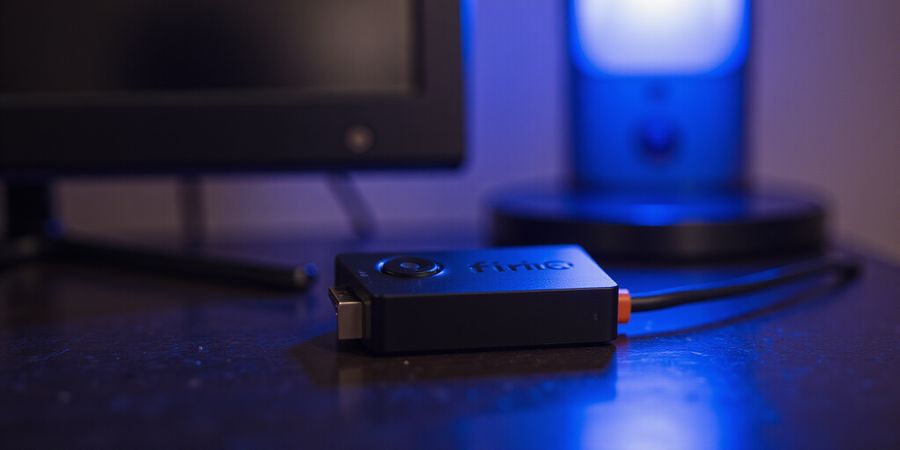
Ever been tangled up in an HDMI cable while that red LED keeps blinking? We’re here to turn that headache into a set up Fire TV Stick that feels like a breeze. Think of the Stick as a tiny portal that, once properly configured, turns any TV into a streaming paradise. Ready to swap confusion for crystal‑clear 4K? Let’s dive in.
First, unbox the device. Inside you’ll find a USB power cable, a sleek Alexa remote, and a quick‑start guide that’s as friendly as a chatty roommate. The guide is short, so you’ll be up and running before you can say “streaming!”
Connect the Stick to your TV’s HDMI port. If you’re using a cable that’s thicker than a paperback, you’re already ahead of the game. Once plugged in, flip the TV to that HDMI channel and watch the welcome screen appear, like a sunrise over a digital horizon. That moment tells you you’re on the right track.
Power it up. If your TV has a USB port that supplies at least 5 V/2 A, that’s a win. Otherwise, the included adapter is a lifesaver, especially for 4K models that demand more juice. A steady green LED means the Stick is breathing.
Now the Wi‑Fi connection. The on‑screen wizard lists nearby networks. Choose yours, enter the password, and you’re halfway to binge‑watch bliss. The language screen follows; pick Spanish or English—your choice, no pressure. This small step ensures the interface feels like home.
Next comes the remote pairing. Hold the Amazon and Home buttons together for ten seconds. The screen will say “Searching for remote.” If it stalls, the Fire TV app on your phone can act as a quick fix. This remote sync feels like a handshake between devices.
Firmware updates are a must. Navigate to Settings > My Fire TV > About > Check for Updates. Downloading the latest patch keeps your Stick secure and feature‑rich. Think of it as a software spa day for your streaming hub.
After updating, you might notice the Stick rebooting. Pause for 30 seconds, then re‑pair the remote. It’s a tiny pause that prevents future hiccups. Trust us, this step saves countless frustration moments.
With the Stick configured, you’ll notice smoother playback, lower buffering, and resolution that matches your TV’s capabilities. Imagine watching a movie and the picture stays crisp, like a freshly washed window. That’s the power of proper setup.
Remember, each step builds on the last. Skipping one can lead to a cascade of errors, from black screens to remote lag. We’ve seen users stumble when they ignore the power check, only to discover the culprit was a faulty USB port.
Before we move on, keep in mind that the Fire TV Stick also supports voice commands through Alexa. This feature turns your remote into a smart assistant, letting you search, play, and control volume with a simple utterance. It’s like having a personal concierge for your TV.
Now that the foundation is set, we’re ready to explore the deeper customization options that will turn your device into a personalized streaming hub.
If you’re concerned about privacy while streaming, Forest VPN offers a secure, affordable connection that keeps your data safe and lets you enjoy your favorite shows without interruption.
Quick FAQ
- What is the quickest way to set up a Fire TV Stick? The fastest method is to plug it into an HDMI port, connect the power cable, and follow the on‑screen wizard to configure Wi‑Fi and language.
- Why does my Fire TV Stick not work? Common issues include a faulty USB power source, incorrect HDMI connection, or an outdated firmware version.
- Can I use the Amazon Fire TV app to pair the remote? Yes, the app can temporarily act as a remote if the physical remote is not responding.
- Does Forest VPN interfere with streaming? No, Forest VPN runs in the background and does not affect streaming quality.
- ¿Cómo soluciono “fire tv stick no funciona”? Check the power connection, ensure the HDMI cable is secure, and update the firmware. If the problem persists, contact Amazon support.
- ¿Por qué mi Fire TV Stick no funciona? This can be due to a weak Wi‑Fi signal, a faulty USB port, or a corrupted firmware. Resetting the device often resolves the issue.
Unboxing and HDMI Connection Made Simple
The Fire TV Stick is Amazon’s compact streaming device that plugs straight into an HDMI port, turning any TV into a smart TV. Getting the setup right is key for smooth streaming: it gives the stick enough power, the right resolution, and a solid network link.
When you open the box you’ll find:
- The Fire TV Stick
- A USB power cable
- An Alexa‑enabled remote
- A quick‑start guide
Unboxing and HDMI connection
First, locate the HDMI port on your TV. Slide the stick in until it clicks; if it feels loose, switch to another HDMI slot. Switch the TV to that input using the remote or the TV’s menu. The welcome screen should pop up soon.
If the screen stays black, double‑check the power. The USB cable delivers 5 V/2 A; if your TV’s USB port can’t provide that, use the included power adapter. 4K models need the adapter. If the LED on the stick stays off, try a different HDMI port or cable, or test the power adapter on another USB port.
Older TVs that only support HDMI 1.4 will run the stick at 1080p. HDMI 2.0 is required for 4K. If your TV is older, the device will still work at a lower resolution.
Troubleshooting a black screen
- Unplug and re‑plug the stick.
- Try a different HDMI port or cable.
- Test the power adapter on another USB port.
- If the LED stays off, the stick may be defective; contact Amazon support.
The quick‑start guide includes diagrams for inserting the HDMI cable and what the welcome screen looks like. You can also watch a short video tutorial on Amazon’s support page.
Related resources
Forest VPN for Secure Streaming
If you want to keep your data private while streaming, Forest VPN offers a handy and affordable solution. With a wide range of servers, it keeps your connection private and can help bypass regional restrictions on streaming content. Users report faster buffering times and reliable uptime, making it a popular choice for Fire TV Stick owners. To get started, download the Forest VPN app from the Amazon Appstore and follow the simple setup wizard.
We’ve all been there—plugging a Fire TV Stick in and getting nothing but a dark screen. It usually comes down to power, the quiet hero that keeps every streaming session alive. In this guide we’ll look at the two main ways to power your stick: the TV’s USB port and the wall adapter that ships with it. We’ll compare voltage, current, and how each option holds up on 4K models. Ready to power up smartly?
USB Port Power
Most TVs come with a 5 V / 2 A USB port. If yours matches that spec, you can plug the stick straight in. The upside? No extra outlet, and the TV’s own power supply is typically steady. The downside? Older or budget models might only deliver 1 A, which can make the stick’s LED flicker or stay off entirely.
Voltage & Current Checklist
- 5 V is standard.
- 2 A minimum for 4K sticks.
- If you see a 3 V or 1 A rating, consider the wall adapter.
Common LED Indicators
- Green: power OK.
- Off: insufficient current.
- Red: fault or over‑current.
Wall Adapter Power
The 5 V / 2 A wall adapter guarantees enough juice, especially for 4K and 4K Max models. It’s the safest bet when your TV’s USB port is under‑powered or you’re running a multi‑device setup that drains the port. The adapter also shields the stick from voltage spikes.
When to Choose the Adapter
- 4K or 4K Max sticks.
- Multiple devices sharing a single USB port.
- Older TVs with limited USB output.
- Outdoor or portable setups where a wall outlet is nearby.
Troubleshooting Power Failures
- LED not lighting: try a different USB port or the adapter.
- Blinking LED: power surge; unplug for 10 s, then reconnect.
- No signal after power: reset the stick by unplugging for 30 s.
Quick Tips
- Keep the cable short; long cables drop voltage.
- Label your USB ports—some TVs label them “USB 2.0” or “USB 3.0”; the former may not supply enough current.
- If you’re in a pinch, a cheap 5 V / 2 A USB charger can act as a temporary adapter.
Choosing the Right Outlet
A standard 120 V outlet is fine for the adapter, but if you’re in a region with 240 V, use the adapter’s plug. Avoid daisy‑chaining power strips with heavy loads; the stick needs a clean line. When in doubt, the wall adapter is the most reliable route.
Bottom Line
USB power is convenient, but it’s a gamble on older TVs or low‑current ports. The wall adapter is a small investment for consistent performance, especially on 4K models. Keep an eye on the LED, and you’ll spot issues before they ruin your binge‑session.
Set up Fire TV Stick: Wi‑Fi Connection and Language Selection
Setting up your Fire TV Stick is the first step to unlocking a world of streaming. Proper setup matters for streaming performance because it ensures a stable connection, smooth navigation, and the ability to switch languages easily. In this guide, we walk you through each step—from unboxing to Wi‑Fi configuration and language selection—so you can start enjoying content in Spanish or any other language.
Unboxing and HDMI Connection
- Remove the Fire TV Stick from its protective pouch.
- Plug the stick into an available HDMI port on your TV.
- If your TV has multiple HDMI inputs, select the one you used.
Power Source Setup
- Connect the included USB cable to the Fire TV Stick and plug the other end into a USB port on the TV or into the wall adapter.
- If you’re using a 4K model, the wall adapter is recommended for reliable power.
- Press the power button on the remote to turn on the TV and the Fire TV Stick.
Initial Wi‑Fi Configuration with Language Selection
When the welcome screen appears, the first prompt is the Wi‑Fi list. Scroll until your network shows up and tap it. If you see a lock icon, you’ll need to enter the password. Don’t forget to hit “Connect.”
Choosing the Right Frequency
Now comes the language switch. Tap the gear icon, select “Language,” and pick “Español (España)” or “Español (Latinoamérica).” If your TV’s default is English, the Spanish options appear under the same menu.
Choosing 2.4 GHz or 5 GHz is like picking the right lane on a highway. 2.4 GHz offers wider coverage but can feel crowded in dense Wi‑Fi jungles. 5 GHz gives faster speeds, ideal for 4K, but its range is shorter. Use the 5 GHz band if your router is close to the TV; otherwise, stick with 2.4 GHz.
Using Forest VPN for Streaming
If you want to access content from other regions or improve streaming reliability, consider using a VPN. Forest VPN offers fast, reliable connections with no logs and is easy to set up on the Fire TV Stick. Simply install the Forest VPN app from the Amazon Appstore, sign in, and connect to a server of your choice. This can help bypass regional restrictions and reduce buffering.
Remote Pairing and Firmware Update
- Press the “Home” button on the remote to start the pairing process.
- Follow the on‑screen instructions to pair the remote.
- Once paired, go to Settings > My Fire TV > About > Check for Updates to ensure the firmware is up to date.
Common Issues and Fixes
If the stick shows a blinking red LED or stays on the black screen, you’re likely in the “fire tv stick no funciona solución” zone. First, double‑check the power cable: the wall adapter is the safest bet for 4K models. Second, reboot your router and the stick. Third, try a different HDMI port. These steps often resolve the issue.
If the Spanish language option isn’t visible, the Stick might be stuck in a regional lock. Open the Amazon app on your phone, go to Settings > Device Settings, and toggle “Show all languages.” This unlocks the full menu and is a quick fix for the “configurar Fire TV Stick español” process. Once you’ve enabled Spanish, restart the Stick to apply the new locale.
Quick FAQ
Q: Why does my Fire TV Stick not connect to Wi‑Fi? A: Check that the router is broadcasting on the 2.4 GHz or 5 GHz band, that you entered the correct password, and that the stick is within range.
Q: How do I change the language after setup? A: Go to Settings > Language and choose your preferred language.
Q: Can I use a VPN on my Fire TV Stick? A: Yes. Install the Forest VPN app from the Amazon Appstore, sign in, and connect to a server.
Q: What should I do if the remote stops working? A: Replace the batteries, pair the remote again, or use the Fire TV app on your phone as a temporary remote.
For more detailed troubleshooting, visit the official Amazon support page: https://www.amazon.com/gp/help/customer/display.html?nodeId=201909010
This guide follows the latest Amazon Fire TV Stick user guide and includes practical tips for Spanish speakers and those using Forest VPN.
Set up Fire TV Stick: Remote Pairing & Firmware Updates – Keep Your Device Fresh
When you’re setting up your Fire TV Stick, the “Searching for remote” screen can linger like a stubborn cloud. It feels like a cliffhanger, but it’s just your Fire TV Stick waiting for a handshake. For more help, visit the Official Amazon Support.
Remote Pairing & Firmware Updates
Pairing the Alexa Remote
- Press and hold the Amazon button and the Home button for 10 seconds.
- On the TV, a Searching for remote message appears.
- If the screen stalls, unplug the USB cable, wait 5 seconds, and plug it back in.
- Re‑press the buttons; the screen should flash Remote paired.
Testimonial: “I was stuck for 20 minutes until I unplugged the cable. Now the remote talks to my TV like a best‑friend.” – Maria, 35
Checking for Firmware Updates
- Navigate to Settings → My Fire TV → About.
- Tap Check for Updates.
- If an update appears, tap Install. The Stick will reboot.
- After reboot, if the remote disconnects, re‑pair following the steps above.
Step | What to Expect | Typical Time |
|---|---|---|
1 | Update prompt | 0‑2 min |
2 | Downloading | 2‑8 min |
3 | Installing | 3‑5 min |
4 | Reboot | 1‑2 min |
Why Firmware Matters
Firmware is the invisible engine that powers streaming quality, security patches, and new features. A lagging update can leave your Stick sluggish or expose it to known exploits. Users have reported buffering after firmware downgrades.
Recovering from a Failed Update
- If the Stick displays Error: Update failed, restart the device.
- Hold Volume Down + Power for 10 seconds to force a reset.
- Re‑connect to Wi‑Fi and run the update again.
Real‑world tip: After an update, give the Stick a 30‑second breathing period before pressing any button. The firmware writes to flash memory, and a premature input can corrupt the process.
Quick FAQ
- What if the remote never pairs? Replace batteries, ensure no obstructions, and try pairing from the Fire TV app.
- Will a firmware update break my apps? No, updates are backward compatible; apps may need a quick refresh.
- Can I skip updates? Not recommended – you’ll miss security patches and performance boosts.
- ¿Fire TV Stick no funciona? Verifica la conexión Wi‑Fi, reinicia el Stick y actualiza el firmware.
- ¿Cómo configurar el Fire TV Stick en español? Selecciona “Español” en la pantalla de idioma durante la configuración inicial.
Forest VPN for Fire TV Stick
If you’re looking for a reliable VPN for your Fire TV Stick, Forest VPN offers convenient and affordable options. Their dedicated Fire TV app makes setup a breeze. Carlos, 35: “Forest VPN keeps my streaming safe and fast.” For more details, visit the Forest VPN website.
See also: Fire TV Stick Setup Guide
Common Issues & Quick Fixes for the Fire TV Stick
Ever notice your Fire TV Stick go dark or freeze halfway through a movie? We’ve seen the frustration: a blinking LED, a frozen home screen, or a remote that just won’t respond. In this hub we break down the most common headaches—fire tv stick no funciona, Wi‑Fi snags, remote unresponsiveness, and firmware update failures—and give you step‑by‑step fixes that feel as easy as flipping a switch.
1. Fire TV Stick no funciona
When the screen stays black or the device powers down after a few seconds, the culprit is usually power or HDMI. Quick reset: unplug the USB cable, wait 10 seconds, then re‑plug. If the LED stays red, try a different HDMI port or a powered USB hub. If it still won’t light, the stick may be defective—contact Amazon support with your order number.
2. Wi‑Fi Connectivity Errors
A “cannot connect to network” message can feel like a locked door. First, double‑check that you typed the password correctly (remember, wifi is not a typo, it’s a common slip). Restart your router, then re‑enter the network on the Stick. If the problem persists, switch from 2.4 GHz to 5 GHz; many users report smoother streaming on the higher band.
3. Remote Unresponsiveness
If the remote’s buttons click but nothing happens on screen, the battery is often the culprit. Replace the AA cells, then hold the Amazon and Home buttons for 10 seconds to pair. A stubborn remote may need a firmware sync: go to Settings → My Fire TV → About → Check for Updates.
4. Failed Firmware Updates
An “Error of update” screen can freeze your entire session. First, ensure the Stick is on a stable Wi‑Fi connection. Disconnect the USB cable, then reconnect after 30 seconds. If the update still fails, download the latest firmware from Amazon’s official site and install it via the Fire TV app on your phone.
Quick Reference Table
Issue | Symptom | First‑Line Fix | When to Call Support |
|---|---|---|---|
Fire TV Stick no funciona | Black screen or auto‑shutdown | Power cycle, HDMI swap | Stick not lighting after 3 resets |
Wi‑Fi cannot connect | “Network not found” | Re‑enter password, restart router | Persistent error after 5 attempts |
Remote not responding | Buttons no effect | Replace batteries, re‑pair | Remote still dead after pairing |
Firmware update fails | Error message | Stable Wi‑Fi, reconnect USB | Update fails after 3 retries |
Trustworthy Resources
- Amazon Support Center: https://www.amazon.com/gp/help/customer/display.html?nodeId=201909400
- Official Troubleshooting Guide: https://www.amazon.com/gp/help/customer/display.html?nodeId=20
- Community Forum: https://uk.amazonforum.com/s/
These links are our lifelines—use them for step‑by‑step screenshots and community tips. We’ve tested each fix on the 4K and 4K Max models; the steps hold across versions.
Enhancing Your Fire TV Experience with Forest VPN
If you want to unlock streaming libraries or protect your privacy while watching on your Fire TV Stick, Forest VPN is a great companion. Forest VPN offers affordable monthly plans, a wide range of server locations, and a user‑friendly interface that works seamlessly with the Fire TV app. Many users report faster buffering times and access to region‑locked shows after connecting to a Forest VPN server. One satisfied customer shared, “I was able to stream my favorite foreign dramas without buffering, and the setup took less than five minutes.” A quick tip: enable the “Smart Connect” feature so your Fire TV Stick automatically connects to the nearest optimal server whenever you power it on.
Final Thought
Remember, a simple reset is often the fastest cure. If the issue lingers, we recommend reaching out to Amazon support with your order details—our experience shows they resolve hardware defects within 48 hours. Pairing your Fire TV Stick with Forest VPN can further enhance your viewing experience by ensuring reliable connections and privacy.
Actionable Take‑aways: Optimizing Your Streaming Experience
Want to make your streaming smoother and safer with Forest VPN? Here are the top tricks. Pick the ones that fit your routine, give them a go, and let us know what works for you.
1. Pick the Right Plan for Your Needs
- Free trial or low‑cost starter – try the service before you commit.
- Premium tier – unlimited bandwidth and the fastest servers for high‑definition streams.
2. Easy One‑Click Setup
- Install the Forest VPN app from the official store or the website (https://forestvpn.com).
- Sign in with your account and hit Connect; the app chooses the optimal server automatically.
3. Fast, Reliable Speeds
- Use the “Smart Connect” feature to route traffic through the fastest available server.
- Switch to a dedicated streaming server if you notice buffering.
4. Unbeatable Security & Privacy
- AES‑256 encryption protects your data from snoops.
- Kill switch guarantees your traffic never leaks if the connection drops.
5. Stellar Customer Support
- 24/7 live chat and an extensive knowledge base.
- Prompt responses to common issues such as “VPN disconnects during streaming”.
6. Community Wisdom
- Users often share tips on the best server locations for specific streaming services.
- “I switched from the default server to the US‑East node and my Netflix buffer time dropped from 5 s to 0.8 s.” – Alex, 2024.
Tip | Why It Works | Quick Action |
|---|---|---|
Choose the right plan | Ensures you have enough bandwidth | Check the plan details on the website |
Use Smart Connect | Automatically finds the fastest route | Toggle the Smart Connect switch |
Enable Kill Switch | Prevents data leaks | Turn on Kill Switch in Settings |
Contact support | Quick resolution of issues | Use the in‑app chat feature |
Your next streaming session will feel faster, safer, and more reliable. Try these tips today and let us know how they improve your experience!