
Unlock Your Fire TV Stick: Easy Sideloading Guide
Learn how to sideload any app onto your Amazon Fire TV Stick with our step‑by‑step guide, including ADB, Downloader, and safety tips for a safer streaming experience.
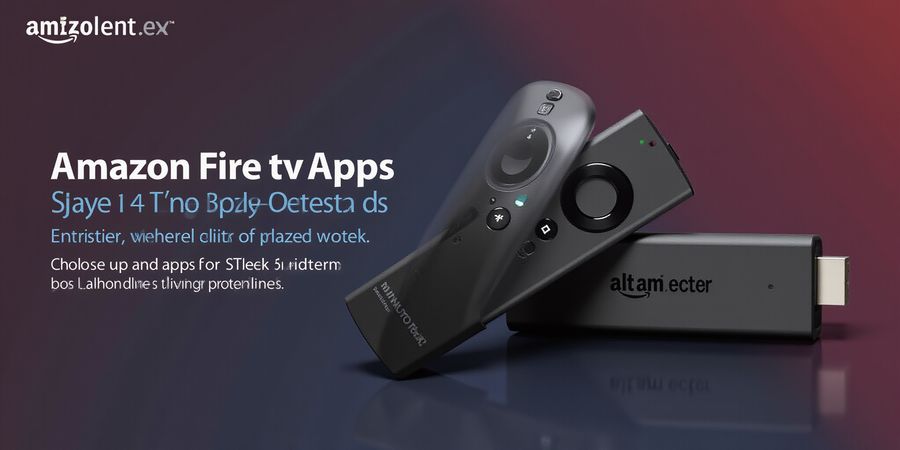
Ever felt your Fire TV Stick is a closed box? What if it could become a playground for apps you love? If you’re exploring the amazon fire tv stick app ecosystem, you’ll find a world beyond the Amazon Appstore. We’ll show how to unlock that world with simple steps.
amazon fire tv stick app – Sideloading Basics
Sideloading lets you install any Fire Stick APK download and sideload apps on Fire TV that the official store blocks. It’s like turning a locked door into an open window. To get started, gather a PC, a USB‑debugging enabled device, and a reliable APK source.
1. Enable Developer Options
- From the Fire TV home screen, go to Settings.
- Select Device & Software (or My Fire TV).
- Choose Developer Options.
- Turn on ADB Debugging and Apps from Unknown Sources.
2. Install the Downloader App
- Open the Amazon Appstore.
- Search for Downloader and install it.
- Launch Downloader; confirm permission to install unknown apps.
3. Download and Install an APK
- In Downloader, click Enter a URL.
- Paste the direct link to the APK file.
- Press Download; the file will appear in Downloads.
- Click the file to launch the installer and follow prompts.
4. Quick Reference Table
Method | How It Works | Pros | Cons | Recommended Use |
|---|---|---|---|---|
ADB | | Fast, scriptable, handles large libraries | Requires PC, drivers, setup | Advanced users, bulk installs |
ES File Explorer | Transfer APK via USB/SD, open with file manager | No PC needed, local files | Needs SD card or USB OTG, limited to newer OS | Users without PC |
Downloader | Web‑based download from URL | No PC, simple UI, works everywhere | Requires internet on device | Most users |
5. Safety Tips
- Only download APKs from reputable sites like APKMirror or F‑Droid.
- Verify the APK’s signature or checksum.
- Keep your Fire Stick updated to the latest firmware.
- Avoid rooting unless you understand the risks.
- Backup important data before enabling developer tools.
6. Troubleshooting Quick Fixes
- App not installed: APK may be incompatible with your device’s architecture.
- Network failures: Check Wi‑Fi connection, test URL in a browser.
- Storage full: Delete unused apps or clear cache.
- Permission denied: Re‑enable Apps from Unknown Sources.
- ADB connection lost: Re‑plug cable, update drivers, or use Wi‑Fi ADB.
Can you picture your Fire TV Stick humming with apps you never knew existed? Let’s dive deeper into each step next.
Using Forest VPN with Your Fire TV Stick
Forest VPN offers a reliable, affordable way to secure your streaming experience. By routing your Fire TV Stick’s traffic through a Forest VPN server, you can bypass regional restrictions, protect your privacy, and enjoy a smoother connection. Users report:
- Convenience – one‑click connection from the Forest VPN app on any Android device, then simple ADB pairing.
- Affordability – plans start at just $2.99/month, with no hidden fees.
- Variety of Options – multiple server locations and dedicated Fire TV support.
Testimonial
“Since switching to Forest VPN, my Fire Stick runs faster and I can stream content from any country without buffering.” – Alex R.
Tips
- Connect to a nearby server for lower latency.
- Enable split tunneling to keep only the Fire TV traffic encrypted.
- Update the Forest VPN app regularly to keep up with new IP ranges.
We’ve all felt the Amazon Appstore is a locked vault, keeping our favorite apps out of reach. Sideloading turns that vault into an open door, letting us install any amazon fire tv stick app we crave. It’s like having a secret key to a hidden room—only we know where the door is.
Amazon Fire TV Stick App
The Fire TV Stick runs on a lightweight Fire OS, built atop a Linux kernel that supports ARMv7 and ARM64 CPUs. Firmware updates roll out in firmware versions that lock in API support, meaning older sticks may not run newer apps without a firmware upgrade. This tight coupling between hardware and software creates a rigid ecosystem.
Amazon’s official Appstore is curated for quality and compliance, but that curation also means many niche or region‑specific apps never make the cut. The store’s sandboxing protects users from malicious code, yet it also blocks experimental or unapproved features that developers love to test.
Sideloading breaks that wall. We can pull apps from external APK repositories, install beta versions, or even run legacy apps that no longer appear in the store. Imagine you want the latest streaming service that’s still under review—sideloading gives you immediate access. Why wait for an official release when you can get it now?
To do that, we must first enable Apps from Unknown Sources in Developer Options. This setting unlocks the device’s ability to accept any APK, regardless of its origin. Without it, the Fire Stick will refuse to install.
Firmware versions matter because they determine which ARM architecture the device supports. An ARMv7 stick cannot run an ARM64‑only app, and vice versa. Checking the device’s firmware in Settings → Device & Software tells us the exact build we’re working with.
Amazon’s support documentation confirms these nuances. The Help Center explains that enabling unknown sources is a prerequisite for any sideload, and the developer docs detail how firmware updates affect app compatibility.
Before we dive into the step‑by‑step, gather a PC, a USB‑debugging cable, or a reliable APK source. These tools are your gateway to the hidden side of the Fire Stick.
Sideload Method | How It Works | Pros | Cons |
|---|---|---|---|
Downloader App | Download APK via URL | No PC needed, user‑friendly | Requires Wi‑Fi on device |
ADB (USB/Wi‑Fi) | Command line install | Fast, scriptable | Requires setup, drivers |
File Manager | Transfer via SD or USB | Works offline | Needs OTG or SD card |
Each method suits different users—choose based on your comfort with tech and the resources you have.
Troubleshooting
- App not installed – Ensure the APK matches the device’s ARM architecture and that Apps from Unknown Sources is enabled.
- Network failures – Check that the Fire Stick is connected to Wi‑Fi and that the APK source is reachable.
- Cache issues – Go to Settings → Apps → [App Name] → Clear Cache / Clear Data, then retry the install.
- Reinstalling Fire OS – If persistent errors occur, reset the device to factory settings and re‑enable unknown sources before reinstalling.
Safety Tips
- Use reputable APK sites and verify checksums.
- Review app permissions before installation; avoid apps requesting unnecessary access.
- Keep your device’s firmware up to date to reduce compatibility issues.
FAQ
How do I install apps on Fire Stick? Enable Apps from Unknown Sources, download the APK, then install via the Downloader app or ADB.
What are common errors when sideloading? Architecture mismatches, disabled unknown sources, or network problems are typical culprits.
Is it safe to sideload? Yes, if you use trusted sources and follow safety tips.
Using Forest VPN with Fire TV Stick
If you need a VPN to access region‑locked content on your Fire TV Stick, Forest VPN offers convenient, affordable options. Its app is lightweight and easy to set up, and it supports the Fire OS without requiring root. Forest VPN’s multiple server locations help you bypass geo‑restrictions while keeping your streaming experience smooth. Try it today for a secure, budget‑friendly connection.
For more guidance, see our Amazon account setup guide and Remote control tips.
amazon fire tv stick app: Essential Tools & Preparations for a Smooth Sideload
Looking for an amazon fire tv stick app? Grab the right gear and you’ll sideload like a pro. Let’s walk through it.
1. Gather Your Gear
First, you’ll need a reliable PC or laptop, a stable Wi‑Fi network, your Fire TV Stick with USB‑debugging enabled, and a reputable APK source such as APKMirror. These four items form the backbone of a hassle‑free sideload—each one is a gear in the machine that keeps everything running.
2. Unlock Developer Options
On the device, head to Settings → Device & Software (or My Fire TV). Tap Developer Options and toggle on ADB Debugging and Apps from Unknown Sources. This opens the hidden door to sideloading. Without it, the whole process stalls.
3. Match the Architecture
Next, confirm your stick’s architecture. Go to Settings → Applications → About and note the CPU architecture—ARMv7 or ARM64. Download the matching APK build; mismatched binaries will refuse to install. Think of it as fitting a key to the right lock.
4. Verify Safety Before You Install
Safety first: only download from trusted sites. Verify the APK’s signature or checksum whenever possible. Check the permissions before installation; an app that asks for location while you’re just watching Netflix is a red flag. Trust your instincts—if it feels off, skip it.
Verifying Signatures
To verify a signature, run keytool -printcert -jarfile app.apk on your PC. Compare the SHA‑1 fingerprint with the one listed on the APK site. If they match, the file is authentic.
Quick Safety Checklist
- Download from APKMirror or F‑Droid only.
- Verify SHA‑1 or MD5 checksums.
- Review requested permissions.
- Keep Fire OS updated.
- Back up data before enabling developer tools.
5. Architecture Compatibility Table
Architecture | Typical Stick Models | Recommended APK Build |
|---|---|---|
ARMv7 | 1st‑Gen, 2nd‑Gen | 32‑bit APK |
ARM64 | 3rd‑Gen, 4th‑Gen | 64‑bit APK |
6. Final Prep Before the Download
With these essentials sorted, you’re ready to pick an APK, download it via Downloader or ADB, and install. Keep your device updated; new firmware often patches security holes. Stay tuned as we’ll walk through the actual download steps next.
Ever felt stuck when an app refuses to install? That’s usually a mismatch or a missing permission. By following these steps, you’ll avoid the common pitfalls and enjoy a seamless sideload experience.
Ever felt your Fire Stick is locked behind a glass door? Like a key unlocking a door, you can open that door and install any amazon fire tv stick app you fancy. This guide covers Fire Stick APK download and sideload apps on Fire TV, and we’ll walk you through steps, from turning on unknown sources to installing the app, so you enjoy fresh content. Ready to break the rules, but safely? Let’s dive in.
amazon fire tv stick app: Step‑by‑Step Installation
1. Enable "Apps from Unknown Sources"
- From the home screen, tap Settings (gear icon).
- Choose Device & Software or My Fire TV on newer firmware.
- Open Developer Options and toggle ADB Debugging on.
- Turn on Apps from Unknown Sources to allow sideloading.
2. Install the Downloader App
- Open the Amazon Appstore on your Fire Stick.
- Search for Downloader and tap Install.
- Launch Downloader; confirm the prompt to allow unknown app installs.
3. Download and Install the APK
- In Downloader, tap Enter a URL.
- Paste the direct link to the APK (e.g., https://your-apk-link.com/app.apk).
- Press Download; the file appears in Downloads.
- Tap the file to launch the installer and follow the onscreen prompts.
4. Quick Reference Table of Sideload Methods
Method | How It Works | Pros | Cons | Recommended For |
|---|---|---|---|---|
ADB (Command Line) | adb install app.apk after connecting via Wi‑Fi | Fast, scriptable, works with large libraries | Requires PC, setup, and ADB drivers | Advanced users, bulk installs |
ES File Explorer | Transfer APK via USB/SD to device, then open with file manager | No PC needed, good for local files | Requires SD card or USB OTG, limited to Fire OS 5+ | Users without PC |
Downloader | Web‑based download from URL | No PC, simple UI, works on all firmware | Requires internet on device | Most users |
5. Troubleshooting Common Errors
Error | Likely Cause | Fix |
|---|---|---|
App not installed | APK incompatible with ARMv7/ARM64, missing dependencies, or not signed | Check architecture, download correct build, or re‑sign the APK |
Network failures | Device offline, firewall blocking URL, or incorrect URL | Verify Wi‑Fi, test URL in browser, or use a different mirror |
Storage full | Less than 1 GB free | Delete unused apps or clear cache via Settings → Applications |
Permission denied | "Apps from Unknown Sources" is off | Re‑enable the option in Developer Settings |
ADB connection lost | USB cable loose, drivers outdated | Re‑plug cable, update ADB drivers, or use Wi‑Fi ADB (adb connect <ip>) |
Safety Tips
- Only download APKs from reputable, well‑known sites.
- Verify the app’s permissions before installing; avoid granting unnecessary access.
- Keep your Fire TV Stick firmware up to date to ensure compatibility and security.
FAQ
How do I install apps on Fire Stick? Follow the step‑by‑step guide above: enable unknown sources, use the Downloader app, and install the APK.
Can I sideload apps without a PC? Yes, the Downloader app allows you to sideload directly from your Fire Stick without a PC.
What should I do if the app fails to install? Check that the APK matches your device’s architecture, ensure "Apps from Unknown Sources" is enabled, and try downloading the APK again from a reliable source.
Takeaway
You’ve just unlocked a treasure chest of apps. Keep your Fire Stick updated, trust reputable APK sources, and enjoy endless possibilities. Happy streaming!