
Why Your MAC Address Matters: Secure Smart Home Devices
Learn how MAC addresses identify devices, protect your smart home, and prevent spoofing. Secure your Wi‑Fi with filtering, WPA3, and a VPN.
Why Your MAC Address Matters in a Connected World
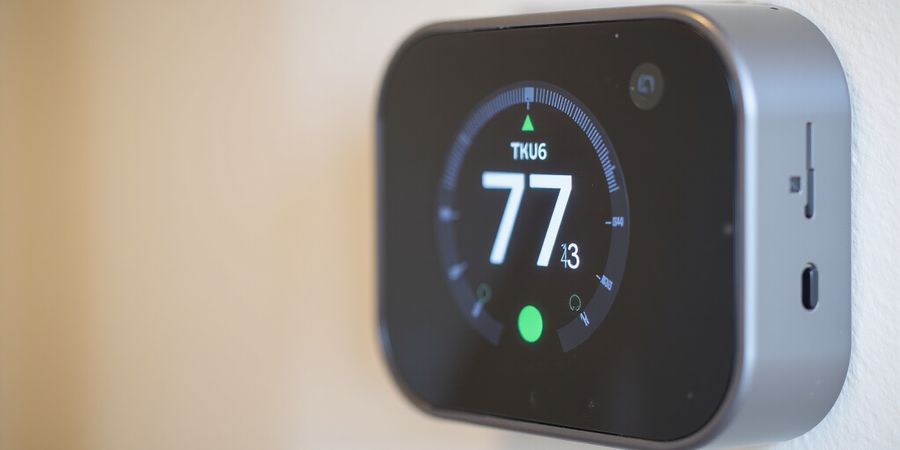
We all love the convenience of a smart home, but what happens when a device suddenly drops out? Picture your thermostat or smart bulb lighting up for a second, then disappearing. The culprit? A hidden network identifier we rarely think about.
Why MAC Addresses Matter
Every Ethernet or Wi‑Fi interface carries a unique MAC address—a hardware fingerprint that keeps local traffic in check. Think of it as a postal code for data packets: it tells your router where to deliver each byte.
What’s Inside a MAC Address
A MAC address is a 48‑bit string, written as six hex pairs like 00:1A:2B:3C:4D:5E. The first three pairs form the Organizationally Unique Identifier (OUI), assigned by IEEE to a manufacturer. The remaining three pairs uniquely identify the device itself. This structure guarantees that no two devices on the planet share the same hardware ID.
Quick Reference Table of Common MAC Address Prefixes
Prefix (first 3 octets) | Manufacturer |
|---|---|
00:1A:2B | Apple |
00:1B:44 | Cisco |
00:1C:42 | Samsung |
00:1D:7E | Huawei |
00:1E:68 | Dell |
Everyday Impact
When you stream a movie, your router uses the MAC address to route the stream to the right device. When you log into a secure Wi‑Fi network, the router verifies that your MAC matches the list of approved devices. Even simple actions—like connecting a new phone—trigger a MAC lookup that can lock you out if you’re not whitelisted.
Protecting Yourself from Spoofing
Hackers can spoof a MAC address, masquerading as a trusted device. This sneaky trick lets them bypass basic MAC filtering or trick your smart thermostat into sending data to a malicious server. The solution? Combine MAC filtering with strong WPA3 encryption and, ideally, a VPN that masks your device’s true identity.
Forest VPN: Your Extra Layer of Security
Forest VPN encrypts all traffic, hiding your IP from prying eyes. With a simple click, you can create a secure tunnel that keeps your smart home devices safe from eavesdroppers. Forest’s user‑friendly interface lets even non‑techies set up a VPN in seconds, adding a robust shield against spoofing and data theft.
Real‑World Example
Last month, a homeowner in Austin noticed unauthorized devices popping up on their network. After enabling MAC filtering and installing Forest VPN, the intruder’s traffic vanished. The homeowner now streams 4K movies without a hitch, confident that their smart devices are protected.
Take Action Today
Identify your device’s MAC address, whitelist it on your router, and wrap the whole setup with Forest VPN. The combination of hardware identity and encrypted tunneling turns a fragile home network into a fortress.
Next Steps
In the next section, we’ll dive into how to locate and manage MAC addresses across Windows, macOS, Android, and iOS—so you can keep your smart home humming smoothly.
Frequently Asked Questions
Is it safe to share my MAC address? Yes, a MAC address is a hardware identifier that is not personally identifying. However, sharing it publicly can allow attackers to target your device if they have additional information.
How can I change my MAC address? Most operating systems allow you to change the MAC address temporarily via network settings or command line. For permanent changes, you may need to modify firmware or use third‑party tools.
Can I use a VPN to hide my MAC address? A VPN encrypts your traffic and hides your IP address, but the MAC address remains visible on your local network. For full anonymity, you would need to use a virtual machine or a dedicated device.
Further Resources
For more detailed instructions, see our Router Setup Guide and Network Security Best Practices.
Ever wonder how your router knows exactly where to drop a video call? The answer is tucked inside a tiny string of six hexadecimal pairs—a 48‑bit MAC address that every NIC carries. Think of it as a hardware fingerprint that keeps local traffic in line, like a postal code for data packets.
Definition
A MAC address is a fixed 48‑bit binary number, written as six groups of two hex digits separated by colons or dashes—e.g., 00:1A:2B:3C:4D:5E. The first three octets form the Organizationally Unique Identifier (OUI), assigned by IEEE to a manufacturer. The remaining three octets are the device’s unique identifier, guaranteeing global uniqueness across the planet.
Bit layout
Octet | Bits | Meaning |
|---|---|---|
1 | 0‑7 | OUI – Vendor Prefix |
2 | 8‑15 | Device Identifier |
3 | 16‑23 | Device Identifier |
4 | 24‑31 | Device Identifier |
5 | 32‑39 | Device Identifier |
6 | 40‑47 | Device Identifier |
The second least‑significant bit of the first octet tells you whether the address is permanent (global) or locally administered (set by the owner). A value of 0 means it’s globally unique; 1 indicates a locally overridden address.
Scale
There are 2^48 ≈ 281 trillion possible MAC addresses. The world’s device count is a blink in comparison, so collisions are virtually impossible unless someone intentionally clones a NIC.
Core Role in Networking
Switches use MAC addresses to forward Ethernet frames to the correct port. ARP tables resolve IP addresses to MACs, turning logical routing into physical delivery. When a device joins a network, its MAC becomes a permanent tag in logs, inventory lists, and troubleshooting workflows. IT teams use them to map assets, enforce access controls, and diagnose problems when a packet disappears mid‑hop.
Quick Reference Table of Common Prefixes
OUI (first three octets) | Manufacturer |
|---|---|
00:1A:2B | Cisco |
00:1B:44 | Apple |
00:1C:42 | Dell |
00:1D:7E | HP |
00:1E:C2 | Microsoft |
| 00:1F:5E | Samsung | (These are just a few examples; the full list is maintained by IEEE.)
Finding Your MAC Address
Platform | Command / Settings |
|---|---|
Windows | |
macOS | |
Linux | |
Android | Settings → About phone → Status → Wi‑Fi MAC address |
iOS | Settings → General → About → Wi‑Fi Address |
Blocking or Whitelisting MAC Addresses on Home Routers
- Log into your router’s admin interface (usually
192.168.1.1or192.168.0.1). - Navigate to MAC Filtering or Access Control.
- To block: add the target MAC to the deny list.
- To whitelist: add it to the allow list and disable the default deny rule.
- Save changes and reboot the router if required.
Security Considerations
- Spoofing: Anyone can change the MAC address on their device, so MAC filtering is not a strong security measure on its own.
- Privacy: MAC addresses are broadcast in Wi‑Fi beacons; consider using MAC randomization on mobile devices to reduce tracking.
- Best Practices: Combine MAC filtering with WPA3 encryption and a strong password for the router’s admin interface.
In the next part we’ll dive deeper into how to change your MAC address for troubleshooting or privacy, and how to use these identifiers to maintain a clean network inventory. Ready to explore? Let’s keep going.
48‑Bit Structure Breakdown: From Vendor Prefix to Device ID
Ever seen a MAC address like 00:1A:2B:3C:4D:5E and wondered what each part means? Think of it as a postal code for data packets. It breaks into six octets that let your network know exactly who’s talking. The first three octets, the Organizationally Unique Identifier (OUI), are a 24‑bit prefix given by IEEE to a manufacturer. The last three octets are a 24‑bit device identifier that the vendor assigns to each NIC it produces. Together they form a globally unique fingerprint.
Octet‑Level Map
Octet | Bits | Role | Example |
|---|---|---|---|
1 | 0‑7 | OUI – Vendor Prefix | |
2 | 8‑15 | OUI | |
3 | 16‑23 | OUI | |
4 | 24‑31 | Device ID | |
5 | 32‑39 | Device ID | |
6 | 40‑47 | Device ID | |
Notice how the first three octets sit side‑by‑side, like the first three pages of a book that reveal the author. The remaining three pages carry the unique story each device tells.
The IEEE OUI: A 24‑Bit Prefix
IEEE hands out a unique OUI to each manufacturer. For instance, 00:1A:2B belongs to Intel, while 00:1B:44 is Cisco. The OUI lets you spot the vendor at a glance, without digging into firmware—like spotting a brand logo on a product.
Local‑Admin Bit Explained
In the first octet, the second least‑significant bit toggles between 0 (globally unique) and 1 (locally administered). Spot a 1, and you know the MAC was set manually by a network admin or the OS—useful for testing or when a vendor wants to dodge conflicts.
Practical Implications
- Reading a MAC: Cut the address at each colon. The first three groups reveal the vendor, the last three pinpoint the exact hardware.
- Local Administration: A
1in that second bit signals the address could be spoofed or altered, so stay wary when relying on it for security. - Hardware Inventory: Tools can scan batches of MACs, use the OUI to map devices to vendors, and flag duplicate device IDs that might trigger ARP storms.
Mastering this breakdown lets you troubleshoot faster, spot rogue devices, and keep your network’s fingerprint clean. Next, we’ll see how to locate these addresses on various operating systems.
Takeaway
Grab a MAC address, split it into octets, and read the story it tells about the manufacturer and device. Use the OUI to identify vendors quickly, keep an eye on the local‑admin bit for potential spoofing, and rely on the device ID for precise inventory.