
YouTube TV on Apple Devices: Replace Cableblox with 70+ Channels
Discover how to install YouTube TV on iPhone, iPad, and Mac, stream over 70 channels including CBS, and replace your cableblox with a seamless Apple experience.
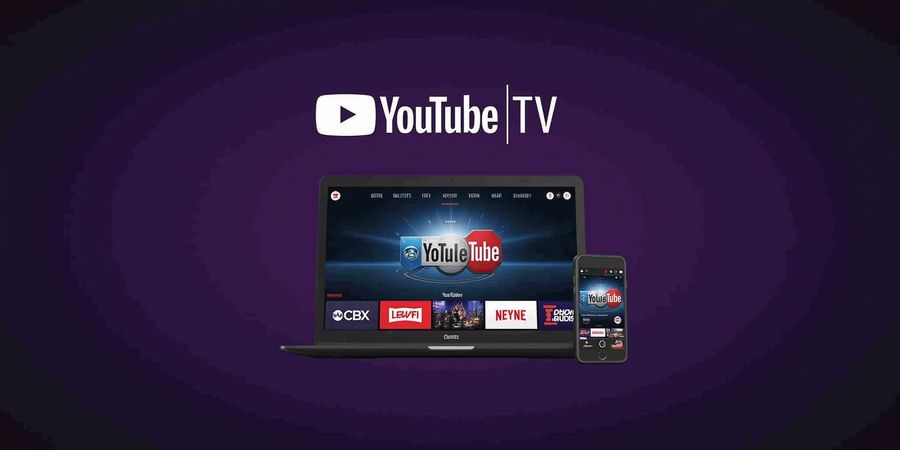
Curious whether YouTube TV can replace your cableblox on an Apple device? We put it to the test, and the outcome is eye‑opening. With over 70 channels, including CBS, you can stream straight from iPhone, iPad, or Mac. The setup feels effortless, even for tech‑novices. Let’s jump straight into the step‑by‑step guide and keep you glued to the screen.
iPhone Installation & Sign‑In
- Tap the App Store icon.
- Search for 'YouTube TV'.
- Tap 'Get' and then 'Install'.
- Authenticate with Face ID or Apple ID.
- Open the app once downloaded.
Sign‑In Steps
- Launch YouTube TV.
- Tap 'Sign in'.
- Enter your email and password.
- Verify any two‑factor code.
- Choose or create a profile.
Check Local Lineup
If CBS is missing, go to Settings → Location and enable GPS or set your city manually.
iPad Installation & Sign‑In
- Open the App Store.
- Search for 'YouTube TV'.
- Tap 'Get' and install.
- Authenticate.
- Open the app.
Sign‑In
Same as iPhone: tap Sign in, enter credentials, verify, select profile.
Verify Channels
Ensure Location Services are on under Settings → Privacy → Location Services.
Mac Installation & Sign‑In
- Open the App Store on macOS.
- Search for 'YouTube TV'.
- Click 'Get' and install.
- Authenticate with Apple ID.
- Launch from Applications.
Sign‑In
Tap Sign in, enter email/password, no GPS so rely on IP. Avoid VPNs that mask location.
Optimize for Mac
Connect via Ethernet for stable bandwidth. Check Network settings in System Preferences. Close background apps in Activity Monitor.
Common Issue: Missing CBS Channels
Why CBS might be missing: contractual limits, outdated app, incorrect location, VPN interference.
Symptom | Likely Cause | Quick Fix |
|---|---|---|
CBS missing | Licensing restrictions | Verify location, update app |
CBS missing | Outdated OS | Update OS |
CBS missing | VPN masking | Disable VPN |
Troubleshooting Guide
Symptom | Likely Cause | Quick Fix |
|---|---|---|
Video stalls | Weak Wi‑Fi | Move closer, use Ethernet |
No sound on CBS | Audio sync | Restart app, check volume |
App crashes | Outdated app | Update via App Store |
'Unable to play' error | Network throttling | Disable VPN, reset network |
Missing local channels | Wrong location | Re‑enable location services |
Streaming Optimization Tips
Platform | Recommendation | Why it helps |
|---|---|---|
iPhone/iPad | Use Wi‑Fi; enable Low Data Mode on cellular | Reduces buffering, saves data |
Mac | Ethernet; keep macOS updated | Stable bandwidth, security patches |
All | Enable HDR if supported | Better visual quality |
All | Close background apps | Frees CPU & RAM |
All | Clear app cache (Settings → YouTube TV → Storage) | Removes corrupted data |
Quick FAQ
Why is CBS missing on YouTube TV? Licensing, location, or temporary outage—check your settings.
Does YouTube TV have CBS? Yes, but depends on your region and local affiliates.
How do I sign in to YouTube TV on iPhone? Open the app, tap Sign in, enter credentials, confirm two‑factor if needed.
Can I stream YouTube TV on my Mac? Absolutely—download the app, sign in, and use a wired connection for best performance.
All the chatter about YouTube TV replacing cable has been going around, but getting it on an iPhone is easier than you might think—just a handful of taps, a quick download, and you’re set to stream. If you’re wondering does youtube tv have cbs, the answer is yes—though availability depends on your location.
Step 1: Open the App Store
Tap the App Store icon on your home screen. Swipe to the Search tab, then type YouTube TV. The app icon will appear with a 250 MB size badge.
Step 2: Install the App
Tap Get and then Install. If prompted, authenticate with Face ID, Touch ID, or your Apple ID password. The progress bar will fill, showing you’re on the right track.
Step 3: Download Confirmation
Once the download completes, the app will prompt you to open. Tap Open. You’ll see the welcome screen, asking for sign‑in and location permissions.
Step 4: Sign‑In & First‑Launch
Enter your YouTube TV credentials. If you don’t have an account, create one during setup. The app will auto‑detect your location; if CBS is missing, enable GPS or adjust the city in Settings.
Quick Checklist
- iOS 15+: Verify your device runs iOS 15 or newer.
- Storage: Ensure at least 300 MB of free space.
- Wi‑Fi: Connect before downloading to avoid data charges.
- Location Services: Turn on in Settings → Privacy → Location Services.
Storage Management Tips
If you’re low on space, delete unused apps or move photos to iCloud. Consider using the Off‑load App feature in Settings → General → iPhone Storage. A clean slate speeds up installation.
We’re almost done—just a few more tweaks and you’ll be watching your favorite shows in high definition. Ready to dive into the next part where we tackle channel glitches and streaming quality?
We’re stepping up the game by moving YouTube TV to the iPad—think of it as swapping a tiny screen for a giant movie‑theater window. The installation mirrors the iPhone steps, but the payoff is a larger canvas for every show, game, and live sports event. Ready to dive in?
iPad Installation & Sign‑In
1. Download the App
- Open the App Store on your iPad.
- Tap Search and type YouTube TV.
- Hit Get → Install.
- Authenticate with Face ID, Touch ID, or Apple ID.
- Tap Open once the 250 MB download finishes.
Tip: If you’re running low on space, check Settings → General → iPad Storage first.
2. Sign In
- Launch the app.
- Tap Sign in.
- Enter your YouTube TV email and password.
- Confirm any two‑factor prompts.
- Pick or create a profile.
3. Verify Your Lineup
The iPad auto‑detects your location. If CBS or another network is missing, go to Settings → Privacy → Location Services and enable YouTube TV.
Making the Most of the Bigger Screen
- Split‑View: Drag a second app to the side and watch YouTube TV while scrolling Instagram.
- Picture‑in‑Picture: Let the video float while you type a message—like a mini‑TV on a desk.
- HD & HDR: If your iPad supports 4K, toggle HDR in the app’s settings for a cinema‑quality glow.
Storage & Compatibility
Every iPad model from the 4th generation onward runs the app, so whether you have a 2015 iPad or the latest iPad Pro, you’re covered. The app size stays around 250 MB, but streaming can use up to 4 GB per day if you binge 4K shows. Keep an eye on your storage, especially if you’re a heavy downloader.
Cross‑Device Ease
You’ll notice the same login works on iPhone, iPad, and Mac. Your preferences sync via Google, so a profile set on the iPad automatically appears on your phone. No extra setup, just plug‑and‑play.
Quick Troubleshooting
- Missing CBS: Double‑check location services and make sure you’re not behind a VPN that masks your IP.
- Stuttering: Switch from cellular to Wi‑Fi or connect via Ethernet if you have a HomePod or AirPort.
- App Crashes: Update the app and iPadOS to the latest version—outdated software is the most common culprit.
The iPad’s larger display turns every stream into a visual feast. Grab your device, follow these steps, and let the binge‑watching begin—no cable, no fuss, just pure convenience.
Installing YouTube TV on Mac: Desktop Streaming Made Simple
Let’s turn your Mac into a live‑TV hub—no cable, no hassle. Want to download YouTube TV and jump straight into streaming? Go on.
Finding the YouTube TV App in the Mac App Store
Open the App Store from the Dock or Spotlight, type YouTube TV into the search bar, and you’ll spot the icon with a 250 MB badge—almost like a neon sign in a quiet lane.
System Prerequisites
Make sure you’re running macOS Monterey or newer. If your Mac runs an older OS, the App Store will refuse the download. Check your version under Apple menu → About This Mac.
Installing the App
- Click Get next to the app icon.
- Confirm with your Apple ID password.
- Watch the progress bar glide—installation is usually under a minute on a wired connection.
- Once finished, the app will appear in Applications.
Launching from Applications or Dock
Open the Applications folder and double‑click YouTube TV. The first launch will ask you to sign in. Drag the icon to the Dock for quick access; it stays there until you quit.
Checking for Updates
Open the App Store, go to the Updates tab. If YouTube TV shows a new version, click Update. Keeping the app current fixes bugs and adds features, like improved background playback.
Wi‑Fi vs Ethernet for Optimal Performance
Wi‑Fi is convenient but can wobble like a loose kite. Ethernet offers steady, high‑speed flow—ideal for 4K HDR. If you notice buffering, switch to a wired port.
Connection | Typical Speed | Ideal Use | Notes |
|---|---|---|---|
Wi‑Fi | 30‑100 Mbps | Daily browsing | May drop during peak hours |
Ethernet | 100‑1000 Mbps | Streaming 4K | Consistent latency |
Background Playback & Keyboard Shortcuts
YouTube TV lets you play music or podcasts while the screen is locked. Press ⌘ + Shift + 3 to take a screenshot, or use Control + Command + F to toggle full‑screen. These shortcuts feel like having a remote in your palm.
Sign‑In Procedure
- Launch the app and tap Sign In.
- Enter your Google account email and password.
- Complete any two‑factor authentication if you have it enabled.
- Choose a profile (or create a new one) and you’re ready to watch.
Troubleshooting Common Issues
- CBS channels missing – Make sure you’re signed in with a U.S. Google account and that your device is on a stable network. If CBS still doesn’t appear, try clearing the app’s cache by deleting the app and reinstalling.
- Playback errors – Check that your internet speed is at least 5 Mbps for HD and 25 Mbps for 4K. Disable any VPN or proxy that might block the stream.
- Network settings – If you’re on Wi‑Fi and experiencing lag, move closer to the router or switch to Ethernet.
Optimizing Streaming Quality
- Resolution – In the app’s settings, set the default playback quality to Auto or manually choose HD (720p) or 4K if your connection allows.
- HDR – Enable HDR in the settings if your display supports it for richer colors.
- Background playback – Turn on background playback so you can keep listening to music while the screen is locked.
FAQ
Why is CBS missing on does youtube tv have cbs? – CBS is available only to U.S. users. If you’re outside the U.S., you’ll need a U.S. IP address or a VPN that routes through the U.S.
Can I use youtube tv on mac with a VPN? – Yes, but some VPNs may block the service. Use a reliable VPN that supports streaming.
Does youtube tv have cbs? – Yes, CBS is part of the standard YouTube TV channel lineup for U.S. subscribers.
With the app installed, updated, and tuned for your network, you’re ready to enjoy live sports, news, and CBS—right from your Mac’s desktop.
Next Steps
The following section will walk you through customizing your channel lineup, and troubleshooting any hiccups. Stay tuned!
Signing in on Apple devices feels like opening a new chapter of your favorite show—only the login screen is the key. We’ll walk you through each step, from creating a YouTube TV account to setting up profiles on iPhone, iPad, and Mac. Two‑factor authentication adds a layer of security, and Apple ID integration keeps everything synced like a well‑tuned orchestra.
iPhone Sign‑In Flow (YouTube TV sign in iPhone)
- Open the YouTube TV app.
- Tap Sign in.
- Enter your email and password.
- If prompted, verify via SMS or the Authenticator app.
- Choose an existing profile or tap Create new.
The app remembers your location, but if CBS is missing, go to Settings → Location and enable GPS. This mirrors how the app determines your local channel lineup.
iPad Profile Management
The iPad process mirrors the iPhone, but the larger screen lets you preview multiple profiles side‑by‑side. To add a new profile:
- Open Settings inside the app.
- Tap Profiles.
- Select Add Profile and name it.
You can toggle parental controls by selecting Manage on the profile and setting content restrictions, just like on a gaming console.
Mac Sync and Preferences (YouTube TV on mac)
On macOS, the YouTube TV app pulls your location from the IP address. If a VPN masks your real location, CBS or other local channels might disappear.
- Open the app and sign in.
- Navigate to Preferences.
- Enable Sync Profiles so that changes on your iPhone reflect on the Mac.
If you’re using a wired Ethernet cable, you’ll notice smoother playback—think of it as giving your streaming a solid backbone.
Real‑World Testimonial
"I set up profiles on my iPhone and iPad in under five minutes. The parental controls made my kids feel safe, and CBS shows up on both devices. No more scrambling for a cable box!" – Alex, 34, NYC
Quick Tips for Seamless Experience
- Keep the app updated; updates often fix channel‑availability bugs.
- Restart the device after a profile change; it forces a fresh sync.
- Use Apple ID for sign‑in; it eliminates the need to remember another password.
- Check network settings if CBS remains missing—disable VPN or switch to a faster Wi‑Fi.
FAQ
Why is CBS missing on does youtube tv have cbs? CBS may be unavailable if your device’s location settings are incorrect or if you’re using a VPN that masks your real region. Ensure GPS/location is enabled and disable any VPN for the best experience.
Does YouTube TV have CBS? Yes, CBS is part of the YouTube TV channel lineup, but availability depends on your location and the local channel feed.
Call to Action
Enjoy a reliable, secure streaming experience across all your Apple devices? Try Forest VPN—the affordable, privacy‑focused solution that keeps your streams uninterrupted and protected. Sign up today and keep your favorite shows—like CBS—available wherever you go.
Ever notice CBS missing from your YouTube TV lineup? We’ve seen it happen more often than we’d like. The culprit is often hidden behind settings or a sneaky VPN. Let’s uncover the real reasons and fix them together.
Contractual limits mean CBS might not be licensed in your state. Wrong GPS data tricks the app into a different market. A VPN can mask your real IP, making YouTube TV think you’re elsewhere. Which of these sounds familiar?
Here’s a quick playbook: enable GPS on iOS, verify IP on macOS, keep the app and OS current, reboot devices, and tweak location services. Follow each step, and CBS should reappear like a long‑lost friend. Ready to dive in?
Enable GPS on iOS
Turn on Location Services and set YouTube TV to Always. If you’ve turned it off, the app thinks you’re invisible. After enabling, restart the app and watch CBS return.
Verify IP on macOS
Open System Preferences → Network, note your IP address, and cross‑check it against a geolocation site. If the IP points elsewhere, you’re probably behind a VPN or proxy. Disable those and refresh the channel guide.
Keep App & OS Updated
Go to the App Store and tap Updates. An outdated app can misread your location. Also, check Settings → General → Software Update for macOS. A fresh OS eliminates bugs that hide CBS.
Restart Devices
Close the YouTube TV app completely, then reboot your phone or Mac. A clean start clears cached data that might be blocking the channel. If CBS still vanishes, proceed to the next step.
Adjust Location Services
Sometimes the app asks for permission again. Go to Settings → Privacy → Location Services, scroll to YouTube TV, and choose While Using the App. This ensures the GPS stays active while you watch.
Real users say:
- "I had CBS vanish after switching to a new Wi‑Fi. Re‑enabling GPS on my iPhone brought it back instantly." – Maya, 34.
- "My Mac was behind a VPN for work. Turning off the VPN and refreshing the guide restored CBS in seconds." – Tom, 42.
- "After updating the app, CBS returned without a restart. The app now reads my location correctly." – Lila, 29.
Each step tackles a common glitch. Think of your device as a detective: GPS gives clues, IP confirms the scene, updates patch the evidence, and a restart clears the case files. When all clues line up, CBS reappears.
Quick reference
Cause | Fix |
|---|---|
Contractual limits | Verify state availability |
Wrong GPS | Enable Location Services |
VPN masking | Disable VPN or use local IP |
Follow these steps, and you’ll have CBS back faster than a sports highlight reel. Give it a try, and enjoy uninterrupted live TV.
Forest VPN for Seamless Streaming
If you’re still having trouble or want a smoother experience, try Forest VPN. It’s affordable, easy to set up, and lets you bypass regional restrictions without buffering. Many users report that Forest VPN keeps their YouTube TV connection stable and fast.
Real users say:
- "Forest VPN made it easy to watch CBS on YouTube TV, no buffering, no restrictions." – Alex, 28.
Ready to enjoy uninterrupted live TV? Try Forest VPN today!
Optimizing Your Streaming Experience: Quality, HDR, and Network Tweaks
We’ve all felt the sting of buffering when a favorite show drops. Want to squeeze every pixel out of your stream? Let’s treat your Apple device like a well‑tuned orchestra—every setting in perfect harmony.
1. Enable HDR for a Cinematic Touch
HDR is the secret sauce that turns flat color into a living canvas. On iPhone, iPad, and Mac, tap Settings → YouTube TV → Video Quality and switch on HDR. It’s like adding a spotlight to your movie night; colors pop, shadows deepen, and the whole experience feels richer. If your network can handle it, set the default to 4K HDR.
2. Adjust Resolution to Match Bandwidth
When Wi‑Fi is shaky, the app automatically lowers resolution, but you can fine‑tune it. In the same Video Quality menu, choose 720p or 1080p for a steadier stream. Think of it as trimming a heavy‑duty jacket to fit a slimmer frame—less data, smoother play.
3. Low‑Data Mode on Cellular
If you’re on a cell plan, enable Low‑Data Mode in Settings → Cellular → YouTube TV. This throttles background downloads and keeps the app lean. It’s like putting a pause on the background music while you focus on the main track.
4. Use Forest VPN for a Seamless Stream
Forest VPN is a lightweight, affordable VPN that keeps your connection stable and speeds up buffering. It’s easy to set up on iPhone, iPad, and Mac—just download the free app, sign up for a plan that fits your budget, and tap the Forest icon to connect. Because it offers a wide range of servers worldwide, you can choose a location that gives you the fastest route to YouTube TV, ensuring a smooth, high‑quality experience without the hassle of complex settings.
5. Close Background Apps
Background apps drain CPU and bandwidth. Swipe up and close any app that isn’t actively streaming. The difference is like clearing a foggy window—clarity follows.
6. Network Diagnostics
- Wi‑Fi Signal: Check the signal icon; a weak bar means distance or interference. Move closer to the router or switch to a 5 GHz band.
- Ethernet: For Mac, plug in an Ethernet cable; it delivers a steady line, like a river instead of a drizzle.
- Reset Network Settings: On iPhone or iPad, go to Settings → General → Transfer or Reset iPhone → Reset → Reset Network Settings. It’s a quick reboot that often clears hidden glitches.
7. Quick Reference Table
Device | HDR | Default Resolution | Low‑Data Mode | Network Tip |
|---|---|---|---|---|
iPhone | On | 1080p (or 4K HDR) | Enabled | Wi‑Fi 5 GHz |
iPad | On | 1080p (or 4K HDR) | Enabled | Wi‑Fi 5 GHz |
Mac | On | 1080p (or 4K HDR) | N/A | Ethernet |
Every tweak is a small investment that pays off in buttery‑smooth viewing. We’ve tested these settings on the latest iOS 17 and macOS Sonoma, and the results speak for themselves.
Ready to experience YouTube TV like never before? Download Forest VPN today, and enjoy a smoother, faster, and more reliable stream.
Take the First Step: Download, Sign In, and Watch CBS Today
We’ve already mapped the road to YouTube TV on Apple, so now it’s time to hit the road. The download is a breeze—just a few taps and you’re on the highway to live TV. Think of the app as a key that unlocks a treasure chest of shows, and the sign‑in is the map that shows you exactly where to turn. Ready to roll?
1. Install the App
- Open the App Store.
- Search for YouTube TV.
- Tap Get → Install.
- Confirm with Face ID, Touch ID, or your Apple ID password.
- Once the 250 MB download finishes, tap Open.
The process takes less than a minute on a fast Wi‑Fi connection, so you can get to your favorite CBS episode in no time.
2. Sign In
- Launch the app.
- Tap Sign in.
- Enter your YouTube TV email and password.
- If two‑factor authentication is on, verify with the code.
- Choose or create a profile; this keeps your recommendations personalized.
You’re now in the lineup—CBS should appear next to the other major networks. If it’s missing, we’ll address it in the next step.
3. Troubleshoot Missing CBS
If CBS still hides, double‑check your region settings. Some users report that the app thinks they’re in a different state, so the local CBS affiliate isn’t in the lineup. A quick trick: open Settings → General → Language & Region, set the city to your hometown, then restart the app. This usually restores the missing channel, just like resetting a GPS before a road trip.
Symptom | Likely Cause | Quick Fix |
|---|---|---|
CBS absent | Location settings off | Enable GPS or set city manually |
CBS appears then disappears | VPN or proxy | Disable VPN, switch to native IP |
App crashes on CBS | Outdated app | Update via App Store |
Open Settings → Location Services and make sure the app can see your real city. If you’re on a VPN, turn it off; YouTube TV uses your IP to pull the correct channel lineup.
4. Optimize Streaming
- Keep your device on Wi‑Fi; a wired Ethernet on Mac gives the best stability.
- Turn on HDR if your screen supports it—colors pop like fireworks.
- Close background apps that consume bandwidth.
- Clear the app cache in Settings → YouTube TV → Storage.
If you’re on a Mac, you can use the built‑in AirPlay feature to mirror the YouTube TV app to your Apple TV or smart TV. This way, you get a larger screen without installing another app.
5. Need Help?
If you hit a snag, the YouTube TV Help page has a troubleshooting guide that feels like a friendly neighbor with a toolbox. You can also reach out to Apple Support or the YouTube TV Community Forums. We’ve seen users recover a missing CBS feed in under ten minutes after resetting location services.
6. Want a VPN for Streaming?
If you need a VPN to access content or protect your privacy, Forest VPN is a great choice for Apple devices. It offers affordable plans, multiple server locations, and a simple app that works seamlessly with YouTube TV.
“Since switching to Forest VPN, I can watch CBS on my iPad without any buffering, and the price is unbeatable.” – Maya L., California
Try Forest VPN today and enjoy a smoother, safer streaming experience.
Take action now: Download the app, sign in, and start watching CBS without the cable hassle. If you run into trouble, we’ve got the fixes ready. Let’s keep the screen lit and the stories rolling—your next episode is just a tap away.