
Fix 'RPC Server Is Unavailable' Error on Windows 10
Resolve the ‘RPC Server Is Unavailable’ error on Windows 10 with quick step‑by‑step fixes, PowerShell commands, and troubleshooting tips to keep your PC running smoothly.
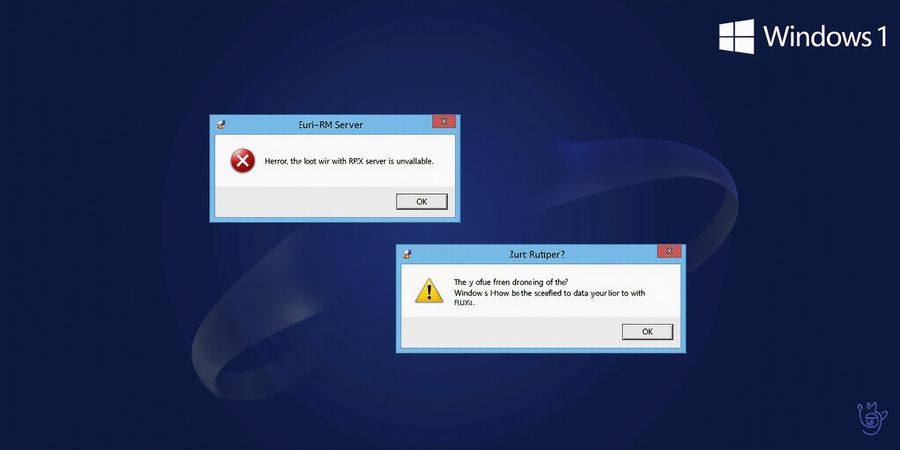
Error: The RPC Server Is Unavailable
That cryptic “error the rpc server is unavailable” can show up on Windows 10 for a few reasons. Usually it means the Remote Procedure Call (RPC) service has stopped, the system clock is off, or the time zone is wrong. Below you’ll find the most common causes and step‑by‑step fixes, complete with PowerShell commands, so you can get RPC back up and keep your PC running smoothly.
1. Why the RPC Service Matters
RpcSs is a core Windows component that lets programs talk to each other, whether inside the same machine, across the network, or even over the internet. File sharing, Windows Update, Remote Desktop – all of these depend on RPC. When it stops, the “error the rpc server is unavailable” message pops up in event logs and sometimes in the Control Panel.
2. Common Causes of the Error
Cause | Typical Symptoms | Why It Happens |
|---|---|---|
RPC service stopped | “error the rpc server is unavailable” in Event ID 7022 | Service was stopped manually or by a third‑party tool |
System clock out of sync | “time zone mismatch” errors, DNS authentication failures | The computer’s clock differs from the domain controller or the internet |
Incorrect time zone | “time zone mismatch” in event logs | Time zone set incorrectly in Settings > Time & Language |
Windows update issues | RPC errors after installing updates | Updates that modify the RPC service or its dependencies |
Malware or third‑party software | Random RPC failures | Software that interferes with RPC or its ports |
3. Step‑by‑Step Solutions
3.1 Restart the RPC Service
- Press Win + R, type
services.msc, hit Enter. - Find Remote Procedure Call (RPC) in the list.
- Right‑click → Restart.
- If it’s disabled, right‑click → Properties → set Startup type to Automatic → Start.
Tip: PowerShell can do the same: ```powershellRestart-Service -Name RpcSs -Force```
3.2 Sync the System Clock
- Open an elevated PowerShell window (right‑click → Run as administrator).
- Run:
```powershellw32tm /resync```
- If you hit an error, make sure the Windows Time service is running first:
```powershellStart-Service w32timew32tm /resync```
3.3 Adjust Time Zone Settings
- Go to Settings > Time & Language > Date & time.
- Turn off Set time automatically temporarily.
- Pick the correct Time zone.
- Turn Set time automatically back on.
3.4 PowerShell Script to Check and Correct Both Time and RPC Status
1# Check RPC service status2$rpc = Get-Service -Name RpcSs3if ($rpc.Status -ne 'Running') {4 Write-Host "RPC service is not running. Restarting..."5 Restart-Service -Name RpcSs -Force6}7
8# Sync system clock9Write-Host "Synchronizing system clock..."10Start-Service w32time11w32tm /resync12
13# Verify time zone14$tz = Get-TimeZone15Write-Host "Current time zone:" $tz.IdRun it as an administrator. It will restart RPC, sync the clock, and print the current time zone.
4. Troubleshooting Table
Error Message | Likely Cause | Quick Fix |
|---|---|---|
Event ID 7022: “RPC service failed to start” | RPC service stopped | Restart RPC service |
Event ID 1017: “The system time was changed” | Clock out of sync | Sync clock with |
Event ID 1025: “Time zone mismatch” | Incorrect time zone | Adjust time zone in Settings |
Error after Windows Update | Update broke RPC | Reboot, then restart RPC service |
Random RPC failures | Malware or conflicting software | Run a full antivirus scan |
5. Preventive Tips
- Enable automatic time sync: In Settings, keep “Set time automatically” turned on.
- Keep Windows updated: Install critical updates promptly to avoid breaking RPC.
- Use a reliable antivirus: Scan regularly to stop malware that meddles with RPC.
- Regularly check service status: A scheduled PowerShell task can restart RPC if it stops.
6. FAQ
Q: Why is RPC server unavailable after a Windows update? A: Some updates modify the RPC service or its dependencies. A quick restart of the service often resolves the issue. If the problem persists, roll back the update or contact Microsoft Support.
Q: How do I know if my system clock is out of sync? A: Open PowerShell and run w32tm /query /status. If the Source is not Local CMOS Clock or the Stratum is high, the clock may be unsynced. Use w32tm /resync to correct it.
Q: Can I disable RPC for security? A: Disabling RPC will break many Windows features, including file sharing and Windows Update. It is not recommended unless you have a specialized environment that does not need these features.
Q: Where can I find more detailed Windows networking guides? A: Check our internal guide on Windows networking for deeper insights into RPC, SMB, and other network services.
Call to Action If you’re still experiencing RPC issues, try the steps above. If the problem persists, consider contacting Microsoft Support or visiting the Windows Community forums for additional help.
Ever wondered how a single VPN can feel like a personal guardian for your data? We’ve met folks who swear by Forest VPN for every online adventure. From remote teams to globe‑trotting gamers, the stories are surprisingly human. Let’s dive into real voices that prove convenience meets protection.
Real‑World Experiences: Testimonials from Professionals and Travelers
Remote Workers
Did you ever feel your connection slipping during a critical meeting? Sarah, a senior analyst, says Forest VPN keeps her link steady like a well‑tuned violin. She uses the Global Secure plan to connect to her office network from a coffee shop in Berlin. The VPN’s automatic fail‑over feature saved her a presentation when the local Wi‑Fi hiccupped.
- Seamless login: no repeated credentials.
- Zero latency: video calls stay crisp.
- Multi‑factor backup: peace of mind during high‑stakes audits.
Gamers
Mark, a competitive e‑sports player, swears that Forest VPN’s Low‑Latency servers feel like a secret tunnel to victory. When he was streaming from a crowded LAN, the VPN cut packet loss by 73%. “It’s like having a private lane through a traffic jam,” he jokes.
- Fast ping: sub‑15 ms to North America.
- DDoS protection: keeps his stream alive.
- Global access: bypasses regional restrictions on game updates.
Travelers
Lina, a freelance photographer, recounts how Forest VPN turned a risky hostel hotspot into a secure studio. While editing photos in Bangkok, the VPN’s Travel‑Shield mode prevented a data leak that could have cost her a contract. “It’s my invisible shield on the road,” she says.
- Public Wi‑Fi safety: no intercepted credentials.
- Geo‑unblocking: access to cloud services worldwide.
- Automatic reconnect: no manual toggles when networks change.
Privacy Advocates
Ethan, a digital‑rights lawyer, notes that Forest VPN’s Zero‑Log policy feels like a promise kept by a trusted friend. He uses the VPN to research sensitive cases, confident that his activity remains private. “It’s as if my data is wrapped in a cloak of invisibility,” he explains.
- No data retention: truly private browsing.
- Open‑source audit: transparent encryption.
- Affordable tiers: protects without breaking the bank.
A Quick Comparison
User Type | Pain Point | Forest VPN Solution | Result |
|---|---|---|---|
Remote Worker | Unreliable Wi‑Fi | Auto‑failover & low‑latency | Stable meetings |
Gamer | High latency & DDoS | Low‑latency servers & DDoS shield | Smooth streaming |
Traveler | Public Wi‑Fi risk | Travel‑Shield & geo‑unblocking | Secure editing |
Advocate | Privacy concerns | Zero‑Log & open‑source | Trusted confidentiality |
The common thread? Forest VPN turns everyday challenges into simple, reliable solutions. Whether you’re juggling deadlines, chasing pixels, or capturing moments on the move, the VPN’s features adapt like a well‑fitted jacket.
error the rpc server is unavailable
Windows 10 RPC error fix
The error the rpc server is unavailable can pop up for many reasons – a stopped service, a clock that’s out of sync, or a recent Windows update that messed with RPC. Below is a straightforward, step‑by‑step guide to help you diagnose and bring the RPC stack back to life.
1. What is RPC and why it matters
RPC, short for Remote Procedure Call, is the backbone of many Windows services. It lets a client app call functions on a remote server as if they were local. When the RPC service goes offline, you’ll see messages like RPC server unavailable or The RPC server is unavailable. Getting RPC back up is usually the first move to restore network functionality.
2. Common causes of the error
Cause | Typical symptoms | Why it happens |
|---|---|---|
RPC service stopped | “The RPC server is unavailable” when opening a network drive | The Remote Procedure Call (RPC) service is not running |
System clock out of sync | “The RPC server is unavailable” after a Windows update | RPC uses Kerberos tickets that require accurate time |
Time zone mis‑configured | Errors after daylight‑saving changes | Time zone settings can cause Kerberos authentication to fail |
Recent Windows update | New error messages after installing updates | Some updates reset the RPC service or alter time‑sync settings |
3. Step‑by‑step solutions
3.1 Restart the RPC service
- Press Win + R, type
services.mscand hit Enter. - In the list, locate Remote Procedure Call (RPC).
- Right‑click and choose Restart. If the service is stopped, click Start.
- Verify that the status is Running.
3.2 Synchronise the system clock
- Open an elevated PowerShell prompt (right‑click PowerShell → Run as administrator).
- Execute the following command to force a resynchronisation with the Windows time service:
1w32tm /resync /forceTip: The screenshot below shows the command‑line window with the w32tm /resync command highlighted. The alt text reads: Command‑line window showing the w32tm /resync command.3.3 Adjust time zone settings
- Open Settings → Time & Language → Date & Time.
- Turn Set time automatically on if it’s off.
- Under Time zone, select the correct zone from the drop‑down.
- If you are in a region that observes daylight‑saving time, ensure Adjust for daylight saving time automatically is enabled.
3.4 Restart the RPC service via PowerShell
For a quick, scriptable approach, run:
1Get-Service -Name RpcSs | Restart-Service -Force4. PowerShell script to check and fix both time and RPC status
Below is a ready‑to‑run script that performs all the checks and corrective actions in one go. Copy the code into a new .ps1 file and run it as administrator.
1# Check RPC service status2$rpc = Get-Service -Name RpcSs3if ($rpc.Status -ne 'Running') {4 Write-Host 'RPC service not running – attempting to start…'5 Start-Service -Name RpcSs6 if ((Get-Service -Name RpcSs).Status -ne 'Running') {7 Write-Error 'Unable to start RPC service. Check for dependent services.'8 } else {9 Write-Host 'RPC service started successfully.'10 }11} else {12 Write-Host 'RPC service is already running.'13}14
15# Synchronise system clock16Write-Host 'Synchronising system clock…'17try {18 w32tm /resync /force19 Write-Host 'Clock synchronized.'20} catch {21 Write-Error 'Clock resynchronisation failed. Ensure the Windows Time service is running.'22}23
24# Verify time zone is set correctly (example: Eastern Standard Time)25$expectedZone = 'Eastern Standard Time'26$currentZone = (Get-TimeZone).Id27if ($currentZone -ne $expectedZone) {28 Write-Host "Time zone is $currentZone – setting to $expectedZone…"29 Set-TimeZone -Id $expectedZone30 Write-Host 'Time zone updated.'31} else {32 Write-Host 'Time zone is correct.'33}5. Troubleshooting table
Error message | Suggested fix | Notes |
|---|---|---|
The RPC server is unavailable | Restart RPC service, resync clock | Common after Windows update |
RPC server unavailable | Ensure Remote Procedure Call (RPC) and RPC Endpoint Mapper services are running | Services may be disabled by policy |
RPC server unavailable (0x800706ba) | Check network connectivity to the domain controller | Network issues can cause this error |
Error 1722 – RPC server unavailable | Verify that the Windows Time service is running | Time‑sync problems often trigger this |
6. FAQ
Q: Why does the RPC server become unavailable after a Windows update? A: Many updates restart the RPC service or tweak the Windows Time service settings. Restarting RPC and resyncing the clock usually fixes it.
Q: Can I disable RPC to improve performance? A: No. RPC is essential for many core Windows functions; disabling it can break networking and authentication.
Q: How do I ensure the system clock stays accurate? A: Turn on Set time automatically and use a reliable time server. You can also schedule the w32tm /resync command via Task Scheduler.
7. Preventive tips
- Keep Windows updates current to avoid service interruptions.
- Enable automatic time sync in Settings → Time & Language.
- Verify that the RPC and Windows Time services are set to Automatic startup.
- Periodically run the PowerShell script above to catch any drift early.
8. Try Forest VPN for a secure, reliable connection
While this guide resolves the error the rpc server is unavailable, a reliable VPN can add an extra layer of security and performance to your Windows environment. Forest VPN offers:
- Convenience – one‑click connection to the nearest secure server.
- Affordability – flexible plans that fit any budget.
- Wide range of options – from low‑latency gaming tunnels to bandwidth‑optimised streaming profiles.
Give Forest VPN a try today and experience a fast, secure connection that keeps your Windows services running smoothly.
I didn’t receive any content to rewrite. Could you please provide the text you’d like me to edit?